
Claude Code Auto Mode: Configure autoMode.environment
Set up autoMode.environment so the classifier understands your infrastructure and stops interrupting you with false positives.
Contributors: Manu Rubio, Ivan Garcia Villar
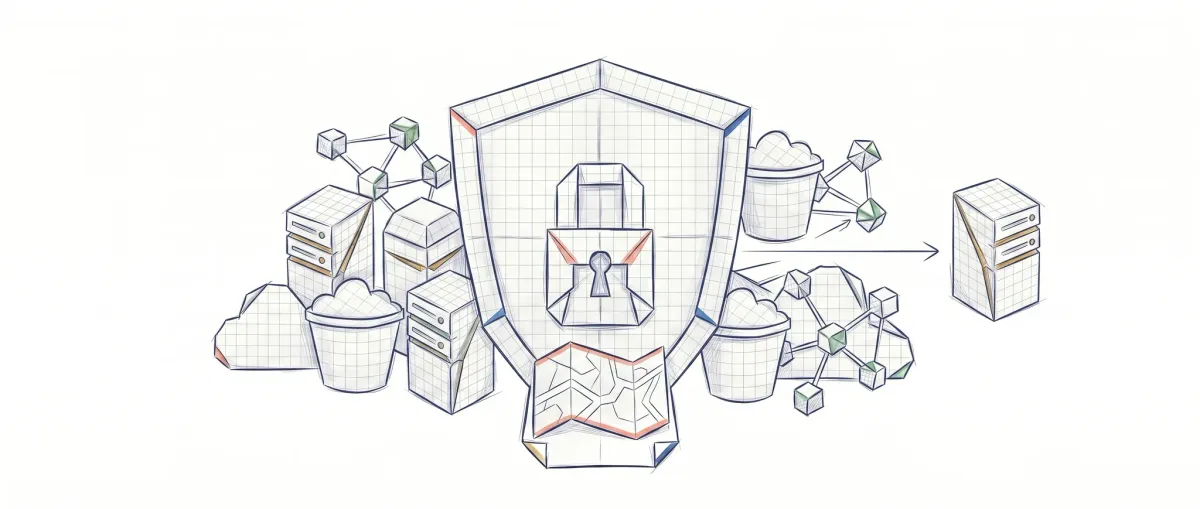
If you turned on Claude Code’s Auto Mode thinking you’d stop approving actions manually, and instead you’re hitting the button every two minutes, you didn’t do anything wrong. The problem is that the classifier behind Auto Mode doesn’t know anything about your project. It doesn’t know your company, your internal API, or your S3 bucket. To it, everything outside your working directory is suspicious.
The first time I turned it on was in a project with an internal monorepo, three services at *.acme.internal, and a couple of private S3 buckets. The classifier blocked the first push to the GitHub org, then a curl to the internal API, and five minutes later Auto Mode paused itself due to too many consecutive blocks. It wasn’t broken: it just didn’t know anything about that infrastructure.
Here I explain what that classifier is, why it blocks things it shouldn’t, and how to configure autoMode.environment so it stops interrupting you.
Before you continue, you need to know:
- What Claude Code is (Anthropic’s CLI for programming with Claude)
- What a JSON file is and how to edit it
Nothing else. You don’t need to know what a token is, a context window, or anything advanced.
What happens when Claude wants to do something
When you use Claude Code, the model doesn’t just respond with text. It can execute real actions: edit a file, run a command in the terminal, or make a request to a URL. Every time Claude decides to do one of those things, it generates what’s called a tool call (a tool invocation): basically it tells the system “I want to execute this command” or “I want to write to this file”.
Without special configuration, Claude Code asks you before each tool call: “Can I do this?” That’s the default mode. Useful at first, exhausting after an hour of work.
Auto Mode exists to solve that. Instead of asking you, Claude Code passes each tool call through an automatic classifier that decides if the action is safe.
The classifier: three decisions
Imagine a security guard at your office entrance. When someone arrives, the guard looks at them and decides: “go ahead”, “you can’t come in”, or “wait here while I call the manager”. That’s exactly what the Auto Mode classifier does.
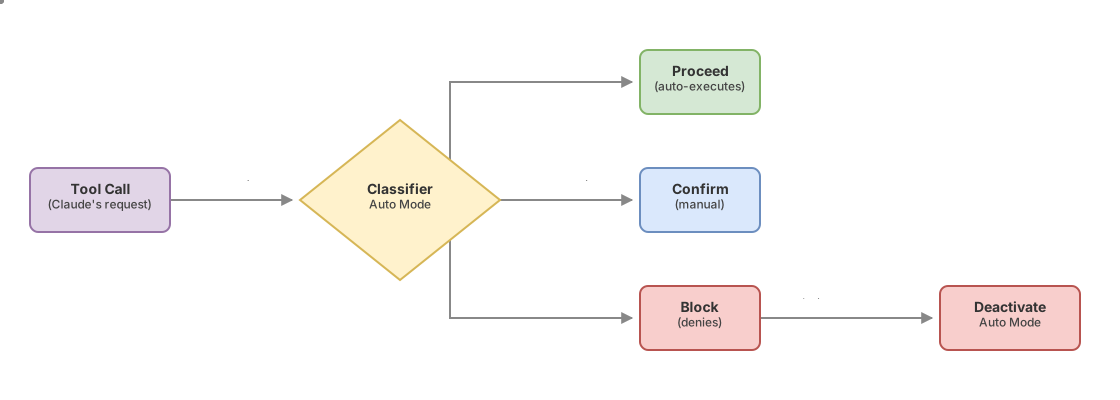
Each tool call Claude generates passes through this classifier before it executes. The classifier makes one of three decisions:
Proceed: the action looks safe, it runs without interrupting you.
Block: the action looks dangerous, it’s denied. Claude receives the reason for the block and tries to find an alternative.
Confirm: the classifier is unsure, it passes the decision to you for manual approval.
If the classifier blocks an action 3 times in a row, or 20 times total during the session, Auto Mode pauses and Claude Code goes back to asking you about everything; as soon as you approve one of those prompts, it resumes. When that happens, it’s almost always because the classifier doesn’t have enough context about your environment.
The classifier isn’t a fixed list of rules. It’s another language model (Claude Sonnet 5 by default, not whichever model you selected with /model) that runs in parallel, reads the transcript of your conversation plus the pending action, and decides. That has implications: it needs context to work well.
Why the classifier blocks your own infrastructure
Here’s the central problem: the classifier doesn’t know anything about you.
By default, the classifier only trusts your current working directory and the remotes configured in your git repository. Everything else is unknown territory. A request to api.mycompany.internal is just as suspicious to it as a request to any external server it doesn’t know.
The result? Constant blocks on routine operations:
- Pushing to your internal GitHub organization
- Writing to your company’s S3 bucket
- Calling internal services like Jenkins or Artifactory
- Using private package registries
The classifier isn’t bad or broken. It’s just being conservative with incomplete information. It’s doing its job. What’s missing is giving it the context it needs.
autoMode.environment: your infrastructure map
The autoMode.environment block in your settings is where you describe your trusted infrastructure. Not in technical terms or with regex patterns, but in natural language, as if you were explaining to a new teammate where your company’s services are.
Before we look at the code, something important: this block doesn’t go in any settings file inside the repository. The classifier reads it only from your personal settings (~/.claude/settings.json), from your organization’s managed settings, or from the JSON you pass with --settings. Neither .claude/settings.json nor .claude/settings.local.json works: as of version 2.1.207 the classifier stopped reading the second one too. The reason is security: both live in the repository directory, so a repo that commits the file — or a build step that writes it — could inject its own trust rules. If you had the block in .claude/settings.local.json, move it to ~/.claude/settings.json.
The basic structure looks like this:
// ~/.claude/settings.json — your personal configuration
{
  "autoMode": {
    "environment": [
      "$defaults",
      "Organization: Acme Corp. Primary use: software development",
      "Version control: github.com/acme-corp and all its repositories",
      "Trusted internal domains: *.acme.internal, api.acme.com",
      "Key services: CI at ci.acme.com, artifacts at artifacts.acme.com",
      "Trusted cloud buckets: s3://acme-builds, s3://acme-deployments"
    ]
  }
}
The first entry, "$defaults", is a literal token: it tells Claude Code to splice the built-in entries in at that position instead of replacing them. We’ll come back to it below, because leaving it out is the most expensive mistake in this configuration. The remaining entries are phrases: the classifier reads them as natural language instructions, not technical patterns. Write the same thing you’d tell a teammate starting this week: what the company is, where the code is, what internal services the team uses.
Anthropologic’s official documentation [1] provides a starter template covering the most common cases:
// Recommended base template — fill in the fields in braces
{
  "autoMode": {
    "environment": [
      "$defaults",
      "Organization: {COMPANY_NAME}. Primary use: {use case}",
      "Version control: {your org on GitHub/GitLab/Bitbucket}",
      "Cloud providers: {AWS, GCP, Azure...}",
      "Trusted buckets: {s3://your-bucket, gs://your-other-bucket}",
      "Internal domains: {*.internal.yourcompany.com, api.yourcompany.com}",
      "Key services: {Jenkins at ci.yourcompany.com, Artifactory at...}",
      "Additional context: {regulated industry, multi-tenant, compliance requirements}"
    ]
  }
}
The Claude Code community also publishes ready-to-use templates. On aitmpl.com there are real configurations for common stacks. Here’s a typical example for a SaaS product team:
// Community template: SaaS web stack (Next.js + Vercel + Supabase)
// B2B product team, ~10 engineers, end-user data
{
  "autoMode": {
    "environment": [
      "$defaults",
      "Organization: SaaS product startup. Product engineering team",
      "Version control: github.com/my-startup and all its repositories",
      "Cloud providers: Vercel for frontend and edge functions, Supabase for database and auth",
      "Internal domains: api.my-startup.com, *.my-startup.internal",
      "Key services: Stripe for payments, Resend for transactional email, Cloudflare CDN",
      "Additional context: multi-tenant environment with end-user data, review permissions before operating in production"
    ]
  }
}
Use this as a starting point and adjust the domains, services, and providers to match yours. Anthropic’s template covers the fields; the community ones show you how it looks filled in with a real stack.
You don’t need to fill it all at once. Start with the organization and version control: that alone solves the most common false positives (pushing to your own GitHub org). Add domains and buckets as the classifier blocks them for you.
Two warnings before we continue. First: this block describes endpoints and domains, not credentials. Don’t include tokens, passwords, or API keys here, even if you think it helps the classifier authenticate. Second: being specific cuts both ways. An entry like "Trusted domains: *.com" is semantically equivalent to giving permission on almost any external domain. Too vague generates blocks; too broad generates unintended permissiveness. The middle ground is describing exactly what you use.
How to set up autoMode in four steps
Don’t write the rules blind. There are four CLI commands that make the process much safer:
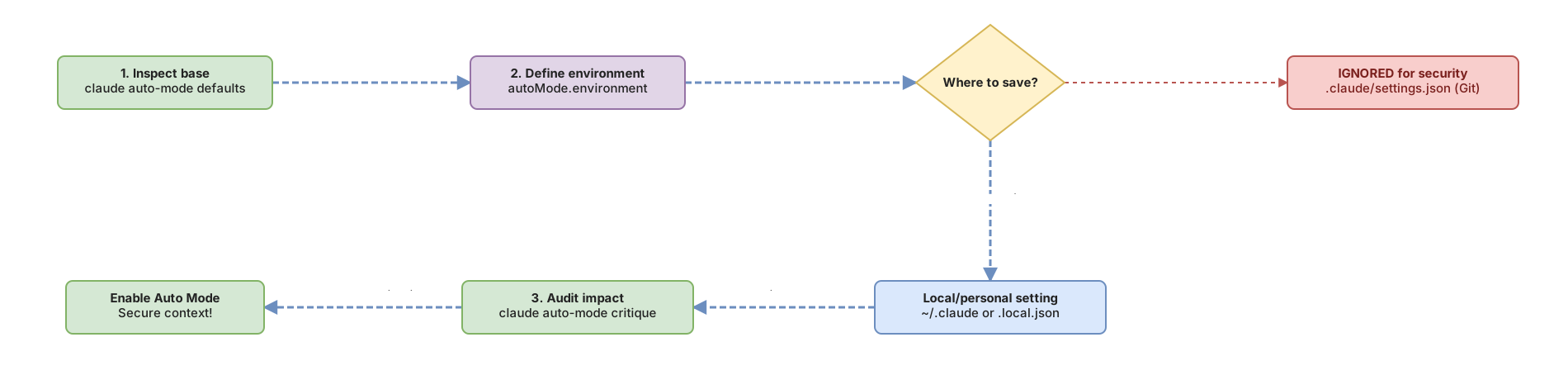
1. First, look at what’s there by default
claude auto-mode defaultsThis command prints the rules the classifier uses with no configuration from you: what it blocks by default (force push, curl | bash, production deploys, mass deletion in cloud storage) and what it allows by default (local operations in your directory, installing dependencies declared in your manifests, read-only HTTP requests). Read this before touching anything.
2. Ask Claude to propose the block
Open a Claude Code session and ask directly:
Review my project (package.json, Dockerfiles, CI configuration)
and propose an autoMode.environment block for ~/.claude/settings.json
that covers my actual infrastructure.
Claude will analyze your configuration files and generate entries specific to your project. Review them before copying: you know your infrastructure better than it does.
3. Validate the configuration
After saving the changes to your settings file, run:
claude auto-mode configThis shows the effective configuration the classifier will use: your settings where you defined them, default values elsewhere. If you see anything odd or there’s a JSON syntax error, you catch it here before it affects your session.
4. Audit your custom rules
claude auto-mode critiqueThis is the most valuable step if you modified anything beyond environment. The command has the classifier analyze your rules and give you direct feedback: ambiguous entries that could generate false positives, redundant rules, or security gaps you left open without realizing.
Common mistakes when setting up autoMode
Putting the block in the wrong file
The most common mistake: adding autoMode to the repository’s .claude/settings.json. The classifier ignores that file on purpose to prevent external repos from injecting their own trust rules. If after configuring everything the classifier is still blocking the same things, the first thing to check is what file you put the block in.
Defining a list without "$defaults"
All four autoMode lists — environment, allow, soft_deny, and hard_deny — replace the entire built-in list when you define them plainly.
Attention: A
soft_denywith a single entry removes all default blocking rules. Force push,curl | bash, production deploys. Everything.
The fix is the literal "$defaults" token. Put it inside the array and the built-in rules are spliced in at that position, so your entries live alongside them and you keep inheriting whatever Anthropic adds in later releases:
{
  "autoMode": {
    "environment": [
      "$defaults",
      "Source control: github.com/acme-corp and all repos under it"
    ],
    "soft_deny": [
      "$defaults",
      "Never run database migrations outside the migrations CLI"
    ]
  }
}
Each section is evaluated on its own, so defining only environment leaves the other three intact. Omit "$defaults" only when you want to take full ownership of a list: in that case start with claude auto-mode defaults, copy the complete lists into your settings, and edit from there.
Using technical patterns instead of natural language
autoMode.environment doesn’t accept regex or wildcards. It’s free text that the classifier interprets semantically. "*.acme.internal" works because the classifier understands it’s a domain pattern, but not because it evaluates it as a glob. Write clearly: the more context you give, the better the classifier distinguishes between your infrastructure and external services.
Implementation checklist
- Check that you have Claude Code v2.x or later (
claude --version) — consult the release notes for the current minimum version with Auto Mode - Confirm your plan and provider support Auto Mode (it is available on every plan today; on Team and Enterprise an administrator can turn it off)
- Check the session model: the Claude API and Claude Platform on AWS need Opus 4.6 or later, Sonnet 4.6 or later, or Fable 5; Amazon Bedrock, Google Cloud Agent Platform, and Microsoft Foundry accept only Sonnet 5, Opus 4.7 or later, and Fable 5 (Haiku and claude-3 work on no provider)
- Run
claude auto-mode defaultsand read the complete lists before touching anything - Add the
autoMode.environmentblock to~/.claude/settings.json(or to your organization’s managed settings) - Include
"$defaults"in everyautoModelist you define, unless you mean to replace the built-in rules - Confirm the file is NOT
.claude/settings.json(the one that goes to git) - Run
claude auto-mode configto validate that the configuration loads correctly - Run
claude auto-mode critiqueif you defined customalloworsoft_deny
Sources
- Configure permissions — Anthropic Docs — autoMode.environment structure, base template, CLI inspection commands, and warnings about soft_deny/allow.
Frequently Asked Questions
Which plans and providers is Auto Mode available on?
On every plan, and on every provider: the Claude API, Claude Platform on AWS, Amazon Bedrock, Google Cloud Agent Platform, Microsoft Foundry, and gateway sessions. From August 14, 2026 it becomes the default mode for new sessions on Pro, Max, and Team.
If Claude Code tells you Auto Mode isn’t available, the reason is usually the model rather than the plan: you need Opus 4.6 or later, Sonnet 4.6 or later, or Fable 5 on the Claude API and Claude Platform on AWS, and only Sonnet 5, Opus 4.7 or later, and Fable 5 on Bedrock, Agent Platform, and Foundry. Haiku and the claude-3 models support it nowhere. The other possible cause, on Team and Enterprise, is an administrator disabling it with permissions.disableAutoMode.
Can I put autoMode.environment in the repository’s settings.json to share it with my team?
The classifier doesn’t read the shared .claude/settings.json of the repository by design. To distribute the configuration to your entire team, the right option is managed settings: centralized configuration that the account administrator deploys for all team developers, without each one editing their personal file. An individual developer uses ~/.claude/settings.json for their personal configuration. The classifier reads autoMode only from there, from managed settings, and from the JSON passed with --settings.
The classifier is still blocking things even though I configured environment. What do I do?
First, run claude auto-mode config to confirm the configuration loaded correctly. If the configuration is correct, the problem is usually that the environment entries are too vague. “Internal domains” is less useful than “Trusted internal domain: api.mycompany.com and all subdomains under *.mycompany.internal”. Be specific: the classifier interprets phrases semantically, and detail helps it distinguish your infrastructure from any other destination.
What happens if I put entries that are too broad in environment?
The classifier interprets phrases semantically, so an entry like "I trust all cloud services" doesn’t stay within your usual providers: it tells the classifier that any request to any external SaaS or unknown domain is acceptable. That removes precisely the protection layer that justifies using Auto Mode. The rule about being specific applies both ways: too vague generates false positives, too broad generates unintended permissiveness. If an entry covers more than what you actually use, split it into concrete entries.
What happens if the classifier blocks me too many times?
If the classifier blocks 3 actions in a row, or 20 total during the session, Auto Mode pauses itself and Claude Code goes back to asking for manual confirmation. Each allowed action resets the consecutive blocks counter. When that happens frequently, it’s a sign that context is missing from environment, not that Auto Mode is broken.
Related articles

Claude Code permissions: the rules you should already be writing
On August 14, 2026, auto mode becomes the default mode. The six modes, the deny → ask → allow precedence, and what each lever actually guarantees.

Guardrails for AI Agents: How to Implement Them (With Code)
Implement guardrails in your AI agent step by step: input/output validation, action limits, and loop control. Real, copy-ready code examples.

Claude Code Hooks: calidad determinista para garantizar proyectos mantenibles
Cómo usar Claude Code Hooks para añadir gates de calidad que el modelo no puede saltarse: lint, tests, OpenAPI y seguridad antes de cada commit.