
Git Worktrees and Claude Code: Parallel Agents Without Conflicts
How to use git worktrees to run multiple Claude Code instances in parallel on isolated checkouts: set up, integrate, and clean up without branches stepping on each other.
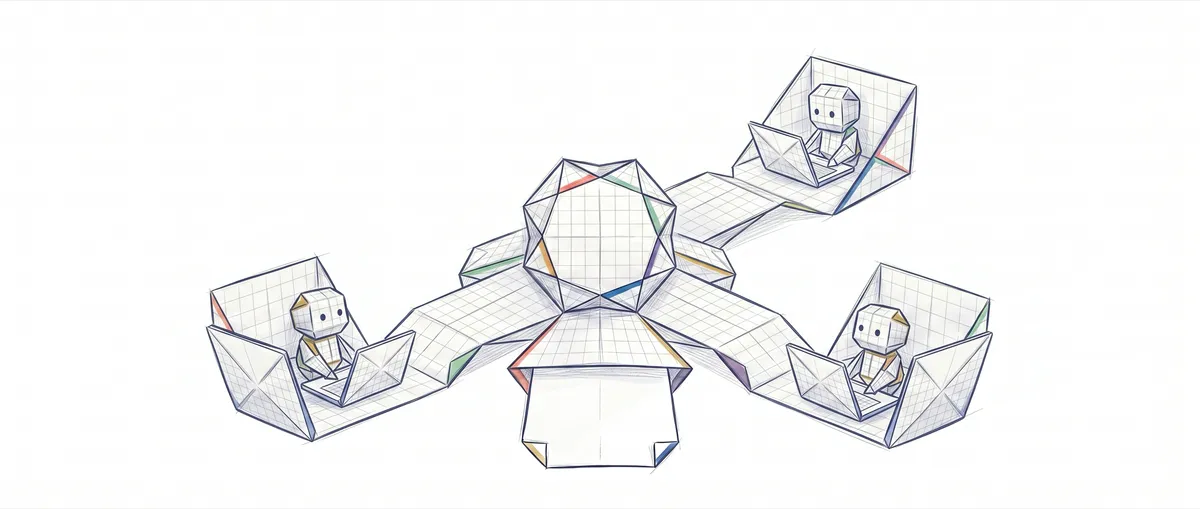
The bottleneck in coding with AI isn’t the model. It’s that you only have one working directory. The moment you launch a second Claude Code on the same checkout, or switch branches to start another task and break the context for the agent that was already working, you’ve serialized something that never needed to be serialized. Git worktrees eliminate that serialization: each agent works in its own physical copy of the repo, isolated, with no index conflicts. Here’s the full workflow I use to keep two or three agents running at once, how I integrate what they produce, and how I clean up afterward without leaving a mess.
Why does a single checkout serialize your AI-assisted work?
Because git has a single index and a single HEAD per working directory, and an agent editing files lives inside that shared state. While Claude Code is touching files in your checkout, that checkout belongs to it. If you open another session to tackle a different bug, you’re left with three bad options: wait for the first one to finish, switch branches underneath it (leaving the first agent with files that no longer match its plan), or make manual copies of the repo and hope you don’t mix up which is which.
Switching branches is the most silent failure of all. The agent had a mental map of the file tree in its context window. You run git switch to another branch, three files change out from under it, and from that point on every edit it makes starts from a reality that no longer exists. It doesn’t fail loudly. It just starts producing diffs that don’t apply.
What’s scarce is the working directory, and that can indeed be cloned.
What exactly is a git worktree?
A worktree is a second working directory linked to the same repository. It has its own HEAD, its own index, and its own files on disk, but it shares the object database and branches with the original repo[1]. When you commit in a worktree, that commit immediately exists for everyone else, because the objects live only once in the shared .git.
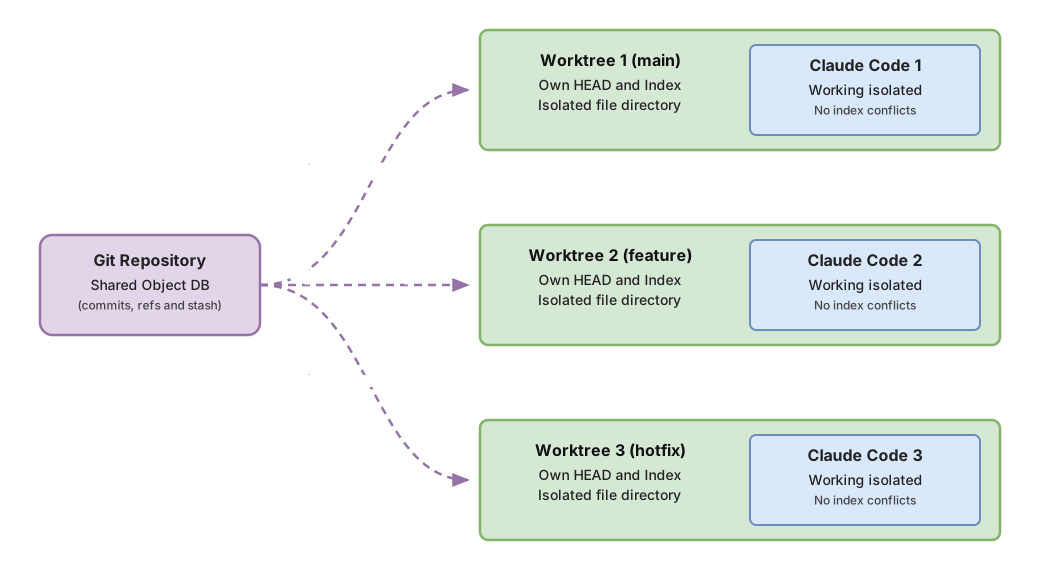
The implementation detail worth understanding: in a linked worktree, .git isn’t a directory: it’s a text file pointing to $GIT_DIR/worktrees/<name> inside the main repo[1]. That’s why you’re not duplicating history or objects. You’re only duplicating the checkout’s file tree. A repo with years of history and a small working tree costs you, for each new worktree, roughly the weight of that file tree, not the weight of .git.
What’s shared and what isn’t is exactly the line that makes the pattern useful:
| Switching branches in a checkout | One worktree per task | |
|---|---|---|
| Agent context | Breaks on every switch: the file tree changes under the open session | Stable. Each agent always sees its own directory |
| Build / node_modules | A single one, which must be rebuilt after every branch switch | Independent per worktree; each one installs its own |
| Index conflicts | Constant if two processes touch staging at the same time | Impossible: each worktree has its own index |
| Disk cost | Zero extra | The weight of the working tree (objects are shared) |
| Integration | You’re already in the repo | git merge from the main checkout; the commits are already there |
Setting up a worktree for an isolated agent
git worktree add creates the directory and checks out a branch in a single command. The way I use it almost always creates the new branch at the same time, so I don’t have to do it in two steps:
# Creates an isolated working directory and the feature-a branch in a single command
git worktree add ../repo-feature-a -b feature-a

# Checkout of a branch that ALREADY exists (e.g. a hotfix you were reviewing)
git worktree add ../repo-hotfix hotfix-123
With -b feature-a, git starts from your current HEAD and creates the new branch without touching your checkout[1]. Without -b and without a branch name, git automatically creates a branch named after the last path component, which is rarely what you want. Be explicit with -b, or pass an existing branch.
I place them as siblings of the repo (../repo-feature-a), not inside it, so no watcher, linter, or git status from the main checkout gets in the way. To see what you have set up:
git worktree list
# /Users/you/repo             a1b2c3d [main]
# /Users/you/repo-feature-a   e4f5c6d [feature-a]
# /Users/you/repo-hotfix      b7a8c9e [hotfix-123]
Each line is a real directory with its own HEAD. None of them interferes with the others.
How do I run two or three Claude Code instances at once without them clashing?
One terminal per worktree, one claude per terminal. That’s the entire trick. Since each worktree is a physical directory with its own index, two agents editing at the same time aren’t competing for anything: no shared staging, no shared HEAD, no branch that one can change out from under the other.
# Terminal 1: new feature
cd ../repo-feature-a && npm install && claude

# Terminal 2: hotfix in parallel
cd ../repo-hotfix && npm install && claude
The npm install on each line isn’t decorative. node_modules isn’t shared between worktrees, and often that’s exactly the advantage you want: the new feature installed a dependency the hotfix shouldn’t see yet, and since the trees are separate, they don’t collide. The trade-off is that you pay for an install per worktree. If your node_modules is huge, you’ll feel it in time and disk space; it’s one of the real costs of the pattern.
From here on, each session is a named unit of work. “The feature-a agent” and “the hotfix agent” are distinct things in distinct directories, not two tabs you mix up at three in the afternoon. If you already had this habit with Claude Code before, the detailed workflow with CLI integration goes deeper into fitting it into your daily routine.
How do I integrate the work back?
With a regular git merge from your main checkout, no syncing required. This is where a lot of people’s mental model breaks down: they think they need to “pull” the commits from the worktree, as if it were a remote. No. Worktrees share the same object database, so the moment the feature-a agent commits, that branch is already up to date for the entire repo.
# From your main checkout
git switch main
git merge feature-a   # the commits already live in the shared repo; no fetch or sync needed
The source branch doesn’t need to be “checked out” in your directory for you to merge it. feature-a can stay alive, with its agent still working in ../repo-feature-a, while you integrate from main. Before blindly merging whatever an agent produced, read it: reviewing in git what the AI generated is half the work, especially when the diff was written by a model at full speed.
The stash is shared too, by the way. It lives in refs/stash, which is a ref of the shared repo. A git stash you made in one worktree is visible from any other. Useful to know, and dangerous if you expected the opposite.
How do I clean up worktrees when I’m done?
With git worktree remove, never with rm -rf. This is the discipline that separates a clean workflow from a ~/code full of ghost folders.

git worktree remove ../repo-feature-a   # only if the worktree is clean
git worktree prune                       # cleans up metadata for manually deleted folders
git worktree remove deletes the directory and its metadata at once, but it refuses if the worktree has uncommitted changes or untracked files[1]. That refusal is a safety net, not an obstacle: it’s warning you that there’s work you were about to throw away. If you really want to discard it, -f forces it; -f -f for a locked worktree.
git worktree prune is for when you’ve already messed it up. You deleted the folder by hand with rm -rf and git never found out, so it still has the metadata hanging around in $GIT_DIR/worktrees[1]. prune walks that list, detects the directories that no longer exist, and cleans up what’s left orphaned. Use -n to see it without running it.
The branch trap is subtle: removing a worktree doesn’t delete its branch. git worktree remove ../repo-feature-a deletes the directory, but feature-a still exists. If you’ve already merged it and don’t want it anymore, delete it separately with git branch -d feature-a. It’s two operations, and forgetting that is how you end up with forty dead branches.
When should you NOT use worktrees?
When the cost per checkout outweighs what you gain in parallelism. The pattern isn’t free, and there are scenarios where the churn of switching branches was cheaper than keeping three directories alive.
If your dependency setup is slow and heavy (a node_modules in the gigabytes, an environment that takes minutes to build, per-project containers), every new worktree charges you that entire toll. For a five-minute task, it’s not worth it. It’s also not worth it if your tasks share state on disk outside of git: a local database, a .env with fixed ports, a dev server that can only listen on one place. Two agents that both want port 3000 won’t be saved by worktrees; they’ll still fight over it.
And if you’re only going to launch a single agent and wait for it to finish, don’t set anything up. Worktrees solve concurrency. Without real concurrency, they’re complexity with no payoff.
Common mistakes
Trying to check out the same branch in two worktrees
Git won’t let you, and it’s right not to. Two worktrees with the same branch would have two HEADs pointing at the same place and two indexes diverging: an incoherent state waiting to corrupt itself. The message is explicit:
git worktree add ../another-copy feature-a
# fatal: 'feature-a' is already checked out at '/Users/you/repo-feature-a'
The workaround (branching off or detaching HEAD) is in the FAQ below.
Assuming node_modules or the build are shared
They aren’t. Everything git doesn’t track (dependencies, build artifacts, caches) starts empty in every worktree. This surprises anyone who imagines it as “a branch but faster”: it’s a physical copy of the working tree that needs its own bootstrap.
Leaving dozens of orphaned worktrees
The boring mistake that happens to all of us. You finish a task, close the terminal, and the worktree stays behind. Multiply that by weeks and you’ve got twenty directories eating disk space, each with its own node_modules. The cure is a closing ritual: when you merge, remove the worktree and branch -d the branch in the same breath.
Implementation checklist
- Every parallel task lives in its own worktree created with
git worktree add, not in manual copies of the repo - Worktrees hang as siblings of the repo (
../repo-task), not inside the main checkout - Each worktree runs its own dependency
installbefore starting the agent - No worktree shares a port, local database, or
.envwith another running at the same time - Integration happens with
git mergefrom the main checkout, without trying to sync commits between worktrees - When done, each worktree is removed with
git worktree removeand its branch withgit branch -d -
git worktree pruneruns occasionally to clean up metadata for manually deleted folders
If the underlying problem isn’t the pattern but git itself, the course Git from Zero to Professional builds the foundation this workflow rests on. And if you want the rest of the patterns for working with git when AI writes half the code, they’re in the complete guide to AI-assisted git development.
Sources
- Official git worktree documentation (git-scm.com): the syntax for
add,list,remove, andprune, the rule that git refuses to check out a branch already in use by another worktree, the fact that.gitin a linked worktree is a file, and what’s shared (objects and refs) versus what’s per-worktree (HEAD and index).
Frequently Asked Questions
Can I merge a branch that’s still open in another worktree?
Yes, and it’s normal when you integrate an agent’s work without stopping it. feature-a can keep its session alive in ../repo-feature-a while you run git merge feature-a from main: the commits are already in the shared object database, so there’s no fetch or sync involved.
Can I have the same branch in two worktrees at once?
No, and the why is covered in the common mistakes above. What you can do is open two views of the same point in history, either by branching off or by detaching HEAD:
# New branch from the same commit
git worktree add ../another -b feature-a-v2
# Detached HEAD, no associated branch
git worktree add --detach ../another feature-a
How much disk space does each worktree use?
Little more than the weight of your working tree: git’s objects (the entire history) are shared and never duplicated. What does get duplicated is whatever git doesn’t track, starting with node_modules, which in projects with heavy dependencies ends up weighing more than the checkout itself.
How do I clean up if I deleted the folder by hand?
With git worktree prune, which you already saw in the cleanup section: it walks $GIT_DIR/worktrees, detects entries whose directory no longer exists, and removes them. Next time, use git worktree remove <path> instead of rm -rf and skip the step entirely.
Related articles

Claude Code worktrees nativos: el antes y después de la programación paralela
Cómo el soporte nativo de worktrees (-w) marca el cambio de Claude Code de herramienta secuencial a infraestructura de orquestación de agentes paralelos.
Reviewing AI-Generated Code with Git as a Safety Net
A Git workflow for reviewing AI-generated code: checkpoint before the agent runs, read the diff, small commits, and cheap reverts to undo without drama.

Git with AI: Worktrees, Checkpoints, and Reviewing Diffs
How to use Git with AI when the agent writes the code: worktrees for parallelism, commits as a safety net, and reviewing diffs without trusting blindly.