
How to Create a Claude Project: Step-by-Step Guide (2026)
Set up a Claude Project from scratch: custom instructions, knowledge files, and ready-to-copy examples. A practical visual guide for any workflow.
Contributors: Carlos Hernandez Prieto

Every time you open a new chat with Claude, it starts from scratch. It doesn’t know you’re a developer. It doesn’t know what company you work for or what tone you prefer. You have to explain the context each time, and when you do it in every conversation, you end up writing the same introductory paragraph over and over.
Claude Projects solve that problem.
All you need to follow this post is an account on claude.ai—free or paid. No coding knowledge required.
What is a Project in Claude?
Before the technical definition, here’s an analogy: imagine you have a fixed desk in an office. On that desk you have your notes pinned up, the documents for the project you’re working on, and your tools organized. When you come back the next day, everything is still where you left it.
A normal chat with Claude is like a shared desk that someone cleans every time you leave. A Project is your fixed desk.
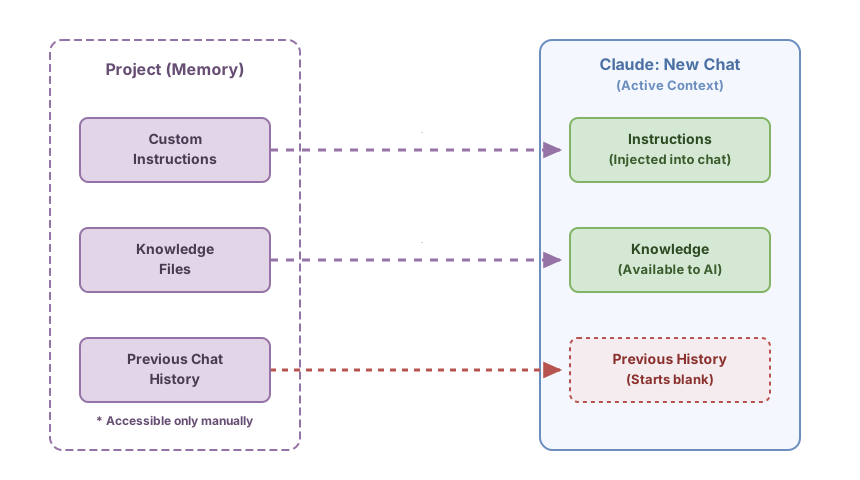
A Project has three parts:
Custom instructions: a text you write once that Claude reads at the start of each conversation in the project. It tells Claude who you are, what context you work in, what format you prefer, and any restrictions that matter.
Knowledge files: documents you upload to the project (PDFs, Markdown, code, plain text) that Claude can consult automatically when relevant. No need to paste them into the chat.
Conversation history: conversations you have in the project are saved and you can refer back to them anytime. But what Claude automatically loads at the start of each new conversation are the instructions and files; content from previous chats doesn’t load.
Projects are available to all Claude users, including the free plan. With the free account you can create up to five projects and use the Sonnet model. Paid plans (Pro, Max, Team, Enterprise) add access to the more powerful Opus model and advanced support for large volumes of documents in the knowledge section.
How to Find Projects in Claude.ai
On claude.ai, Projects appear in the left sidebar below your recent conversations. You’ll see a ”+ New Project” button.
When you click it, it asks for a project name. Give it a descriptive one: “Work — Your Company Name” or “Learning React” work much better than “My Project”.
Once inside the project, the interface has two main areas:
- Project header: at the top of the screen you’ll see the name you gave it. Just below is an “Edit project” button. That button opens a side panel with two fields: one for the name and one for custom instructions. The instructions field is a free text box with no visible length limit.
- “Project Knowledge” tab: it’s at the top of the central area, next to the conversations tab. From there you can drag files or use the upload button. Each uploaded file appears listed with its name, and you can delete or replace it anytime.
New conversations you create in the project automatically inherit the instructions and have access to the files. You don’t need to do anything else.
Custom Instructions: What Actually Works
Most people using custom instructions write things like “always respond in English” or “be concise”. That’s fine. But it’s just the surface layer.
The real value is giving Claude the context it would need to help you well from the first message, without you having to explain it every time.
Four useful questions for writing your instructions:
- What should Claude know about me or my company to respond well?
- What response format saves me time?
- What constraints or preferences matter here?
- What should Claude not do in this context?
Below you’ll find three complete examples you can copy and adapt.
For someone learning to code
I'm a student in the final module of a web development bootcamp.
I work with React, TypeScript, and Node.js. My level is beginner.

When you explain code to me:
- Use comments in the code itself to explain each important part
- If there's a simpler way to do what I'm asking, tell me even if I didn't ask for it
- Avoid advanced concepts (decorators, complex generics) until I mention them first

When you review my code:
- Prioritize errors that would cause production bugs over style issues
- Explain why something is wrong, not just how to fix it

Always in English.
For someone doing content marketing
I work as a content marketer for a SaaS company that makes project management tools for small businesses.
Our customers are operations directors and CEOs of companies with 10-50 people.
Our company tone is professional but approachable, never corporate.

For written content:
- Short paragraphs, maximum three sentences
- No marketing jargon: nothing like "synergies", "added value", or "end-to-end solutions"
- Headlines that speak to the reader's problem, not our features

When you review my writing, tell me first if the main message is clear
before getting into writing details.

Language: American English.
For someone launching their own startup
I'm the founder of a startup in validation phase in the logistics sector.
I'm building the MVP alone, with no technical team yet.

Important context:
- Very limited budget, I prioritize free or cheap solutions
- I'm not technical, so explain the technical implications of decisions in simple terms
- My priority now is validating the product quickly, not building something scalable

When you suggest tools, always note whether they have a free plan.
When we talk about technology, explain trade-offs in terms of cost
and development speed, not architecture.
Use Cases by Profile
So you can recognize yourself in one, here’s a quick reference by professional profile:
| Profile | What Goes in Instructions | What Files to Upload |
|---|---|---|
| Developer | Tech stack, level, code format preferences | API documentation, project specifications you’re building, team style guide |
| Marketer | Company, brand tone, target audience | Campaign briefs, brand voice guides, approved templates |
| Consultant | Specialization, working methodology, current client | Meeting notes, previous proposals, industry context |
| Entrepreneur | Startup stage, budget constraints, priorities | Summary business plan, user feedback, list of assumptions to validate |
| Student | Area of study, level, how you prefer concepts explained | Your own notes, exercise descriptions, course materials |
The Same Question, Two Very Different Answers
To show you the contrast in practice, here’s the same message in two contexts.
The message: “Can you review this email before I send it to clients?”
In a generic chat, no project:
Sure, paste the email and I’ll review it. Do you want me to focus on tone, grammar, or structure?
Claude knows nothing about the context. It asks for clarification before starting. Reasonable, but slow. And next time it will ask the same thing.
In a project configured with the marketer profile’s instructions from above, with the client brief uploaded as a file:
I’ve reviewed the email. The main message doesn’t appear until the third paragraph—the reader should understand what you’re offering in the first sentence.
The subject line “October Updates” won’t generate much open rate. Something like “How [Company X] Cut Their Check-in Meetings in Half” connects better with the problem you describe in the body.
The tone is good, approachable without losing professionalism. One adjustment: the closing “we hope we can help” sounds passive. “Email us if you want to try it this week” is more direct and has a clear call to action.
The difference isn’t that Claude is smarter in one case than the other. It’s that it has the context it needs to give you specific feedback without you having to write it every time.
Knowledge Files: What to Upload
Files are useful when you have documents Claude would need to consult in many different conversations. Some concrete examples:
- Your app’s design document or a project’s specifications
- A client brief: their company, their products, their audience
- Your own decision notes and things you’ve already ruled out
- Documentation for an obscure library or tool that Claude usually gets wrong
What doesn’t work as well: scanned PDFs (they’re images, not text), documents with very complex tables, or files that change constantly. For information that changes, it’s better to write it directly in the project instructions or update the file when it changes.
Before uploading a document, consider whether it contains sensitive client data or confidential company information that shouldn’t leave your internal systems. Claude.ai is an external service, and what you upload there leaves your systems.
Claude doesn’t read all files in every response. It reads the ones that are relevant to what you’re asking at that moment. If you upload a client brief but ask something about code, it won’t read the brief unless it’s related.
The context window explains why: Claude can only process a certain amount of information at a time. Files are designed to be retrieved when needed, not all loaded together.
How to Organize Your Projects
A common mistake is creating one giant project for everything. The problem is that contexts mix and instructions become vague trying to cover everything.
An organization that works well: one project per coherent, stable context. Work at your current company, learning something specific, a particular client. The sign you need a new project is when you find yourself writing the same introductory context at the start of a chat over and over.
With the free plan you get up to five projects. For most use cases, that’s more than enough if you define them well.
Common Mistakes
Instructions that try to cover everything
Three-page instructions that anticipate every possible situation. The result is Claude gets lost in the details and ends up ignoring parts. Better twenty well-chosen lines than two hundred that contradict each other.
Poorly prepared files
The filename matters: brief-client-acme-2024.md is easier to reference than document_final_v3.pdf. And format matters most: plain text and Markdown are read with much more accuracy than scanned PDFs or documents with complex tables.
A project that’s too generic
A project called “General” with instructions like “be helpful and respond well” adds nothing over normal chat. A Project has value when the context it contains is specific and stable.
Files that never get updated
You upload a client brief in January and in April it’s still there with data from the previous launch. Claude doesn’t know that document is outdated: it responds with what it has. The same criteria you apply to instructions apply to files: when reality changes, the file needs to change.
Writing instructions once and forgetting them
Instructions aren’t forever. A concrete example: I started a consulting project with instructions that mentioned a specific client as a tone reference. Three months later that client no longer existed and the instructions still pointed to them. Claude kept adjusting the tone to a context that no longer existed, and it took several weird conversations before I noticed the problem.
If you change roles, if you start with a new client, if you learn that Claude does something you don’t want in that context, update the instructions. They’re a living document.
Your First Project in Less Than 10 Minutes
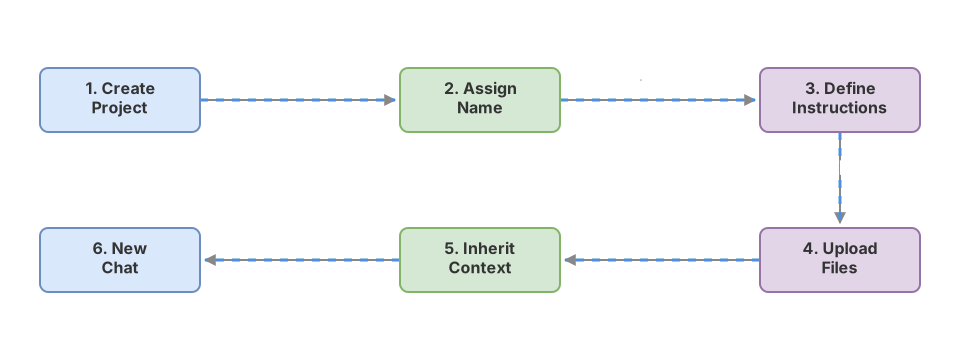
- Open claude.ai and click ”+ New Project” in the left sidebar.
- Give it a name that describes the context: “Work — [Your Company]” or “Learning [Technology]”.
- Enter the newly created project. At the top you’ll see the project name and just below it the “Edit project” button: click it to open the custom instructions field.
- Write your instructions using one of the examples above as a starting point. Don’t try to make them perfect now.
- If you have a relevant document (a brief, specifications, your notes), upload it from the “Project Knowledge” tab.
- Create your first conversation inside the project and ask a real question you’d normally ask.
Instructions and files are already saved. The next conversation starts with that context loaded from the beginning.
Configuration Checklist
- The project has a name that describes the context, not a generic one
- Instructions include who you are and what context you work in
- Instructions specify the response format you prefer
- Instructions indicate what Claude shouldn’t do in that context
- If you uploaded files, they’re in text format (not scanned PDFs)
- You’ve done at least one test conversation to verify Claude uses the context
Frequently Asked Questions
How many projects can I have?
With the free plan, up to five. With paid plans you can create unlimited projects. For how to organize the ones you have, the organization section above has the logic that works.
What file types does Claude accept in projects?
Plain text (.txt), Markdown (.md), PDF, Word (.docx), spreadsheets (.csv), and code files (JavaScript, Python, TypeScript, among others). PDFs work well when they’re digitized text. Scanned PDFs, which are really images, aren’t read with the same accuracy. The free plan has a total file size limit per project; if you work with very large document corpora, that expanded capacity is only on paid plans.
Does a project’s context affect my normal chats outside it?
No. A project’s instructions, files, and history are only active inside that project. A new conversation you open outside any project starts from scratch with no access to any project’s context.
How do I know if Claude is using the instructions I gave it properly?
Ask a question where the instructions should change the response. If in your instructions you asked “always give me a two-sentence summary first” and Claude doesn’t do it, something needs adjusting, either in the instructions’ wording or in length (too long and it might ignore parts). You can also ask directly: “What instructions do you have for this project?” and it will tell you what it has read.
With files the behavior is different. Claude only retrieves them when it considers them relevant to the specific question. If you upload a document and it seems like it’s not using it, check two things: that the name is descriptive (client-acme-brief.md works better than v3_final.pdf) and that the format is text, not an image. Then ask the question by explicitly mentioning the document: “Based on the client brief I uploaded, what tone would be appropriate for this email?” That detail tells it exactly where to look.
If you’ve made it this far, you have everything you need to set up your first project today. Choose the context where you use Claude the most, write ten lines of instructions using the examples above as a starting point, and test it. You’ll see the contrast with generic chat in the first response.
Related articles

Context Window and Best Practices
What a language model's context window is, how it's measured in tokens, and concrete practices to leverage it from day one.

Prompt Engineering for Developers: 5 Patterns With Code
The 5 prompt engineering patterns: zero-shot, few-shot, CoT, role prompting, and structured output with real TypeScript code.

Enterprise RAG: the complete pipeline that actually works
How to build a production RAG with semantic chunking, hybrid search and reranking. The real decisions that determine whether your system retrieves well or fails silently.