
How to Delete a Branch in Git: Local, Remote, and Recovery
How to delete a Git branch locally and remotely without fear: git branch -d and -D, git push origin --delete, and recovering a deleted branch with reflog.
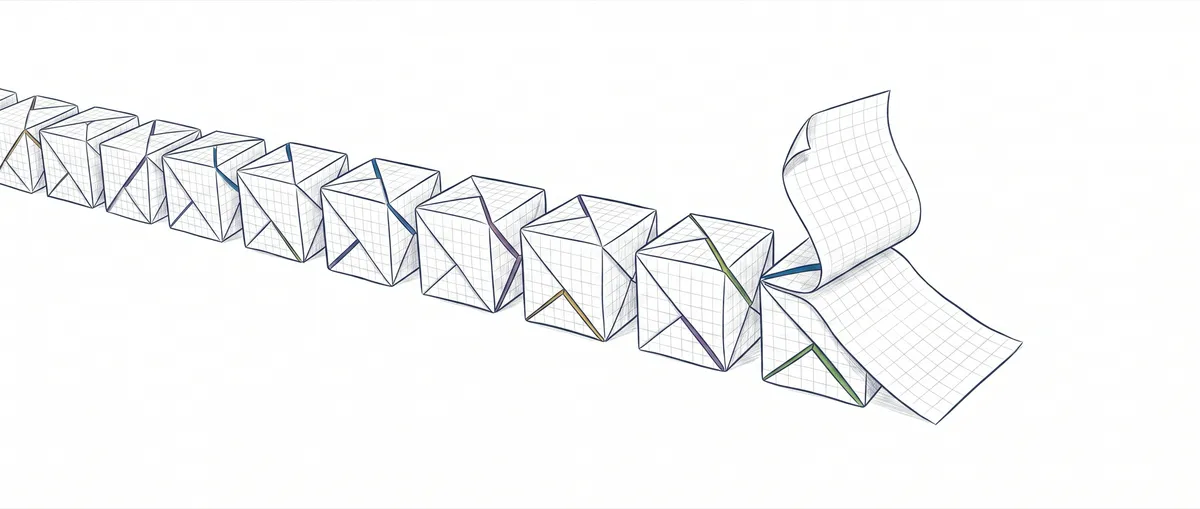
You just finished merging a feature, move on to the next one, and before you know it you’ve got ten stale branches piling up in git branch. They all reek of clutter, but you don’t delete them: something about “deleting” in Git feels irreversible. Here’s how to delete a branch in Git, both local and remote, understanding what happens under the hood so you don’t wreck anything by accident. And when you do wreck something anyway, how to get it back.
To follow this post you need to know how to create and switch branches, and have done at least one merge. If that still sounds unfamiliar, start with creating and switching branches in Git and what a merge is. With that covered, everything below will make sense.
What actually happens when you delete a branch in Git?
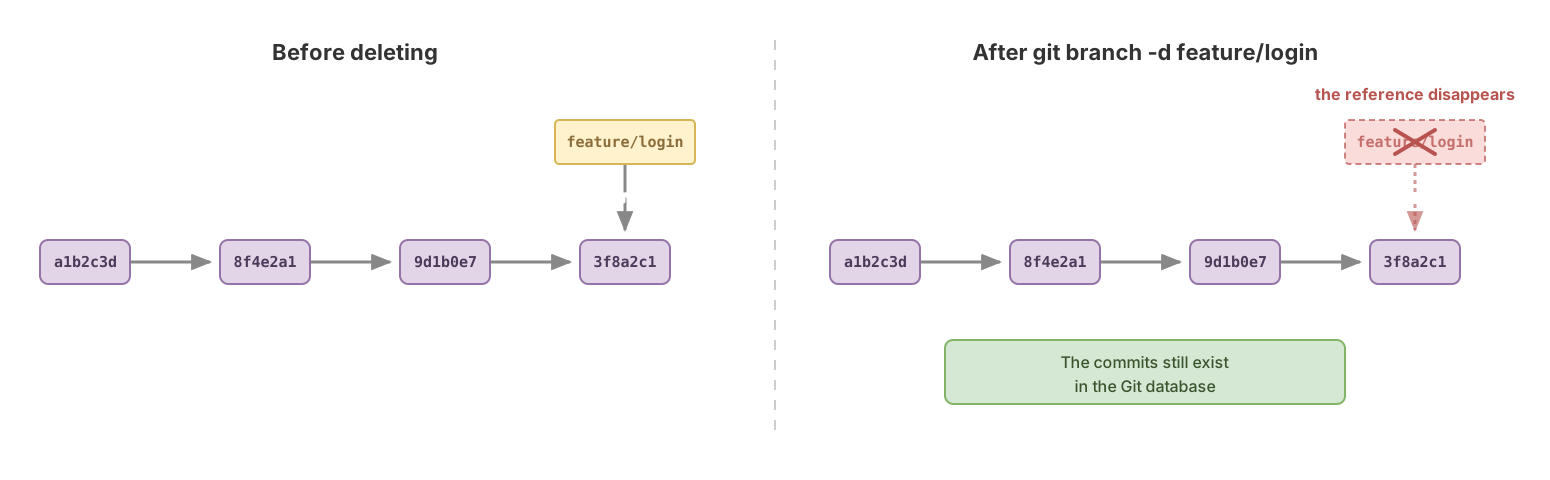
Deleting a branch removes a reference: a name that points to a specific commit. That’s all a branch is in Git. It’s not a folder with your files, nor a copy of your code. It’s a label, a sticky note stuck on a commit that says “this is the tip of this line of work.”
When you delete the branch, you remove the sticky note. The commits underneath are still there, stored in Git’s internal database, at least for a while. Think of a train of commits coupled one behind the other: the branch is just the sign at the final station. Removing the sign doesn’t uncouple the cars.
This completely changes how scary deleting feels. You almost never destroy real work. What you can do is leave some commits “without a sign,” and that’s exactly when Git warns you before letting you do it. That warning is the entire logic behind the delete command.
How to delete a local branch with git branch -d
The command to delete a local branch is git branch -d branch-name. The -d stands for delete. Before deleting, it’s worth checking which branches are already merged into the one you have checked out:
# Lists the branches whose work is already merged into the current branch
git branch --merged
The ones that show up in that list are safe to delete: their work already lives somewhere else. To delete one:
# Delete the local branch 'feature/login' (only if it's already merged)
git branch -d feature/login
# Output: Deleted branch feature/login (was 3f8a2c1).
That 3f8a2c1 in parentheses is the hash of the branch’s last commit. Git shows it to you just in case. Keep it in mind: it’s your ticket back if you change your mind.
There’s one important rule: you can’t delete the branch you currently have checked out. Git refuses, because that would be like sawing off the branch you’re sitting on. Switch to another one first (for example with git switch main) and then delete it.
What’s the difference between -d and -D?
Lowercase -d is the safe version, and uppercase -D forces the deletion without asking. With -d, Git only deletes the branch if its changes are already merged into another one. If you try to delete a branch with commits that don’t exist anywhere else, it stops you:
$ git branch -d experimento/websockets
error: the branch 'experimento/websockets' is not fully merged
hint: If you are sure you want to delete it, run 'git branch -D experimento/websockets'
That warning is the safety net doing its job: Git stops you before you lose something. Git is telling you: “this branch has work that only exists here, are you sure you want to throw it away?” If it really was a failed experiment and you want to delete it, uppercase -D forces it through:
# Forces the deletion, whether or not there's unmerged work
git branch -D experimento/websockets
-D is exactly the shortcut for --delete --force. Simple rule of thumb: always try -d first. If Git lets you, there was nothing to lose. If it stops you, pause and check what was in that branch before reaching for -D.
How to delete a remote branch
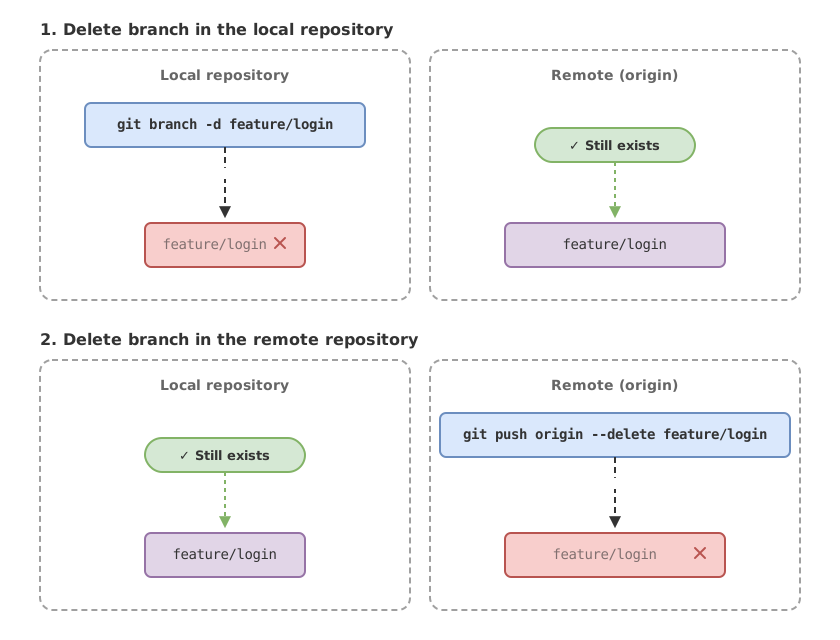
Deleting the branch on your machine doesn’t delete it on the server. They’re two separate references: your local one and the one living on GitHub, GitLab, or whatever remote you use. To delete the one on the remote, you use git push:
# Delete the branch 'feature/login' on the remote called 'origin'
git push origin --delete feature/login
The first thing that throws a lot of people off is that deleting is a push. It makes sense once you think about it: a push means “send this change to the server,” and deleting a branch is a change like any other. You’re telling the remote “remove this reference on your end.”
The short form is git push origin -d feature/login. It does the same thing. And mind the direction: this deletes the branch on the server but leaves your local copy untouched, just as deleting the local one doesn’t touch the server. If you want it gone from both sides, you have to do both.
Cleaning up ghost remote branches with git fetch —prune
When a teammate deletes a branch on the server, your Git doesn’t find out on its own. It keeps a local reference to that remote branch, like origin/feature/login, even though it no longer exists anywhere. These are ghost branches: they show up in git branch -r but point to something that’s already dead.
To clean them up:
# Update from origin and remove references to branches that no longer exist there
git fetch --prune
--prune trims orphaned remote references. It doesn’t touch your local branches or your work, it just brings your map of what’s on the server up to date. It’s a harmless command worth running every now and then so git branch -r doesn’t turn into a graveyard.
All of this assumes you delete what you meant to delete. What about when you mess it up?
I deleted a branch by accident, can I get it back?
Almost always, yes, and the rescue is easier than it sounds. This is where git reflog comes in: the log Git keeps of everywhere your HEAD (the current position) has been over the last few weeks. Every time you switch branches, make a commit, or do a merge, Git logs a line in the reflog. Including the tip of the branch you just deleted.
# 1. Search recent history for the last commit of the deleted branch
git reflog
# Output (example):
#   3f8a2c1 HEAD@{4}: commit: add OAuth login
#   9d1b0e7 HEAD@{5}: checkout: moving from feature/login to main

# 2. Create a new branch pointing at that commit
git branch feature/login 3f8a2c1
With that, you put the sign back on the same train of commits. The branch comes back to life with all its work intact. That’s why I said earlier that deleting almost never destroys anything: as long as the commit is still in the reflog, there’s a way back.
How much time do you have? Git keeps reflog entries around for a good while before cleaning them up with gc (the garbage collector). By default that’s 90 days for commits that remain reachable and 30 days for the ones left dangling, which is exactly the case for a deleted branch.[1] It’s not “forever,” but for a slip-up from yesterday, you have plenty of margin.
Common mistakes when deleting branches
Trying to delete the branch you’re on. This is mistake number one. Git responds with error: cannot delete branch 'X' used by worktree at ... (that branch is checked out in another working directory). The fix is one step: git switch main (or whichever branch) and delete it again. No need to force anything.
Confusing deleting local with deleting remote. You delete with git branch -d, go into GitHub, and the branch is still sitting there, unbothered. It’s not a bug. Local and remote are separate references. Local is deleted with git branch, remote with git push origin --delete. Two commands for two places.
Reaching for -D without looking. Uppercase -D forces the deletion, skipping the “is it merged” check. That warning exists for a reason. If you ignore it out of habit, one day you’ll delete the only copy of two hours of work. Even then, thanks to the reflog you can almost always get it back, but it’s a scare you save yourself by reading the message before forcing it.
Believing that deleted work is gone forever. This is the mental mistake that makes people pile up ten dead branches: fear. You’ve already seen it’s unfounded. The reflog covers you for weeks. Delete with confidence.
Which command should I use? Quick reference table
| Command | What it deletes | When to use it | Risk |
|---|---|---|---|
git branch -d branch | The local branch, only if merged | Your default choice for cleaning up already-merged branches | Very low: Git stops you if there’s unmerged work |
git branch -D branch | The local branch, merged or not | A failed experiment you genuinely want to discard | Medium: you skip the check, though the reflog has you covered |
git push origin --delete branch | The branch on the remote server | When the feature is already merged and you don’t want to leave it on GitHub | Low: the work usually still lives locally or is already merged |
git fetch --prune | Nothing real: only ghost references | After branches get deleted on the remote | None |
Checklist before deleting a branch
- The branch you’re about to delete isn’t the one you currently have checked out (switch with
git switchfirst) - You’ve confirmed with
git branch --mergedthat its work is already merged in - You use
-dfirst and only reach for-Dif you truly want to discard unmerged work - If you also want to delete it from the server, you run
git push origin --delete - You know a slip-up can be fixed with
git reflog+git branch new-branch <hash>
Losing the fear of deleting branches is one of those small leaps that make you move a lot faster with Git. If you want the full walkthrough, from creating branches to resolving merge conflicts without breaking a sweat, it’s laid out step by step in the complete guide to Git branches. And if you’d rather learn by doing, the Git from Zero to Professional course walks through this exact workflow with interactive exercises.
Sources
- Official git reflog documentation (git-scm.com): default expiration times for the reflog (90 days for reachable entries, 30 for unreachable ones like a deleted branch).
Frequently Asked Questions
Does deleting a branch delete its commits?
Not immediately. You delete the reference, not the commits. If those commits were already on another branch, nothing happens at all. If they were exclusive to the deleted branch, they’re left “dangling” but recoverable for weeks via git reflog, until Git cleans them up with its garbage collector.
Can I delete main or master?
Technically Git lets you delete any branch that isn’t the one you’re on, but you’ll almost never want to delete main. It’s your main line of work, and many remotes protect it so nobody deletes it by accident. If you genuinely think you need to, stop and check first what work depends on it.
How do I delete several branches at once?
You can pass several names to the same command: git branch -d branch1 branch2 branch3. If you want to bulk-delete everything that’s already merged, some people combine git branch --merged with a filter to feed the results into git branch -d, but at first go one at a time: it’s slower and much harder to accidentally delete something.
Does deleting the local branch delete the remote one?
No. They’re two independent references. git branch -d deletes the copy on your machine, and git push origin --delete deletes the one on the server. You can delete one and leave the other alive without any issue. For the branch to disappear from both places, you have to run both commands.
How long can I recover a branch with reflog?
By default you have about 30 days for commits left with no branch reaching them, which is exactly the case for a deleted branch. That’s plenty of margin for a normal slip-up. If you know you messed up, recover it as soon as possible with git reflog and don’t leave it for weeks.
Related articles
Git Branches: Create, Merge, and Resolve Conflicts Without Panic
What a Git branch really is, how to create one, merge it with git merge, and resolve a conflict step by step. Plus merge vs. rebase without fear.

How to Create and Switch Git Branches Without Losing Your Work
Learn how to create a Git branch and switch between branches with git branch, git switch, and checkout, without fear of breaking main or losing your code.
Git merge explained: fast-forward vs 3-way merge
What git merge does under the hood, when it produces a fast-forward and when a three-way merge commit, and how to read the resulting graph.