
Git Branches: Create, Merge, and Resolve Conflicts Without Panic
What a Git branch really is, how to create one, merge it with git merge, and resolve a conflict step by step. Plus merge vs. rebase without fear.
There’s a message that has spiked almost everyone’s pulse at some point: CONFLICT (content): Merge conflict in App.tsx. You stare at those <<<<<<< HEAD markers that just appeared inside your file and think you’ve just broken the team’s repo. You haven’t broken anything. A conflict isn’t an error: it’s Git telling you there’s a decision only you can make, because it has no way of knowing which of the two versions is the right one.
The day you understand what a branch really is, that fear disappears. Branches stop being black magic and become the most useful tool you have for working without stepping on anyone else’s toes. Here I’ll break down the whole mental model: what a branch is, how to create one and switch to it, what actually happens when you merge, how to resolve a conflict without breaking a sweat, and why rebase, properly understood, doesn’t bite.
What Is a Git Branch, Really?
A Git branch is a movable pointer to a commit. Nothing more. It’s not a folder, it’s not a copy of your files, it’s not a parallel directory hidden away somewhere. It’s a label pointing at a specific commit, and it moves forward on its own every time you make a new one.
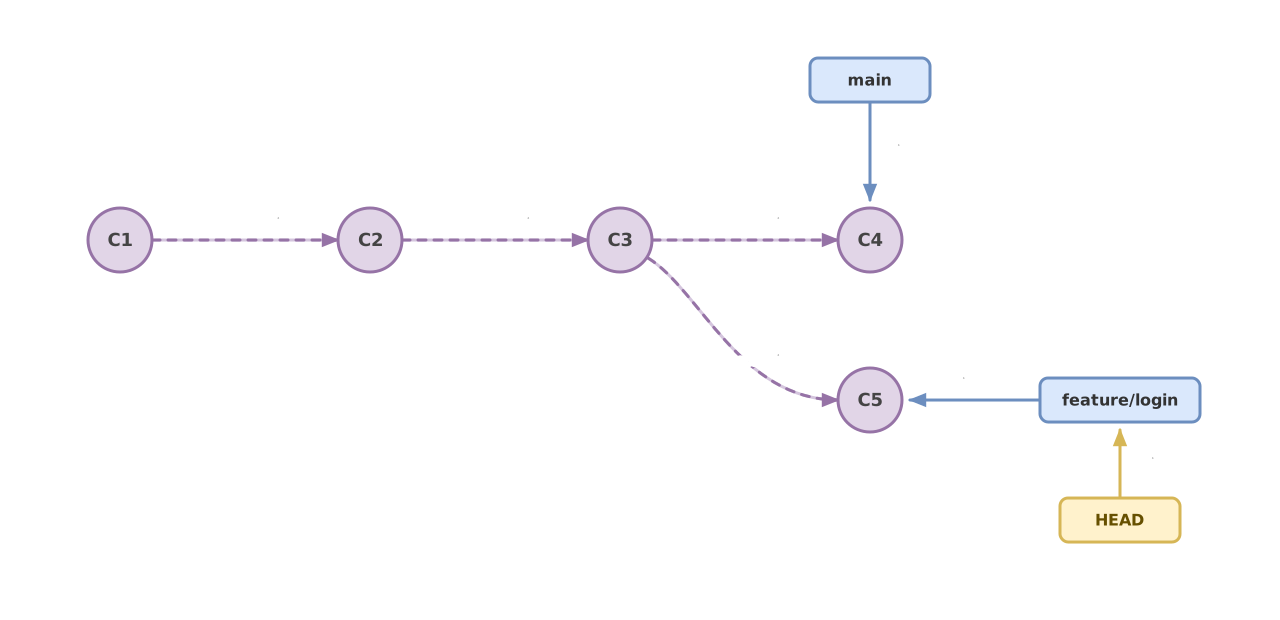
To make this click, you need to see what’s underneath. Every time you run git commit, Git saves a snapshot of your project’s state and gives it an identifier. That commit points to the commit before it, which points to the one before that, all the way back to the start of the repository. The result is a graph: a chain of linked commits where each one knows where it came from. That graph, technically a DAG (directed acyclic graph), is the only thing that’s actually real in Git. It’s the history of your project.
A branch is just a sticker on one of those commits.
When you’re on main and make a commit, Git creates the new commit and moves the main sticker to point at it. It doesn’t copy anything, it doesn’t move files around. It just updates which commit the label points to. That’s why creating a branch in Git is instant even if your project weighs two gigabytes: creating a branch means writing a 41-byte file with a commit’s identifier. Compared to older version control systems, where branching meant duplicating the entire directory tree, this is a massive difference.
One piece is missing to close out the model: HEAD. HEAD is the pointer that shows which branch you’re on right now. Normally HEAD doesn’t point directly at a commit, but at a branch, and that branch points at a commit. When you run git switch other-branch, what changes is where HEAD points. That’s the entire mechanism: moving pointers. Keep that in mind, because it explains absolutely everything that follows.
Creating and Switching Branches
To create a new branch and switch to it in a single step, use git switch -c. The -c stands for create.
# Crea la rama feature/login a partir del commit actual y salta a ella
git switch -c feature/login

# Ver en qué rama estás y qué otras hay (la actual sale con un asterisco)
git branch

# Volver a la rama principal cuando termines
git switch main
git switch is the modern command: it’s been around since Git 2.23 (August 2019) and is stable and recommended today (it was experimental until Git 2.46, in 2024). Before it arrived (and still today, in countless tutorials and in half the world’s muscle memory) people used git checkout:
# Forma clásica, exactamente equivalente a git switch -c feature/login
git checkout -b feature/login
Both work, and both will keep working. git switch exists because git checkout did too many different things: it switched branches, but it also restored individual files, and it could leave you in odd states without warning. They split that Swiss Army knife into two commands with names that say what they do: git switch to move between branches and git restore to recover files. If you’re learning today, stick with switch. If you work on a team where everyone types checkout, there’s nothing wrong with following the custom.
What exactly happens when you switch branches? HEAD stops pointing at main and starts pointing at feature/login, and Git adjusts the files in your working directory to reflect the commit that branch points to. If both branches are on the same commit, you won’t see any of your files change. As soon as you start committing on feature/login, that branch moves forward on its own and main stays right where it was.
When you need the complete step-by-step, including cases like renaming branches or creating one from an old commit, there’s a dedicated guide on creating and switching branches in more detail.
Branches as Parallel Work
Here’s the reason branches matter: they let you work on something without touching what already works. You create a branch for a feature, make your commits there, and main stays intact and deployable at all times. If your experiment goes wrong, you delete the branch and nothing happened. If it goes well, you merge it.
Think of the graph. When you create feature/login and start committing, that branch splits off from main and moves forward on its own path. Meanwhile, someone else on the team might have their own fix/checkout moving forward from the same starting point. The graph opens into two paths growing in parallel. No one steps on anyone else’s work because each commit lives on its own branch, its own line of history.
This is what makes any team’s real workflow possible. One branch per feature, one branch per fix, one branch to try out that idea you’re not sure will work. And when you’re coding with the help of an LLM, this matters double: you let the model generate an entire implementation on an isolated branch and review it calmly before it touches main. If the code it wrote is a disaster, git switch main and move on. The branch is your safety net.
The graph diverges without any problem. The interesting part, and where all the drama shows up, is when those separate paths have to come back together.
Merging: Fast-Forward vs. 3-Way Merge
Bringing two branches together is done with git merge, and Git resolves it in two different ways depending on the shape of the graph. You position yourself on the branch you want to receive the changes and pass it the name of the one you want to integrate.
# Estás en main y quieres traerte lo de feature/login
git switch main
git merge feature/login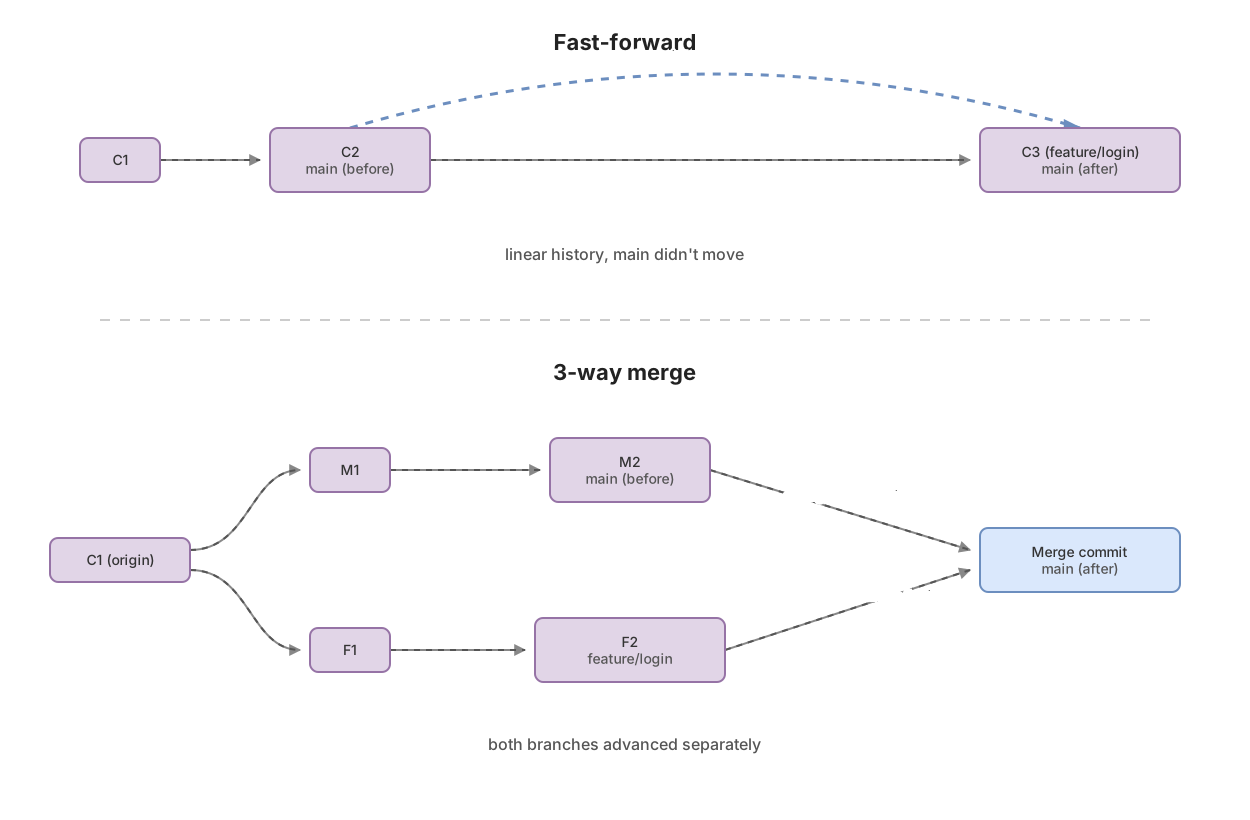
The first case is the fast-forward. It happens when main hasn’t moved since you created your branch. In other words, main is a direct ancestor of feature/login’s latest commit: there’s nothing new on main to integrate. Git doesn’t need to invent anything. It just moves main’s pointer forward to the commit where feature/login sits, as if it were dragging the sticker along the chain of commits. The output looks like this:
Updating a1b2c3d..e4f5a6b
Fast-forward
 src/login.ts | 24 ++++++++++++++++++++++++
 1 file changed, 24 insertions(+)
The history stays perfectly linear, as if you’d never branched at all.
The second case is the 3-way merge. It happens when the two branches have moved forward separately: you committed on feature/login while, meanwhile, someone else pushed commits to main. Now the histories have diverged and there’s no longer a straight line to follow. Git can’t just drag the pointer forward, because it would lose the commits sitting on main. What it does instead is take three commits: the tip of main, the tip of feature/login, and the common ancestor both of them branched from (the point where the graph split). Using those three, it calculates the combined result and creates a merge commit: a special commit with two parents instead of one, joining the two branches in the graph.
Merge made by the 'ort' strategy.
 src/login.ts   | 24 ++++++++++++++++++++++++
 src/header.tsx |  8 ++++----
 2 files changed, 28 insertions(+), 4 deletions(-)
Most of the time Git combines all of this on its own, without you having to do anything. If the changes on the two branches touch different files, or different lines of the same file, there’s no ambiguity and the merge comes out clean. The problem only shows up when both branches modify exactly the same lines. That’s where Git throws up its hands.
What a Merge Conflict Really Is (and Why It’s Not Your Fault)
A merge conflict happens when the two branches you’re trying to merge have modified the same lines of the same file, and Git has no way of knowing which version you want to keep. Nothing has been corrupted and you haven’t done anything wrong: Git is simply telling you that there are two different truths here and it can’t choose for you.
When it happens, you’ll see something like this when you run git merge:
Auto-merging src/App.tsx
CONFLICT (content): Merge conflict in src/App.tsx
Automatic merge failed; fix conflicts and then commit the result.
Notice the last line, because it’s the instruction: fix the conflicts, then commit the result. Git hasn’t broken anything. It did everything it could on its own and left the rest of the work marked inside the affected files. The merge is paused, waiting for you.
If you open src/App.tsx now, you’ll find the markers in the conflicting area:
function App() {
<<<<<<< HEAD
  const title = "Panel de control";
=======
  const title = "Dashboard";
>>>>>>> feature/login
  return <h1>{title}</h1>;
}
The anatomy is simple once you look at it calmly. Everything between <<<<<<< HEAD and ======= is the version from your current branch, the one you had before merging. Everything between ======= and >>>>>>> feature/login is the version coming from the branch you’re integrating. The <<<<<<<, =======, and >>>>>>> markers aren’t code: they’re signals Git has injected into the file so you can see the two options side by side. Your job is to delete those markers and leave the file the way it’s really supposed to end up.
Nobody did anything wrong. Two people (or you at two different times) had a different idea for the same line. Git just puts both of them on the table.
Resolving a Conflict Step by Step, Without Panic
Resolving a conflict is a mechanical four-step process, and none of those steps can break your repository. First, breathe. Second, run git status, which turns into your map in the middle of a merge:
git statusOn branch main
You have unmerged paths.
(fix conflicts and run "git commit")
(use "git merge --abort" to abort the merge)
Unmerged paths:
(use "git add <file>..." to mark resolution)
both modified: src/App.tsxThere you have everything you need. The Unmerged paths section lists exactly which files are in conflict. Only those. The rest of the merge is already resolved and waiting. And Git itself reminds you of the two ways out: resolve and commit, or abort.
The next step is to open each file on that list and decide. You edit the marked area until it reads the way it should and delete the three marker lines. You might keep your version, the other branch’s version, or a mix of both. Following the earlier example, if “Panel de control” is the right one, the file should end up like this:
function App() {
  const title = "Panel de control";
  return <h1>{title}</h1>;
}
No markers, no leftovers, with exactly the code you want. This is the step where you actually think: it’s not about deleting for the sake of deleting, it’s about reading both versions and choosing with judgment. Once the file is the way it should be, you tell Git with git add, which here means “this conflict is now resolved”:
# Marca el archivo como resuelto
git add src/App.tsx

# Si hay más archivos en conflicto, repítelo con cada uno
# Cuando no quede ninguno, cierra el merge:
git commit
If you just run git commit, Git offers you an already-drafted merge message; you can accept it as-is. As an alternative, there’s a command designed exactly for this moment:
git merge --continuegit merge --continue does the same thing as git commit in this context: it closes out the merge once you’ve resolved every conflict. Use whichever you prefer.
And what if you’re overwhelmed, or you realize this merge was a bad idea, or you simply want to step back and think it over? That’s the emergency exit, and it’s the reason you never need to panic:
# Cancela el merge y devuelve tu repo al estado exacto de antes de empezar
git merge --abort
git merge --abort reconstructs the state from before the merge as if you’d never attempted it. The markers disappear, your files go back to how they were, and no trace is left. This is the command you need to burn into memory. The vast majority of “I panicked and deleted the repo to re-clone it” disasters are solved with this single command.
If you want the complete workflow with trickier cases, like conflicts in binary files or visual resolution tools, there’s a dedicated guide to resolving merge conflicts.
Try it yourself. In this simulation you join Alex on his first merge with a conflict: you’ll watch the markers appear, decide which version to keep, and close out the merge without breaking anything. It’s the perfect place to get it wrong, because there’s no real repository you can mess up.
Loading exercise...
Once resolving conflicts stops feeling intimidating, the rest of Git is smooth sailing. In the Git from Zero to Professional course, you practice branching, merging, and resolving conflicts in safe simulators, without touching real code; and you also get to rebase, which is exactly what’s next.
Rebase, Calmly: What It Is and When NOT to Use It
git rebase is the other way to integrate changes between branches, and it does something different from merge: instead of creating a commit that joins the two histories, it takes your commits and reapplies them one by one on top of another branch’s tip, as if you’d written them there from the start.
# Estás en feature/login y quieres reconstruirla sobre la main actualizada
git switch feature/login
git rebase main
The result is a linear history, with no merge commits, as if your branch had started from the most recent version of main instead of an old one. For a lot of teams, that straight, easy-to-read history is exactly what they’re after. If a conflict shows up during the rebase, the flow is identical to a merge’s but with its own commands: you edit, run git add, then git rebase --continue; and if you want to bail, git rebase --abort brings you back to the previous state.
Here’s the important part, the one rule you need to memorize about rebase:
Never rebase commits you’ve already pushed or shared with your team.
The reason is straightforward. Rebase doesn’t move your commits: it rewrites them. It creates new commits with new identifiers and discards the old ones. As long as those commits only exist on your machine, rewriting them doesn’t affect anyone. But if you’d already pushed them to a shared branch and someone else had them too, rewriting history leaves their copy pointing at commits that no longer exist. Your teammate’s next git pull turns into a mess of divergences, and that’s exactly the kind of trouble that gives rebase a bad reputation it doesn’t really deserve.
The short version: rebase to clean up your own local work before sharing it, merge to integrate what’s already public. Stick to that line and you’ll almost never get it wrong.
merge vs. rebase at a glance
git merge | git rebase | |
|---|---|---|
| What it does to history | Preserves it exactly as-is, with its real branch points | Rewrites it: creates new commits on a different base |
| Shape of the graph | Adds a merge commit with two parents | Leaves a straight line, with no merge commits |
| Safe on shared branches | Yes, always | No: only on commits you haven’t shared yet |
| When to use it | Integrating a finished feature into main | Updating your local branch or cleaning it up before pushing |
| Undoing it | git merge --abort before committing, or revert the merge commit | Trickier; you need to recover the previous position with the reflog |
The table sums up the decision, but each row could be its own article. If you want to dig deeper into when to choose merge or rebase depending on your team’s workflow, that’s where the detail lives.
Common Mistakes
Treating a Branch Like a Folder or a Copy
This is the mistake almost every other one is born from. If you think a branch is a copy of your files, switching branches scares you (where’s my code?), merging scares you (is it going to blend two folders together?), and a conflict feels like a catastrophe. Once you internalize that a branch is just a pointer to a commit, and that the commit graph is the only thing that’s real, the fear goes away. The files in your working directory simply reflect whatever commit you’re currently pointing at. You change the pointer, the files change. Nothing gets lost.
Panicking at a Conflict
The classic: CONFLICT shows up, nerves kick in, and you end up deleting the project folder to clone it again from scratch, losing, in the process, all your uncommitted work. None of that is necessary. git merge --abort takes you back to the exact second before the merge. If the conflict gets the better of you today, abort, breathe, and look at it tomorrow with a clear head. The repository hasn’t gone anywhere.
Rebasing Already-Shared History
We already covered this above, but it’s common enough to bear repeating: running git rebase on commits already pushed to a branch others are using rewrites history out from under them. Their repositories end up pointing at commits that no longer exist, and syncing breaks. If the branch is shared and you’ve already pushed it, integrate it with merge and skip the rewrites.
”Resolving” a Conflict by Deleting the Other Side
When you see the two conflict blocks, the temptation to delete an entire side without reading it is real, especially when you’re in a hurry. The problem is that whatever’s on the side you delete without looking might be a teammate’s legitimate work, which now silently disappears, and nobody finds out until something breaks in production. Resolving a conflict means reading both versions and deciding with judgment, not just defaulting to your own.
Spending Entire Days Working on main Without Branching
The longer you wait to integrate, the more the histories diverge, and the bigger and more painful the conflict when you finally merge. Small, short-lived branches that get integrated often almost never produce serious conflicts. A branch that’s been sitting out there for three weeks is a ticking time bomb.
Practice Until It Stops Being Scary
A branch is just a pointer. A conflict is a decision Git hands you. And when something goes sideways, git merge --abort brings you back to your starting point. With those ideas internalized, Git stops being scary, but real fluency comes from repeating the cycle until it’s in your fingers. The Git from Zero to Professional course takes you through the whole flow (branches, merges, conflicts, and rebase) with interactive simulators where you can break things with no consequences and actually learn by doing.
Frequently Asked Questions
What’s the difference between git switch and git checkout?
git switch is a more modern command (available since Git 2.23; stable and recommended for years) that’s used only to move between branches and create them with -c. git checkout is the classic one and does more things: it switches branches, but it also restores individual files, which made it confusing and prone to surprises. Both forms do the same thing here:
git switch -c feature/login   # moderno
git checkout -b feature/login # clásico, equivalente
git checkout -b is still perfectly valid, but if you’re learning today, git switch is clearer because its name says exactly what it does.
Does a merge conflict mean I broke something?
No. A conflict means two branches modified the same lines of the same file and Git can’t decide on its own which to keep. It’s a pause where Git asks you for a decision. You resolve the file, run git add and git commit, and move on. And if it’s overwhelming, git merge --abort cancels the merge and returns everything to how it was before.
Merge or rebase, day to day?
Simple rule: use merge to integrate into shared branches and rebase only to clean up your local work before pushing it. Merge preserves the real history and is always safe. Rebase rewrites history and leaves a cleaner, linear graph, but it’s dangerous on commits you’ve already pushed. If in doubt, merge; it will never break the team’s history.
How do I cancel a merge halfway through?
With git merge --abort. This command reconstructs the exact state before the merge: it removes the conflict markers, returns your files to how they were, and acts as if you’d never attempted it. It’s the emergency exit, and the reason you never need to delete the repository or re-clone it when something goes sideways.
What is HEAD in Git?
HEAD is the pointer that shows where you currently are: which branch, and therefore which commit. When you run git switch other-branch, what changes is where HEAD points, and Git adjusts the files in your working directory to reflect that commit.
Related articles
How to Create and Switch Git Branches Without Losing Your Work
Learn how to create a Git branch and switch between branches with git branch, git switch, and checkout, without fear of breaking main or losing your code.
How to Resolve Git Merge Conflicts Without Panicking
Learn to resolve git merge conflicts step by step: what the markers mean, how to choose the right code, and how to abort if something goes wrong.
Merge vs Rebase: Which One to Use and the Rule You Can't Break
Merge vs rebase without dogma: what each one actually does to your history, the golden rule of rebase, and a team workflow you can copy on Monday.