
How to Resolve Git Merge Conflicts Without Panicking
Learn to resolve git merge conflicts step by step: what the markers mean, how to choose the right code, and how to abort if something goes wrong.
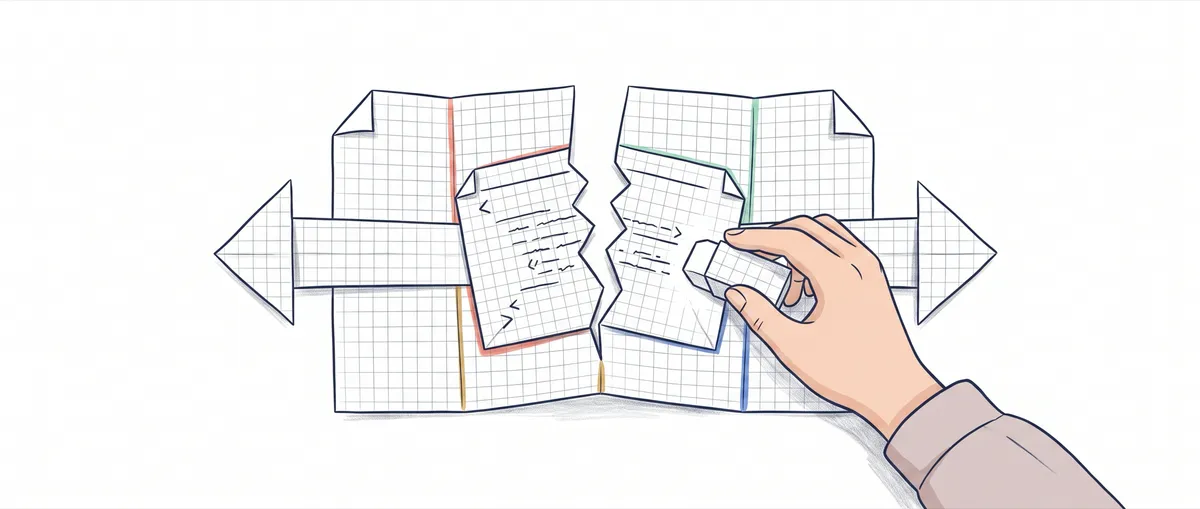
You run git merge expecting everything to fit together, and instead you get CONFLICT (content): Merge conflict in config.js. Your heart rate spikes and the usual temptation kicks in: delete the folder, clone again, and pretend nothing happened. You don’t need to. A merge conflict isn’t a git error, it’s a question: when two changes collide on the same lines, git asks you to decide which one wins. Here’s what git is telling you, and a procedure that always works without breaking anything.
What Exactly Is a Merge Conflict?
A merge conflict appears when two branches modify the same lines of the same file and git has no way of knowing which of the two versions should stay. As long as each branch’s changes touch different areas, git combines them on its own, without asking you anything. The problem is when they overlap.
Picture a typical scenario. You’re on main and a teammate opens feature/subir-timeout from the same point. In a config.js, you leave timeout: 3000 while they change it to timeout: 5000. Each of you commits on your own branch. When you merge theirs in with git merge feature/subir-timeout, git reaches that line and finds two incompatible values for the same spot. It can’t keep both. And it isn’t going to guess which one you prefer.
That’s where it stops and marks the file as conflicted. If you want the details on how git decides what to combine and what not to, I cover that in what a merge is in git. To resolve the one in front of you, what matters is understanding that git hasn’t failed. It did everything it could and left the final word to you.
What Do the <<<<<<<, =======, and >>>>>>> Markers Mean?
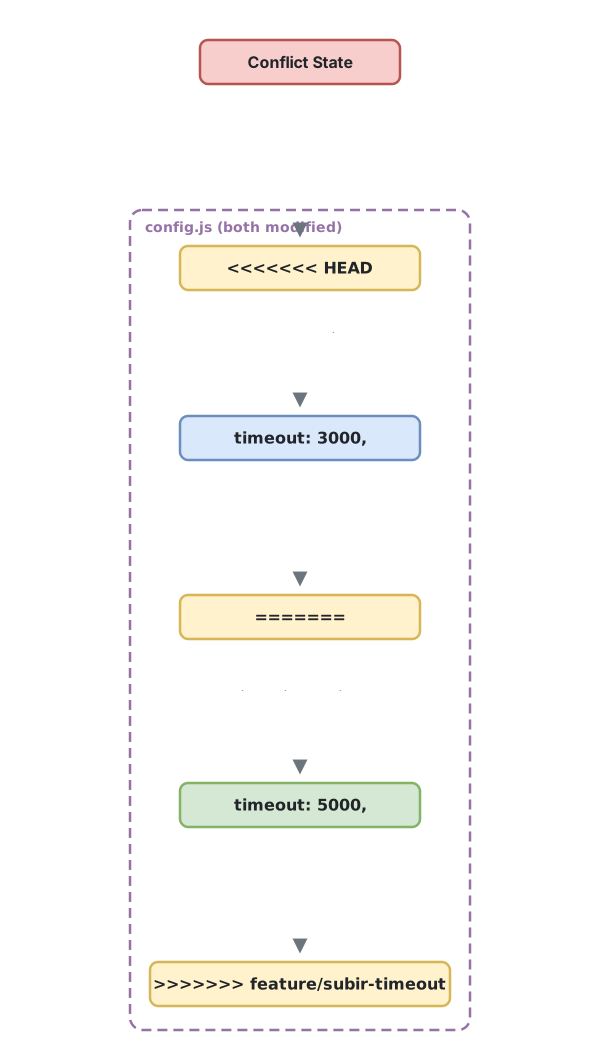
When there’s a conflict, git edits the file and inserts three markers that wrap the two versions in dispute. You open the file and find something like this:
const config = {
  apiUrl: "https://api.ejemplo.com",
<<<<<<< HEAD
  timeout: 3000,
=======
  timeout: 5000,
>>>>>>> feature/subir-timeout
  retries: 3,
};
Each marker means something specific:
<<<<<<< HEADopens your version, the one from the branch you’re currently on. HEAD is simply the commit you’re positioned at, so everything right below it is your current code.=======is the boundary: it separates yours (above) from what’s coming in (below). It isn’t code itself, just the separator.>>>>>>> feature/subir-timeoutcloses the block and indicates which branch the version below came from.
What git shows you is literal: above you have timeout: 3000 (what was in main), below timeout: 5000 (what the incoming branch brings), and you decide. The rest of the file, the apiUrl line and the retries line, isn’t marked because nobody touched them in conflict. Only the colliding area gets marked.
This is git’s default style, inherited from the classic merge program. There’s another one (diff3) that also shows you the common ancestor, but unless you configure it by hand, you’ll always see these three markers. Recognizing them is half the work. The other half is deciding and cleaning up.
How Do I Resolve It Step by Step?
Resolving a conflict comes down to four steps: locate, decide, clean up, and confirm. None of them is mysterious once you know what each command does.
1. Locate which files are in conflict. The first command is always git status. During a conflicted merge it shows you a clear section:
$ git status
On branch main
You have unmerged paths.
  (fix conflicts and run "git commit")
  (use "git merge --abort" to abort the merge)

Unmerged paths:
  (use "git add <file>..." to mark resolution)
	both modified:   config.js

no changes added to commit (use "git add" and/or "git commit -a")
The key is in “Unmerged paths” and in both modified. That tells you exactly which files both branches touched. If there are five in conflict, all five show up here.
2. Open the file and decide. Go to each marked file and choose which code should stay. Sometimes you keep your version, sometimes the incoming one, and often you combine both because each branch contributed something different. In the example, let’s say the correct value is the new one, 5000, because the real API takes longer than we thought.
3. Clean up the markers. This is the step most people skip: you have to delete all three marker lines, not just pick a side. The resolved file ends up as normal code, with no trace of <<<<<<<, =======, or >>>>>>>:
const config = {
  apiUrl: "https://api.ejemplo.com",
  timeout: 5000,
  retries: 3,
};
If you leave any marker in, you’ve put invalid code into the file. A good trick is to search the whole project for <<<<<<< before continuing: if nothing turns up, everything is clean.
4. Mark the file as resolved and close the merge. You tell git that file is ready with git add, then confirm the resolution:
git add config.js
git merge --continue
git add is what moves the file from “unmerged” to “resolved.” git merge --continue seals the merge: it checks that a merge was in progress and creates the merge commit for you. I prefer this command over a plain git commit because it expresses the intent clearly and fails if there’s no merge pending, which warns you if you got the state wrong.[1]
With that, the conflict is resolved and the incoming branch is now integrated into your history.
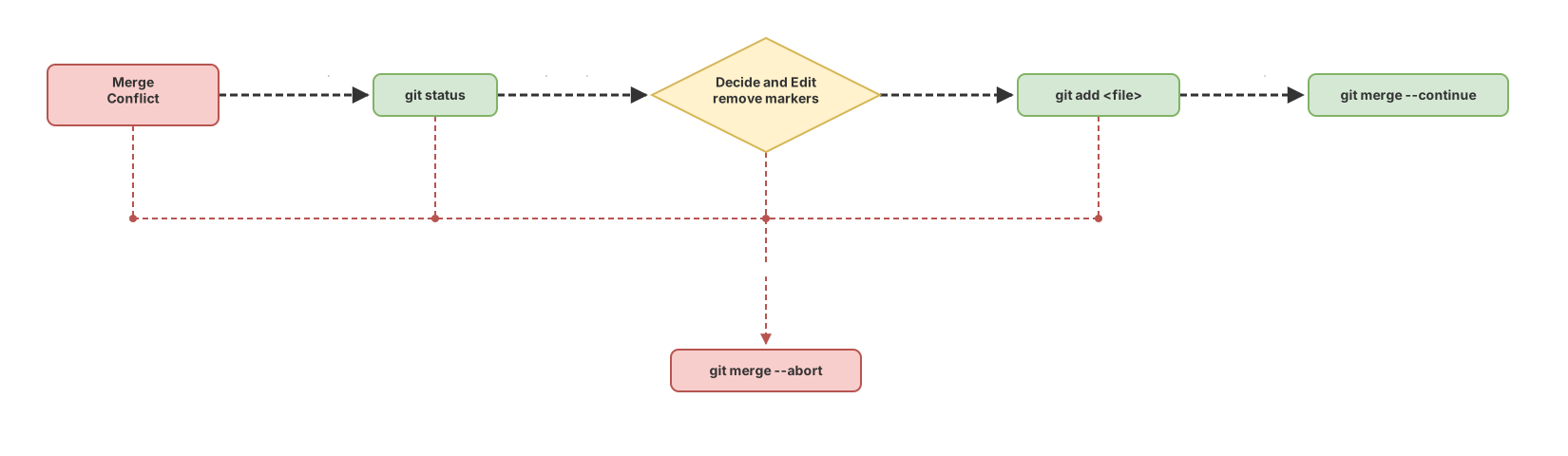
This workflow sinks in by doing it, not by reading about it. Try resolving a conflict right here before moving on:
Loading exercise...
What If I Want to Back Out?
If you’ve gotten tangled up and would rather start from scratch, git merge --abort cancels the ongoing merge and restores the state you had right before starting it. The markers disappear, the files go back to how they were, and it’s as if you’d never run merge.
git merge --abortThere’s an important nuance: git can only restore that state if you had your work committed or stashed before starting the merge. If you started the merge with uncommitted changes in your working tree, in some cases it won’t be able to recover them. That’s why it’s worth committing or running stash before merging anything in.
When the conflict is in a single file and you know you want one whole version without combining anything, there’s a shortcut. git checkout --ours config.js keeps your current branch’s version, and git checkout --theirs config.js keeps the incoming branch’s version. In a merge, “ours” is always HEAD (where you are) and “theirs” is what you’re merging in. Be careful during a rebase, where the two sides are flipped.[2]
Here’s what each command does during a conflict, so you have it handy:
| Command | What it does |
|---|---|
git status | Shows the conflicted files under “Unmerged paths” |
git merge --abort | Cancels the merge and returns to the previous state |
git add <file> | Marks a file as resolved after editing it |
git merge --continue | Closes the merge and creates the merge commit |
git checkout --ours <file> | Keeps your version (HEAD), discarding the incoming one |
git checkout --theirs <file> | Keeps the incoming version, discarding yours |
How Do I Avoid Unnecessary Conflicts?
Conflicts can’t be eliminated entirely, but most are avoidable with a couple of habits. The root cause is almost always the same: two branches live apart for too long while touching the same thing, and the more they diverge, the more painful it is to bring them together.
Merge often. A branch that syncs with main every day produces small, easy conflicts. One that hasn’t looked back in three weeks racks up dozens of collisions at once. Small commits help too: when something breaks, the conflict stays confined to a specific change instead of a mega-commit that’s impossible to read.
Talking to your team is worth more than any command. If you know someone else is rewriting the same config.js, you can coordinate who goes first and skip the collision entirely.
And choose carefully how you integrate. merge isn’t the only way to bring changes from one branch into another; rebase rewrites your history on top of the other branch’s and produces different kinds of conflicts. Which one to use depends on the case, and I compare them in depth in merge or rebase for integrating branches. If the concepts of branch, HEAD, and divergence point still feel fuzzy, start with how branches work in git: a conflict makes a lot more sense once your mental model of branches is clear.
Common Mistakes When Resolving a Conflict
Committing With the Markers Still In
This is the most expensive mistake, and the quietest one. You pick a side, save, and run git add without deleting the <<<<<<< and >>>>>>>. The result is a file with garbage lines that doesn’t compile, or worse, that does compile and fails at runtime. Before every git add, search the project for <<<<<<<. If anything shows up, you’re not done.
Running git add Before Actually Resolving
git add tells git “this file is already fine.” If you run it on a file that still has undecided conflicts, you’re lying to git. It will let you continue, and you’ll ship a half-finished mix to production. Only add what you’ve already read line by line.
Deleting the Repo and Cloning Again
The classic panic move. Cloning from scratch doesn’t solve anything: the conflict reappears as soon as you repeat the merge, and along the way you can lose uncommitted local work. git merge --abort does what you think cloning does, but safely and in a second.
Using --ours and --theirs Without Knowing Who’s Who
This is where real code gets lost. Someone wants to keep a teammate’s changes, runs git checkout --ours thinking “ours” means “the good one,” and discards exactly the version they meant to keep. Remember it with one line: in a merge, ours is you (HEAD) and theirs is what you’re bringing in. In a rebase, they flip.
Checklist for Resolving a Conflict
- Ran
git statusand noted all files under “Unmerged paths” - Opened each file and decided which code should stay, combining when needed
- Deleted all three marker lines (
<<<<<<<,=======,>>>>>>>) in each file - Searched the project for
<<<<<<<and confirmed no stray markers remain - Ran
git addonly on files already resolved - Closed the merge with
git merge --continue(orgit commit) - If I got stuck, used
git merge --abortinstead of deleting the repo
Having the procedure written down helps, but real calm comes once you’ve done it a few times. In the course Git from Zero to Professional you practice real conflicts in a guided environment, with branches, merges, and rebases, until resolving them stops feeling intimidating.
Sources
- Official git-merge documentation: behavior of
--continue,--abort, and the default conflict marker style. - Official git-checkout documentation: meaning of
--oursand--theirsduring a conflict and how they flip during a rebase.
Frequently Asked Questions
What Is HEAD in the <<<<<<< HEAD Marker?
HEAD is the reference to the commit you’re currently positioned at, usually the tip of your current branch. When you see <<<<<<< HEAD, the code right below it is from your branch, the one you had active when you launched the merge.
Can I Use a Visual Tool Instead of Editing by Hand?
Yes. git mergetool opens a three-pane tool (like Meld, VS Code, or KDiff3) that shows you your version, the incoming one, and the result, and cleans up the markers for you on save. It’s convenient for large conflicts. Even so, resolving a couple by hand gives you the mental model of what’s happening underneath.
Should I Use git merge --continue or git commit When I’m Done?
Both work and create the same merge commit. git merge --continue is more explicit: it checks that a merge is in progress before committing and fails if there isn’t one, which warns you if you got the state wrong. A plain git commit works just as well because git already knows you’re closing out a merge.
In a Merge, Who’s Who Between “ours” and “theirs”?
In a merge, “ours” is your current branch, the one HEAD points to, and “theirs” is the branch you’re merging in. So git checkout --ours file keeps your version and git checkout --theirs file keeps your teammate’s. Watch out: during a git rebase this flips, because git replays your commits on top of the other branch and swaps the roles.
Related articles

Git Branches: Create, Merge, and Resolve Conflicts Without Panic
What a Git branch really is, how to create one, merge it with git merge, and resolve a conflict step by step. Plus merge vs. rebase without fear.
Git merge explained: fast-forward vs 3-way merge
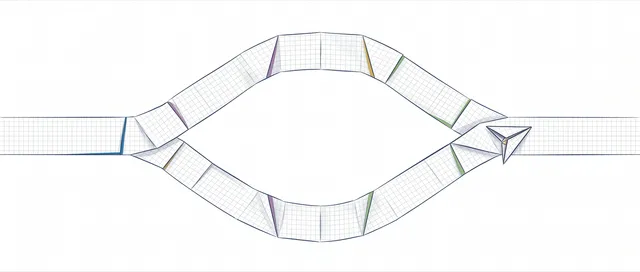
What git merge does under the hood, when it produces a fast-forward and when a three-way merge commit, and how to read the resulting graph.

Merge vs Rebase: Which One to Use and the Rule You Can't Break
Merge vs rebase without dogma: what each one actually does to your history, the golden rule of rebase, and a team workflow you can copy on Monday.