
How to Change the Last Commit Message in Git (--amend)
Change the last commit message in Git with git commit --amend: the exact command, what happens under the hood, and when NOT to use it without breaking anything.

You just made a commit, you check git log, and there it is: a typo in the message, or a message that doesn’t explain anything at all. The good news is that, if you haven’t pushed it anywhere yet, changing the last commit message in Git is a single command: git commit --amend. You won’t break the repository.
To follow this post you just need to know how to git add and git commit, and how to check your history with git log. That’s all you need. And if your underlying question is why it matters to write a good commit message, check out the commit message best practices guide; here we’re getting practical: fixing the one you already got wrong.
How Do I Change the Last Commit Message?
The direct command is git commit --amend -m "new message". With the -m flag you pass the corrected message inline, and Git won’t open any editor.
Imagine your history looks like this (the hash is that seven-character code of letters and numbers at the start of each line, the unique license plate of each commit):
# Check the summarized history, one line per commit
$ git log --oneline
a1b2c3d Addd login function    # <- the typo: "Addd"
9f3c1a2 Set up the project
You fix the message of the commit above, the most recent one, like this:
# Rewrite the last commit's message
$ git commit --amend -m "Add login function"

# Check again: the message is fixed now
$ git log --oneline
f4e5d6c Add login function    # <- fixed message...
9f3c1a2 Set up the project
Notice something odd: the hash changed. It used to start with a1b2c3d, now it starts with f4e5d6c. The commit before this one (9f3c1a2) stays the same, but the one you touched got a new license plate. That’s not a bug. It’s the key to understanding what just happened, and why --amend has a golden rule.
What --amend Does Under the Hood (and Why the Hash Changes)
git commit --amend doesn’t edit your commit. It creates a new one that replaces the previous one [1]. Your files’ content is identical, the parent commit is the same, but as far as Git is concerned it’s a different commit with its own hash.
Why? Because that hash doesn’t come from nowhere: it’s a fingerprint computed from everything that makes up the commit, and the message is part of that. Change a single letter of the text and the entire fingerprint changes. A commit in Git is immutable: it can’t be modified without ceasing to be the same commit. So “editing the message” is really building a twin commit with the corrected text and pointing your branch at it.
The old commit, the one with the typo, isn’t deleted right away. It stays there floating, with nothing pointing to it, and Git remembers it for a while in the reflog (more on that in the FAQ below). But for practical purposes, it has been replaced.
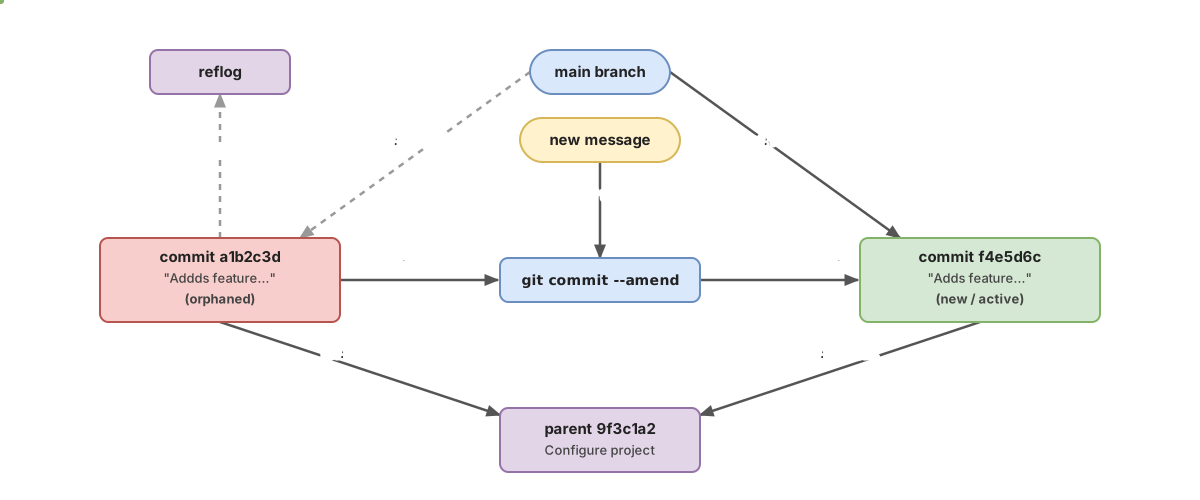
--amend doesn’t edit the commit: it creates a new one with a different hash and moves the branch to point at it. The old one becomes orphaned, recoverable for a while via the reflogThis is all fine as long as the old commit only ever existed on your machine. The problem shows up when that commit already lived somewhere else. Let’s get to that in a moment.
Did I Forget to Add a File to the Commit?
--amend isn’t just for the message. It’s for redoing the entire last commit, so you also use it when the message was fine but you forgot to include a file.
The trick is the --no-edit flag, which tells Git: redo the commit with whatever is currently staged, but leave the message as it is, without opening the editor [1].
# Add the file you left out
$ git add styles.css

# Redo the last commit to include it, without touching the message
$ git commit --amend --no-edit
Now the styles.css file is part of that last commit, as if you’d included it from the start. The message stays exactly the same.
An important warning here, because this is a classic junior trap. You may have seen the shortcut git commit -a around and think of using git commit -a --amend to sneak the file in. It doesn’t work for new files. The -a flag only auto-stages files Git is already tracking that you’ve modified or deleted; it doesn’t touch new files Git doesn’t know about yet [1]. That’s why the explicit git add styles.css in the example isn’t optional: it’s what gets the new file into the commit.
Editing the Message in the Editor (and Getting Out of Vim)
If you type git commit --amend without -m, Git opens a text editor with the current message already written in, so you can rewrite it calmly. It’s more convenient when the message spans several lines or you want to rewrite it entirely.
The typical scare is that this editor turns out to be Vim, and a lot of people get stuck not knowing how to exit. The recipe to save and quit: press Esc, type :wq, and press Enter. If you’d rather never go through this again, switch your default editor to something simpler:
# Use nano (or "code --wait" for VS Code) as your commit editor
$ git config --global core.editor "nano"
You save and close, and Git redoes the commit with the message you left. The result is the same as with -m: new commit, new hash.
When You Should NOT Use --amend
Here’s the one rule you really need to internalize: don’t --amend a commit you’ve already pushed to a branch other people share.
You already saw why. --amend doesn’t change the commit, it replaces it with another one that has a different hash. If that commit only ever lived on your machine, nobody cares. But if you’d already pushed it to main (or to any branch your teammates have pulled), they have the old commit, with the old hash, and you’ve just created a new one that claims to be “the same one.” When they try to sync, their repositories and yours disagree about what the real history is. It’s a mess of conflicts and duplicate commits you’ll have to clean up by hand.
Rewriting the history of a shared branch is the fastest way to get your team side-eyeing you on a Monday morning.
This table sums up when --amend is safe and when it isn’t:
| Commit’s situation | Can I --amend? | What to do |
|---|---|---|
| Local, not pushed yet | Yes, no worries | git commit --amend and you’re done |
| Pushed, but only to your personal branch nobody else uses | With care | --amend and then git push --force-with-lease |
Pushed to main or a shared branch | No | Make a new commit to fix it |
The middle case needs a flag I’ll introduce in the last section, because once the commit is already on the server, a plain git push won’t cut it.
What If I Already Pushed It?
It depends on who else has that commit. If the branch is yours and you’re sure nobody else is working on it, you can force-push the rewritten commit with git push --force-with-lease:
# Force the push, but only if nobody has touched the remote branch in the meantime
$ git push --force-with-lease
--force-with-lease is safer than plain --force because it checks before pushing: if the remote branch has moved on since your last fetch (a sign that someone else has published something), it aborts the push instead of stomping on someone else’s work [2]. It’s safer, not foolproof: it’s still rewriting history, so reserve it for your own branches.
If the branch is shared, forget about --amend. The clean way is to leave the bad commit where it is and add a new one on top that fixes whatever needs fixing. Nobody has to resync anything, and the history stays coherent for the whole team. If what you actually want is to undo the entire commit and not just change its text, that’s a different path: I cover it in how to undo the last commit in Git.
And if Git has left your repository in a state you don’t understand, the complete guide to undoing changes in Git walks through the most common situations to get you out of trouble.
Before You Run --amend, Check
- The commit you’re about to touch is the last one (
HEAD), not one further back - That commit hasn’t been pushed to a shared branch yet
- If you forgot a new file, you ran
git addon it before the--amend - You know the hash is going to change and that’s fine as long as the commit is local
- If you’ve already pushed it to your personal branch, you’ll use
--force-with-lease, never--force
That covers 99% of “ugh, I wrote the message wrong” moments. You’ll get to the rest of Git’s history-fixing tricks (rebase, reset, cherry-pick) calmly and without fear in the course Git from Zero to Professional.
Sources
- Official Git documentation: git-commit. Behavior of
--amend(creates a new commit that replaces the previous one),--no-edit(keeps the message), and-a(only stages already-tracked files, not new ones). - Official Git documentation: git-push.
--force-with-leaseaborts the push if the remote branch has changed since your lastfetch.
Frequently Asked Questions
Does --amend Delete My Previous Commit?
Not exactly. The previous commit stops being referenced (your branch now points to the new commit), but it doesn’t disappear instantly: it becomes “orphaned” and Git keeps it in the reflog for a while before cleaning it up. During that period you can recover it.
How Do I See the Old Message If I Regret the Change?
With git reflog. That command lists every place HEAD has recently pointed to, including the commit before the --amend along with its hash. Copy that hash and you can go back to it or recover whatever you need.
Can I Also Change the Author or Date of the Commit With --amend?
Yes. git commit --amend --author="Name <email@example.com>" changes the author, and --date changes the date. Just like with the message, this generates a new commit with a different hash, so the same rule applies: only do this on commits you haven’t shared yet.
Does git blame Show Me the Commit Message?
No. git blame tells you, line by line, which commit touched each one, along with its hash, author, and date, but it doesn’t print the message. To read a specific commit’s message, use git show <hash> or look it up in git log.
Related articles
How to Undo Changes in Git: The Guide to Never Losing Your Work
A decision guide for undoing changes in Git: which command to use for each situation (restore, reset, revert, stash) and why almost nothing is ever truly lost.
How to Undo the Last Commit in Git Without Losing Your Code
Undo the last commit in Git with git reset (soft, mixed, hard) or git revert. What happens to your files in each case and which one to use for your situation.

Commit Messages: Best Practices with Examples
Learn to write useful commit messages: imperative-mood subject lines, the 50/72 rule, the why over the what, and Conventional Commits, with examples.