
How to Undo Changes in Git: The Guide to Never Losing Your Work
A decision guide for undoing changes in Git: which command to use for each situation (restore, reset, revert, stash) and why almost nothing is ever truly lost.
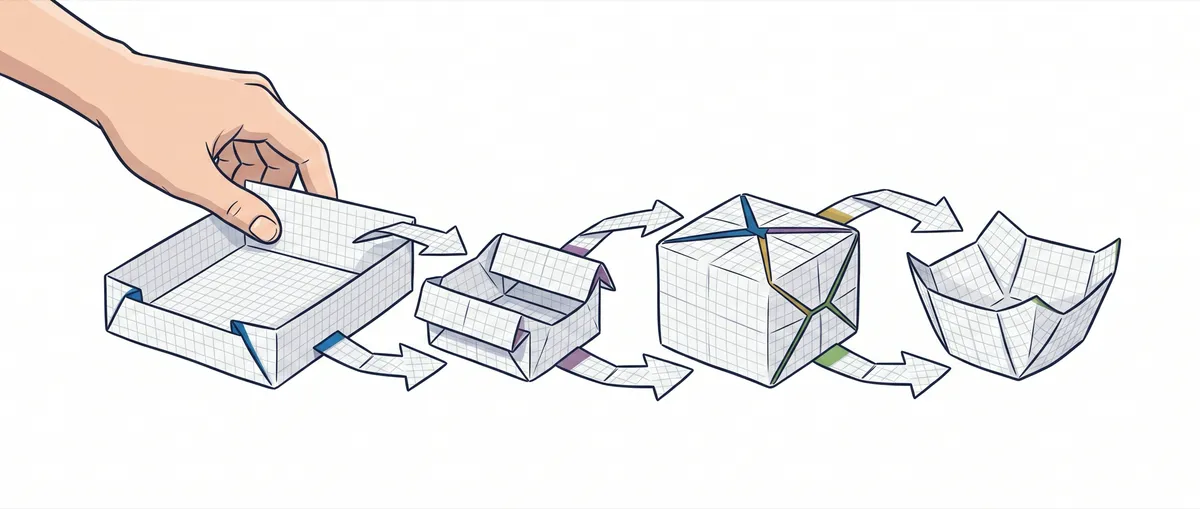
You just ran a command. The terminal doesn’t complain, no red error shows up, everything seems perfectly normal. And then you see it: the file you’d spent two hours on is empty again, or the commit you just made has vanished, or the whole folder looks like it did three days ago. Your stomach drops.
Breathe. In Git, almost nothing is ever truly lost.
That sentence is the thread running through everything that follows. Git keeps backups of your work in places you don’t see, and “undoing changes in Git” almost never means destroying something: it means moving your work from one place to another. The problem isn’t that Git deletes things. The problem is that when something breaks, you panic and run commands blindly without knowing what each one actually moves. This guide gives you the opposite: a mental map so that when you mess up, you know exactly which tool to reach for depending on the situation.
To follow this post you need three basic things. A commit is a saved snapshot of your project at a specific moment. Staging (or the index) is a box where you put the changes you want to include in the next snapshot, before you take it. And HEAD is a pointer that marks which commit you’re currently on. If those three terms ring even a distant bell, you’re ready.
Where does your work actually live in Git? The four areas
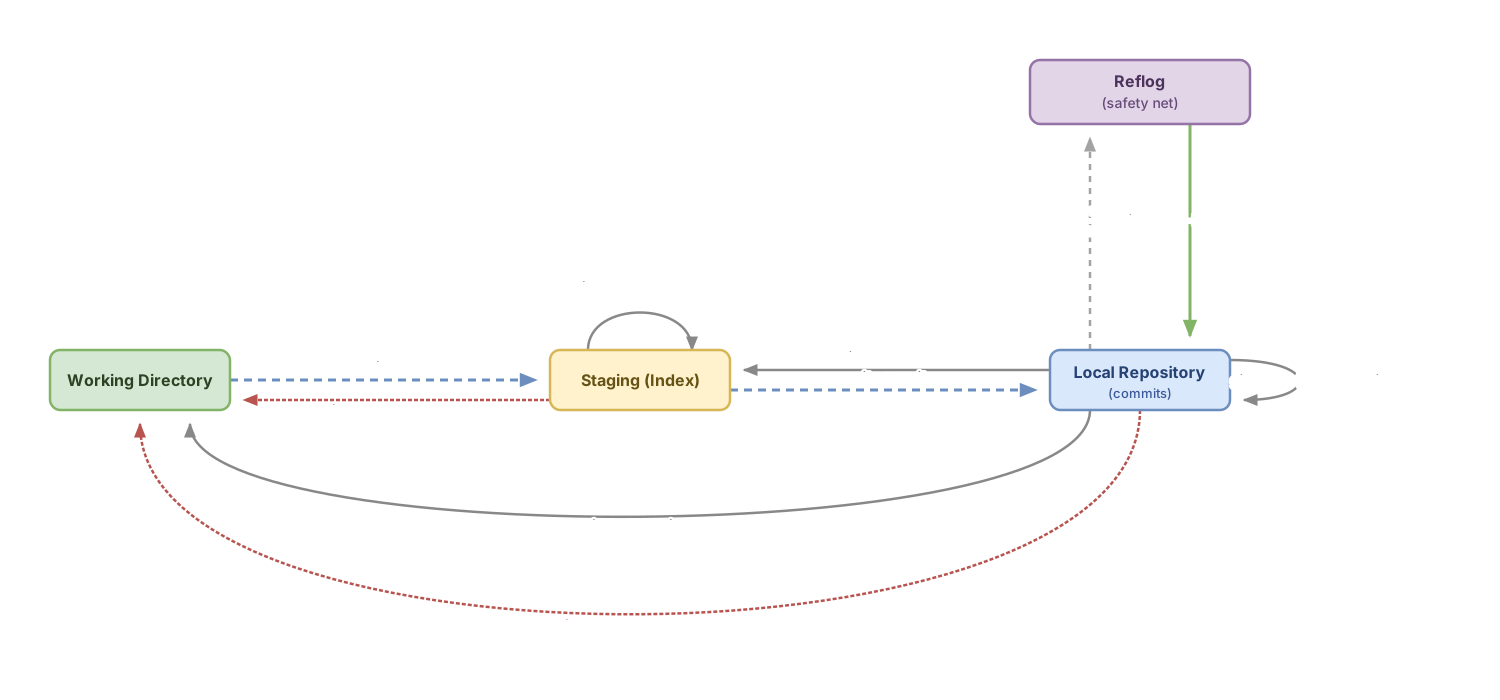
Before touching a single command, you need to know where your work is at any given moment. Git doesn’t keep your changes in one single place: it spreads them across four areas, and every “undo” command moves work between them. Once you have that map clear in your head, the commands stop being scary.
The first area is the working directory, your work folder. It’s the desk where you edit files with your editor. When you change a line and save the file, that change lives here and only here. It isn’t in Git in any safe form yet.
The second is staging (the index). Think of it as a cardboard box where you put whatever you want to show up in the next snapshot. When you run git add file.js, you’re not saving anything permanent: you’re just putting that file in the box. It’s the intermediate step between “I edited it” and “I saved it forever.”
The third is the local repository, where commits live. This is your history: every commit is a permanent snapshot that Git doesn’t delete lightly. When you run git commit, you take the snapshot of whatever was in the box and paste it into the album. That snapshot stays there with its own identifier (a hash), and recovering it later is almost always possible.
And there’s a fourth area nobody mentions at first: the reflog. It’s a private diary Git keeps on your machine, noting every single time HEAD moves. Every commit, every branch switch, every reset. It’s the safety net that makes the phrase “almost nothing is lost” literally true. I’ve given it a whole section at the end because it’s the hero of this story.
The rule that will save you: undoing almost always means moving work between these areas, not destroying it. The big exception is changes that exist only in the working directory and have never gone through a commit. Those can genuinely be lost. Hold on to that idea, because it comes back again and again.
How do I discard changes to a file I haven’t saved yet?
To throw away the changes to a file you’ve edited but haven’t yet added to staging, use git restore <archivo>. That command takes the file from your working directory and returns it to the last saved version.
# You edited config.js and just want to throw those changes away
git restore config.js
# Now config.js is back to how it was in the last saved version
Here’s a serious warning, because this is one of the very few things in Git that genuinely does delete for real. When you run git restore config.js, Git restores the file from the index (staging). If you hadn’t run git add on that file, the index matches your last commit, so the file goes back to the state of the last commit and your edits are gone forever. There’s no commit involved, so the reflog won’t rescue you. Whatever never became a snapshot was never saved anywhere by Git.
The danger multiplies with the dot:
# The dot means "every file in the current directory"
git restore .
# Discards the unsaved changes of EVERY file at once. No safety net.
git restore . discards the unsaved changes of every file in the current directory and its subfolders in one go (run from the repository root, it affects the whole project). It’s extremely fast and it’s one of the very few truly irreversible things in Git. Before running it, stop for a second and check git status to see exactly what you’re about to throw away.
If you’ve been watching old tutorials for years, you’ve probably seen git checkout -- config.js used for this same purpose. It does the same thing as git restore, but the Git team split the responsibilities: checkout had become so overloaded (switching branches, restoring files, moving HEAD) that it was a constant source of mistakes. Since Git 2.23, restore handles restoring files and switch handles switching branches. Use restore: it’s much harder to shoot yourself in the foot with it.
How do I remove a file from staging?
If you ran git add on a file and regret it, git restore --staged <archivo> takes it out of staging without touching your work. The changes stay intact in your working directory: all you’re doing is taking the file out of the box before the snapshot.
git add archivo.js          # put archivo.js into staging
git restore --staged archivo.js   # take it out of staging
# Your changes to archivo.js are STILL THERE, just unstaged
Notice the difference from the previous section, because it’s the one that confuses people the most. git restore archivo.js (without --staged) touches your working directory and erases your edits. git restore --staged archivo.js touches staging and doesn’t erase anything: it just unstages. The --staged flag completely changes which area gets affected.
The classic command for this is git reset archivo.js. You’ll see it in a ton of code and a ton of tutorials, and it works perfectly. Git’s own documentation says that git reset <archivo> is the opposite of git add <archivo> and is exactly equivalent to git restore --staged <archivo>. Both take the file out of staging and leave your work alone.
Here’s a common fear worth defusing: when you use reset with a filename, it doesn’t delete anything from your working directory. A lot of people associate the word “reset” with “destroy” and avoid the command because of that. But git reset archivo.js only unstages. The dangerous version of reset is a different one, the one that acts on entire commits, and it’s next.
How do I undo a commit I just made?
To undo the last commit you made locally, use git reset pointing to the previous commit. The way to write “the commit before where I am” is HEAD~1: HEAD is where you are, and ~1 means “one step back.”
What makes git reset unique is that it has three modes, and each one decides what happens to your work. This is where most people get it wrong, so let’s go slowly.
With --soft, Git moves HEAD back to the previous commit and leaves everything else untouched. The commit disappears, but the changes it contained stay in staging, ready to be committed again. This is the mode you use when the commit itself was fine but you want to change its message or squash it with another one.
# Undoes the last commit, but keeps its changes staged
git reset --soft HEAD~1
# The commit is gone; its changes are staged and ready to re-commit
With --mixed, which is the default mode if you don’t pass any flag, Git moves HEAD back to the previous commit and also empties staging. The changes aren’t lost: they drop down to the working directory, unstaged. It’s as if you’d never run either git add or git commit, but your edits are still there, in your files.
# --mixed is the default mode: you don't need to write it
git reset HEAD~1
# The commit is undone and its changes go back to the working directory, unstaged
And with --hard, Git moves HEAD back to the previous commit and wipes out everything along the way: staging and working directory end up exactly like the target commit. This is where people genuinely lose work, because any uncommitted changes that were sitting in the working directory disappear without going through any recoverable place.
# WARNING: discards the commit AND the unsaved changes in the working directory
git reset --hard HEAD~1
This table is the one you should have memorized. It shows what each mode touches across the three areas that matter:
| Mode | History (HEAD) | Staging (index) | Working directory |
|---|---|---|---|
--soft | Moves HEAD back | Untouched (changes staged) | Untouched |
--mixed (default) | Moves HEAD back | Emptied (changes unstaged) | Untouched |
--hard | Moves HEAD back | Overwritten | Overwritten (changes lost) |
The practical takeaway: --soft and --mixed are safe because your work stays in your files, only its area changes. --hard is the only one that destroys uncommitted changes. And here’s the nuance that saves the day: the commits you discard with --hard can still be recovered through the reflog, because they were saved snapshots. What can’t be recovered is working-directory changes that never became a commit.
If all you need is to undo the last commit and nothing more, there’s a step-by-step walkthrough of that exact case in how to undo the last commit in Git.
What if you’ve already shared that commit? Reset vs. revert
If the commit you want to undo has already been pushed to a branch other people use, don’t use reset: use git revert. This is the golden rule of version control, and breaking it is one of the few ways to create a mess that affects other people, not just you.
Here’s why. git reset rewrites history: it deletes commits and moves the branch pointer backward. As long as that only happens on your machine, it’s your business. But if those commits are already on the remote and a teammate has pulled that branch, your version of history and theirs stop matching. The next time you try to push, you’ll have to force it, and when your teammate runs pull, Git will try to “recover” the commits you deleted because they still have them. A mess of duplicate commits and conflicts that you created.
git revert solves this without touching history. Instead of deleting the bad commit, it creates a new commit that applies exactly the opposite changes. If the original commit added three lines, the revert commit removes them. The original commit is still there, visible in the log, and history grows forward instead of being rewritten backward. That’s why it’s safe on shared branches: nobody has to “recover” anything, everyone simply receives one more commit.
# Creates a new commit that undoes the changes from HEAD (the last commit)
git revert HEAD
# History stays intact; a commit is added that reverts the previous one
git reset | git revert | |
|---|---|---|
| What it does | Moves HEAD back and deletes commits | Creates a new commit that inverts the changes |
| Rewrites history? | Yes | No |
| Safe on a shared branch? | No, breaks things for your teammates | Yes |
| When to use it | Commits that only exist on your machine | Commits you’ve already pushed |
A simple way to remember it: reset is for your private work, revert is for work you’ve already shared. If you’re unsure whether a commit is already off your machine, revert is the option that never causes harm. The full comparison of all three verbs, with more examples, is in differences between reset, revert, and restore.
These nuances (which reset mode touches which area, when a commit is already “public,” why revert creates history instead of erasing it) are exactly what separates someone who types commands out of fear from someone who knows what they’re doing. If you want to internalize them by practicing instead of by getting scared, the course Git from Zero to Professional walks you through each of these scenarios in a visual, interactive way: you break things on purpose and learn to fix them.
”I need to switch tasks right now”: parking work with git stash
git stash saves your half-finished changes in a separate drawer and leaves your working directory clean, as if you’d just made a commit. It’s not undoing: it’s parking. The typical case is you’re halfway through a feature, everything’s a mess, and you’re asked to fix an urgent bug on another branch. You don’t want to commit half-baked code, but you don’t want to lose it either.
git stash          # saves your changes and cleans up the working directory
# ...you fix the urgent bug, you commit...
git stash pop      # brings your changes back
When you run git stash, Git takes whatever you have in the working directory and in staging, saves it in a separate stack, and leaves your files as they were in the last commit. Your work hasn’t gone anywhere: it’s parked. You can switch branches, do whatever you need, and come back.
git stash pop does the opposite: it takes the last thing you saved, reapplies it on top of your working directory, and removes it from the stack. If you’d rather apply it without removing it from the stack (for example, to carry the same changes over to two branches), use git stash apply instead.
You can park several things and see them all with git stash list:
git stash list
# stash@{0}: WIP on main: 3a4f5b2 Add form validation
# stash@{1}: WIP on main: 9cc0589 Start login refactor
One important detail so it doesn’t catch you off guard: if git stash pop runs into a conflict (because the code has changed since you parked it), Git applies what it can but does not remove the stash from the stack. You’ll have to resolve the conflict by hand and then delete it yourself with git stash drop. It’s a safeguard: Git won’t throw away your parked work until it’s sure it applied cleanly.
The safety net that recovers almost everything: git reflog
git reflog is a log Git keeps of every HEAD movement in your repository, and it’s what turns seemingly catastrophic mistakes into a two-minute scare. Every time you make a commit, switch branches, or run a reset, Git notes in the reflog where HEAD was before. It’s a private diary, local to your machine, that almost nobody checks until they really need it.
Here’s the scenario that causes panic. You ran git reset --hard HEAD~3 thinking you wanted to go back three commits, and suddenly you realize those three commits held good work that’s now nowhere to be found. git log doesn’t show them. They look deleted.
They’re not. Check the reflog:
git reflog
# 7d3c9a1 HEAD@{0}: reset: moving to HEAD~3
# a1b2c3d HEAD@{1}: commit: Finish the payments endpoint
# 4e5f6a7 HEAD@{2}: commit: Add cart tests
# 8b9c0d1 HEAD@{3}: commit: Stock validation
Each line is a place HEAD has been. The commit you thought was lost (a1b2c3d, with the payments endpoint) is still there, with its hash intact. To recover it, point your branch back to that commit:
# Returns your branch to the state right before the reset
git reset --hard a1b2c3d
# Your "lost" commits are back in the history
And that’s it. The work you thought was dead comes back as if nothing happened. If you’d rather inspect it before committing to it, git checkout a1b2c3d takes you to that commit without moving your branch (you end up in a “detached HEAD” state, just looking around), and from there you can create a new branch with git branch recuperado a1b2c3d.
This is the most reassuring rescue in all of Git, and it’s much easier to understand by doing it than by reading about it. Try recovering work after a git reset --hard yourself in this simulation: cause the “disaster” and pull it back out of the reflog with your own hands.
Loading exercise...
This is what makes the opening sentence literally true: as long as your work was ever a commit, the reflog remembers it. There are two limits worth knowing. First: the reflog is local, it lives only on your machine, it’s never shared via push and never cloned. Second: entries aren’t eternal, Git cleans them up after a while (by default, on the order of months), but that leaves you plenty of margin to recover today’s or this week’s work. The full explanation of how it works under the hood is in the reflog as Git’s safety net.
The only situation where the reflog can’t help you is the one we already saw: changes that existed only in the working directory and never became a commit. A git reset --hard that wipes out uncommitted edits, or a git restore . over unsaved work. That’s why the best habit for not depending on a rescue is making small, frequent commits: every commit is a snapshot the reflog can hand back to you.
Cheat sheet: the situation and the command
This is the table you can save and come back to whenever something breaks. The idea is the same as the whole post: identify what situation you’re in and grab the right tool.
| Your situation | The command | What happens to your work? |
|---|---|---|
| Discard unsaved changes to a file | git restore <archivo> | Erased (no safety net, be careful) |
| Remove a file from staging without losing changes | git restore --staged <archivo> | Kept in the working directory |
| Undo the last commit and keep the changes staged | git reset --soft HEAD~1 | In staging, ready to re-commit |
| Undo the last commit and edit the changes | git reset HEAD~1 | In the working directory, unstaged |
| Undo a commit and throw away everything tied to it | git reset --hard HEAD~1 | Erased (recoverable via reflog if it was a commit) |
| Undo a commit you’ve already pushed | git revert <commit> | Untouched; a commit is added that inverts it |
| Park half-finished work for another task | git stash and then git stash pop | Saved in the stack, recovered later |
| Recover work after a reset you thought was fatal | git reflog and git reset --hard <hash> | Comes back, if it was ever a commit |
Look at the last column. In almost every row, your work is preserved or recoverable. The only two red rows are the ones that touch the working directory with things you never committed. That’s the whole map, summed up in one table.

Common mistakes when undoing (and how to avoid them)
The commands above are safe if you understand what each one moves. Problems almost always come from five confusions that repeat over and over.
Using git reset --hard without knowing what’s unsaved
This is the mistake that causes the most real work loss. git reset --hard doesn’t distinguish between what you want to delete and what you don’t: it wipes out everything in the working directory down to the target commit. If you had uncommitted changes you didn’t want to lose, there’s no reflog that can rescue them, because they were never a snapshot. The habit that prevents this takes five seconds: always check git status before a --hard, to see what you have unsaved. If there’s something you want to keep, make a commit or a git stash first.
Running reset on commits you’ve already shared
Rewriting, with reset, a history that’s already on the remote breaks things for everyone who has that branch. Their repositories keep the commits you deleted, and their next pull reintroduces them as duplicates, with conflicts they don’t understand because they didn’t create them. The rule is simple: if you’ve already run push, you undo with revert, not with reset.
Believing git restore . can be undone
Discarding working-directory changes that you never saved is one of the very few things Git truly cannot recover. git restore . is tempting because it cleans up the project in one shot, but every file with uncommitted changes gets lost. Before running it, git status tells you exactly what you’re about to throw away. A second spent looking at the list saves you the drama.
Running commands blindly after a scare
When something breaks, the instinct is to type commands quickly to see if one of them fixes it. That’s exactly the opposite of what works. Every blind command can bury the problem deeper or move HEAD somewhere that complicates the rescue. Stop. Run git status to see where you are, and git reflog to see where you came from. With those two snapshots, almost any mess has a solution. Panic is what deletes work, not Git.
Confusing “undo” with “delete”
A lot of commands that sound aggressive don’t destroy anything. git reset --soft keeps your changes staged. git restore --staged only unstages. git stash parks without losing anything. The word “reset” sounds scary, but only --hard genuinely touches your working directory. Understanding that most of these commands move work instead of destroying it is what takes the fear out of using them.
What to do when you panic
- Stop typing commands. The first blind command usually makes things worse.
- Run
git statusto see which area your work is currently in. - Ask yourself: did what I want to recover ever become a commit?
- If it was a commit, run
git reflogand look for the hash of the good state. - Return to that state with
git reset --hard <hash>or inspect it withgit checkout <hash>. - If it was uncommitted changes with no stash, assume they’re gone and start committing more often.
- Before any future
--hard, checkgit statusso you don’t step on unsaved work.
Undoing without fear is learned by doing it
You now have the map: four areas, one command per situation, and a reflog that recovers almost everything that was ever a commit. With that, the next time your stomach drops you’ll know exactly where to look instead of typing blindly.
The difference between knowing it by heart and truly knowing it is having done it with your own hands a few times. In the course Git from Zero to Professional you work through each of these scenarios until recovering your work stops being a moment of panic and becomes a reflex. You come out knowing how to read your repository’s state and choose the right command without hesitating. Stop being afraid of Git and start being the one in control.
Frequently Asked Questions
What’s the difference between git reset and git restore?
git restore works at the file level: it restores the contents of a file in your working directory or takes it out of staging, without touching commit history. git reset (without a filename) works at the commit level: it moves the HEAD pointer backward and, depending on the mode, adjusts staging and the working directory. To undo the changes to a specific file, use restore. To undo an entire commit, use reset.
Can I recover my work after a git reset —hard?
It depends on whether your work ever became a commit. If --hard discarded commits, then yes:
git reflog                       # look for the hash of the commit you thought was lost
git reset --hard a1b2c3d         # go back to that commit
But if --hard erased changes that existed only in the working directory and were never committed, those can’t be recovered, because the reflog only tracks commit movements, not unsaved edits.
When do I use reset and when do I use revert to undo a commit?
If the commit only exists on your machine and you haven’t pushed it, use reset. If you’ve already shared it with push on a branch other people use, use revert. The reason is that reset rewrites history, and rewriting a history that others already have breaks their repositories; revert, on the other hand, creates a new commit that inverts the changes without deleting anything, so it’s safe on any shared branch.
Is git stash the same as undoing changes?
No. git stash parks your half-finished work and leaves your working directory clean; git stash pop gives it back to you exactly as it was. It’s pausing, not discarding.
Why do you recommend git restore instead of the old git checkout?
Because git checkout did too many different things (switching branches, restoring files, moving HEAD), and it was easy to confuse one for another and cause a disaster. Since Git 2.23 the team split those responsibilities: git restore restores files and git switch switches branches. git checkout -- file still works, but git restore file makes it much clearer what you’re doing and is harder to get wrong.
Related articles
How to Undo the Last Commit in Git Without Losing Your Code
Undo the last commit in Git with git reset (soft, mixed, hard) or git revert. What happens to your files in each case and which one to use for your situation.

git reset vs revert vs restore: which one to use and when
The differences between git reset, revert, and restore: which area of Git each one touches, the three reset modes, and which one to use without breaking shared history.

git reflog: recover commits and branches you thought were gone
git reflog saves every position HEAD has held and lets you recover commits, branches, and work after a reset --hard. Learn to read it and undo the panic.