
git reflog: recover commits and branches you thought were gone
git reflog saves every position HEAD has held and lets you recover commits, branches, and work after a reset --hard. Learn to read it and undo the panic.

You know the moment. You ran git reset --hard on the wrong commit, or deleted a branch with git branch -D, and suddenly this morning’s work is “just gone”. The terminal doesn’t complain. There’s no confirmation dialog, no trash bin. Just the cold sweat of thinking you’ve lost two hours of code. That panic lasts until you discover git reflog, the record that keeps track of where HEAD has been and turns almost any accident into something reversible. Here’s how to read it and how to use it to recover commits, branches, and resets you thought were unrecoverable.
What exactly is the reflog?
The reflog is a local record of every position HEAD has held in your repository. Every time you make a commit, a checkout, a reset, a merge, or a rebase, Git notes which commit HEAD ended up pointing to and why. Running git reflog with no arguments is the same as git reflog show HEAD: it shows you that history of moves, from most recent to oldest.
A reflog line has three parts: the commit’s short hash, the HEAD@{n} selector that tells you how many moves back that position is, and the action that caused the change.
$ git reflog
7c2b8f5 (HEAD -> main) HEAD@{0}: reset: moving to HEAD~2
a4d19e0 HEAD@{1}: commit: validación del formulario de registro
3b6d4c2 HEAD@{2}: commit: endpoint de registro
7c2b8f5 HEAD@{3}: checkout: moving from feature-login to main
e1f0a9d HEAD@{4}: commit: maquetación inicial del login
HEAD@{0} is always where you are right now. HEAD@{1} is where you were right before the last move, and so on. Read those lines like a time machine: each one is a point you can return to.
Why does almost nothing in Git ever really get lost?
Because a commit doesn’t get deleted when you stop using it: it just stops having anyone point to it. A commit in Git is an object stored in .git/objects, identified by its hash. Branches and HEAD are pointers that point to those objects. When you run git reset --hard, Git moves the branch pointer to another commit, updates the index, and overwrites your working tree to match it.[1] What it does not do is touch the objects: the commit you “moved away from” stays intact in the database.
The problem is that nothing references it anymore. git log won’t show it, because git log only walks what’s reachable from HEAD. The commit is still there, orphaned, waiting. And the reflog is precisely what keeps its hash even when no branch points to it. That’s the difference between “lost forever” and “unhooked for a while”: the reflog preserves the reference you lost.
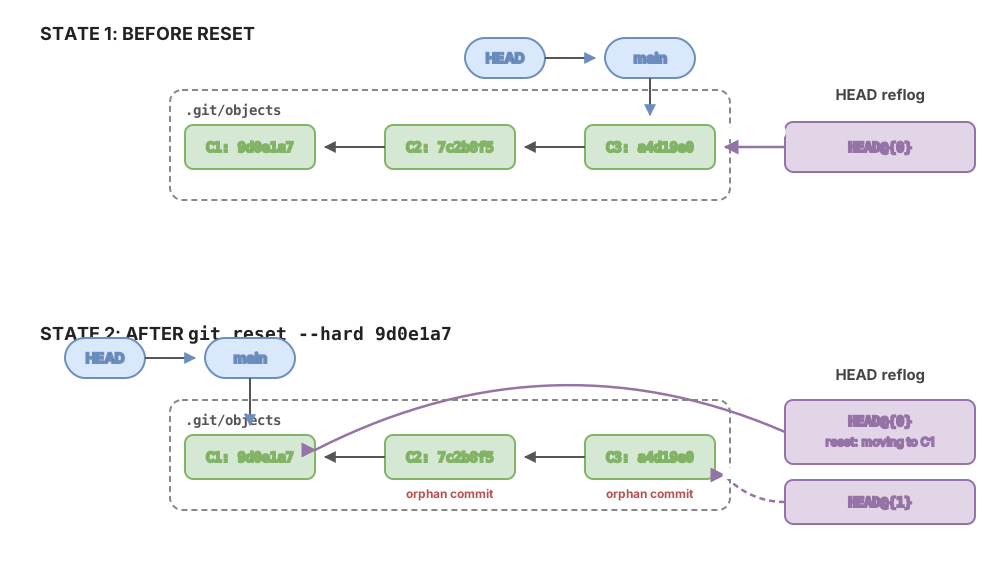
With that model in your head, recovery stops being magic and becomes a procedure.
Recovering after a reset --hard to the wrong commit
The most common case, and the scariest. You wanted to drop the latest changes in your working tree, but you got the target commit wrong and reset --hard took good commits down with it. The branch now points to an earlier spot and your recent code seems to have vanished.
Open the reflog and find the line right before the reset. In the example above, HEAD@{0} is the reset itself and HEAD@{1} is the state right before it, with the registration form validation still in place. To get back there:
# HEAD@{1} = where the branch pointed right before the last move
git reset --hard HEAD@{1}
HEAD@{1} isn’t a memorized hash: it’s a relative reference that Git resolves to the previous commit in the reflog. That’s why it works even if you never wrote down the hash. If you’d rather be explicit, grab the hash from the line (a4d19e0) and run git reset --hard a4d19e0. The result is identical.
One warning: reset --hard overwrites the working tree. If you have unsaved changes on top of this mess, run git stash before experimenting with resets. Recovering a commit won’t give you back what never made it into Git.
Loading exercise...
Rescuing an orphaned commit after a rebase
A rebase gone wrong leaves orphaned commits just like a reset does, and the reflog still holds onto them. After a git rebase that rewrote history and left out a commit you actually wanted, the reflog keeps the hash of the state before the operation. Find it:
$ git reflog
9d0e1a7 (HEAD -> main) HEAD@{0}: rebase (finish): returning to refs/heads/main
9d0e1a7 HEAD@{1}: rebase (pick): reescribe el servicio de pagos
a4d19e0 HEAD@{2}: rebase (start): checkout main~3
a4d19e0 HEAD@{3}: commit: fix del cálculo de impuestos
That a4d19e0 at HEAD@{3} is the commit with the fix the rebase left behind. You have two ways to rescue it. If you want the whole commit on a safe new branch:
# Creates a branch starting at the orphaned commit and switches to it
git switch -c rescate a4d19e0
git switch is the modern command for moving between branches and creating them. It stopped being marked experimental in Git 2.46 and is now the recommended choice over checkout for this kind of task, because it separates “switch branches” from “restore files” into two distinct commands.[2] The -c flag creates the rescate branch pointing at that hash and takes you there in a single operation.
If all you want is to reapply that one commit on top of your current branch without bringing along its whole history, use git cherry-pick a4d19e0. Pick whichever fits: the full tree or a single loose change.
Resurrecting a branch you deleted
When you delete a branch with git branch -D, Git only removes the pointer that named those commits; the commits themselves aren’t touched. Since they’re still in the database and the reflog remembers where the tip was, resurrecting it is just a matter of finding that hash.
When you delete a branch, Git prints the hash of its last commit right there in the message:
$ git branch -D feature-checkout
Deleted branch feature-checkout (was 5e8c3b0).
If you caught it, you’re done: git branch feature-checkout 5e8c3b0 recreates the branch exactly where it was. What if you closed the terminal and didn’t write it down? HEAD’s reflog keeps the last point where you were on that branch, so look there for the checkout: moving from feature-checkout line, or the last commit you made on it, and use that hash:
git branch feature-checkout 5e8c3b0The branch comes back with all its commits. Nobody has to know you ever deleted it.
Can it be recovered? Quick reference table
Not everything falls under the reflog’s safety net. The dividing line is simple: if something made it into a commit, it can almost always come back; if it never got that far, the reflog can’t help you.
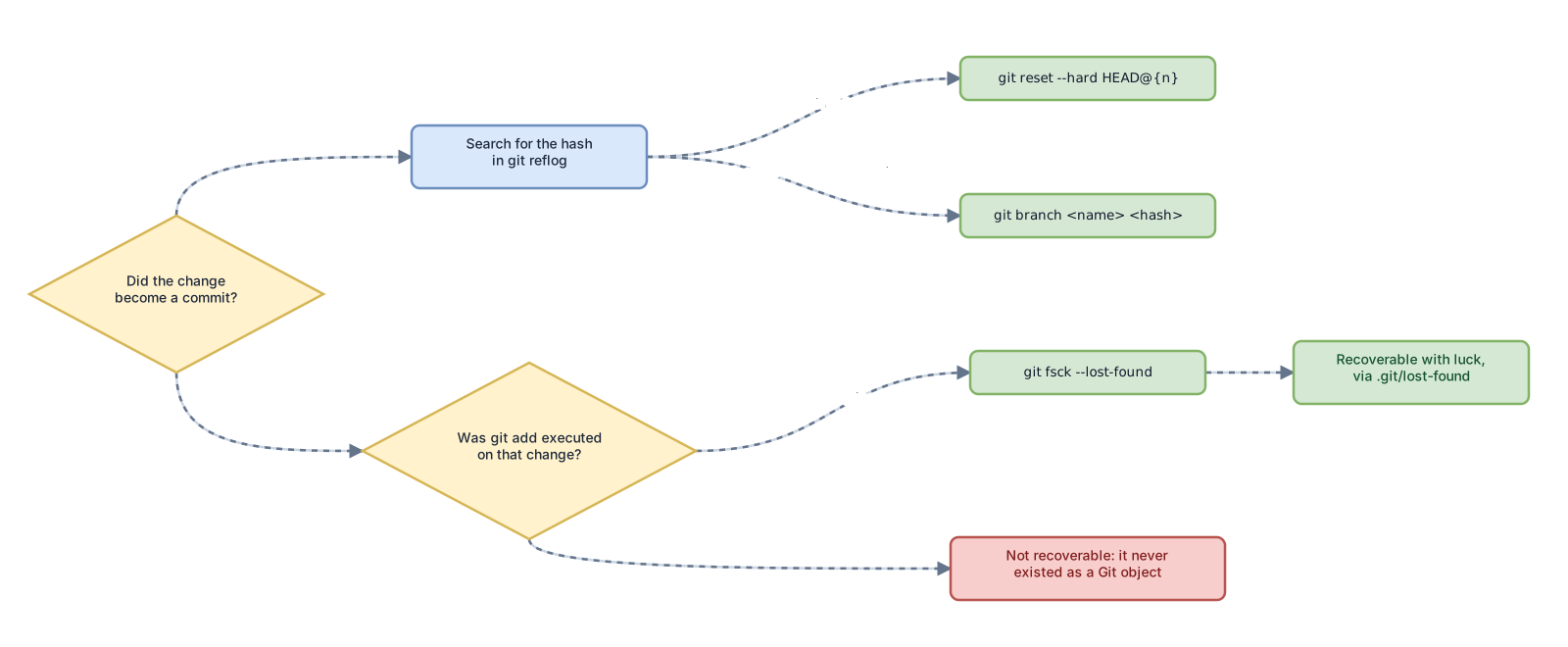
| Situation | Recoverable? | How |
|---|---|---|
Working tree changes without git add | No | There’s no object to rescue |
Staged changes (git add) without a commit | Sometimes | git fsck --lost-found may find the blob |
Commit lost after reset --hard | Yes | Reflog: reset --hard HEAD@{1} |
Branch deleted with git branch -D | Yes | Reflog + git branch <name> <hash> |
Orphaned commit after a gc past 30 days | No | Garbage collection already expired it |
| The reflog of another clone of the repo | No | The reflog is strictly local |
If your case is a specific deleted file rather than a whole commit, the procedure changes a bit, and I cover it in recovering a deleted file.
When the reflog won’t save you
The reflog has real limits, and it’s worth knowing them before you bet your life on it. The first is the hardest to accept: if you never ran git add or git commit, no object exists in the database, and no reflog can help. Work that only ever lived in your editor, and that a reset --hard overwrote, isn’t anywhere in Git.
The second limit is that the reflog is yours alone, on this machine. It isn’t cloned, isn’t pushed, doesn’t travel with the repository. If you were hoping to find the commit you lost in a teammate’s reflog, it isn’t there: every clone has its own history of HEAD’s movements.
The third is time. Garbage collection (git gc) eventually deletes objects that have gone too long without a reference. By default, reachable reflog entries expire after 90 days and unreachable ones after 30.[1] That’s plenty of margin for an accident you discover the same day, but don’t count on recovering an orphaned commit you abandoned three months ago.
Reflog hygiene and the last resort: git fsck
Before giving up, there’s a net beneath the net. If the commit you’re looking for no longer shows up in git reflog, git fsck walks the entire database looking for dangling objects that no reference mentions:
# Writes the dangling objects to .git/lost-found/ so you can inspect them
git fsck --lost-found
A “dangling commit” is exactly that: a commit present in the database that no ref directly uses.[3] --lost-found dumps them into .git/lost-found/commit/ so you can inspect each one with git show <hash> and decide which to rescue. It’s the resource to reach for once the reflog no longer has the entry, and also the only reasonable path for trying to recover changes you got as far as git add but never committed.
Another handy trick for when you don’t remember the exact HEAD@{n}: the reflog accepts time-based syntax. git reset --hard HEAD@{1.hour.ago} takes you to wherever HEAD pointed an hour ago in this local repository. Convenient when you know roughly when things were fine, but not the number of moves.
Common mistakes
Believing reset --hard deletes the commit
The root error all the others stem from. reset --hard moves the branch pointer and rewrites your working tree, but the commit you moved away from stays intact in .git/objects. Internalizing that you’re deleting the reference, not the object, is what takes the fear out of experimenting.
Looking in git log instead of git reflog
When you lose a commit, the instinct is to open git log and see if it’s there. It won’t be. git log only walks what’s reachable from HEAD, and an orphaned commit, by definition, no longer is. The reflog is the only one that keeps that dropped reference. If you’re looking for lost work, your first command is git reflog, not git log.
Trusting a teammate’s reflog
The reflog is local. Full stop. If your lost commit isn’t in your reflog, you won’t find it by re-cloning the repo or asking about someone else’s reflog. Every machine has its own.
Letting weeks go by
The reflog isn’t eternal. A commit you abandoned a day ago comes back without drama; one you left orphaned three months ago may have already been expired by git gc. If you know you lost something important, recover it today.
Once you understand which of these traps caught you, the rest of the process for undoing changes in Git falls into place on its own. If you want the full map of resets, reverts, and checkouts, the complete guide to undoing changes in Git walks through every tool, and for the specific case of dropping your most recent commit there’s undoing the last commit.
All of this (the object model, HEAD, branches, resets, and the reflog as a safety net) is what we work through step by step in the Git from zero to professional course, with interactive exercises so you lose the fear of breaking things.
Sources
- git-reflog documentation (Git): behavior of
git reflog show,HEAD@{n}syntax, and default expiration values (gc.reflogExpire90 days,gc.reflogExpireUnreachable30 days). - git-switch documentation (Git):
git switch -c <branch> <start-point>as the recommended way to create and switch branches; the experimental-command warning was removed. - git-fsck documentation (Git): the
--lost-foundoption, the definition of a dangling commit, and dumping into.git/lost-found/.
Frequently asked questions
Does the reflog get uploaded when you push?
No. The reflog is strictly local: it lives in your .git folder and isn’t cloned, isn’t sent with git push, and isn’t shared in any way. Every clone of the repository has its own reflog with that machine’s history of HEAD’s movements.
How long do reflog entries stick around?
By default, entries that are still reachable are kept for 90 days (gc.reflogExpire) and unreachable ones for 30 days (gc.reflogExpireUnreachable), after which git gc can delete them. These values are configurable, but for most accidents you have plenty of margin if you act the same day.
Are git reflog and git log the same thing?
No, and confusing the two is the reason a lot of people think they’ve lost work. git log shows the history reachable from HEAD by following the parent-child relationships between commits. git reflog shows where HEAD has been, move by move, including commits that are no longer reachable from any branch. When you’re looking for something lost, the reflog is the one that has it.
Can I recover changes I never committed?
Almost never. If the changes only existed in your working tree without ever going through git add, no object exists in Git and there’s nothing to rescue. If you did get as far as git add but never committed, there’s one possibility: git fsck --lost-found may be able to locate the staged blob among the dangling objects. It’s not guaranteed, but it’s worth a try.
How do I recover a deleted branch if I don’t remember the hash?
When you run git branch -D, Git prints the hash of the last commit right in the message (“Deleted branch X (was 5e8c3b0)”). If you already closed that window, run git reflog and look for the last line where you were on that branch, or the last commit you made on it. With that hash, git branch <name> <hash> recreates the branch right where it was.
Related articles

How to Undo Changes in Git: The Guide to Never Losing Your Work
A decision guide for undoing changes in Git: which command to use for each situation (restore, reset, revert, stash) and why almost nothing is ever truly lost.

How to Recover a Deleted File in Git (Step by Step)
Deleted a file by mistake and it was tracked in Git? Here's the exact command to recover it based on how you deleted it: uncommitted, committed, or lost.
How to Undo the Last Commit in Git Without Losing Your Code
Undo the last commit in Git with git reset (soft, mixed, hard) or git revert. What happens to your files in each case and which one to use for your situation.