
How to Recover a Deleted File in Git (Step by Step)
Deleted a file by mistake and it was tracked in Git? Here's the exact command to recover it based on how you deleted it: uncommitted, committed, or lost.

You just deleted a file you needed, and your stomach just dropped. Breathe. If that file was under Git, you can almost certainly get it back. The question isn’t whether it’s possible, but what state it was in when you deleted it, because that determines the exact command you’ll type.
To follow along you only need the basics: having run git add and git commit at some point, and knowing that a commit is a saved snapshot of your files at a specific moment. Nothing more. I’ll split the rescue into three situations and give you the exact command for each. If you want the full map of how to undo things in Git, check out the general guide to undoing changes in Git.
Why can Git usually recover your file?
Git can bring the file back because it keeps a copy of everything you’ve entrusted to it, and that copy doesn’t disappear when you delete the file from your folder.
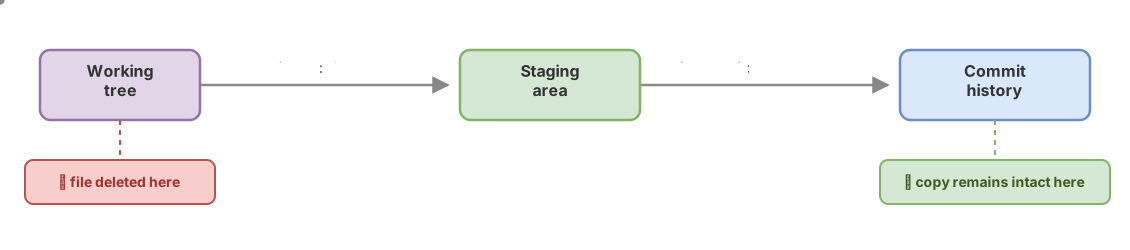
Think of it as several places. The first is your project folder, the files you see in the file explorer and that your editor opens. In Git that’s called the working tree. Between that folder and the history there’s an intermediate zone where Git prepares what you’re about to commit, the staging area. And finally there’s an internal store where Git keeps every commit you’ve made. When you delete a file, you’re only removing it from the working tree. The store still has that file’s snapshot intact.
That’s why recovering a deleted file in Git is almost always possible. There’s only one condition: the file had to be under Git’s control at some point. If you never ran git add on it, Git has no idea it existed and there’s no snapshot to rescue. Keep that condition in mind, because it’s what separates “this is fixed in ten seconds” from “this can’t be done.”
First step: find out what state the deletion is in
Before typing any rescue command, run git status. It tells you whether the deletion is still only in your folder or if you’ve already saved it inside a commit.
# Shows the current state of the repository
git status
If you deleted the file but haven’t committed yet, you’ll see something like this:
Changes not staged for commit:
  (use "git restore <file>..." to discard changes in working directory)
        deleted:    notas.txt
That deleted: notas.txt line is all the information you need: Git knows the file existed and detects it’s no longer in your folder. You’re in the easiest case.
If instead git status tells you nothing to commit, working tree clean and the file is nowhere to be found, that means the deletion already made it into a commit. The rescue changes, but the file is still there. Let’s go case by case.
Case 1: you deleted it but hadn’t committed yet
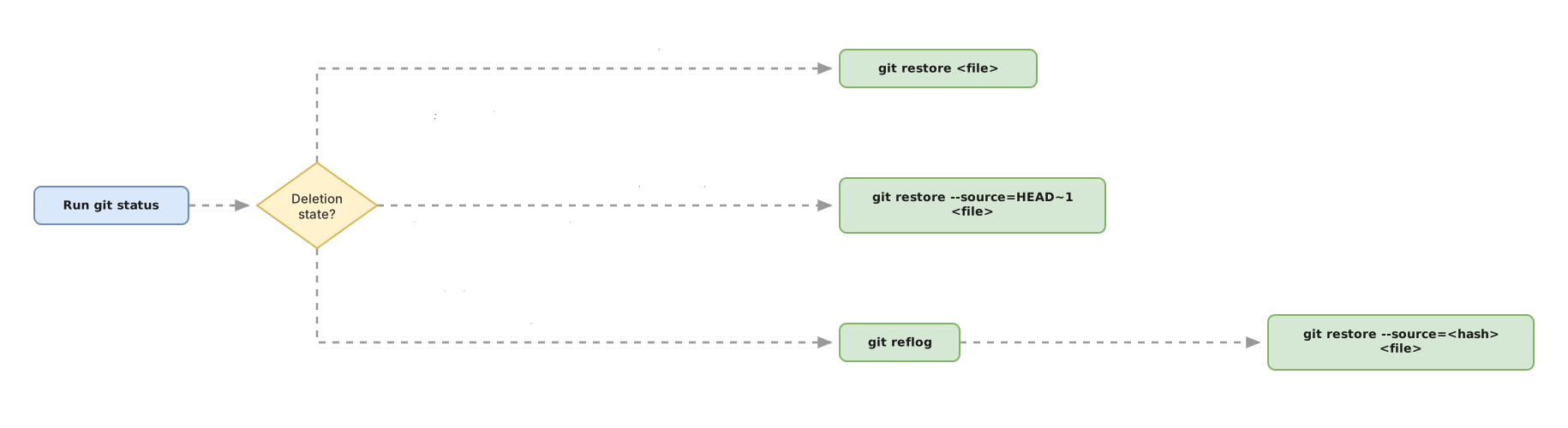
If git status shows the file as deleted: and you haven’t committed the deletion, git restore <file> brings it back exactly as it was in the last commit.
# Restores notas.txt to how it was in the last commit
git restore notas.txt
And that’s it. The file is back in your folder. git restore is the modern way to do this: it was introduced in Git 2.23 (2019) specifically to separate the task of “recovering files” from “switching branches,” which used to be mixed together in git checkout. If you’re working with an old version of Git and restore doesn’t exist, the classic equivalent is git checkout -- notas.txt.
There’s a nuance. The command above works when you only deleted the file. If you also staged that deletion for the commit (with git add notas.txt or git rm notas.txt), you need to recover it in the staging area too:
# Undoes the deletion both in the staging area and in your folder
git restore --staged --worktree notas.txt
Case 2: you deleted the file and already committed the deletion
If you’ve already committed the deletion, the file isn’t in the last commit, but it’s still alive in an earlier one. You bring it back with git restore --source [2].
HEAD is the name Git gives to your latest commit. HEAD~1 is the one right before it. So to recover the file from the previous commit:
# Restores notas.txt from the commit before the last one (HEAD~1)
git restore --source=HEAD~1 notas.txt
What if the deletion wasn’t in the last commit, but several commits ago? You need to find which commit it disappeared in. For that, git log has a filter that lists only the commits where that file was deleted:
# Lists the commits that deleted notas.txt (D = deleted)
git log --diff-filter=D -- notas.txt
That gives you the hash of the commit that did the deleting, something like a1b2c3d. The file existed right before that, in the parent commit, which you write by adding ^ to the hash. Recover it from there:
# a1b2c3d is the commit that deleted the file; its parent (a1b2c3d^) still had it
git restore --source=a1b2c3d^ notas.txt
You can also recover the same content with git checkout a1b2c3d^ -- notas.txt. The difference is that checkout also leaves the file staged, whereas git restore only touches your folder; I stick with restore because its name says exactly what it does.
Case 3: the file got lost and you can’t find the commit
If you can’t find the commit where the file still existed, git reflog gives you a second chance. It’s the typical situation after an aggressive reset, a rebase gone wrong, or a branch you deleted by accident: the commit no longer shows up in git log, but Git still remembers where it was.
The reflog is a local record of every position HEAD has passed through, including ones that no longer show up in the normal history. It lives only on your machine and isn’t shared when you push.
# Shows the history of HEAD's movements
git reflog
You’ll see a list with hashes and a description of each movement:
a1b2c3d HEAD@{0}: reset: moving to HEAD~3
f9e8d7c HEAD@{1}: commit: add project notes
c3d4e5f HEAD@{2}: commit: first version
Find the commit where the file still existed (here f9e8d7c, the one with the message “add project notes”) and restore the file from there:
# Recovers notas.txt from the commit you found in the reflog
git restore --source=f9e8d7c notas.txt
Git keeps these reflog entries for about 90 days by default for reachable commits [1]. If the commit ends up with no branch pointing to it, the typical case after a reset --hard or a deleted branch, the real window is shorter: around 30 days [1]. As soon as you spot the deletion, recover it. If you want to fully understand how this log works and what else you can rescue with it, check out the post on the reflog as Git’s safety net.
Practice it without fear of breaking anything
The best way to stop being afraid of deleting files is to delete one on purpose, in a test repo, and recover it yourself. Create any file, commit it, delete it, and try the commands above until the rescue becomes second nature. Try it right here, no install needed:
Loading exercise...
Which command should you use in each situation?
When you’re in a hurry, this table is the summary. Find your situation in the first column and copy the command.
| Situation | Command | What it recovers |
|---|---|---|
| You deleted it, not committed yet | git restore <file> | The version from the last commit |
| You already committed the deletion | git restore --source=HEAD~1 <file> | The version from the previous commit |
It’s lost and not in git log | git reflog and then git restore --source=<hash> <file> | The version from the state you find in the reflog |
| It was inside a saved stash | git stash list and then git checkout stash@{0} -- <file> | The version you saved in that stash |
Common mistakes when recovering files
Reaching for git reset --hard expecting it to “undo”
This is the mistake that destroys the most work. When someone panics, it’s tempting to type git reset --hard because it sounds like “revert everything back.” The problem is that command rewrites your entire working tree and discards changes you hadn’t saved, so you can lose a lot more than what you were trying to recover. For a single file you don’t need anything that aggressive: git restore only touches that file. If you’re torn between reset, revert, and restore, the comparison is in the differences between reset, revert, and restore.
Thinking git commit -a would save a new file
git commit -a (or git commit -am) only commits changes to files Git was already tracking. A new file that never went through git add is invisible to that shortcut, and it won’t be committed or recovered by it.
Looking for the commit message with git blame
git blame tells you who last touched each line and in which commit, along with its hash, author, and date. What it doesn’t show you is the commit message. If you’re trying to understand why the file disappeared, take the hash blame gives you and pass it to git show <hash>, or check git log, both of which do show the full message.
Blaming Git for a file you never saved
If you closed your editor without saving, or deleted a file you never added with git add, Git can’t help you. It only recovers what was tracked or committed at some point. Git isn’t failing here: you simply never gave it that file to save.
Recovering a deleted file is just one of the many times Git is going to save you. If you want to stop working in fear of breaking something and truly understand what every command does, the Git from Zero to Professional course lets you practice these rescues and many more in an interactive environment, step by step, without touching your real project. And even if you’re not ready to jump into the course yet, I can still help you out by email.
Sources
- Official git reflog documentation (git-scm.com): reflog behavior and default expiration of entries (90 days for reachable ones).
- Official git restore documentation (git-scm.com): the
--sourceoption and the default source when restoring files.
Frequently Asked Questions
Can I recover a file deleted in Git that I never added with git add?
No. Git only keeps copies of files that at some point went through git add and ended up inside a commit. If you created a file, deleted it, and never added it, that file never existed as far as Git is concerned, and there’s nothing to restore. That’s why it pays to make small, frequent commits: they’re your safety net.
Do git restore and git checkout do the same thing?
Yes, for recovering a file. git restore was introduced in Git 2.23 as the modern, recommended way, separating file recovery from switching branches, which is now handled by git switch. git checkout -- <file> still works and you’ll see a lot of older content that uses it, but if your Git is recent, prefer git restore because it’s clearer about what it’s going to touch.
What happens if I already pushed the deletion?
The file is still recoverable from your local history with the same commands in this post. Recover it, make a new commit that adds it back, and push that commit:
# Recover the file, commit it again, and push that new commit
git restore <file>
git add <file>
git commit -m "Recover <file>"
git push
That way the file comes back without rewriting the history you already shared with the rest of the team, which is what avoids problems with your teammates.
How long does Git keep the file in the reflog?
By default, Git keeps reflog entries for about 90 days for commits that are still reachable, and about 30 days for those that aren’t [1]. That’s plenty of time for most rescues, but don’t put it off for three months: as soon as you spot the deletion, recover it.
Does git restore overwrite the changes I currently have?
Yes, and that’s why you need to be careful. git restore <file> replaces the current version of that file in your folder with the one it recovers, and any unsaved changes to that file are lost. If you’re not sure, make a commit or a git stash of what you have first, so you’re working on a saved copy instead of the original.
Related articles

How to Undo Changes in Git: The Guide to Never Losing Your Work
A decision guide for undoing changes in Git: which command to use for each situation (restore, reset, revert, stash) and why almost nothing is ever truly lost.

git reflog: recover commits and branches you thought were gone
git reflog saves every position HEAD has held and lets you recover commits, branches, and work after a reset --hard. Learn to read it and undo the panic.

git reset vs revert vs restore: which one to use and when
The differences between git reset, revert, and restore: which area of Git each one touches, the three reset modes, and which one to use without breaking shared history.