
git reset vs revert vs restore: which one to use and when
The differences between git reset, revert, and restore: which area of Git each one touches, the three reset modes, and which one to use without breaking shared history.

You code for an hour, something does not add up, and you fire off git reset --hard to “start clean.” A second later you realize that hour of work was never committed. And Git has no recycle bin for that. The scare does not come from having used a dangerous command: it comes from the fact that reset, revert, and restore sound almost the same and each one touches a different part of Git. Here is what area each one manages, how the three reset modes work, and a clear rule for choosing without another scare.
Why do reset, revert, and restore get confused?
They get confused because all three “undo” something, but they operate on three different zones of your repository. If you are not clear on those zones, any of the three can look interchangeable, and that is where accidents start.
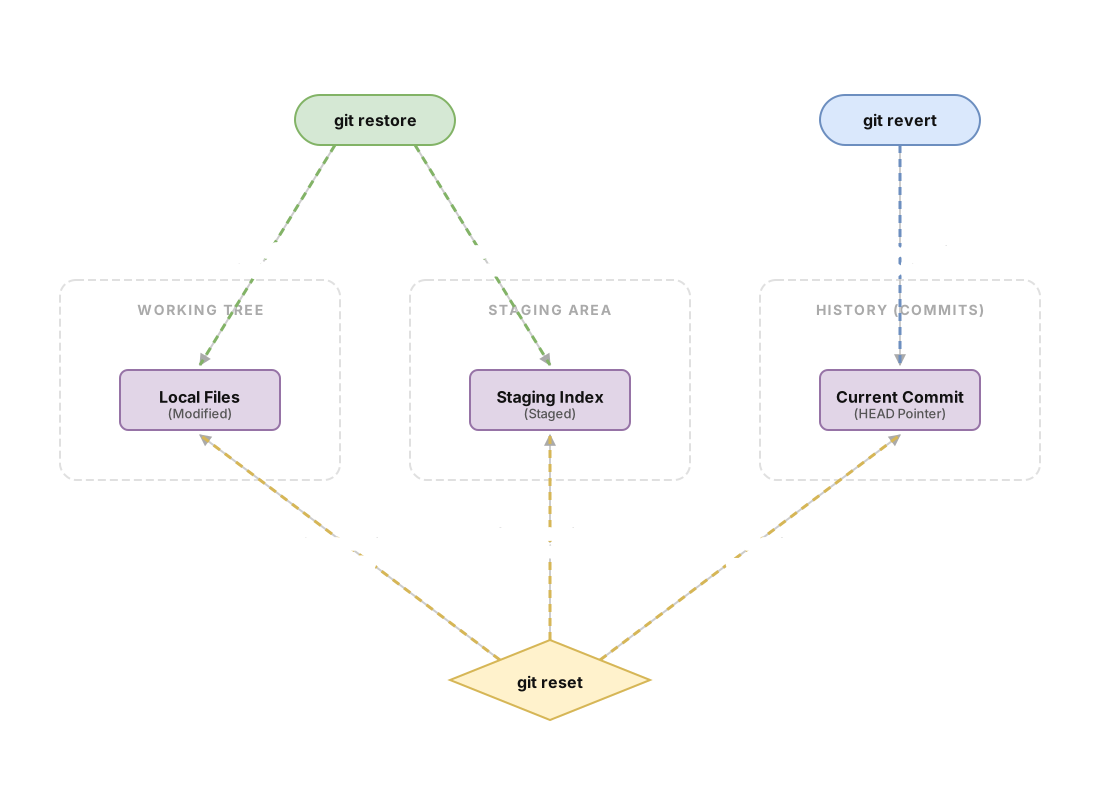
Git keeps your work in three places. The working tree is the files as they currently sit on your disk, including your unsaved edits. The staging area (also called the index) is a snapshot of what you have marked with git add, what will go into the next commit. And the history is the chain of already-confirmed commits, with its branch pointer pointing to the last one.
Each command lives mainly in one of those zones. restore works on the working tree and staging, without touching commits. reset moves the branch pointer in the history and, depending on the mode, drags staging and the working tree along with it. revert only adds to the history: it writes a new commit. Once you think “which zone do I want to change” before typing, the choice stops being a guess.
What does git restore do, and when should you use it?
git restore recovers files from a known source into the working tree or staging, and it never touches the history. It is the least dangerous of the three commands for most cases, and the most forgotten.
If you have uncommitted changes in a file and want to throw them away, you restore that file from the index:
# Discards the NOT-yet-committed changes to file.js in the working tree.
# Replaces them with the version in staging (or in HEAD if nothing is staged).
git restore file.js
Be careful with this one: whatever it discards is not saved anywhere. There is no safety net. Before running it, make sure you really do not want those changes.
The other use is to unstage something without losing the work. You ran git add on a file you did not actually want to include yet, and want to send it back to “modified but unstaged”:
# Unstages file.js. Your changes stay intact in the working tree.
git restore --staged file.js
The difference between the two forms is the one most people get wrong: git restore --staged keeps your changes (it only unmarks them from the index), while plain git restore overwrites them. That flag completely changes what happens: with --staged you relocate, without it you overwrite. If the specific case you are dealing with is undoing a git add, it is covered in detail in how to undo a git add.
git restore stopped being marked as experimental a while ago and is now the recommended way to discard changes from the working tree.[1] It replaces the older uses of git checkout -- file (discarding changes) and git reset HEAD file (unstaging), which did the same thing with much more confusing syntax. If you learned Git with checkout --, now is the time to switch the habit.
git reset and its three modes (—soft, —mixed, —hard)
git reset moves your branch pointer to another commit, and what happens to staging and the working tree depends on the mode you choose. This rewrites local history, so it is powerful and dangerous in equal measure.
Imagine you made three commits you have not pushed yet and want to redo them. git reset HEAD~1 moves the branch back one commit. The question is what happens to the changes from that undone commit, and that is where the modes come in:
# --soft: moves the branch back. The commit's changes stay STAGED, ready to recommit.
git reset --soft HEAD~1

# --mixed (the default mode): moves the branch back. The changes land in the WORKING TREE, unstaged.
git reset --mixed HEAD~1

# --hard: moves the branch back and DELETES the changes from the working tree. No way back for anything uncommitted.
git reset --hard HEAD~1
--soft leaves the working tree and the index untouched: it only moves the pointer back.[2] This is what you use to squash several commits into one or rewrite a commit message. --mixed is the default behavior when you do not pass a flag: it moves the branch and updates the index so nothing stays staged, but your files on disk do not change. --hard overwrites the working tree with the version from the target commit, and that is where work disappears.
The mental rule is simple. --soft keeps everything and only touches history. --mixed keeps your work but unstages it. --hard keeps nothing from the working tree. The “harder” the mode, the more zones it wipes out.
The real danger of reset is not the mode, it is the branch. If those commits are already on the remote and teammates have them, moving them back and force-pushing rewrites a history that is no longer only yours. For the specific case of undoing the last commit, there is a dedicated post comparing reset and revert on HEAD: undoing the last commit in Git.
What does git revert do, and why is it safe on shared branches?
git revert creates a new commit that reverses the changes from another commit, without deleting anything from the history.[3] Instead of moving the pointer backward the way reset does, it moves forward: it adds a commit that undoes something, so the complete record stays intact.
# Creates a new commit that reverts the last commit (HEAD).
git revert HEAD

# Reverts a specific commit by its hash. The hash is always hexadecimal (0-9, a-f).
git revert a1b2c3d
This is the right option when the branch is already pushed and other people are working on it. Since you are not rewriting history but adding to it, nobody has to resync anything unusual: for your teammates it is just one more commit arriving through the normal flow. That inverse commit stays in the log, which surprises anyone expecting the bad commit to “disappear.” It does not disappear, and that is exactly the property that makes it safe.
It also works on several commits at once. You pass it a range and Git generates one inverse commit for each:
# Reverts every commit from A (exclusive) through B (inclusive).
git revert a1b2c3d..f4e5d6c
If the team rule is “never rewrite the shared branch,” revert is your default tool for fixing things that are already published.
Comparison table: reset vs revert vs restore
The three commands, side by side, by what they touch and where it is safe to use them:
| Command | What it touches | Rewrites history? | Safe on a shared branch? | Typical case |
|---|---|---|---|---|
restore | Working tree and/or staging | No | Yes | Discarding uncommitted changes or unstaging a git add |
reset | Branch pointer and, depending on the mode, staging and working tree | Yes (locally) | No | Redoing commits you have not pushed yet |
revert | Adds an inverse commit to the history | No (adds, does not delete) | Yes | Undoing a commit that is already on the remote |
The column that matters most is the second to last one. If the answer to “safe on a shared branch?” is No, and that branch is already pushed, stop and use something else.
Which one should I use? Quick decision guide
Before typing any of the three, answer these questions in order:
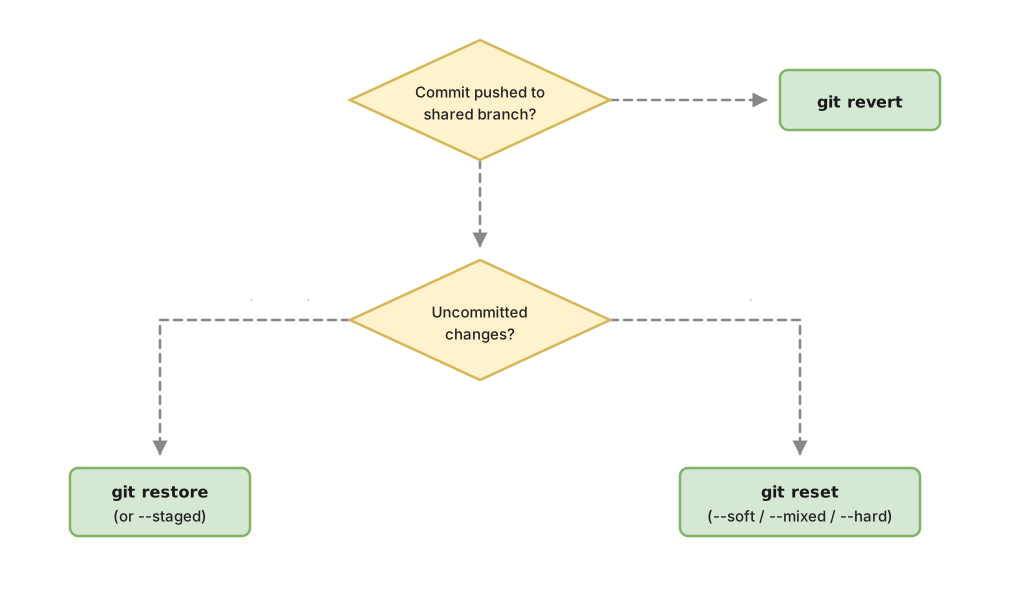
- Is the commit you want to undo already pushed to a branch other people use? Use
git revert. It is the only option that does not rewrite shared history. - Do you just want to discard changes in files you have not even committed? Use
git restore file. You do not need to touch the history at all. - Did you run
git addon something by mistake and want to unstage it without losing it? Usegit restore --staged file. - Do you want to redo local commits you have not pushed yet? Use
git resetwith the mode that fits:--softif you want to keep the staged changes,--mixedto leave them unstaged,--hardonly when you truly want to throw them away.
The order matters. The first question, the one about the remote, overrides all the others: as soon as the answer is “yes, it is pushed and shared,” revert wins even if another command seems more direct. If you want the full map of every way to undo things in Git, with more cases, there is the general guide to undoing changes in Git.
Before looking at the classic mistakes, try deciding which command fits each situation yourself:
Loading exercise...
Common mistakes when undoing changes in Git
reset --hard on uncommitted work. This is the scare from the intro. You think --hard is an “undo” with a way back, but what it deletes from the working tree never made it into a commit, so it does not show up in git reflog, and if it was not staged either, it almost never comes back. If in doubt, commit first (even a throwaway commit) and decide afterward. A junk commit is reversible; an overwritten working tree, almost never.
Resetting already-pushed commits and then push --force. The work lost here is your teammates’: by rewriting the branch and forcing it, any commit others had built on top of your original history disappears from the remote. If you need to undo something published, use revert. If you truly have to rewrite a shared branch (rare), talk to the team first.
Expecting revert to “delete” the commit. What it actually does is add an inverse commit on top and leave the original in the log. That is the correct behavior and the one that makes it safe, but it surprises anyone expecting the bad commit to vanish. If you wanted it gone from the history, you were looking for reset, not revert, and that is only viable locally.
Confusing git restore with git restore --staged. One flag separates relocating from destroying. --staged unstages and keeps your changes; without it, your changes get overwritten. Read the command twice before hitting enter when you are not using --staged.
Believing --force-with-lease is “the only safe way” to force-push. It is safer than --force because it checks that the remote is still in the state you expected before overwriting it, so you do not stomp on work someone else pushed while you were rebasing.[4] But it still rewrites history. “Safer” does not mean “safe, period”: on a shared branch, the truly calm option remains revert.
You lose the fear of these three commands by using them until the choice becomes automatic. In the course Git from zero to professional you practice undoing changes on a real repository, with all three Git zones in front of you and no risk to your actual work.
Sources
- Official Git documentation: git restore. Behavior of
git restoreon the working tree and the--stagedoption. - Official Git documentation: git reset. Exact description of the
--soft,--mixed, and--hardmodes. - Official Git documentation: git revert. Confirms that
revertrecords new commits that reverse changes and accepts ranges withA..B. - Official Git documentation: git push. Difference between
--forceand--force-with-lease.
Frequently Asked Questions
Does git restore delete my changes forever?
In the working tree, yes. git restore file replaces the file with the version from staging (or HEAD) and whatever was uncommitted is not saved anywhere. That is why it is worth double-checking before running it. The variant git restore --staged file is different: that one only unstages, and your changes stay right there.
What is the difference between reset —mixed and reset —soft?
Both move the branch pointer to the commit you specify. The difference is in staging. With --soft, the changes from the undone commit stay staged, ready to recommit. With --mixed, which is the default mode, those changes move to the working tree unstaged. Neither one deletes files from your disk.
Can I recover something after git reset —hard?
It depends on whether it was committed. If the --hard moved you past commits that already existed, git reflog keeps a record of where HEAD has been and you can go back to the previous hash:
# Shows the history of HEAD positions; you find the "lost" commit there.
git reflog
git reset --hard a1b2c3d   # returns you to the previous state by its hash
But changes that never made it into a commit are not in reflog and almost never come back.
Does git revert work on several commits at once?
Yes. You pass it a range with the syntax git revert A..B and Git creates one inverse commit for each commit in the range. It is useful when you want to undo a batch of already-pushed changes without rewriting shared history.
Related articles

How to Undo Changes in Git: The Guide to Never Losing Your Work
A decision guide for undoing changes in Git: which command to use for each situation (restore, reset, revert, stash) and why almost nothing is ever truly lost.

How to Undo the Last Commit in Git Without Losing Your Code
Undo the last commit in Git with git reset (soft, mixed, hard) or git revert. What happens to your files in each case and which one to use for your situation.

Undo git add: Remove a File from Staging Without Fear
Learn how to undo git add and remove a file from staging without losing your work. git restore --staged and git reset HEAD explained step by step.