
Undo git add: Remove a File from Staging Without Fear
Learn how to undo git add and remove a file from staging without losing your work. git restore --staged and git reset HEAD explained step by step.

You just typed git add . without thinking twice. You look at git status and there it is, in green: a config.local.js with your API key inside, or the entire node_modules folder. None of that should end up in the next commit. And then comes the question that really tightens your chest: if I take it out of there, do I lose what I’ve written?
The short answer is no. Undoing a git add (what’s called unstaging) doesn’t touch a single line of your code. Here I’ll show you the two ways to do it, the modern one and the classic one, and above all how to avoid confusing it with the one command in this family that actually can delete your work.
To follow along you only need two ideas. One: a commit is a saved snapshot of your project at a specific moment. Two: before taking that snapshot, you choose which files go into it. That “choosing” is exactly what git add does.
What does it mean to undo “git add”?
Undoing git add means taking a file out of staging so it doesn’t go into the next commit, without touching the file you’re editing. That’s the part almost nobody explains well the first time.
When you run git add config.local.js, Git doesn’t move your file anywhere. It copies a snapshot of its current state into an intermediate area called the staging area (or index). Think of staging as the box where you put everything you want to show up in the next snapshot.
Undoing that git add means taking the copy back out of the box. The original file, the one open in your editor, doesn’t even notice. It stays in your folder with all your changes inside. That’s why unstaging is a safe operation: it changes what will go into the next commit, never what’s on your disk.
If you want the full mental model of this intermediate area, I cover it in what Git’s staging area is and how it works.
The three places where your code lives
Git keeps your work in three different places, and knowing where they are saves you almost every scare. You don’t need to memorize them, just know where “staging” lives.
The working directory is your working folder: the files you see and edit. When AI generates code for you or you type it yourself, it lives here.
The staging area is the box we were talking about. Whatever you’ve marked with git add waits here to be captured in the next commit.
The repository is the history of already-saved commits, the sequence of snapshots that make up your project over time.
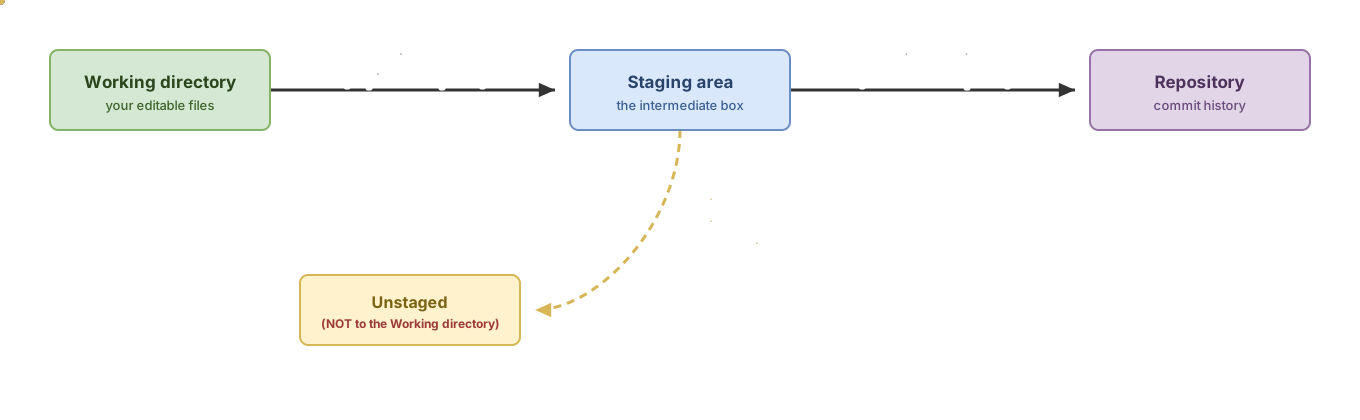
With that, the path is easy to read. git add copies from the working directory to staging. git commit saves staging into the repository. Undoing a git add is just the first step backward: from staging to nothing, because your file never left the working directory. The only thing you’re removing is the copy you’d put in the box.
The modern way: git restore —staged
Since Git 2.23 (August 2019) there’s a command built exactly for this: git restore --staged. You tell it which file to take out of staging and it takes it out, without touching anything else.
# Take config.local.js out of staging.
# Your changes inside the file are NOT touched.
git restore --staged config.local.js
The best way to convince yourself is to compare before and after with git status. Before undoing anything, the file appears under “Changes to be committed”, ready to go into the commit:
$ git status
Changes to be committed:
  (use "git restore --staged <file>..." to unstage)
        modified:   config.local.js
        modified:   src/index.js
Notice that Git itself hints at the command in the parentheses. After running git restore --staged config.local.js, that file drops down to the unstaged changes section:
$ git status
Changes not staged for commit:
  (use "git add <file>..." to update what will be committed)
        modified:   config.local.js
Same file, same changes inside. The only thing that changed is that it won’t go into the next commit anymore. The --staged flag is the key word here: it tells git restore to work on staging, not on your folder. Keep that detail in mind, because in a moment you’ll see what happens when you forget it.
The classic way: git reset HEAD
Before git restore existed, the way to remove something from staging was git reset HEAD <file>, and it still works in whatever version of Git you run into.
# Same operation, classic syntax.
git reset HEAD config.local.js
HEAD is simply the name of the latest commit, your reference point. You’re telling Git: “set staging back to how it was at the last commit for this file”. The result is identical to git restore --staged: the file comes out of staging and your edits stay right where they are.
You’ll see a message like this:
$ git reset HEAD config.local.js
Unstaged changes after reset:
M       config.local.js
That M means “modified”. Git is confirming that the file is still modified in your working directory. Exactly what you wanted.
You can shorten it to git reset config.local.js: if you don’t say where from, Git assumes HEAD. And here’s the important part: git reset without the word --hard never touches your working directory. It only moves what’s in staging. That --hard is the scary one, and we’ll get back to it in a couple of sections.
If you get tangled up over when to use reset, revert, or restore, I compare all three in the differences between git reset, revert, and restore.
Clearing the entire staging area at once
What if you ran git add . and want to take everything out at once, not just one file? Swap the filename for a dot, or don’t specify one at all.
# Both clear the entire staging area.
git restore --staged .   # modern way
git reset                # classic way
git restore --staged . takes everything out of staging. git reset on its own does exactly the same thing. Neither one deletes a single comma of your code: after running them, git status will show all your files again as “changes not staged”, waiting for you to decide which ones to actually add.
This is the pattern I use most when a git add . gets out of hand: I clear the entire staging area and add back only the files I actually want, one by one. It takes ten seconds and keeps junk out of the commit.
The command that DOES delete your work
This whole family of commands is safe except for one variant, and it happens to look a lot like what you just learned. Pay attention, because a single character separates “remove from staging” from “lose an hour of work”.
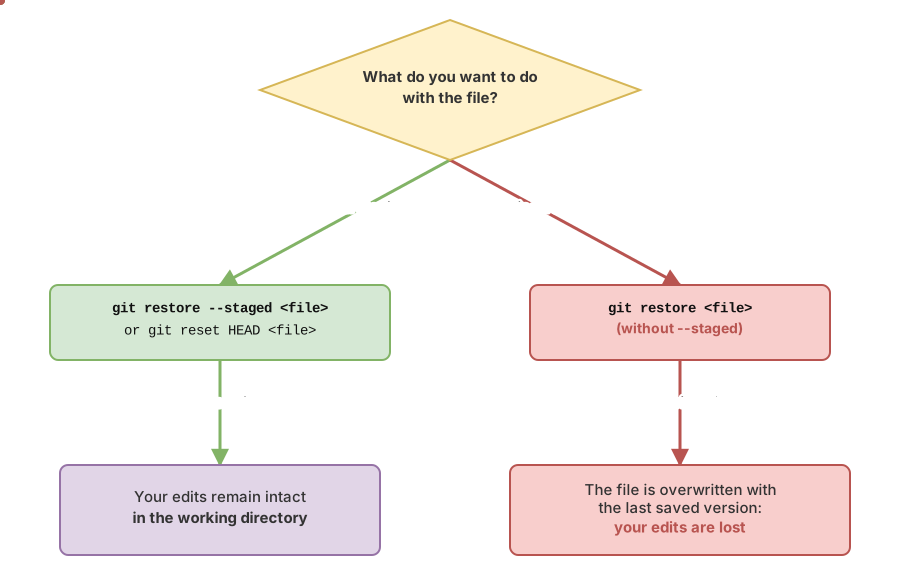
git restore config.local.js, without --staged, does not undo a git add. It discards the unstaged changes in your working directory: it restores the file to whatever is in staging (or, if you hadn’t staged anything, to the last commit) and overwrites the version you’re editing. Everything you’d written that wasn’t already in staging disappears, no trash bin, no confirmation.
The only difference is three letters. With --staged you’re working on staging, and that’s safe. Without --staged you’re working on your folder, and that’s destructive. Read it twice before hitting Enter.
| Command | What it does | Does it touch your changes in the file? | When to use it |
|---|---|---|---|
git restore --staged <file> | Removes it from staging | No, they stay intact | You made a mistake with git add and want to keep editing |
git reset HEAD <file> | Removes it from staging (classic way) | No | Same thing, on older Git or out of habit |
git restore <file> | Discards your changes and restores the file to what’s staged (or the last commit if nothing is staged) | Yes, it deletes them | Only when you want to throw away what you wrote in that file |
git reset --hard | Discards staging and working directory at once | Yes, deletes everything not saved | Almost never; only if you’re sure you want to lose everything not committed |
Common mistakes when undoing git add
Confusing git restore with git restore --staged
This is the mistake on this list that really hurts. Both commands start the same way, autocomplete almost identically, and do opposite things: one protects your work, the other deletes it. Before running any git restore, double-check you’re including --staged if what you want is to take something out of staging.
Thinking unstaging deletes the file from disk
It doesn’t. Taking something out of staging doesn’t remove the file from your folder or close your editor. It’s still there, with your changes. The only thing that changes is whether it goes into the next commit or not.
Using git reset --hard to “clean up” the add
You search for “undo git add”, find a git reset --hard in some old forum answer, and paste it into your terminal. git reset --hard doesn’t carefully remove files from staging: it wipes out staging and the working directory until they match the last commit. Everything you hadn’t saved, including what you actually wanted to keep, is gone. To undo a git add you never need --hard.
Running git checkout . in panic mode
The old git checkout . discards changes just like git restore without --staged. If you don’t know exactly what it does, don’t use it to “fix” an add. Check git status first: it always offers you the safe command in parentheses.
Practice the workflow until it stops feeling scary
The way to stop being intimidated by this is to do it hands-on a few times, in a test repository where nothing bad happens if you get it wrong. That’s exactly what you’ll work through in the Git from zero to professional course: staging, commits, and how to undo every step without breaking a sweat.
Frequently Asked Questions
Do I lose my changes if I undo a git add with git restore —staged?
No. git restore --staged <file> only removes the copy from staging. Your edits stay exactly the same in the working directory, ready for you to add them again whenever you want. It’s one of the safest operations in Git.
Is a plain git reset dangerous?
No, as long as you don’t add --hard. git reset on its own clears the entire staging area and leaves your working directory untouched. The only reset that deletes unsaved work is git reset --hard, which does touch your folder.
Which one should I use to undo git add, restore or reset?
git restore --staged is clearer and harder to get confused about, because the command name says exactly what it does. Use it if you have Git 2.23 or later, which is almost certainly the case. git reset HEAD does the same thing and works on any version, so it’s also a good option if your team runs an older Git or you just have it memorized.
I ran git add . and only want to take out one file, can I?
Yes. Name the specific file instead of using the dot: git restore --staged config.local.js takes that one out and leaves the rest of staging as is. The dot means “everything”, so you only use it when you want to clear the entire staging area.
What if I already committed, not just git add?
That’s a different problem. Undoing a commit isn’t the same as undoing a git add: the commit already saved the snapshot into history, while the add only had it in the box. You’ll find the full map of how to revert almost anything in Git, including commits, in the guide to undoing changes in Git.
Related articles

How to Undo Changes in Git: The Guide to Never Losing Your Work
A decision guide for undoing changes in Git: which command to use for each situation (restore, reset, revert, stash) and why almost nothing is ever truly lost.

git reset vs revert vs restore: which one to use and when
The differences between git reset, revert, and restore: which area of Git each one touches, the three reset modes, and which one to use without breaking shared history.

Git's Staging Area Explained: The Four Zones
What Git's staging area is, why it exists, and how your changes travel through the four zones: working directory, staging area, local repo, and remote.