
How to Undo the Last Commit in Git Without Losing Your Code
Undo the last commit in Git with git reset (soft, mixed, hard) or git revert. What happens to your files in each case and which one to use for your situation.
You just made a commit, and a second later you realize: a file was missing, the message is wrong, or you didn’t even mean to save that yet. Your pulse spikes. Let me put your mind at ease upfront: in Git, almost nothing is irreversible, and undoing the last commit takes ten seconds once you know which command to type. The command is the least of it. What’s hard is knowing, before you hit Enter, what’s going to happen to your files.
To follow this post you only need to know how to run git add and git commit. Nothing more. Let’s go step by step, and by the end you’ll have a table to decide with a clear head. This post is part of the complete guide to undoing changes in Git, but here we’re focusing on just the most urgent case: the last commit.
What Does “Undoing” a Commit Mean in Git?
A commit is a snapshot of your files saved with a date, a name, and a unique identifier. When you run git commit, Git freezes that state and places a pointer called HEAD on the most recent snapshot. That pointer is the key to everything that follows.
“Undoing” the last commit means one of two things, and they are not the same:
- Moving the pointer backward so Git forgets that snapshot and acts as if you’d never taken it. That’s what
git resetdoes. - Taking a new snapshot that cancels out the previous one, leaving both in the history. That’s
git revert.
The difference sounds like a technicality. It isn’t. Moving the pointer rewrites your local history. Creating an inverse commit respects it and adds one on top. Which of the two you want depends on a single question.
Before You Touch Anything: Is Your Commit Already Pushed?
This is the question that decides everything else. Before typing any command, answer it: is that commit still only on your machine, or have you already run git push?
If the commit is local, meaning you haven’t pushed it to GitHub or any remote yet, you have a free pass to rewrite your history with git reset. Nobody else has seen that commit, so removing it from the history doesn’t break anything for anyone.
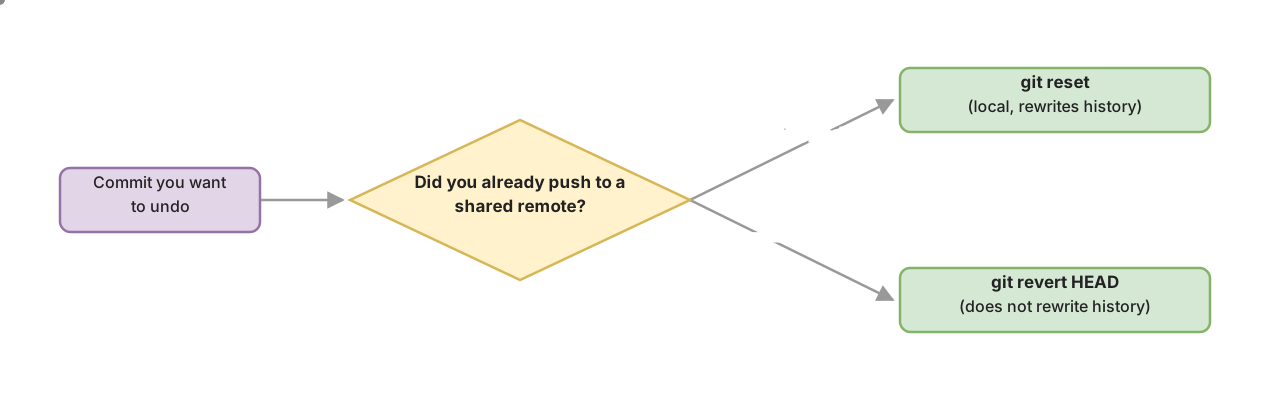
If the commit is already on the remote and other people are working on that branch, things change. Rewriting a history your teammates have already pulled is the fastest way to turn a quiet Tuesday into an afternoon full of conflicts. That’s what git revert is for: it doesn’t delete anything. It adds a commit that undoes the previous one.
Keep this rule in mind and the rest of the post falls into place on its own: local, reset; already shared, revert. Now let’s go over the three flavors of reset, which differ in exactly one thing: what they do with your work.
Undo the Commit and Keep Your Changes: git reset --soft HEAD~1
This is the most common case, and the one that will save you the most scares. You committed too soon, or with a file missing, and you want to redo it. You don’t want to lose a single line.
# Undoes the last commit but leaves your changes staged
git reset --soft HEAD~1

# Your files are now back in staging, ready to:
git status              # you'll see the changes in green, already added
git commit -m "Correct message this time"
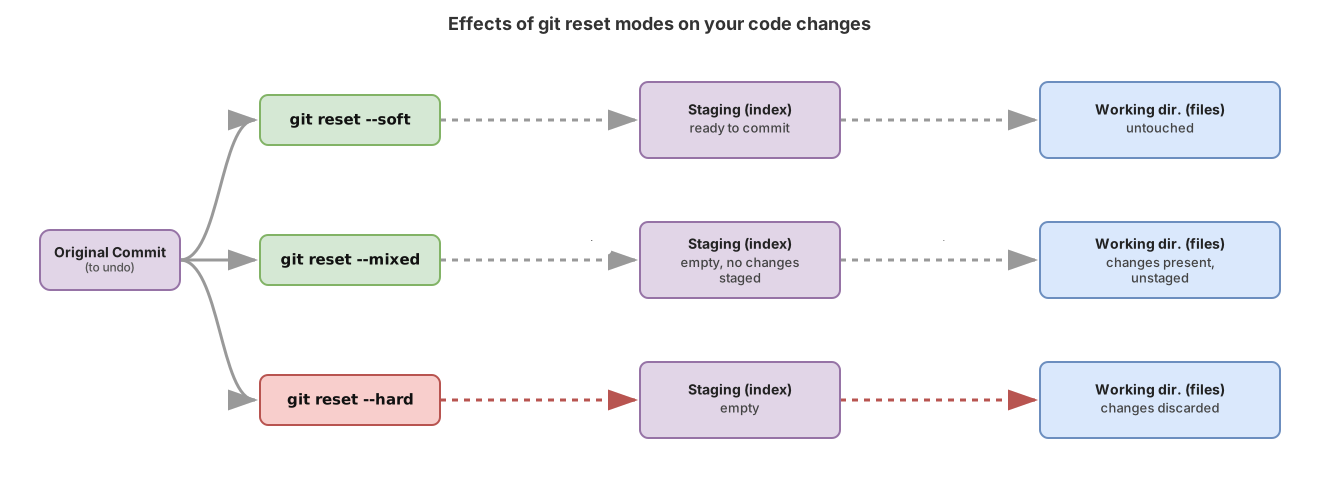
HEAD~1 means “one commit before the current one.” You’re telling Git: move the pointer one step back. The key word is --soft: according to the official docs, this mode leaves your working tree and your index (what we’ve been calling staging) intact[1]. Translation: the commit disappears from the history, but all of its changes stay in staging, in green, waiting for you to commit again.
It’s as if Git undid the git commit but not the git add. Perfect for fixing a badly made commit without redoing any work.
Take the Changes Out of Staging: git reset --mixed HEAD~1
Sometimes you don’t just want to redo the commit: you want to reorganize what goes into it. Maybe you bundled two unrelated things into one commit and now want to split them into two. For that you need the changes to come back, but unstaged.
# Undoes the commit and takes the changes out of staging (working directory)
git reset --mixed HEAD~1

# Equivalent, because --mixed is the default mode:
git reset HEAD~1

git status              # the changes now show up in red, unstaged
--mixed is the mode Git uses if you don’t specify one[1]: that’s why plain git reset HEAD~1 does exactly this. It moves the pointer back and updates the index to match the new HEAD, so nothing is left staged. Your changes are still there, in the files, but you’ll need to run git add again to choose what goes into the next commit.
The difference from --soft is a single step: --soft leaves your changes ready to commit; --mixed makes you add them again. Neither one deletes any of your work. The one that does delete is next, and it deserves some respect.
Delete the Changes Entirely: git reset --hard HEAD~1
git reset --hard HEAD~1 undoes the commit and throws away all the changes it contained. They don’t go back to staging or to the working directory. They vanish from your files.
# WARNING: this deletes the commit AND the changes to your files
git reset --hard HEAD~1
Only use it when you’re sure you don’t want that work at all: a failed experiment, a commit that was a mistake from start to finish. The --hard mode overwrites your files with the version from the target commit[1], meaning it leaves your folder exactly as it was before the commit you’re deleting.
This is where a lot of juniors freeze up, and for good reason. But there’s a safety net almost nobody knows about their first year: git reflog. Git keeps a private diary of every move HEAD makes, even if the commit no longer shows up in git log.
# Shows the history of HEAD movements, including "lost" commits
git reflog

# You'll see something like:
# a1b2c3d HEAD@{0}: reset: moving to HEAD~1
# e4f5g6h HEAD@{1}: commit: the commit you thought was gone
That e4f5g6h is the commit you deleted. To get it back, move the pointer to it:
# Recovers the deleted commit using its position in the reflog
git reset --hard HEAD@{1}
By default, Git doesn’t delete an orphaned commit until 30 days have passed (gc.reflogExpireUnreachable), so the reflog gives you a wide margin before the garbage collector cleans up loose commits[2]. It isn’t infinite, but for an “I just did a --hard by mistake” it’s more than enough. Breathe.
Undo an Already Pushed Commit: git revert HEAD
Back to the question from the start. If the commit is already on the remote and there are other people on the branch, reset isn’t your friend: rewriting a history others already have causes ugly conflicts. This is where git revert comes in.
# Creates a NEW commit that undoes the changes from the last commit
git revert HEAD
git revert HEAD doesn’t delete anything. According to the official docs, it takes the last commit, inverts its changes, and records a new commit with that inversion[3]. The original commit stays in the history; another one appears on top that cancels it out. Since you’re not rewriting anything, you can push with confidence, and your teammates will just see one more commit, not a history that changed under their feet.
Git will open your editor for the inverse commit’s message. You can accept the one it proposes or write your own. If this sounds similar to git restore, which touches files without creating commits, you’ll find the conceptual map of all three commands in the comparison between git reset, revert, and restore.
Which Command Should I Use? Decision Table
Four commands, one table to choose without thinking when you come back in a hurry:
| Command | What happens to the commit | What happens to your changes | Rewrites history? | When to use it |
|---|---|---|---|---|
git reset --soft HEAD~1 | Removed | Go back to staging, ready to commit | Yes (local only) | Redo a local commit without losing anything. The most common case |
git reset --mixed HEAD~1 | Removed | Go back to the working directory, unstaged | Yes (local only) | Reorganize which files go into the next commit |
git reset --hard HEAD~1 | Removed | Deleted entirely | Yes (local only) | Discard a local commit and its work. Destructive |
git revert HEAD | Kept | An inverse commit is added | No | Undo a commit already pushed to a shared branch |
If you only got the commit message wrong and the content of the commit is fine, don’t undo anything: you don’t need reset or revert. It’s faster to change the last commit’s message with a single command.
You now have all four commands. The best thing to do now is run them yourself, in a safe environment where you can’t break anything for real. Try undoing a commit step by step right here:
Loading exercise...
Common Mistakes
These are the stumbles I see over and over in people just starting out. None of them is serious if you catch it in time.
Running git reset --hard blindly
The classic. Someone reads “reset undoes the commit” in a forum, copies the first command they see, and it turns out to be --hard. It wipes out changes that were never saved in any commit. Before typing --hard, stop and ask yourself if you really want to lose that work. And remember the reflog has your back almost every time.
Running reset on a commit already pushed to a shared branch
This is the one that really hurts, because the damage isn’t yours alone, it’s the whole team’s. You run reset on a commit your teammates already have, your normal push fails because your history has diverged from the remote, and then you’re tempted to run git push --force. That --force overwrites everyone’s work on that branch. That’s why the rule exists: once a commit is shared, you undo it with revert, never with reset.
Confusing revert with reset
They sound similar and do opposite things. reset moves the pointer backward and rewrites history. revert leaves the history intact and adds a commit that cancels it out. If you’re ever unsure which is which, remember this: revert always adds a commit, never subtracts one.
Miscounting HEAD~n
HEAD~1 is the last commit. HEAD~2 undoes the last two. It’s easy to type HEAD~2 when you only meant to undo one, and take an extra commit down with it. Count carefully, and if you’re about to use --hard, check git log --oneline first to see exactly how many commits you’re about to move.
# Check which commits you have before undoing anything
git log --oneline

# a1b2c3d (HEAD) Commit I want to undo
# e4f5g6h Commit I want to keep  <-- this is where I want to end up
Before You Hit Enter
A quick checklist that saves you scares, especially with reset --hard:
- I know whether the commit is local or already pushed (this decides between
resetandrevert) - I’ve checked
git log --onelineto count theHEAD~ncorrectly - If I’m about to use
--hard, I’m sure I don’t want that work - I know
git reflogcan recover a deleted commit if I mess up - On a shared branch, I use
revert, notpush --force
Practice Git Until It Stops Scaring You
Undoing commits is one of those things that’s scary until you’ve done it ten times with your own hands. If you want to get comfortable with reset, revert, and the rest of everyday Git without risking your real code, in the Git from Zero to Professional course you’ll practice each command step by step with interactive exercises like the one above, starting from scratch.
Sources
- Official Git documentation for git-reset: exact semantics of
--soft,--mixed(default mode), and--hardon HEAD, the index, and the working tree. - Official Git documentation for git-reflog: the log of HEAD movements that lets you recover commits before garbage collection.
- Official Git documentation for git-revert: confirms that revert records a new commit with the inverse changes and doesn’t rewrite history.
Frequently Asked Questions
Does git reset --soft HEAD~1 delete my code?
No. It’s actually the opposite: --soft undoes the commit but leaves all of its changes staged, ready for you to commit again without losing a single line.
Can I recover a commit after git reset --hard?
Almost always, yes. Git keeps a record of every HEAD position in the reflog, so run git reflog, find the commit you thought was lost, and go back to it with git reset --hard HEAD@{1} (or whatever number applies). This works as long as the garbage collector hasn’t cleaned up that loose commit, and by default Git doesn’t delete it until 30 days have passed (gc.reflogExpireUnreachable)[2], so you have plenty of margin to react.
What’s the difference between reset and revert when undoing a commit?
reset moves the HEAD pointer backward and rewrites your local history, as if the commit never existed. revert doesn’t delete anything: it creates a new commit that applies the inverse changes and leaves the original in the history. Use reset when the commit is local only, and revert when it’s already shared on a remote.
Are HEAD~1 and HEAD^ the same thing?
For undoing the last commit, yes: both point to the commit before HEAD, so these two lines do exactly the same thing:
git reset --soft HEAD~1
git reset --soft HEAD^
They differ when there are merges with multiple parents, but in the normal case of a linear commit they’re interchangeable. Use whichever is easier for you to remember.
I already pushed, can I still undo the commit with reset?
It depends on whether you’re working alone or on a team. If you’re the only person on that branch, you can run reset and then git push --force, knowing you’re rewriting the remote. Even better, use git push --force-with-lease: it’s the safer variant, because it aborts the push if the remote has something you weren’t expecting instead of blindly overwriting it. But if other people are working on that branch, don’t do it: the --force would overwrite their work. On a team, undo the commit with git revert HEAD, which is safe because it doesn’t rewrite history.
Related articles

How to Undo Changes in Git: The Guide to Never Losing Your Work
A decision guide for undoing changes in Git: which command to use for each situation (restore, reset, revert, stash) and why almost nothing is ever truly lost.

git reset vs revert vs restore: which one to use and when
The differences between git reset, revert, and restore: which area of Git each one touches, the three reset modes, and which one to use without breaking shared history.

How to Change the Last Commit Message in Git (--amend)
Change the last commit message in Git with git commit --amend: the exact command, what happens under the hood, and when NOT to use it without breaking anything.