
Atomic Commits: Best Practices for a Clean History
What an atomic commit is, why it speeds up code review and makes revert and bisect easier, and how to split your work with git add -p step by step.
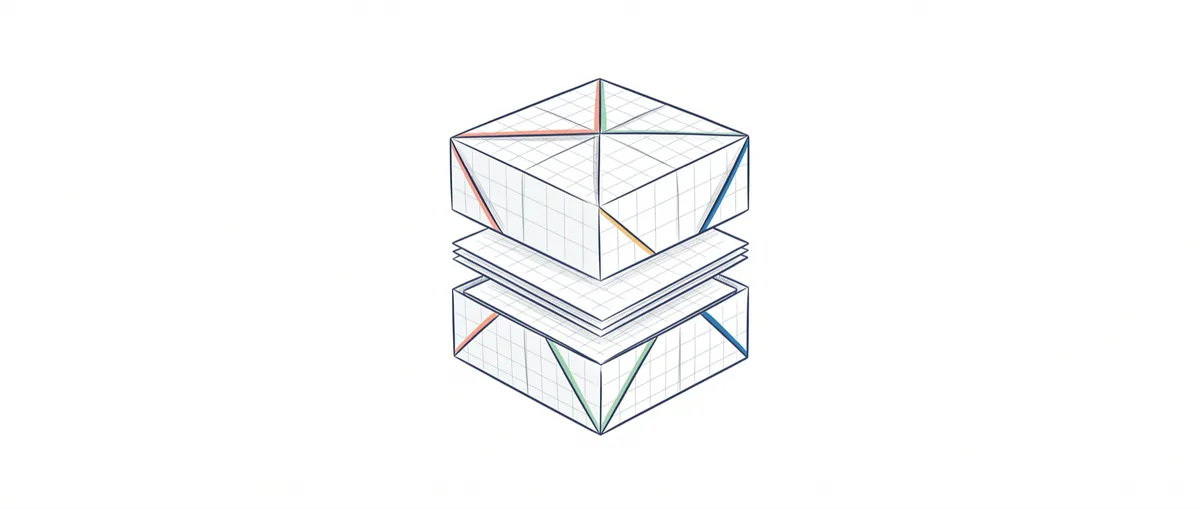
It’s 7pm, you’ve been coding all day, and you drop the commit of the day: message “various changes,” 38 files. We’ve all done it. The problem doesn’t show up today. It shows up three weeks later, when something breaks in production, you open that commit looking for the cause, and you find a black box with the new feature, a half-finished refactor, two typos, and an updated dependency, all tangled together. Here’s how to go from that giant commit to atomic commits, and why that habit change is what separates a junior from someone who looks like they’ve been on the team for years.
What Is an Atomic Commit?
An atomic commit is a single, complete, coherent logical change that compiles and passes its own tests on its own. That’s the whole definition. The word “atomic” comes from “indivisible”: if you tried to split the commit in two, each half would be incomplete or broken.
Notice what it’s not. It’s not “a small commit”: a logical change can touch five files and add a hundred lines if that’s what the feature needs. It’s also not “one commit per file,” which is the opposite mistake and produces a history that’s just as useless, full of commits that mean nothing on their own.
The mental test is simple. If the commit message needs the word “and” to describe what it does (“add email validation and fix the search and update the linter”), it’s not atomic. That’s three things. The message describing an atomic commit fits in one sentence with no conjunctions, which is exactly what the post on commit messages covers.
Why Do Atomic Commits Make You Look Senior?
Because an atomic history turns operations that would be a nightmare into one-command tasks. It’s not about aesthetics. It’s what Git can do for you when every commit is a clean unit.
Start with code review. Whoever reviews your pull request reads changes, not files. If they open a commit and see “extract date parsing into a function,” they get the intent in two seconds and can validate the whole diff. If they open “various changes” with 38 files, they either approve it without reading it (dangerous) or spend half an hour mentally reconstructing what you meant. This matters even more when you work with others: the team workflow with Git and GitHub relies entirely on other people being able to read your history.
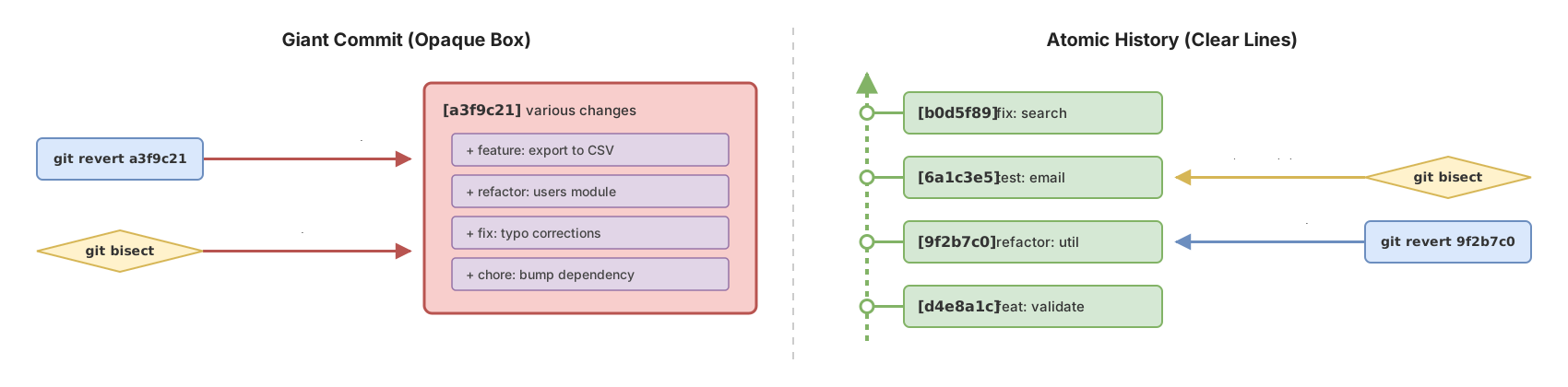
Next, git revert. Imagine the CSV export feature turns out to be broken and needs to come out right now. If it lives in its own commit, git revert <hash> generates an inverse commit that surgically undoes it and leaves everything else intact. If that feature shares a commit with the users module refactor, reverting the export takes the refactor down with it. Now you have to fix by hand what Git would have handled on its own.
And then there’s git bisect, which to me is the definitive argument. git bisect runs a binary search through your history to find the exact commit that introduced a bug: you mark one good commit and one bad commit, and Git hands you intermediate commits for you to say “this one works” or “this one’s already broken,” halving the range each time. In a history of a thousand commits, it lands on the culprit in about ten steps. But it only works well if every commit compiles. When one of the intermediate commits doesn’t build, you can’t say whether it’s good or bad: you have to skip it with git bisect skip, which excludes it at the cost of precision, and if there are too many of those the search stops being worth it.
The result of all this is a history that reads like a narrative: every line of git log tells you a decision. Compare.
# The "7pm" history: you can't revert or bisect anything
a3f9c21 cambios varios
7b1e004 wip
c8d2f6a más cambios y fix del test
6b0af13 ya casi
# Atomic history: every line is a change you can revert on its own
d4e8a1c feat: validar email en el registro
9f2b7c0 refactor: extraer parseo de fecha a util
6a1c3e5 test: cubrir email duplicado en el registro
b0d5f89 fix: normalizar acentos en el buscadorThe second history lets you revert a single commit, bisect a failure, or just read what happened in every line.
How Do I Split the Work While I Code?
The cheapest way to get atomic commits is to plan them before writing the code, not after. When you’re about to tackle a task, spend ten seconds splitting it mentally: “first I extract this function, then I build the feature on top, then I add the test.” That’s already three commits before you touch the keyboard.
The rule that pays off the most: the refactor goes in a commit separate from the feature. If adding your functionality means reorganizing code that already existed, do the pure refactor first (same behavior, code moved) and commit it. Then, on top and already clean, build the feature. That way, if something breaks, you instantly know whether it was the code move or the new logic. Mixing them guarantees a diff nobody can read.
Second: commit often. As soon as a piece is complete and green, close it out. Don’t wait until the end of the day and let four unrelated changes pile up. A commit marks a point where the project is whole: close it when a piece is ready, not when your workday ends.
But let’s be realistic: no matter how much you plan, there are days when you start fixing a bug, spot a typo along the way, touch a nearby function, and suddenly your working tree is a mess. For that, Git has a tool almost nobody uses.
And When It’s All Already Mixed Together in the Working Tree?
When you already have several unrelated changes mixed together, git add -p lets you stage by fragments instead of by files. It walks through your changes hunk by hunk (each contiguous block of modified lines) and asks, for each one, whether you want to include it in the commit or not. That way you build a first commit with just the pieces that belong together, and leave the rest for the next one.
When you run it, Git shows you the first hunk. Notice that two unrelated changes (adding the email validation and recording a signup metric) have ended up stuck in the same block because they’re only a few lines apart:
$ git add -p
diff --git a/src/registro.ts b/src/registro.ts
@@ -4,8 +4,12 @@ export function registrar(datos) {
   const origen = datos.origen ?? "web"
   const ahora = Date.now()
   const email = datos.email.trim()
+  if (!validarEmail(email)) {
+    throw new Error("Email no válido")
+  }
   const nombre = normalizar(datos.nombre)
   const usuario = crearUsuario(email, nombre)
   guardar(usuario)
+  registrarMetrica("signup")
   return usuario
 }
(1/1) Stage this hunk [y,n,q,a,d,s,e,?]?
The options you’ll use the most are y (stage this hunk), n (skip it), and q (quit). Press ? at any time and Git lists them all. The one that does the real magic is s: split the current hunk into smaller hunks. When Git presents you a block that contains two unrelated changes stuck together by proximity, s tries to break it up along the unchanged context lines in between, and asks you again about each piece:
(1/1) Stage this hunk [y,n,q,a,d,s,e,?]? s
Split into 2 hunks.
@@ -4,6 +4,9 @@ export function registrar(datos) {
   const origen = datos.origen ?? "web"
   const ahora = Date.now()
   const email = datos.email.trim()
+  if (!validarEmail(email)) {
+    throw new Error("Email no válido")
+  }
   const nombre = normalizar(datos.nombre)
   const usuario = crearUsuario(email, nombre)
   guardar(usuario)
(1/2) Stage this hunk [y,n,q,a,d,s,e,?]? y
If it still doesn’t come out clean, because the two changes share a line, e opens the hunk in your editor so you can decide line by line what gets staged. It’s the fine scalpel. You don’t need it every day, but the day you do, nothing else will do the job.
Once you have staged what makes up the first logical change, a regular git commit closes it out. You repeat git add -p with what’s left and produce the second commit. A chaotic working tree comes out converted into three atomic commits without having touched the code.
How Do I Split a Commit I Already Made That Mixes Two Things?
If the commit is still local and you haven’t shared it, git reset --soft HEAD~1 undoes it and keeps all the changes staged, exactly as they were. The commit disappears from the history, but not a single line of your code is lost: the working copy and the index stay intact. From there you can split it up again.
# Undo the last commit; the changes remain staged
git reset --soft HEAD~1

# Unstage them so you can choose what goes in each commit
git restore --staged .

# First logical change
git add src/registro.ts
git commit -m "feat: validar email en el registro"

# Second logical change, in pieces if needed
git add -p
git commit -m "fix: normalizar acentos en el buscador"
The important warning: this rewrites history. Only do it with commits that still live solely on your machine. If you’ve already pushed to a branch others share, don’t touch that commit with reset or rebase: someone may have built on top of it, and rewriting what’s already there forces a push --force that stomps on their work. For commits that are already shared, the clean path is a new commit on top that fixes whatever is needed.
Common Mistakes and How to Avoid Them
The theory is easy to grasp. The stumbles are always the same ones, so it’s worth naming them.
Confusing atomic with “one commit per file.” This is misunderstanding number one. A logical change can touch the controller, the service, and its test all at once, and all three go in the same commit because they’re the same idea. Splitting them by file breaks atomicity in the other direction: it leaves you with commits that don’t even compile on their own.
Mixing refactor and feature. We already covered this above, but it’s frequent enough that I’ll repeat the remedy: refactor first and alone, feature after. If you find yourself writing a message with “and,” that “and” is the seam where you should split two commits.
Believing git commit -am includes new files. It doesn’t, and this is where the silent bug sneaks in. The -a flag automatically stages modifications and deletions of files Git already tracks, but it completely ignores new files. You run git commit -am "añade servicio de pagos", the commit comes out green, and the pagos.ts file you just created is left out. The team pulls the branch and it doesn’t build. Before an -am, a two-second git status saves you the panic.
Leaving commits that don’t compile “to fix in the next one.” It sounds harmless and it’s the one that costs the most. It doesn’t bother you in the moment, but any future git bisect crashes into that commit, and a git revert on neighboring commits drags the failure along. An atomic commit compiles and passes its tests. No exceptions.
Checklist Before Every Commit
- The message describes the change in one sentence, without needing “and.”
- The code compiles and its tests pass in this commit, not the next one.
- The refactor, if there is one, goes in its own commit before the feature.
- You’ve reviewed the diff with
git diff --stagedbefore committing. - If you created new files, you’ve added them with
git add(an-amisn’t enough). - You only rewrite with
resetorrebasecommits you haven’t shared yet.
Changing this habit isn’t something you read, it’s something you practice: the first time you split a messy working tree with git add -p is when it clicks. In the course Git from Zero to Professional you’ll find interactive exercises where you split real commits step by step, with immediate feedback, instead of just reading about it. If you’d rather go it alone, the roundup of Git practices for 2026 covers the rest of the pieces.
Frequently Asked Questions
Does an Atomic Commit Have to Be Small?
No. Atomic refers to the commit containing a single, complete logical change, not its size: a well-scoped feature can touch several files and add quite a few lines without ceasing to be atomic.
How Often Should I Commit?
Every time a piece is complete and green, without waiting for the end of the day. If you’ve finished extracting a function and it compiles, close it out in a commit before starting the next thing. Committing often is what keeps four unrelated changes from piling up on you, changes you’d otherwise have to separate later with git add -p.
Does git add -p Work on New Files?
Not directly. An untracked file has no previous version to compare against, so Git doesn’t generate hunks for it and git add -p ignores it. The trick is to mark it first with git add -N (intent-to-add): that registers in the index that the file exists but without content, and from there git add -p offers its lines as regular hunks.
git add -N pagos.ts   # intent-to-add: registers the file, still with no content
git add -p pagos.ts   # now it does offer its lines as hunks
Can I Fix a Commit I Already Pushed?
Carefully, and only if nobody else has built on top of it. If you’re sure that commit lives only on your branch and nobody has pulled it, you can rewrite it with git reset or git rebase and do a push --force-with-lease, which is safer than --force because it aborts if the remote changed since your last sync. If the branch is shared and there’s any doubt, don’t rewrite it: make a new commit on top that fixes what you need and leave it in the history.
Related articles
Working as a Team with Git and GitHub: Remotes, PRs, and Code Review
From a local commit to a shared repo: the distributed model, remotes, the push/pull/fetch cycle, Pull Requests, and code review, without stepping on anyone else's work.
Commit Messages: Best Practices with Examples
Learn to write useful commit messages: imperative-mood subject lines, the 50/72 rule, the why over the what, and Conventional Commits, with examples.
Git Best Practices in 2026: The Professional's Checklist
Atomic commits, clear messages, secrets kept out of the repo, and safe force pushes: the Git best-practices checklist for working with AI.