
Working as a Team with Git and GitHub: Remotes, PRs, and Code Review
From a local commit to a shared repo: the distributed model, remotes, the push/pull/fetch cycle, Pull Requests, and code review, without stepping on anyone else's work.
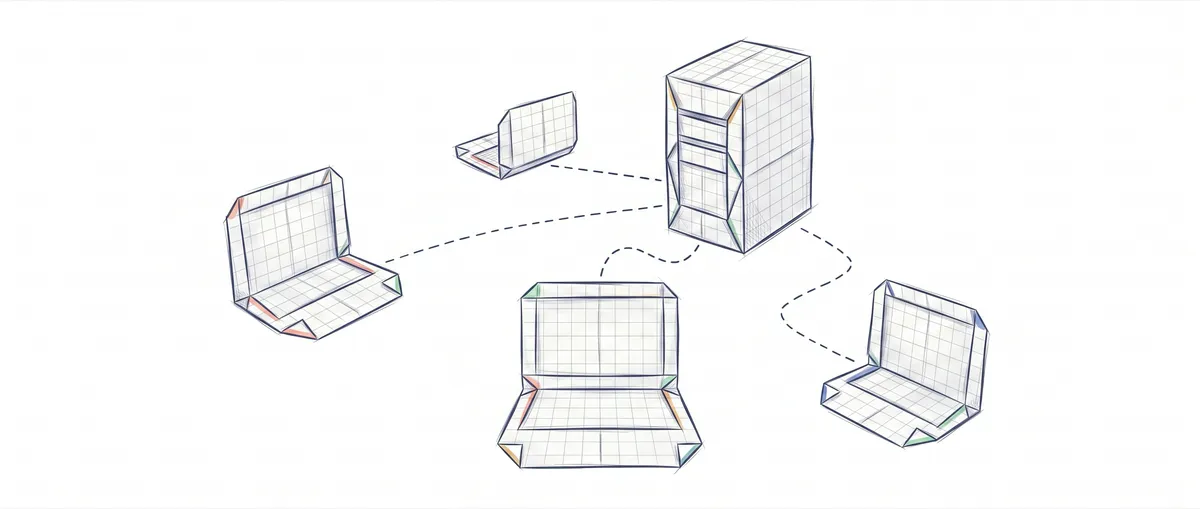
You know how to commit. You branch, run add, write a decent message, and move on. Locally, that git commit is the finish line: your work is already saved. The day you get access to a shared repo, that same action becomes only half the story. What’s missing is the hard part: getting your work to everyone else without stepping on theirs, and getting theirs to you without erasing yours.
That’s the real leap of working as a team with Git, and what really changes is the mental model, more than a handful of new commands. Here I break the whole thing down: what GitHub actually is versus Git, how code travels between your machine and the server, how a Pull Request works from start to finish, and why git push --force is the fastest way to make a teammate hate you for a good reason.
What’s the difference between Git and GitHub?
Git is a distributed version control system that runs entirely on your machine; GitHub is a server that hosts a copy of the repository so several people can share it. They are not the same thing, and confusing them is the first misunderstanding you need to clear up.
When you run git init or clone a repo, you have the full history on your disk: every commit, every branch, everything. You don’t need a connection to view the log, create branches, or make commits. That’s what “distributed” means: every copy of the repository is a complete repository in its own right, with the entire history inside, instead of a thin client that depends on a central server. Git would work exactly the same if GitHub didn’t exist.
So what’s GitHub for, then? For having a common place where everyone pushes to and pulls from. It’s just another repository, hosted on a company’s servers, that your team treats as the meeting point. On top of that, GitHub adds things Git doesn’t have: the web interface, Pull Requests, permissions, CI integration. But those are GitHub features, not Git features.
The proof that they’re separable is that you can change houses without changing tools. GitLab and Bitbucket play the exact same hosting role, and there are teams that self-host their own Git server. The day you migrate from one to another, your Git commands don’t change by a single letter. Only a URL changes.
Keep this in mind: Git is the tool, GitHub is a place to put a copy. When someone says “push it to Git,” they almost always mean “push it to GitHub.” It’s harmless loose language, as long as you’re clear on what each one actually does.
What’s a remote, and what is origin?
A remote is an alias that points to another copy of the repository, usually the one living on GitHub. Instead of typing the full URL every time you want to sync, you give it a short name and work with that instead.
When you clone a repo, Git automatically creates a remote called origin pointing to the URL you cloned from. If you want the practical details of bringing a repo onto your machine for the first time, they’re in the guide to cloning a repository. What matters here is the result: after cloning, you already have a remote configured without having done anything.
origin is just a convention: the default name Git gives to the main remote, the “place of origin” of your copy. You could call it github, central, or bob, and Git would work exactly the same. But everyone calls it origin, and breaking that convention only confuses the next person who sits down at your computer.
To see which remotes you have configured and where they point:
git remote -v
# origin  git@github.com:acme/backend.git (fetch)
# origin  git@github.com:acme/backend.git (push)
Notice that two lines show up for origin: one for fetch (where you pull from) and one for push (where you send to). They’re almost always the same URL, but Git lets you split them for advanced cases.
A repo can have several remotes at once, and this isn’t just theory. In open-source projects it’s the norm: you have origin pointing at your own fork and upstream pointing at the official repository you forked from. You pull changes from upstream to stay up to date and push your own to origin. One history, two different servers, each with its own role.
The clone / fetch / pull / push cycle
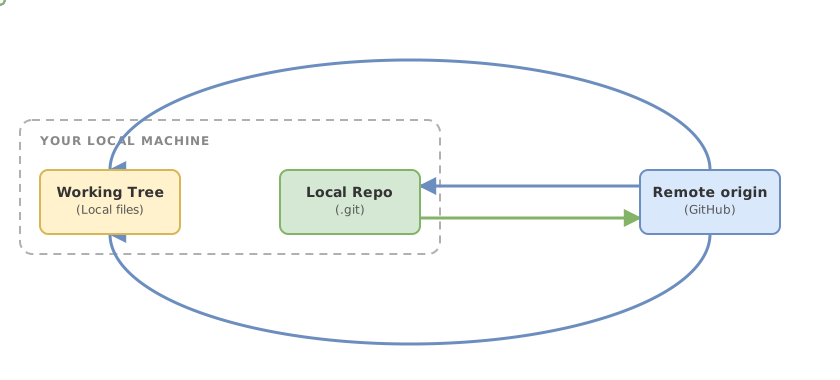
All teamwork boils down to moving commits between your local copy and the remote, and there are only four verbs for that. Go through them once and you have the full mental map.
git clone <url> is the entry point. It copies the entire remote repository onto your machine, creates a folder with the project, sets up origin pointing to that URL, and leaves the default branch ready to work on.
git clone git@github.com:acme/backend.git
# Cloning into 'backend'...
# remote: Enumerating objects: 1284, done.
# Receiving objects: 100% (1284/1284), 2.10 MiB, done.
cd backend
From there you sync in both directions. Pulling down changes from the remote has two commands that people constantly mix up, and that confusion is a source of nasty surprises.
git fetch origin downloads the new commits from the remote and updates your tracking branches (origin/main, origin/feature-x), but it doesn’t touch a single file in your working directory or your current branch. It’s the safe operation par excellence: you find out what’s happened without anything moving under your feet. After a fetch you can calmly look at what’s changed and decide.
git pull goes one step further. First it does exactly what fetch does, and then it integrates those changes into your current branch, usually via a merge. In other words, pull is fetch followed by merge. That second step is the one that modifies your files, and it’s the one that can produce an unexpected conflict or merge if you didn’t know what was waiting on the remote.
git fetch origin      # downloads and updates origin/main; your files do NOT change
git log origin/main   # you look at what's arrived before integrating it
git pull              # fetch + merge into your current branch (here your files DO change)
If that difference is still fuzzy, it deserves a whole article: it’s broken down in fetch vs. pull, the exact difference. The short rule for everyday use: use fetch when you want to look before you touch anything, and pull when you’re already committed to integrating.
For pushing your work up there’s git push, which sends your local commits to the remote. The first time you push a new branch, the -u flag (short for --set-upstream) links your local branch to the one on the remote, so from then on plain git push and git pull are enough.
Here’s the table I want you to memorize, because it splits the four operations by the one thing that matters when you work on a team: the direction of the flow and what happens to your local code.
| Command | Direction | What it touches in your working tree | When you use it |
|---|---|---|---|
git clone | Remote → local (first time) | Creates the folder and the repo from scratch | Once, when starting on a repo |
git fetch | Remote → local | Nothing. Only updates origin/* | When you want to see what’s on the remote without any risk |
git pull | Remote → local | Modifies your current branch (fetch + merge) | When you’re catching up and you’re fine merging |
git push | Local → remote | Nothing of yours; updates the remote | When your work is ready for others to see |
With these four verbs you can already move code in both directions. What you still don’t have is the social part: how a change gets proposed for someone else to review before it lands on the main branch.
What’s a Pull Request, and why don’t you push directly to main?
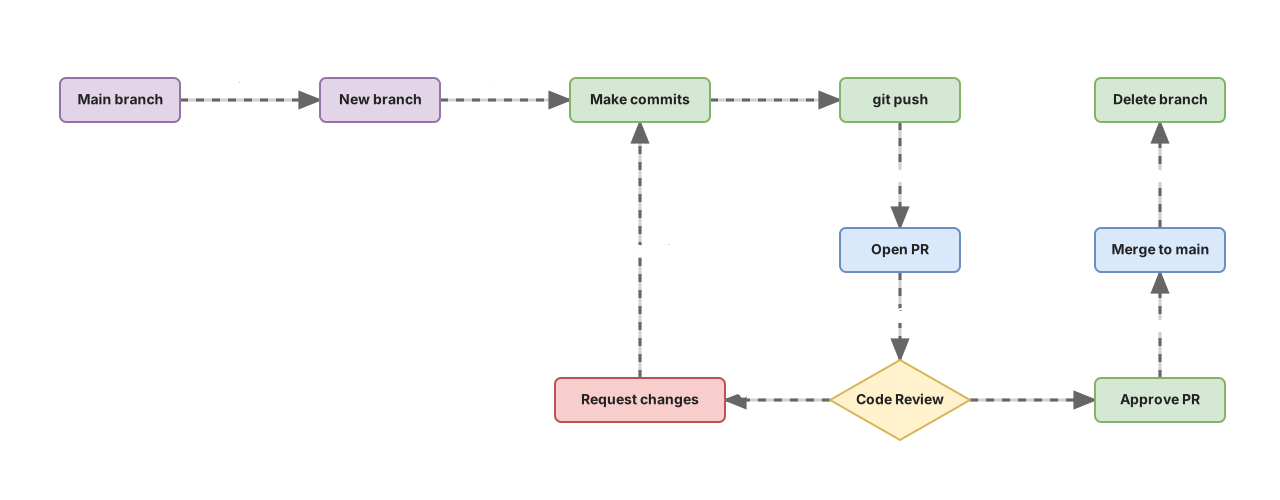
A Pull Request is a reviewable proposal for a change: instead of putting your code directly into the main branch, you push it to a separate branch and ask someone to review and approve it before it’s merged. The PR is where that conversation lives.
This is where most people get stuck, because the Pull Request lives outside Git. Git only knows about branches and merges. The PR is GitHub’s invention (copied by GitLab with its merge requests, and by everyone else) as a social layer on top: a screen where you see the diff, comment line by line, run automated tests, and keep a record of who approved what. If you want the fine-grained detail of what it is and where it came from, it’s in what is a Pull Request.
The full flow, start to finish, chains together things you already know how to do with one new thing:
git switch -c feature/login      # creates the branch and switches you to it (one operation)
# ...you work, add and commit as usual...
git push -u origin feature/login # pushes the branch to the remote and links the upstream
# GitHub gives you back a URL to open the Pull Request
After that push, GitHub detects the new branch and offers you a link to open the PR. You fill in a title and a description, choose who reviews it, and that’s it: the proposal is on the table. Reviewers comment, you respond with new commits if needed, and once there’s a green light someone hits “Merge” and your branch lands in main.
Why all this dance instead of pushing straight to main? Because every step buys you something you’ll miss the day you lose it. Nobody looks at your code before it reaches the branch production ships from, automated tests stop having a clear moment when they’re required to pass, and main’s history turns into a dumping ground where you can’t tell who put what in or why. The Pull Request puts a gate with a reviewer between your work and the branch you can’t afford to break.
This is a good moment to stop and do it yourself, because reading about the flow and actually running it are two different things. Before touching a real repo, try deciding each step of Alex’s first PR: which command applies, when to open the proposal, what to do when the reviewer asks for changes. Get it wrong here. It costs nothing.
Loading exercise...
Once you’ve solved it, do it again with your own hands: create a branch, push it, open a test PR on a repo of yours, and watch how GitHub shows you the diff. The first time you see your own change presented for review, the mental model clicks into place.
How do you do a code review that actually helps?
A useful code review isn’t a rubber stamp: it’s a teammate reading your diff to understand what you’re changing, why, and whether it’s going to break something. The goal is for the code to land on main in better shape than it would without those extra eyes, not for the reviewer to look good by finding flaws.
What does a reviewer actually look at? It starts with whether the change does what it claims to do, and whether it’s the simplest way to do it. Then the edges: edge cases, error handling, what happens with weird data. Then maintainability, meaning whether someone will understand this without archaeology six months from now. And of course the tests: that they exist and cover what the change touches. On GitHub this translates into comments anchored to specific lines of the diff, not a generic “looks good” email.
When the reviewer is done, GitHub asks them for a verdict, and there’s a distinction worth being clear on here. Approve means “go ahead as far as I’m concerned, merge it.” Request changes is an explicit block: there’s something that needs fixing before merging. And a plain comment is an opinion without a verdict, useful for suggestions that don’t block anything. Mixing up “I’m leaving a comment” with “I’m blocking your PR” causes avoidable friction, so use each one for what it’s for.
The part beginners find hardest to internalize is what you do when changes are requested. You don’t open a new PR. You stay on the same branch, fix what was asked, commit and push, and those new commits get added to the existing Pull Request automatically. The PR is a living branch: everything you push to that branch shows up in the conversation, and the reviewer can see exactly what changed since their last comment. Once they’re satisfied, they swap their “request changes” for an “approve” and it gets merged.
A note on size, because it directly affects review quality. A thirty-line PR gets reviewed properly, and actually reviewed. A two-thousand-line PR gets approved with an “LGTM” and a sigh, because nobody has the energy to truly audit that. If you want reviews that actually give you something, make small, frequent changes. A small PR gets reviewed better and, as a bonus, reverts with one click if something goes wrong.
How do you protect the main branch?
Branch protection is a GitHub setting that stops anyone from pushing changes to main that skip the rules, even if they want to or make a mistake. It’s the safety net that turns “please don’t push directly to main” into something the server enforces for you.
The underlying idea is that main should always be deployable. At any moment, the latest commit on that branch should be able to go to production without surprises. If anyone can push half-finished code directly, that guarantee evaporates. Protection rules rebuild it by requiring conditions before allowing a merge.
The ones you’ll find on almost every serious team:
- Require a Pull Request before merging. Nothing lands on
mainwithout going through a PR. Direct pushes are banned for everyone, admins included, if configured that way. - Require a minimum number of approvals. Usually one or two. Until those “approve”s exist, the merge button stays locked. On sensitive repos this is combined with a
CODEOWNERSfile and branch protection’s own “Require review from Code Owners” option: the file alone only auto-assigns reviewers; it’s that option that makes the code owner’s approval mandatory. - Require status checks to pass. Tests, linter, and build all have to be green. If CI fails, you can’t merge no matter how much a human has signed off.
- Require the branch to be up to date with main before merging, so tests run against the actual state the code is about to land on, not a stale snapshot.
The combined effect is that main stops depending on individual discipline. It no longer matters if someone has a bad day and runs git push origin main out of habit: the server rejects it. The quality of your main branch stops depending on everyone remembering to do the right thing.
All of this (branches, remotes, the sync cycle, and the full PR flow end to end) sinks in once you go through it hands-on. In the Git from Zero to Professional course you go through the complete team workflow in an environment where stepping on someone else’s repo has no consequences, until opening a PR and syncing with the remote comes without thinking.
And what if I have to force a push?
Before forcing anything, understand why Git blocks you by default. A normal git push refuses to update the remote if your version isn’t a descendant of what’s already there. Translated: if someone pushed commits you don’t have, Git won’t let you clobber their work. It makes you pull theirs in first. That refusal is protecting you, even if in the moment it feels like an obstacle.
git push --force disables that protection entirely. It tells Git “make the remote exactly like my copy, I don’t care what was there.” If a teammate had pushed three commits between your last fetch and your push, those three commits disappear from the remote. No conflict, no warning, no recycle bin. They’re just gone, and their author finds out when their next pull brings them a history they don’t recognize. That’s why a plain --force on a shared branch is one of the few things in Git that causes real, hard-to-recover work loss.
The safe alternative is git push --force-with-lease. It does the same force, but with a check: it only overwrites the remote if its current value matches what you have recorded on your tracking branch, meaning what you saw on your last fetch. If the remote has moved on since then, because someone pushed something, the check fails and the push aborts without touching anything.
git push --force-with-lease
# ! [rejected]  feature/login -> feature/login (stale info)
# Someone pushed to the remote since your last fetch: the push was aborted, nothing was lost.
That rejection message is exactly what you want to see when there was danger. It’s telling you “you were about to clobber something, stop.” You fetch, look at what’s arrived, and decide with information. Plain --force can silently wipe out someone else’s work; --force-with-lease refuses to.
So when do you actually need to force, to begin with? The legitimate, common case is after rewriting your own feature branch: you did a rebase to bring your commits up to date on top of main, or a commit --amend to fix the last message. Now your local history isn’t a descendant of what you pushed before, so a normal push rejects it. Since it’s your branch and nobody else is working on it, forcing is correct. And since you want to make sure nobody else has actually touched it, you do it with --force-with-lease. Never with plain --force.
Common mistakes when you’re starting out on a team
Pushing directly to main
The classic first-day mistake. You’re used to main being your local working branch, you make your commit and run a git push out of habit, and you’ve just put unreviewed code onto the branch production ships from. The technical fix is the branch protection we already covered, but the mental fix is assuming that on a team main belongs to everyone, and everyone gets there through a PR.
Confusing pull with fetch and getting an unexpected merge
Someone tells you “do a pull to get the latest,” and you, in the middle of a half-finished change, run git pull and suddenly you have a merge conflict you weren’t expecting. You didn’t do anything wrong with your hands, but you did with your mental model: pull integrates, and if your working tree was in a delicate state, integrating hurts. When you’re not sure what’s on the remote, fetch first and look. Integrate when you decide to, not when habit tells you to.
git push --force on a shared branch
I’ve already given this its own section, but it’s repeated in this list because it’s the mistake with the worst damage-to-frequency ratio. A --force on the wrong branch wipes out days of someone else’s work. If something in your head says “I’m going to force this,” make the next thought always be --force-with-lease.
Giant PRs
You bundle two weeks of work into a single fifteen-hundred-line Pull Request and hand it to a teammate. Nobody actually reviews that. They approve it out of exhaustion, and bugs slip through because properly reviewing a huge change is impossible. Break it up. A PR should be reviewable in one sitting, not over an afternoon.
Going days without doing a pull
You lock yourself in your branch for a week without pulling anything from main, and by the time you finally go to merge, main has moved a lot while you were shut away: dozens of conflicts, each one a little archaeology dig. If you integrate often, each conflict is small; if you leave it for the end, they all pile up at once. Bring changes from main into your branch frequently and conflicts will stay small and digestible.
Checklist for your first team project
- You can explain in one sentence the difference between Git (your machine) and GitHub (the remote)
- You’re clear that
originis just the conventional name for the main remote - You can tell
fetch(look, don’t touch) apart frompull(bring and merge) before running either - All your work goes on its own branch via
git switch -c, never directly onmain - You open small Pull Requests, reviewable in one sitting
- You respond to feedback with new commits on the same branch, not a new PR
- If you ever force a push, it’s with
--force-with-leaseand on your own branch -
mainhas branch protection: mandatory PR, approvals, and green checks
Practice the team workflow without fear of breaking anything
A repo with real people behind it adds a kind of pressure no tutorial reproduces. The Git from Zero to Professional course takes you from your first commit to your first reviewed and merged PR, with interactive exercises to clone, sync with the remote, open the proposal, and respond to a review hands-on. By the time you hit your first real shared repo, the mental model will already be in place.
Frequently Asked Questions
Are GitHub and Git the same thing?
No. Git is a distributed version control system that runs on your machine and keeps the entire history locally; GitHub is a web service that hosts a remote copy of Git repositories and adds collaboration tools like Pull Requests. You can use Git without GitHub, and you can host the same repository on GitHub, GitLab, or Bitbucket without changing a single Git command.
What’s the difference between git fetch and git pull?
git fetch downloads new commits from the remote and updates your tracking branches (origin/main and the rest), but it doesn’t modify your files or your current branch: it’s a look-only operation. git pull does that same fetch and, on top of it, merges the changes into your current branch, which does modify your working tree and can create conflicts. If you want to see what’s on the remote before risking an integration, use fetch.
Can I have the same repo on GitHub and GitLab at the same time?
Yes: a Git repository can point to several remotes at once. You add the second one with git remote add gitlab <url>, and from then on you push to or pull from each one by name. It’s the same mechanism open-source projects use with origin (your fork) and upstream (the official repo).
Is git push --force-with-lease safe?
It’s the safe way to force a push, but “safe” doesn’t mean “consequence-free.” It checks that the remote hasn’t moved on since your last sync and aborts the push if it detects that it has, so you won’t wipe out anyone’s work by surprise. Even so, you’re rewriting history, so keep it for your own feature branch after a rebase or an amend, never for a branch other people are collaborating on.
What size should a Pull Request be?
Small enough to review thoroughly in one sitting. There’s no magic line count, but a PR a teammate can read and understand in ten or fifteen minutes will get a real review; one with thousands of lines will get an exhausted “LGTM.” When a change grows too big, split it into several chained PRs: each one reviews better, and if something goes wrong, it’s easier to revert.
Related articles

What Is a Pull Request and How to Open Your First One
A pull request is the proposal to merge your branch that GitHub or GitLab add on top of Git. Learn what it is and how to open yours step by step.
git clone: How to Clone a GitHub Repository Step by Step
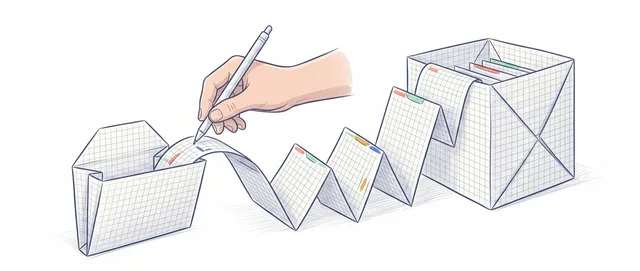
What git clone actually does: it copies the project, its history, and sets up origin. HTTPS vs SSH, clone vs init, and the most common errors.
git pull vs git fetch: the difference that matters
git fetch downloads changes from the remote without touching your work; git pull downloads and integrates them. When to use each one and why.