
What Is a Pull Request and How to Open Your First One
A pull request is the proposal to merge your branch that GitHub or GitLab add on top of Git. Learn what it is and how to open yours step by step.

It’s your first day on a new team. You’ve got the change committed on a local branch, it works, and someone tells you: “open us a PR.” You open the terminal, type git pull-request, and Git tells you that command doesn’t exist. That gap between what you can do on your own and what a team does is exactly what I’ll close here, with the answer to what a pull request is and the exact commands to open your first one.
What Is a Pull Request (and Why You Won’t Find It in Git)?
A pull request is a proposal to merge the changes from one branch into another branch of the repository, with a space for review and discussion before it’s accepted. Translated to your situation: you’re telling the team “I have this work on my branch, I want to get it into main, please review it.”
The reason git pull-request doesn’t exist is simple. Git has no concept of a pull request. Git knows how to make commits, branches, and merges, and not much else on this front. When you merge two branches on your machine, that’s just a git merge: there’s no conversation, no review, no approve button.
The pull request is a layer platforms add on top of that merge. GitHub, GitLab, or Bitbucket take an operation Git already knew how to do and wrap it in an interface: a web page where you see the diff, comment line by line, approve or reject it, and only once there’s a green light does the actual merge happen. The PR is the review conversation that surrounds the merge; the technical fusion is something Git could always do on its own.
A quick heads-up before moving on, because it trips up a lot of people when they’re starting out: git pull and “pull request” have nothing to do with each other. git pull is a Git command that fetches changes from the remote and merges them into your local branch. The pull request goes in exactly the opposite direction: you’re proposing that YOUR work go into the project. They share two words and nothing else.
The Full Journey: From Your Branch to the Project’s Code
The path a change takes, from the moment you write it to the moment it becomes part of the project, has five steps. First, you create a branch for your work. Second, you push it to the remote repository with git push. Third, you open the pull request on the platform. Fourth, someone reviews it and gives you comments or their approval. And fifth, the merge happens and your code lands on the main branch.
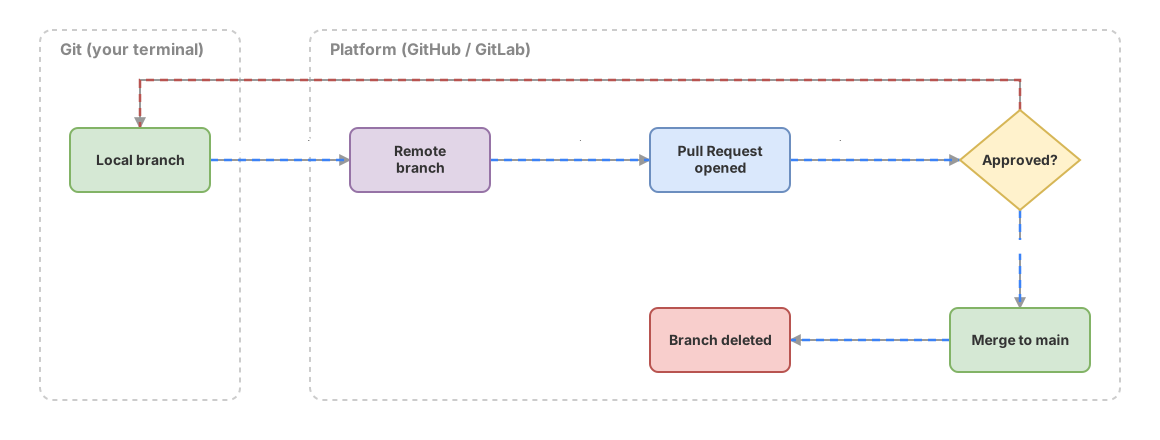
Notice where each step happens. The first two happen in Git, in your terminal. The last three happen on the platform, in the browser. That boundary is the hardest thing to see on day one: the branch and the push are Git’s territory; the PR, the review, and the merge button are GitHub’s territory.
These intermediate steps serve a specific purpose: they let several people work on the same repository without stepping on each other, and they make sure nothing lands on main without someone having looked at it. The pull request is one piece of something bigger, the Git team workflow, and it’s part of the practices for working as a team with Git and GitHub.
Step by Step: How to Open Your First Pull Request
Let’s get into the real commands. We’ll assume you already have the repository cloned and you’re on an up-to-date main.
The first thing you need is your own branch for the change. Never work directly on main: create a branch with a name that describes what you’re doing.
# Create a new branch and switch to it in one step
git switch -c fix/login-timeout

# ...you edit your files and check that everything works...

# Stage and commit the change
git add .
git commit -m "Fix the login timeout"

# Push the branch to the remote and set its upstream with -u
git push -u origin fix/login-timeout
Two notes on these commands. git switch -c creates the branch and switches you to it in one step; it’s the modern, recommended way to do it (the older equivalent, which you’ll still see in old tutorials, is git checkout -b). And the -u in git push -u origin fix/login-timeout sets the branch’s upstream the first time: from then on, a plain git push is enough to push further commits.
Once the push finishes, GitHub usually prints a direct link in the terminal to open the pull request for that branch. You open it, check that the base branch is the right one (usually main), add a clear title and a description of what changes and why, and click create. That’s it: that’s your first PR.
If you’d rather not leave the terminal, GitHub has its own command-line tool, gh, which opens the PR without touching the browser:
# Open the PR against main and fill in the title and body from your commits
gh pr create --base main --fill
The --base flag indicates the branch you want your code merged into, and --fill fills in the title and body from your commits so you don’t have to type them by hand. When it finishes, it returns the URL of the pull request it created.
Before moving on, practice the journey yourself. In this interactive exercise, you’ll open a pull request step by step, with no risk of breaking anything:
Loading exercise...
What Happens During Review?
Once the PR is open, the ball is in the reviewer’s court. The platform shows them the full diff: everything you added, changed, or deleted, file by file. On that diff, they can leave comments attached to a specific line (“this breaks if the array comes in empty”) or a general comment on the whole thing.
When they’re done, the reviewer leaves the PR in one of two states. They can approve it (approve), which is the green light to merge. Or they can request changes (request changes), which blocks the merge until you address what they flagged. Many teams have rules requiring at least one approval before you can merge, so a request changes means it’s time to get back to work.
And here’s the part that surprises almost everyone the first time: you don’t open a new PR to address those comments. You fix it on your machine, commit, and push to the SAME branch. The pull request updates on its own with the new commits.
# Fix what they asked for, commit, and push again
git add src/auth.ts
git commit -m "Handle the empty array case"
git push
That git push (no -u this time, since you already set the upstream) adds the commit to the open PR. The reviewer sees the updated diff and can approve it. A pull request isn’t a snapshot of your code frozen in time; it’s a live channel that tracks your branch for as long as it stays open.
The Merge: How Your Code Gets In
Once the PR is approved, the final step arrives: the merge, which is what actually puts your changes into the main branch. GitHub offers three ways to do it, and it’s worth knowing how they differ even if your team has already picked one for you.
Merge commit keeps all your commits exactly as they are and adds one extra commit that joins the two branches. You get the full history of how you worked, at the cost of a commit tree full of branching points. Squash and merge flattens all the commits on your branch into a single one before merging: main’s history stays clean, with one entry per PR, in exchange for losing the detail of your intermediate commits. And rebase and merge reapplies your commits one by one on top of the base branch, without creating a merge commit, leaving a straight line.
There’s no universally “correct” option. Each team decides based on how clean it wants its history to be, and as a contributor you’ll almost always find the decision already made. The one thing that is good practice across the board: delete the branch after merging, so you don’t end up piling up dead branches. Most platforms give you a button to do that right after the merge.
The Same Concept, a Different Name on Every Platform
The name “pull request” is GitHub’s. Other platforms do exactly the same thing under a different label, and that causes confusion when you switch jobs or projects.
| Platform | What it’s called | Note |
|---|---|---|
| GitHub | Pull Request (PR) | The term that popularized the name |
| GitLab | Merge Request (MR) | Same concept; the name better describes what it does, which is request a merge |
| Bitbucket | Pull Request (PR) | Identical to GitHub in terminology |
| Gitea | Pull Request (PR) | Self-hosted alternative; same naming as GitHub |
If someone on a team that uses GitLab talks about an “MR,” they’re talking about a pull request. The word changes, not the concept.
Opening your first pull request is the step that turns you from someone who uses Git on their own into someone who collaborates on a team. If you want to lock in the whole journey, from your first commit to the merge, with guided exercises like the one above, you’ll find it in the Git from Zero to Professional course.
Common Mistakes When Starting Out with Pull Requests
The 40-File Giant PR
The most common mistake beginners make is piling up a week of work on a single branch and opening a PR that touches 40 files. Whoever has to review it hits a wall: it’s impossible to properly review hundreds of lines at once, so they either approve it without really looking or leave it parked for days. A small, focused PR gets reviewed in minutes and lands fast. Break your work into changes you can describe in one sentence.
Confusing git pull with Opening a Pull Request
We already covered this above, but it comes up so often it deserves its own spot here. Running git pull doesn’t open any PR or notify anyone: it just updates your local copy with what’s on the remote. To propose your work, you need to git push your branch and then open the pull request on the platform.
Forgetting to Push Before Opening the PR
The platform only sees branches that exist on the remote. If you commit locally but don’t run git push, your branch won’t show up on GitHub and there’s no way to open a PR with it. Order matters: push first, pull request after.
Picking the Wrong Base Branch
When you create the PR, you pick two branches: yours and the base you want to merge into. If you set the wrong branch as the base, or open the PR against someone else’s main without permission, the diff will show hundreds of changes that aren’t yours and nobody will know what to review. Check the base branch before creating the PR; if you already opened it wrong, almost every platform lets you change it without closing it.
Frequently Asked Questions
Is a Pull Request the Same as git pull?
No, and it’s the most common mix-up. git pull is a Git command that downloads changes from the remote repository and merges them into your local branch. A pull request is a proposal, on a platform like GitHub, to have your branch merged into the project. They go in opposite directions: git pull brings code toward you, the pull request pushes your code toward the project.
Do I Need GitHub to Make a Pull Request?
You need a hosting platform, but it doesn’t have to be GitHub. Plain Git has no idea what a pull request is: it only does merges. The concept comes from platforms built on top of Git, like GitHub, GitLab, Bitbucket, or Gitea. With Git alone you can merge branches using git merge, but you won’t get the review or the conversation a PR gives you.
Are Pull Request and Merge Request the Same Thing?
Yes, it’s the same concept with a different name. GitHub and Bitbucket call it a pull request; GitLab calls it a merge request. The mechanics are identical: you propose merging one branch into another, there’s a review in between, and someone accepts it at the end. If you work with GitLab, every time you read “MR,” mentally translate it to “PR.”
Can I Keep Making Commits After Opening the PR?
Yes, and that’s exactly how you address review comments. While the pull request stays open, any commit you push to that same branch with git push gets added to the PR automatically. You don’t open a new one for every fix: the same pull request keeps updating until it’s approved and merged.
Who Does the Merge, Me or the Reviewer?
It depends on the team. On some teams, whoever opens the PR merges it once they have the required approvals; on others, only certain people with permissions on main can hit the merge button. There’s no universal rule, so when you join a new project, ask what the convention is before you merge anything yourself.
Related articles
Working as a Team with Git and GitHub: Remotes, PRs, and Code Review
From a local commit to a shared repo: the distributed model, remotes, the push/pull/fetch cycle, Pull Requests, and code review, without stepping on anyone else's work.
Team Git Workflow: Your First Day, Step by Step
The daily team Git cycle: updating main, creating a feature branch, small commits, opening a Pull Request, passing review, and merging.
git clone: How to Clone a GitHub Repository Step by Step
What git clone actually does: it copies the project, its history, and sets up origin. HTTPS vs SSH, clone vs init, and the most common errors.