
git pull vs git fetch: the difference that matters
git fetch downloads changes from the remote without touching your work; git pull downloads and integrates them. When to use each one and why.
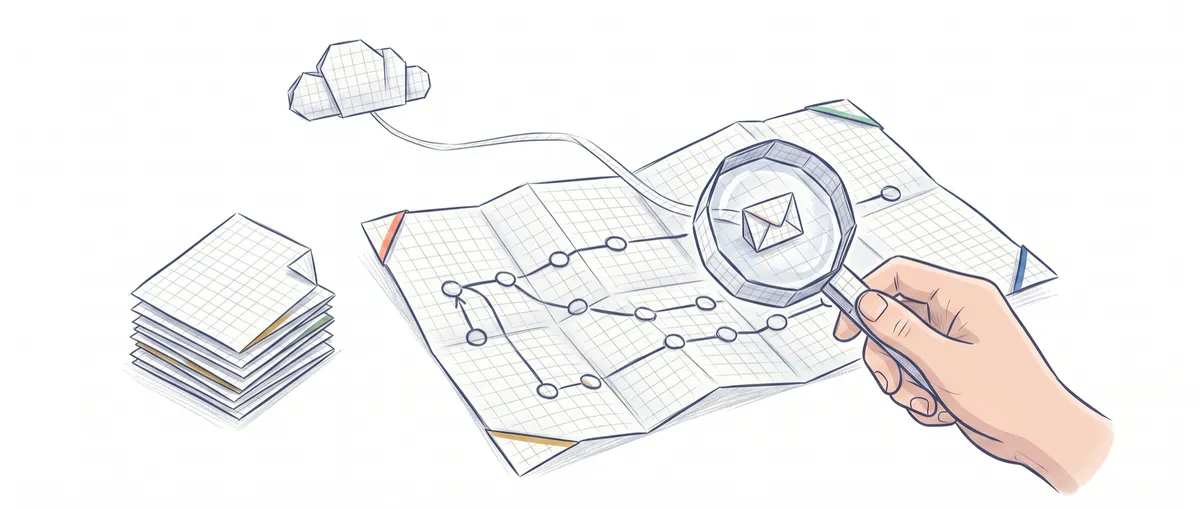
You type git pull on autopilot, like everyone else, and one day that pull drops an unexpected merge right in the middle of a half-finished change. The difference between git pull and git fetch is the difference between looking before you integrate and integrating blind. Here I explain exactly what each command touches in your repository and when I prefer to stick with just fetch.
What exactly does git fetch do?
git fetch downloads the commits, branches, and tags on the remote and updates your remote-tracking branches, like origin/main, without touching your local branch or your working tree. It is a read-only operation on your work: it pulls down information, stores it in a corner of your repository, and leaves you exactly where you were.
# Descarga lo que hay en el remoto, no cambia nada de tu trabajo
git fetch origin
The key is understanding what origin/main actually is. It is not the real-time main branch on the server: it is a local snapshot of where main was on the remote the last time you ran fetch. That is why origin/main only moves when you run fetch (or pull, which runs fetch internally). If you set up the remote by following how to connect your repository to GitHub, origin is that link, and fetch is the safe way to ask it “what’s new?”
After a fetch, your current branch still points to the same commit. Your working tree has not changed by a single character. The only thing that got updated is the remote references.
What exactly does git pull do?
git pull does two things in sequence: first a git fetch, then it integrates the upstream branch into yours. By default that integration is a git merge; if you use git pull --rebase, it is a git rebase. Put another way:
# Estos dos comandos equivalen, aproximadamente, a un git pull
git fetch origin
git merge origin/main
That second step is the whole story. pull moves your active branch to bring in the remote’s commits, and doing so modifies your working tree. If history has diverged (you have commits the remote does not, and the remote has commits you do not), that merge can create a merge commit, or stop dead with a conflict you have to resolve by hand.
fetch tells you what happened. pull decides for you what to do about it.
Why does git pull surprise you and git fetch doesn’t?
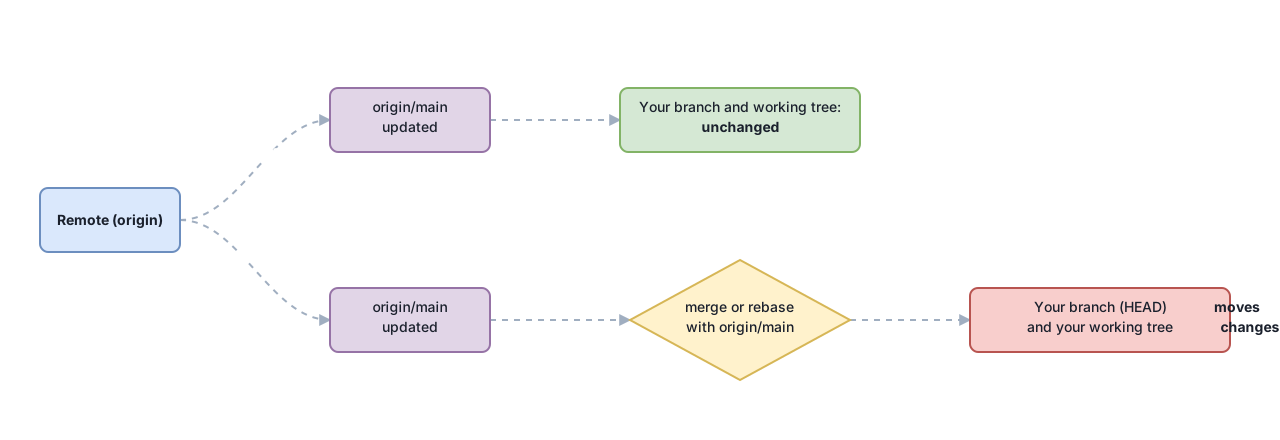
The surprise always comes from pull’s second step: it moves your HEAD and touches your files. fetch does not. This table summarizes what each command touches in your repository:
| Effect | git fetch | git pull |
|---|---|---|
| Downloads commits and objects from the remote | Yes | Yes |
Updates origin/main and other remote refs | Yes | Yes |
| Moves your local branch (HEAD) | No | Yes |
| Modifies your working tree | No | Yes |
| Can open a merge or conflict right now | No | Yes |
Read it top to bottom and you’ll see exactly where the line is: the first two rows are identical, the last three separate a harmless operation from one that rewrites where you stand. Once you understand that line, you stop fearing fetch and start respecting pull.
When should you prefer git fetch?
I prefer git fetch whenever I want to see what the remote is bringing before letting it touch my work. A fetch followed by inspection gives me control over the timing and shape of the integration, instead of accepting whatever pull decides.
The cases where I stick with fetch:
- I have half-finished, uncommitted changes. A
pullon a dirty working tree can abort or drop you into a conflict at the worst possible moment. Withfetchyou download what’s new without risking anything, finish or stash your change, and then integrate calmly. - I want to review which commits arrived. Before merging someone else’s work into mine, I like to read what it actually is. A
git logagainst the remote refs tells me that without integrating anything. - I care about a linear history. If the team uses rebase to keep history clean, a
pullwith the default merge clutters that line with extra merge commits.fetchplusrebaselets you decide. - I want to refresh every remote branch at once.
git fetch --allupdates the refs for every remote without integrating any of them, useful when you’re tracking several branches and just want to see the state before deciding which one to work on.
This kind of control is exactly what we practice in the interactive remote-sync module. Try it here, without leaving the page:
Loading exercise...
How do I inspect what fetch brought in before integrating it?
After a fetch, you compare your branch to the remote branch using the range HEAD..origin/main. That range means “commits that are in origin/main but not where I am”:
git fetch origin
# ¿Qué commits nuevos trae el remoto que yo no tengo?
git log --oneline HEAD..origin/main
# ¿Qué cambia en el código, línea a línea?
git diff HEAD origin/main
If what you see convinces you, you integrate whenever you want:
git merge origin/main     # crea un merge si el historial divergió
# o, para mantener el historial lineal:
git rebase origin/main    # reaplica tus commits encima de lo remoto
This flow (download, look, decide) is the same one that resolves the classic rejected push. When GitHub responds with the non-fast-forward error, it almost always means the remote moved ahead and you haven’t integrated it yet: a fetch and a rebase (or merge) clear the jam.
git pull with merge or with rebase?
git pull uses merge by default, but you can ask it for rebase either per command or via configuration. The choice is a tradeoff, not a dogma:
git pull --rebase             # solo esta vez
git config pull.rebase true   # por defecto en este repositorio
With merge you preserve history exactly as it happened, at the cost of merge commits that can fill the timeline with noise. With rebase you keep a linear, easy-to-read history, at the cost of rewriting your local commits (something you should never do to commits you’ve already shared). For everyday work on a branch of yours that you haven’t pushed yet, --rebase tends to give a cleaner history. The final call depends on how your team works, a topic I cover in the guide to working as a team with Git and GitHub.
Common mistakes
Thinking git fetch already integrated the changes
fetch updates origin/main, not your branch. It’s easy to run git fetch, see the command finish without errors, and assume the new code is already in your working tree. It isn’t. You’re still on your previous commit until you run a merge or a rebase. If it feels like “the fetch did nothing,” it actually did exactly what it was supposed to: prepare the information without moving your work.
Running git pull with a dirty working tree
A pull on top of unsaved changes can stop you with a conflict or abort the operation entirely. The healthy habit is to keep your working tree clean before integrating: commit your work, or stash it with git stash, and only then bring in the remote. If you’re already mid-change, fetch is the safe exit: download what’s new now, integrate it once you’re done.
Confusing origin/main with the remote’s actual main
origin/main is a local snapshot, taken at your last fetch. If a teammate pushed a commit thirty seconds ago and you haven’t run fetch since yesterday, your origin/main doesn’t reflect it. That’s not a bug: remote-tracking branches only update when you ask them to. A fresh fetch before you look saves you from making decisions on stale information.
Quick checklist
- I know that
git fetchdoesn’t touch my branch or my working tree - I use
fetchwhen I have uncommitted changes or want to inspect before integrating - I check
git log HEAD..origin/mainbefore merging someone else’s work into mine - I understand that
git pullisfetchplusmerge(orrebasewith--rebase) - I integrate with
mergeorrebasedepending on the history I want to keep
If you want to lock in this mental model with guided exercises instead of just reading about it, we build it step by step in the Git from zero to professional course, from your first commit to resolving conflicts with confidence.
Frequently Asked Questions
Does git fetch change my code?
No. git fetch downloads the remote’s commits and updates tracking branches like origin/main, but it doesn’t modify your local branch or the files in your working tree. After a fetch you’re exactly where you were; to bring in the changes you need a merge or a rebase.
Is git pull just git fetch plus something?
Yes. git pull first runs a git fetch and then integrates the upstream branch into yours. By default it does that with git merge; if you use git pull --rebase, it does it with git rebase. That’s why pull can open a merge or a conflict that fetch on its own never triggers.
Is running git fetch dangerous?
No, it’s one of the safest operations in Git. It doesn’t change your work: it only downloads information and updates remote references, so you can run it with half-finished changes without any risk of losing anything.
How do I see what fetch brought in before integrating it?
Compare your branch to the remote one with git log --oneline HEAD..origin/main to see the new commits, and with git diff HEAD origin/main to see the code changes. Once the review convinces you, integrate with git merge origin/main or git rebase origin/main.
Should I always use git pull —rebase?
It depends. On a branch of yours that you haven’t shared yet, --rebase tends to leave a cleaner, more linear history. But rebase rewrites commits, so don’t apply it to commits other people already rely on. If your team has a convention, follow it ahead of your personal preference.
Related articles
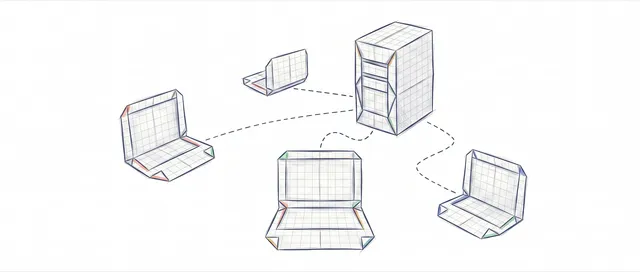
Working as a Team with Git and GitHub: Remotes, PRs, and Code Review
From a local commit to a shared repo: the distributed model, remotes, the push/pull/fetch cycle, Pull Requests, and code review, without stepping on anyone else's work.
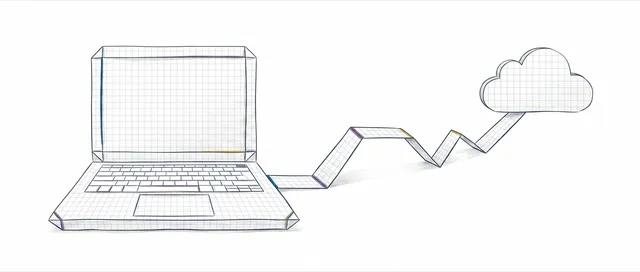
git remote: Connect Your Local Repo to GitHub
A beginner's guide to connecting your local repo to GitHub with git remote: what origin is, how to do your first push, and what -u means.

Error rejected non-fast-forward in git push: how to fix it
The rejected non-fast-forward error means the remote has commits you don't have. Here's why it happens and how to fix it with git pull, without forcing anything.