
Error rejected non-fast-forward in git push: how to fix it
The rejected non-fast-forward error means the remote has commits you don't have. Here's why it happens and how to fix it with git pull, without forcing anything.

You’re about to close out the task. You run git push and, instead of the usual main -> main, the terminal spits out a ! [rejected] with the (non-fast-forward) tag attached. The push fails, you don’t understand why, and the first Google result tells you to use --force. Don’t do that yet. The rejected non-fast-forward error has one very specific cause and a two-command fix that doesn’t destroy anyone’s work. Here’s what’s actually happening under the hood and how to get past it without making a mess.
What does “rejected non-fast-forward” actually mean?
It means the remote branch has commits your local branch doesn’t have, and Git refuses to overwrite them with your push. Here’s the full block it prints, verbatim:
$ git push origin main
To github.com:equipo/proyecto.git
 ! [rejected]        main -> main (non-fast-forward)
error: failed to push some refs to 'github.com:equipo/proyecto.git'
hint: Updates were rejected because the tip of your current branch is behind
hint: its remote counterpart. Integrate the remote changes (e.g.
hint: 'git pull ...') before pushing again.
hint: See the 'Note about fast-forwards' in 'git push --help' for details.
Read it top to bottom, because every line says something. The first, ! [rejected] main -> main (non-fast-forward), is the verdict: Git didn’t even try to send the branch. The second, error: failed to push some refs, confirms the whole push came to nothing. The hint: lines are the important part. the tip of your current branch is behind its remote counterpart is the exact diagnosis: the tip of your branch is behind the remote’s. And Integrate the remote changes (e.g. 'git pull ...') is the fix Git itself is handing you.
Nothing failed here, not permissions, not the connection: this is Git protecting you.
Why does Git reject your push?
Git rejects the push because it can’t do a fast-forward: your commit isn’t a descendant of the commit the remote currently has. To understand this, think of a branch as a pointer to a commit, and of history as a chain where each commit knows its parent.
Imagine you and a teammate both start from the same commit, a1b2c3d. You make your commit on top, 9f8e7d6, with your branch pointing there. Meanwhile, your teammate also starts from a1b2c3d, makes their own commit, 4c5d6e7, and pushes it before you. Now the remote points to 4c5d6e7 and you point to 9f8e7d6. You both started from a1b2c3d, but took different paths. History has forked.
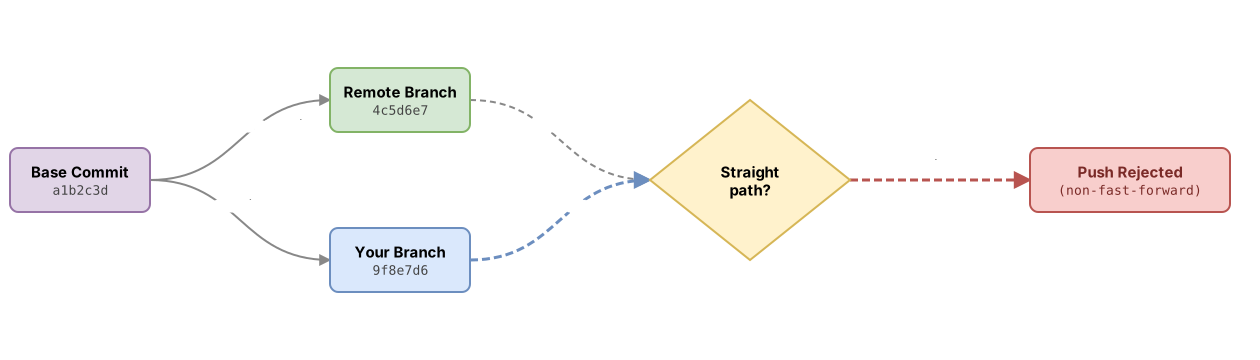
A fast-forward is the easy case: if the remote’s commit were an ancestor of yours, Git would just have to slide the pointer forward in a straight line, without losing anything along the way. But that’s not the case here. For your push to go through, Git would have to throw away your teammate’s commit 4c5d6e7, and that would destroy history. So it stops and tells you to integrate first.
Now that you understand why, it’s time to decide what to type to fix it.
The fix: git pull, then git push
Run git pull to fetch and integrate the remote commits, resolve any conflicts that show up, and then run git push again [2]. That resolves the rejection in the vast majority of cases.
# Trae los commits del remoto y los integra con los tuyos
git pull origin main

# Ahora tu rama ya contiene el commit del compañero + el tuyo
git push origin main
What pull does is two things in a single command: first a fetch (it downloads the new remote commits into your local repo), and then it merges them with your work. If your changes and theirs touch different files, the merge happens automatically and there’s nothing else to do. If they touch the same lines, Git stops and flags the conflict so you can resolve it by hand before continuing. If you want the details on what separates fetch from pull, you’ll find them in the difference between git pull and git fetch.
The part that surprises almost everyone the first time is how it joins those two forked histories back together. That’s where the merge-versus-rebase decision comes in.
Before moving on, try resolving a rejected push yourself, step by step. In this interactive exercise the remote is ahead of your branch, and you decide which command to run:
Loading exercise...
Merge or rebase when integrating changes?
Plain git pull does a merge: it creates a merge commit that joins the two lines of history. git pull --rebase does a rebase: it sets your local commits aside for a moment, advances your branch to the remote’s state, and reapplies your commits on top one by one. The result looks different.

# Merge (comportamiento por defecto): crea un commit de fusión
git pull origin main

# Rebase puntual: reaplica tus commits encima de los remotos
git pull --rebase origin main| Aspect | Merge (git pull) | Rebase (git pull --rebase) |
|---|---|---|
| History | Keeps both lines and joins them at one point | Linear, as if you’d started from the latest remote commit |
| Extra merge commit | Yes | No |
| Rewrites your hashes | No, your commits stay intact | Yes, they’re recreated with new hashes because their starting point changes |
| When to prefer it | When you want an accurate record of when each branch was integrated | On your working branch, to leave a clean history before opening the pull request |
If you don’t want to decide every time, you can set pull’s default behavior in your config:
# Que pull haga siempre merge
git config pull.rebase false

# Que pull haga siempre rebase
git config pull.rebase true
One detail about rebase that bites a lot of people: never rewrite commits you’ve already pushed and shared. Rebase changes their hash, and if someone else already had those commits under the old hash, once your repos sync up you’ll get duplicates and weird conflicts. Rebase your local work before publishing it, but never rebase commits that are already on the remote and others are using.
Forcing the push: why —force destroys history
git push --force does push your branch, but it does so by throwing overboard everything the remote had that you didn’t. In the example above, forcing the push would move the remote from 4c5d6e7 to 9f8e7d6, and your teammate’s commit would vanish from the branch’s history as if it had never existed. The official documentation says it plainly: a non-fast-forward update loses history [1]. On a branch only you use, that damage is self-inflicted. On a shared branch, you’re doing it to the whole team, and often nobody notices until someone comes up missing their changes.
--force disables every safety check Git puts in place precisely to prevent this. That’s why, when you genuinely need to redo a branch (for example, after a legitimate rebase of your own feature), there’s a middle-ground option.
—force-with-lease: forcing with a safety net
git push --force-with-lease forces the push only if the remote is still exactly as it was the last time you fetched. If someone has pushed something since then, the remote reference no longer matches what you expected, and Git aborts the push instead of stomping on that work [1].
# Fuerza el push, pero solo si nadie ha tocado el remoto desde tu último fetch
git push --force-with-lease origin mi-feature
--force | --force-with-lease | |
|---|---|---|
| Checks the remote’s current state | No | Yes, compares against what you saw at your last fetch |
| If a teammate pushed something in the meantime | Deletes it without warning | Aborts and warns you |
| When it makes sense | Almost never in shared work | Redoing your own feature branch after a rebase |
One important nuance so you don’t get overconfident: --force-with-lease is safer than --force, but it isn’t “the only safe way to force,” and it isn’t foolproof either. Its safety net is based on your last fetch. If you run a git fetch right before forcing without checking what came in, the check passes because as far as Git knows you “already knew” that state, and you can still end up stomping on changes. It’s still a tool for when you know exactly what you’re rewriting and why.
Common mistakes when resolving the rejection
git push —force on a shared branch
This is the classic one, and the most expensive. You find --force in a Stack Overflow thread, paste it in, the push goes through, and you relax. Two days later a teammate asks where their Tuesday commit went. It’s gone. If more than one person touches the branch, --force isn’t a quick fix, it’s an incident waiting to happen.
Using —force-with-lease without understanding what it protects
--force-with-lease protects the remote’s state relative to your last fetch, not relative to its actual state right now. If you automate a git fetch && git push --force-with-lease, you’ve cancelled out the protection: you’ve just told Git you accept the latest state without looking at it. Do the fetch, check what came in, and only then decide.
Running pull with uncommitted changes
If you try git pull with unsaved changes that clash with what’s coming in, Git aborts to avoid losing them. Commit or stash your changes with git stash before integrating, and you’ll skip the headache.
Running push again to see if it goes through this time
Running git push again without integrating anything gives you the exact same rejected non-fast-forward. The remote hasn’t changed and neither has your branch. The error doesn’t get tired of repeating itself; you have to run pull.
How to keep this from happening again
The most reliable way to stop seeing this error is to shrink the window in which your branch and the remote can diverge. Four habits that work:
- Run
git pullbefore you start working each day, not once you already have three commits stacked up and it’s time to push. - Push your work often. The more frequent the pushes, the fewer commits the remote accumulates behind you.
- Work on feature branches instead of everyone on
main. They isolate your history and make integrations explicit when you open the pull request. - If you and someone else are about to touch the same file, coordinate first. A thirty-second message saves you half an hour of resolving conflicts.
None of these habits eliminate the error entirely, because collaborating means someone will sometimes push before you. But they turn it into a quick pull instead of an afternoon fighting conflicts. To see how this fits into a full team workflow, check out the guide to working as a team with Git and GitHub. And if you run into a rejection for a different reason than non-fast-forward, the other reasons Git rejects a push cover the rest of the cases.
Resolving a rejected push without breaking anything is a reflex you build by practicing, not by reading. In the Git from Zero to Professional course you practice this and other collaboration scenarios with real repos, integrating divergences and forcing with judgment, until running pull before push becomes second nature.
Sources
- Official git push documentation (git-scm.com). “Note about fast-forwards” section (a non-fast-forward update loses history) and description of
--forceand--force-with-lease. - Dealing with non-fast-forward errors (GitHub Docs). Explanation of the non-fast-forward rejection and the recommendation to integrate before pushing again.
Frequently Asked Questions
Will git pull overwrite my local changes?
No. git pull integrates the remote commits with yours, it doesn’t replace them. If your changes and the incoming ones don’t collide, the merge happens automatically and you keep both. If they touch the same lines, Git stops, flags the conflict, and won’t continue until you decide which version wins. The only thing that can block it is having uncommitted changes that conflict; in that case, commit or git stash first.
What’s the difference between —force and —force-with-lease?
--force pushes your branch by stomping on whatever’s on the remote, without checking anything. --force-with-lease first checks that the remote is still as it was at your last fetch and only then forces the push; if someone has pushed something in the meantime, it aborts. That’s why --force-with-lease is the less dangerous option when you need to rewrite your own feature branch, though neither one should touch a shared branch lightly.
Why do I get rejected non-fast-forward if I’m the only one in the repo?
Because the remote has a commit your local copy doesn’t, even if you’re the one who put it there. It usually happens when you edited a file directly from the GitHub website, when you ran commit --amend or a rebase on something you’d already pushed, or when you work from another machine and pushed something from there. Run git pull to bring in that commit and the error goes away.
Merge or rebase, which do I choose when pulling?
If you’re unsure, stick with merge, it’s the default behavior and doesn’t rewrite anything. Use git pull --rebase on your working branch when you want a clean, linear history before opening the pull request. The rule you shouldn’t skip: don’t rebase commits you’ve already shared with others, because it changes their hash and creates duplicates once your repos sync up.
I already ran —force and deleted commits, can I get them back?
Almost always, yes, if you act fast. Git keeps a local record of where every branch has been in the reflog, and “deleted” commits stick around for a while even when no branch points to them anymore.
# Busca el hash del commit que perdiste
git reflog

# Recupéralo creando una rama que lo apunte
git branch recupera-esto 9f8e7d6
The reflog is local, so check it on the machine where you had those commits. If someone else was the one who forced the push and you never had those commits in your repo, ask them to recover them from theirs.
Related articles
git pull vs git fetch: the difference that matters
git fetch downloads changes from the remote without touching your work; git pull downloads and integrates them. When to use each one and why.

Git push rejected: why it happens and how to fix it
A rejected git push has four distinct causes. Learn to read the error message and apply the right command for each one.
Working as a Team with Git and GitHub: Remotes, PRs, and Code Review
From a local commit to a shared repo: the distributed model, remotes, the push/pull/fetch cycle, Pull Requests, and code review, without stepping on anyone else's work.