
Git push rejected: why it happens and how to fix it
A rejected git push has four distinct causes. Learn to read the error message and apply the right command for each one.

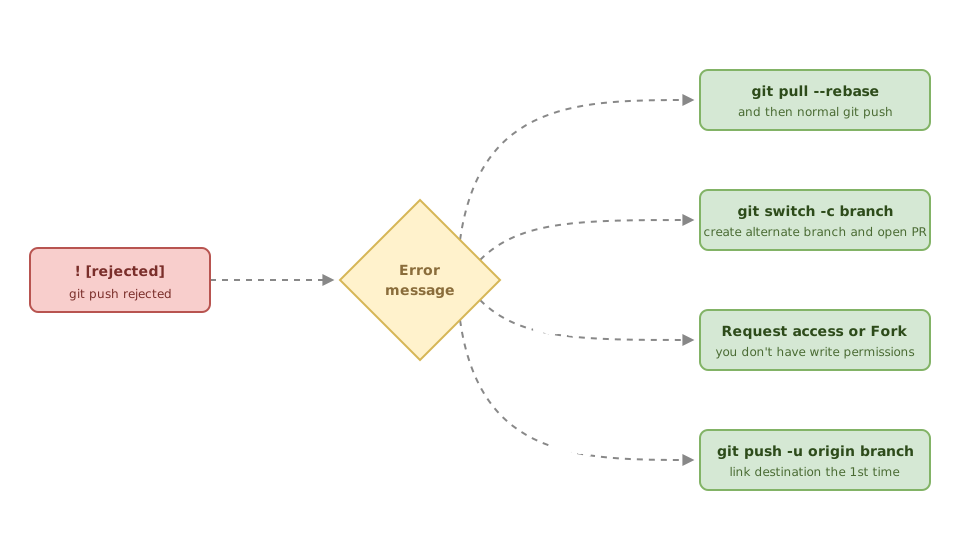
You committed your work, you type git push with total confidence, and the terminal throws ! [rejected] back at you in red. You haven’t broken anything. Git just stopped you on purpose. A rejected git push is one of the first real walls you hit once you stop working alone and start sharing a repo with other people, and behind that red message there are four very different causes. Here’s how to read the error to figure out which one is yours and which command to run for each case.
What does it mean when Git rejects a push?
Git rejects a push when accepting it would put history that already lives on the remote at risk. It’s the system’s most important safety rule: it protects you from overwriting someone else’s work. When you update a branch that pointed at commit A so it points at commit B, Git only allows it without complaint if B descends from A. That’s called a fast-forward, and it’s the only update Git considers automatically safe.[1]
If your push doesn’t meet that condition, or if the server has rules on top of it (permissions, branch protection), it blocks the push before touching anything. The terminal tells you, but the message changes depending on the reason. Learning to tell them apart is what separates “I’ll hit --force and see what happens” from fixing it in thirty seconds. If you’re coming from working solo and want the full picture of collaborating on a repo, check out the guide to working as a team with Git and GitHub as a foundation.
Cause 1: the remote branch has commits you don’t have
This is the classic one, the non-fast-forward rejection. It shows up when someone pushed commits to the same branch after your last git pull, so your local history has fallen behind. The message is unmistakable:
$ git push
To github.com:equipo/proyecto.git
 ! [rejected]        main -> main (fetch first)
error: failed to push some refs to 'github.com:equipo/proyecto.git'
hint: Updates were rejected because the remote contains work that you do
hint: not have locally. This is usually caused by another repository pushing
hint: to the same ref. You may want to first integrate the remote changes
hint: (e.g., 'git pull ...') before pushing again.
Git labels this rejection (fetch first) when you haven’t yet brought the remote’s commits down to your local copy, which is the most common case. You’ll see (non-fast-forward) instead when you already had them and your branch still diverges anyway, for example after rewriting a commit that was already published with rebase or amend. Both are the same family of rejection and get fixed the same way.
Git itself gives you the hint: integrate the remote work first, then push yours. The cleanest way is to bring those commits down and reapply yours on top with rebase:
# Bring down the remote's commits and reapply yours on top, without a noisy merge
git pull --rebase origin main
# If there are no conflicts, your branch is ahead again and you can push
git push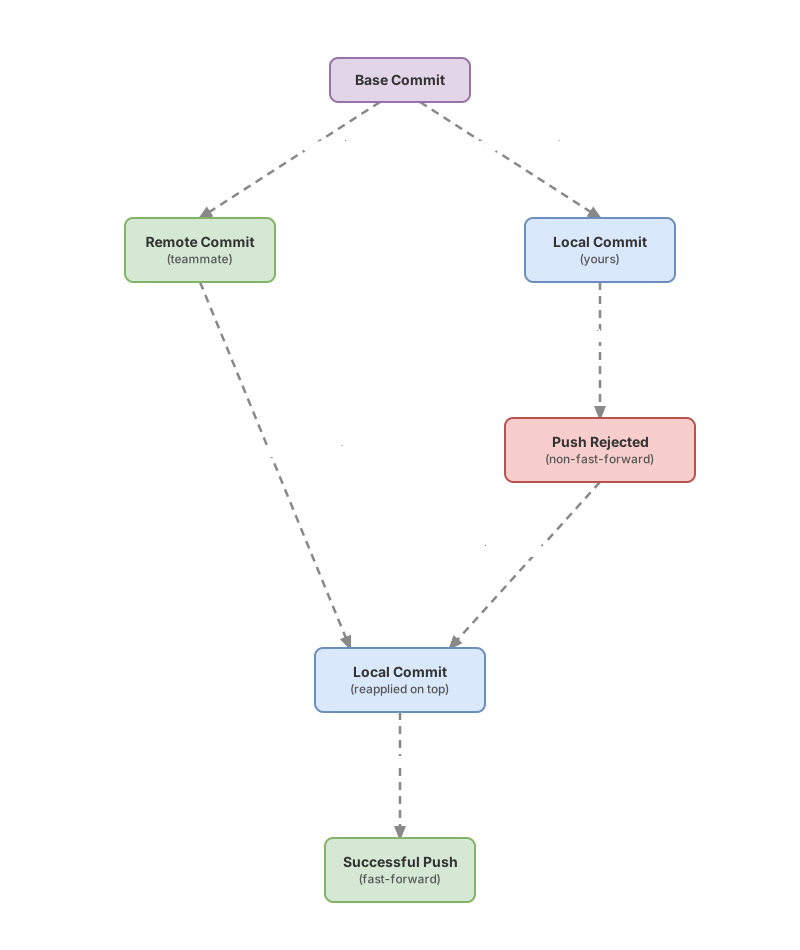
If you’d rather see it in two separate steps, git fetch origin followed by git merge origin/main does the same thing, with the difference that it creates a merge commit instead of rewriting your history. Which one suits you depends on the project, and I cover it in depth in the non-fast-forward error breakdown.
What you should never do here is react with git push --force to skip past the warning. That rejection means there’s a teammate’s work on the remote, and forcing would wipe it from the history. There’s a safer way to force when you truly need to, --force-with-lease, but it isn’t the default reaction to a non-fast-forward. I cover it in the FAQ.
Cause 2: the branch is protected
If the push reaches the server but bounces back with protected branch, the branch has a protection rule that blocks direct commits. It’s common on main in any serious team: changes come in through a Pull Request and no other way.[2] The message comes from GitHub:
remote: error: GH006: Protected branch update failed for refs/heads/main.
remote: error: Changes must be made through a pull request.
To github.com:equipo/proyecto.git
 ! [remote rejected]  main -> main (protected branch hook declined)
Notice [remote rejected] instead of [rejected]: the server accepted the connection and then said no. The fix here isn’t about integrating anything. Change how you work: move your commit to your own branch and open it as a Pull Request:
# Create a branch from where you're at (git switch is stable, not experimental)
git switch -c fix/validacion-login
git push -u origin fix/validacion-login
# Now you open the Pull Request on GitHub and the team reviews it before it lands in main
This protection applies to everyone equally, including the repo owner if it’s configured that way. Here the problem is the project’s policy, and permissions have nothing to do with it.
Cause 3: you don’t have write permission (the 403)
When you see a 403, the problem is access: your account can’t write to that repository. It’s different from branch protection, even though it’s easy to mix them up. The message points straight at your user:
remote: Permission to equipo/proyecto.git denied to tu-usuario.
fatal: unable to access 'https://github.com/equipo/proyecto.git/': The requested URL returned error: 403
This happens almost always to someone who clones an open source project and tries to push without being a collaborator. You have two ways out. If it’s your team and you should have access, ask the admin to add you as a collaborator with write permission. If it’s someone else’s project you want to contribute to, do a fork: a copy of the repo under your own account, where you’re in charge. You push to your fork and open a Pull Request to the original from there.
The difference from cause 2 matters. The 403 says you can’t write to that repo. Branch protection says something different: that the only way in is through a Pull Request. Mixing them up leads you to ask for permissions that won’t fix anything, or to fight a policy you’re not going to change.
Cause 4: there’s no upstream configured
This case is Git asking you where you want to push, without any actual rejection behind it. It happens the first time you push a new branch that doesn’t yet have an associated remote branch:
fatal: The current branch feature-login has no upstream branch.
To push the current branch and set the remote as upstream, use

    git push --set-upstream origin feature-login

To have this happen automatically for branches without a tracking
upstream, see 'push.autoSetupRemote' in 'git help config'.
Here the only thing missing is telling Git the destination, with nothing to integrate and no pending permission. The message itself gives you the command, and -u is the short form of --set-upstream:
# Push the branch and link it to the remote for future push/pull without arguments
git push -u origin feature-login
From then on, that branch remembers its destination, and a plain git push already knows where to go.
How to identify your case by reading the message
The cause is written in the first line of the error. This table maps each message to its direct fix:
| Error message | Cause | Fix |
|---|---|---|
! [rejected] ... (fetch first) or (non-fast-forward) | The remote branch has commits you don’t have | git pull --rebase origin <branch> and then git push |
protected branch hook declined / GH006: Protected branch update failed | Protected branch on GitHub | Create a new branch and open a Pull Request |
remote: Permission to ... denied / error: 403 | You don’t have write permission on the repo | Fork it or request collaborator access |
fatal: The current branch <branch> has no upstream branch | Upstream isn’t configured | git push -u origin <branch> |
Just by reading the words fetch first or non-fast-forward, protected, 403, or upstream, you already know which of the four cases you’re in. The rest is applying the command from that row.
Before moving on, practice that diagnosis: in the exercise below you’ll read a rejected push and pick the right fix without running anything blindly.
Loading exercise...
Common mistakes when fixing a rejected push
Forcing the push on a non-fast-forward
git push --force on top of a non-fast-forward rejection is the fastest way to erase a teammate’s work. The rejection exists precisely because there are commits on the remote you don’t have; forcing replaces them with your version and those commits vanish from the shared history. Integrate first with git pull --rebase, and only force when you know exactly why, using --force-with-lease instead of --force.
Mixing up the 403 with a protected branch
These are different problems with opposite solutions. The 403 is fixed by getting permission (collaborator or fork). A protected branch is resolved by working through a Pull Request, because not even the owner can bypass it by adding permissions. If you try to request write access to get around a main protection, you’re solving the wrong problem.
Running git pull without —rebase on every sync
A plain git pull does a merge, and every time you sync it generates an automatic merge commit. On a branch with several people, the history fills up with “Merge branch ‘main’” entries that add nothing and clutter the git log. With --rebase you reapply your commits on top of the remote ones and the history stays linear.
Pushing to main in a repo with mandatory Pull Requests
Working directly on main in a project that requires a Pull Request guarantees you a rejection the moment you try to push. Create your branch before you start committing, not after Git stops you.
Checklist for unblocking a rejected push
- I read the first line of the error and identified the keyword (
non-fast-forward,protected,403, orupstream) - On a non-fast-forward, I integrate with
git pull --rebasebefore pushing again - I don’t use
git push --forceas an automatic reaction to a rejection - I can tell a 403 (permission) apart from a protected branch (Pull Request policy)
- I work on my own branch when
mainis protected and open a Pull Request - The first time I push a new branch I use
git push -u origin <branch>
If you’re taking these first steps with Git as a team and want a solid foundation instead of putting out fires error by error, in the Git from Zero to Professional course we work through these flows in a guided way.
Sources
- Official git push documentation (git-scm.com): fast-forward semantics,
--forceand--force-with-leasebehavior, and the-u/--set-upstreamoption. - Branch protection rules (GitHub Docs): configuration that requires changes to be integrated through a Pull Request on a protected branch.
Frequently Asked Questions
Should I use —force or —force-with-lease on a rejected git push?
Use --force-with-lease whenever you need to force:
git push --force-with-leaseThe difference is that --force overwrites the remote no matter what, while --force-with-lease aborts the push if the remote has changed relative to what you had recorded, so you don’t overwrite commits someone else pushed while you were working. It isn’t foolproof: if you just ran a git fetch that updated your local reference, the protection stops warning you. And it’s never the right response to a normal rejection caused by pending remote work, where the move is to integrate with git pull --rebase.
Why does it reject my push if I own the repository?
Because branch protection applies to everyone, including the owner, when it’s configured that way. It’s intentional: it stops anyone, even you in a hurry on a Friday, from pushing changes to main without going through review. If you need to push directly on a one-off basis, you’d have to disable or adjust the rule in the repo settings, though in a project with a team that’s almost never a good idea.
git pull or git fetch + git merge to resolve the non-fast-forward?
Both options bring down the remote work, but they give you different levels of control. git pull combines the download and the integration into a single step, and with --rebase it keeps the history linear. git fetch followed by git merge splits the two phases, so you can inspect what came from the remote before merging it. If you want a deeper understanding of when to use each one, I go into it in the difference between git pull and git fetch.
What is a fork and when do I need one?
A fork is your copy of the repository, under your GitHub account and with write permission. You need one when you want to contribute to a project you’re not a collaborator on, typical in open source: you get a 403 when pushing to the original, so you push to your fork and open a Pull Request to the source repo from there. If it’s a repo owned by your own team, you usually don’t need a fork, it’s enough to be added as a collaborator with write permission.
Related articles
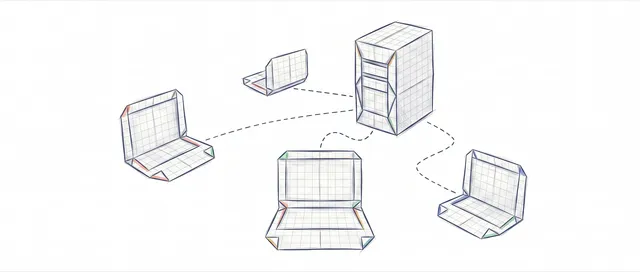
Working as a Team with Git and GitHub: Remotes, PRs, and Code Review
From a local commit to a shared repo: the distributed model, remotes, the push/pull/fetch cycle, Pull Requests, and code review, without stepping on anyone else's work.

Error rejected non-fast-forward in git push: how to fix it
The rejected non-fast-forward error means the remote has commits you don't have. Here's why it happens and how to fix it with git pull, without forcing anything.
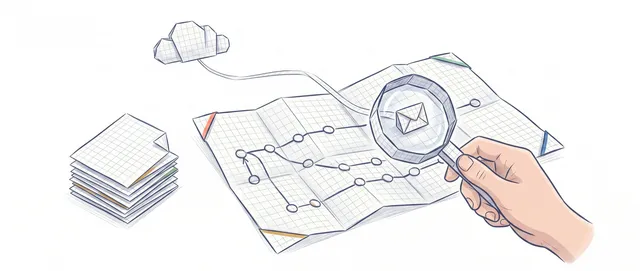
git pull vs git fetch: the difference that matters
git fetch downloads changes from the remote without touching your work; git pull downloads and integrates them. When to use each one and why.