
SSH key for GitHub: set it up once and forget about tokens
Set up your SSH key for GitHub with ssh-keygen and ed25519: generate it, load it into the ssh-agent, upload it, and stop pasting a token on every push.

If you push over HTTPS, you already know the ritual: you paste your personal token, it works for a few weeks, it expires, and you generate a new one while Git reminds you that “Support for password authentication was removed.” Setting up an SSH key for GitHub fixes that for good. You generate a key pair on your machine, upload the public half to your account, and from then on Git authenticates on its own. Here are the exact commands, in order, and what you’ll see on screen so you know each step worked.
SSH or HTTPS with a token? Which one should I use?
For your everyday work machine, go with SSH. You set it up once and forget about credentials. HTTPS with a personal access token (PAT) still has its place, but for different scenarios: a CI server, a script that runs once, or a network that blocks the port SSH uses.
The practical difference is convenience and where the credential ends up living, not the security level.
| SSH | HTTPS + token (PAT) | |
|---|---|---|
| Initial setup | Generate the key pair and upload the public one. Five minutes. | Generate a token on the website and store it. |
| Daily use | Push and pull without typing anything | You paste the token or rely on a credential helper |
| Where the credential lives | The private key, encrypted, on your disk; it never leaves your machine | The token, with broad permissions, in your credential manager |
| Good fit for | Your usual laptop or desktop | CI, ephemeral servers, networks with port 22 blocked |
| Expiration | The key doesn’t expire; you revoke it whenever you want | The token expires and needs renewing |
If you’re going to work as a team with Git and GitHub, SSH is also the workflow almost everyone expects: when someone tells you to “upload your public key,” this is what they mean.
What is an SSH key, and why are there two files?
An SSH key is a pair of mathematically linked files: one private and one public. Think of a padlock and its key. You can hand out the padlock (the public key) to anyone; you leave it hanging on GitHub. The key (the private key) stays with you alone, and you never show it to anyone.
When Git connects, GitHub checks that your private key fits the public padlock you uploaded, without the private key ever traveling over the network. That’s why uploading the wrong file to GitHub is the classic mistake, and why it’s worth stressing so much further down. The rule fits in one sentence: the private key never leaves your machine.
How do I generate the key with ssh-keygen?
The recommended command today uses the Ed25519 algorithm, more modern and with shorter keys than old-style RSA [1]:
# -t ed25519 selects the key type; -C adds a label (your email) so you can recognize it later
ssh-keygen -t ed25519 -C "your_email@example.com"
The -C flag isn’t cryptography; it’s just a comment stored at the end of the public key. It helps you tell “work-laptop” apart from “home-desktop” when you have several keys on GitHub.
Right after that, ssh-keygen asks where to save the file (accept the default location by pressing Enter) and asks for a passphrase:
> Enter passphrase (empty for no passphrase): [type a passphrase]
> Enter same passphrase again: [repeat it]
The passphrase encrypts your private key on disk. It’s optional, but set one: if someone copies your id_ed25519 file, it’s useless to them without the passphrase. When it’s done, you’ll have two files in your ~/.ssh/ folder:
id_ed25519: the private key. Don’t open it, don’t copy it anywhere, don’t upload it anywhere.id_ed25519.pub: the public key. This is the one you’ll upload to GitHub in a moment.
On macOS the path is /Users/YOUR_USERNAME/.ssh/, on Linux /home/YOUR_USERNAME/.ssh/, and on Windows C:\Users\YOUR_USERNAME\.ssh\. The file name is the same across all three.
How do I load the key into the ssh-agent?
The ssh-agent is a program that keeps your decrypted private key in memory for the session. Without it, you’d have to type the passphrase on every push and every pull. With it, you type it once when you add the key, and the agent handles it for you the rest of the day.
Start it first, then add the key:
# Start the agent in the background and export its environment variables to your shell
eval "$(ssh-agent -s)"
# > Agent pid 59566

# Add the private key to the agent (it will ask for the passphrase once)
ssh-add ~/.ssh/id_ed25519
On macOS, to also save the passphrase in the Keychain so it survives restarts, use ssh-add --apple-use-keychain ~/.ssh/id_ed25519 [1]. Notice one detail: you pass the agent the private key (id_ed25519), not the public one. The agent needs the secret half to sign; the public key already lives on GitHub.
How do I add the public key to GitHub?
Copy the contents of your .pub file and paste it into your account settings. On macOS, you can send it straight to the clipboard:
# macOS: copy the PUBLIC key to the clipboard
pbcopy < ~/.ssh/id_ed25519.pub

# Linux or any system: print it and copy it by hand from the terminal
cat ~/.ssh/id_ed25519.pub
What you’ll see starts with ssh-ed25519 AAAA... and ends with the email you put in -C. That entire line is what goes to GitHub. Then, on the website [2]:
- Profile photo (top right) > Settings.
- In the sidebar, under the “Access” section, go to SSH and GPG keys.
- Click New SSH key.
- For Title, use a label you’ll recognize (“Work laptop”). For Key type, leave Authentication Key. For Key, paste the line you copied.
- Add SSH key.
The Title is only for you: it lets you revoke the key from the laptop you lost without touching the others. The default type, Authentication Key, is the one used to authenticate Git; the other, Signing Key, is for signing commits, and you don’t need it here.
How do I check that it works?
Run a test connection against GitHub:
ssh -T git@github.comThe first time, SSH doesn’t recognize the server and warns you with its host key fingerprint [3]:
The authenticity of host 'github.com (IP ADDRESS)' can't be established.
ED25519 key fingerprint is SHA256:+DiY3wvvV6TuJJhbpZisF/zLDA0zPMSvHdkr4UvCOqU.
Are you sure you want to continue connecting (yes/no)?
That fingerprint belongs to GitHub. If it matches the one in their documentation, type yes. It won’t ask again. If everything’s fine, GitHub responds:
Hi USERNAME! You've successfully authenticated, but GitHub does not provide shell access.That message confuses a lot of people the first time. GitHub greets you by your username (authentication worked) while also telling you that you won’t get a shell on its servers. That’s expected: SSH here only authenticates Git operations, it doesn’t give you a remote terminal. If you see your name, you’re done.
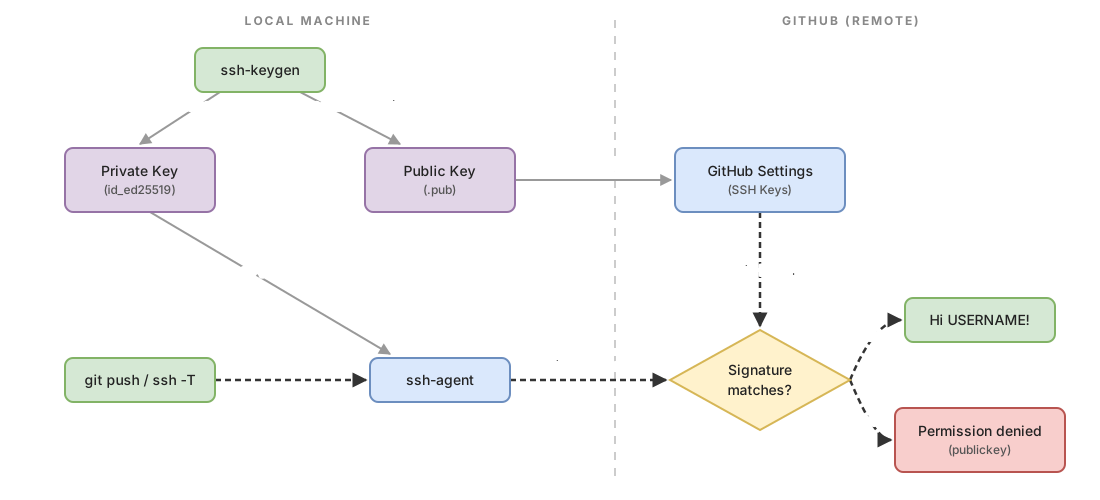
Before touching your own terminal, walk through the whole flow in this interactive exercise and lock in each step:
Loading exercise...
Switching a repository from HTTPS to SSH, and cloning
If you already have a repository cloned over HTTPS, there’s no need to download it again. Change the remote’s URL. First check how it’s currently set:
git remote -v
# origin  https://github.com/username/repo.git (fetch)
# origin  https://github.com/username/repo.git (push)
If you see a URL starting with https://, change it to the SSH form with git remote set-url:
# Replace the 'origin' remote's URL with its SSH equivalent
git remote set-url origin git@github.com:username/repo.git
The SSH syntax git@github.com:username/repo.git differs from HTTPS: the git user, a colon, and the repo path. After that change, your pushes and pulls go out over SSH without asking for anything. If you want to dig deeper into how these remotes work, check out the guide on connecting a Git remote to GitHub.
For new repositories, clone directly with the SSH URL, which you copy from the “Code” button > “SSH” tab on the repo’s page:
git clone git@github.com:username/repo.gitIf this is the first time you’re downloading a project, the guide on how to clone a Git repository covers the rest of the cloning options.
When you’re ready to go beyond authentication and master branches, merges, and team workflows, the Git from Zero to Professional course practices all of this with guided exercises like the one above.
Common mistakes
Uploading the private key instead of the public one. This is the most dangerous mistake. If you paste the contents of id_ed25519 (without .pub) into GitHub’s Key field, you’re exposing your secret. The public key always starts with ssh-ed25519; the private one starts with -----BEGIN OPENSSH PRIVATE KEY-----. If you see that second line while copying, stop: you opened the wrong file. If you did upload or share it, delete it from GitHub and generate a new pair.
Permission denied (publickey). GitHub rejects the connection because it can’t find a valid key. It’s almost always one of two things: the agent isn’t running (repeat eval "$(ssh-agent -s)" and ssh-add), or the key you have loaded isn’t the one you uploaded to GitHub. Check which keys the agent knows about with ssh-add -l.
Confusing the SSH key with a Personal Access Token. These are different mechanisms and not interchangeable. A PAT is a long password that travels over HTTPS; an SSH key is a padlock/key pair. Pasting a token into GitHub’s SSH key field doesn’t work, and the reverse doesn’t either.
Custom file name left unconfigured. If you generated the key with a name different from the default (for example id_work), SSH won’t find it on its own. Tell it in ~/.ssh/config with an IdentityFile ~/.ssh/id_work entry, or always load it by hand with ssh-add.
Checklist
- The key is generated with
ssh-keygen -t ed25519 -C "your_email" - You have two files in
~/.ssh/:id_ed25519andid_ed25519.pub - The ssh-agent is running and the private key is loaded with
ssh-add - On GitHub you’ve only pasted the contents of
id_ed25519.pub, as an Authentication Key -
ssh -T git@github.comgreets you by your username - Your repositories use a
git@github.com:...URL ingit remote -v
Sources
- Generating a new SSH key and adding it to the ssh-agent (GitHub Docs): the
ssh-keygen -t ed25519command, default paths, starting the agent, andssh-add(including the--apple-use-keychainvariant on macOS). - Adding a new SSH key to your GitHub account (GitHub Docs): the Settings > SSH and GPG keys > New SSH key navigation, the Title and Key type fields, and the commands for copying the public key.
- Testing your SSH connection (GitHub Docs): the
ssh -T git@github.comcommand, the host key warning, and the exact success message. - Using SSH over the HTTPS port (GitHub Docs): connecting over port 443 through
ssh.github.comwhen port 22 is blocked.
Frequently Asked Questions
Do I have to set a passphrase on my SSH key? What happens if I forget it?
It’s a good idea, though not mandatory. The passphrase encrypts your private key on disk, so if someone copies the file, they can’t use it without the passphrase. If you forget it, there’s no way to recover it: you generate a new pair with ssh-keygen, upload the new public key to GitHub, and delete the old one. With the ssh-agent, you only type it once per session.
Can I use the same SSH key on multiple computers?
Technically yes, but it’s better to use one key per machine. Copying the private key between computers multiplies the places it could leak from. Generate a pair on each computer and upload each public key to GitHub with a different Title. That way, if you lose your laptop, you revoke only that key and everything else keeps working.
Does SSH work behind a corporate firewall that blocks port 22?
Sometimes not over the standard port, but there’s a way out. GitHub offers SSH over port 443, the same one HTTPS traffic uses, which almost no firewall blocks. Test it with ssh -T -p 443 git@ssh.github.com, and if it responds with the usual greeting, add an entry to ~/.ssh/config to route github.com through that port [4].
Does the SSH key for GitHub replace browser login?
No. The SSH key authenticates Git operations from your terminal (clone, push, pull). To log into github.com’s website, you still use your username, password, and second factor. These are two independent access paths to the same account.
Related articles
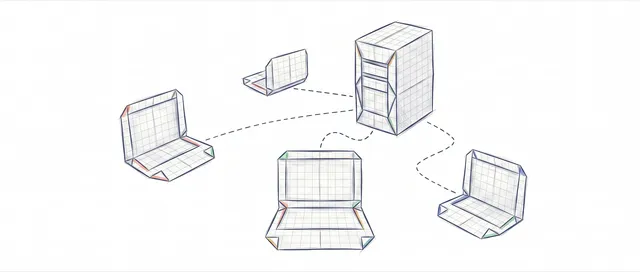
Working as a Team with Git and GitHub: Remotes, PRs, and Code Review
From a local commit to a shared repo: the distributed model, remotes, the push/pull/fetch cycle, Pull Requests, and code review, without stepping on anyone else's work.
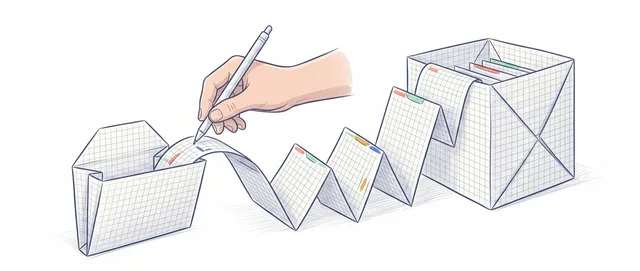
git clone: How to Clone a GitHub Repository Step by Step
What git clone actually does: it copies the project, its history, and sets up origin. HTTPS vs SSH, clone vs init, and the most common errors.

git remote: Connect Your Local Repo to GitHub
A beginner's guide to connecting your local repo to GitHub with git remote: what origin is, how to do your first push, and what -u means.