
What Is Version Control (and Why Git Won)
What version control is, what it's for, and why Git, the distributed system, won out over centralized ones. Explained from scratch for beginners.

You’ve probably ended up with a folder like this at some point: proyecto.zip, proyecto_final.zip, proyecto_final_v2.zip, and the classic proyecto_final_DEFINITIVO_ESTE_SI.zip. Each file is a snapshot of the work at a different moment. That’s already version control, just done by hand, and badly. The good news is there are tools that do exactly that, but properly, without you having to invent increasingly desperate names every time.
In this post I want you to walk away with the mental map before you touch a single command: what version control is, what problem it solves, the difference between the two major types that exist, and why almost the entire industry ended up using Git.
What is version control?
Version control is a system that records the changes to your files over time, so you can return to any earlier version whenever you want. Instead of keeping entire copies under different names, you keep a single folder and a timeline of all its states.
Think of the edit history of a shared document. You can see what was written on Tuesday, who touched that paragraph, and recover the version from before someone broke it. Version control does the same thing with a project’s code, with far more detail and control.
The key word is history. You’re not keeping loose snapshots. You’re keeping the complete story of how your project became what it is today.
What problems does it actually solve?
It solves four things that, without it, end up causing pain. The first is obvious: rolling back. If a change breaks something, you return to the previous state without drama and without digging through zip files to find which one had the good version.
The second is history with context. You’re not just keeping track of what changed; you’re also keeping the who, the when, and, if you write it well, the why. Every saved point on the timeline carries a message. Months later, when you can’t remember why some function is so oddly written, the history tells you.
The third shows up as soon as you work with someone else: collaborating without stepping on each other. Two people can work on the same project at the same time, each on their own copy, and later combine the work (that’s called a merge). The system knows how to merge changes that don’t overlap and warns you when two people edited exactly the same line.
The fourth is the most subtle, and the one you’ll appreciate the most over time: experimenting without fear. You can open a separate line of work to try out a risky idea. That separate line of work has a name: it’s a branch. If the experiment goes well, you fold the branch back into your main work. If it goes badly, you throw it away and your main work stays intact, as if you’d never tried anything. That freedom to break things without consequences changes how you write code.
What is a version control system?
A version control system, or VCS, is the program that automates everything above. You work normally, editing files, and the tool takes care of recording the states and rebuilding any past version whenever you ask for it.
There are three concepts you’ll hear constantly:
- Repository: your project’s folder plus the complete history of its changes. When you “put a project under version control,” you’re turning it into a repository.
- Commit: a saved point on the timeline. It’s a snapshot of your files at a specific moment, with its author, its date, and a message explaining the change. If you want to fully understand this piece, I break it down in what a Git commit is.
- History: the sequence of commits, from first to last, that tells the story of how the project evolved.
With Git, creating a repository in a folder is a single command:
# Turns the current folder into a Git repository.
# Creates a hidden .git subfolder where the entire history lives.
git init
From there you can ask, at any moment, what state you’re in:
# Shows which files you changed and which are ready for the next commit.
git status
And once you have several commits, you can see the history at a glance:
# Lists the commits, one per line: first the short identifier, then the message.
git log --oneline
That gives you back something like this:
a1b2c3d Fix the cart total calculation
9f8e7d6 Add the login screen
0c1d2e3 First commit: initial project structure
That odd code at the start of each line (a1b2c3d) is the commit identifier. It’s hexadecimal, so it only contains digits and the letters a through f. It’s used to point to an exact spot in the history without any ambiguity.
Centralized vs. distributed: what’s the difference?
This is the heart of the matter. There are two ways to organize where the history lives, and that decision changes almost everything.
In a centralized system, there’s a single server that stores the complete history, and everyone connects to it to work. Your computer holds a copy of the files, but not the entire history. To view the history or save a change, you need to talk to the server. Subversion (SVN) and the older CVS work this way.
In a distributed system, every person has a complete copy of the repository on their computer, history included. You work against your local copy, without asking anyone for permission, and you only connect with others when you want to exchange changes. Git is the dominant example of this model.
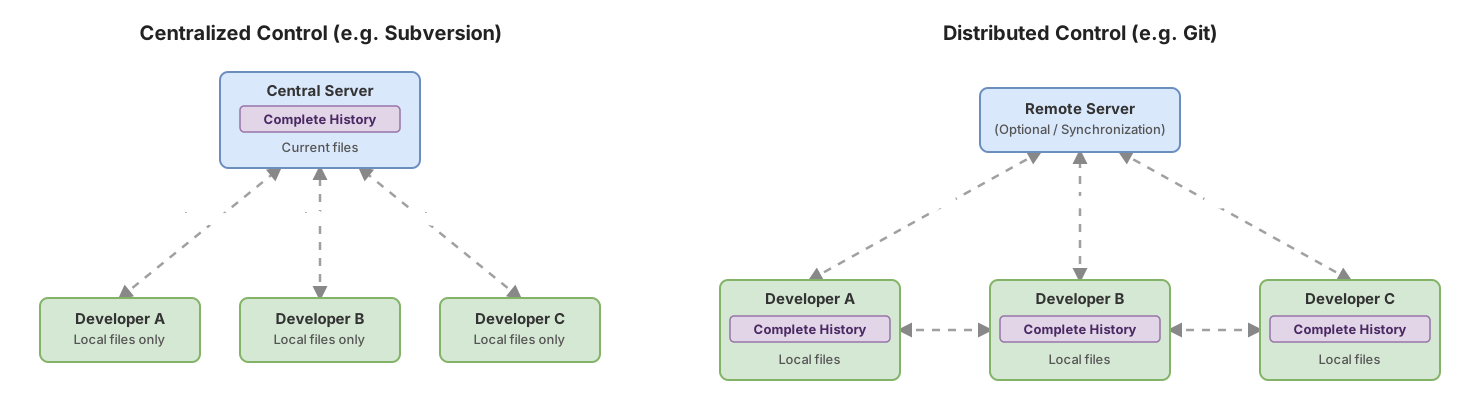
The table sums it up:
| Aspect | Centralized (SVN, CVS) | Distributed (Git) |
|---|---|---|
| Where the history lives | On a single server | A full copy on every computer |
| Does it work offline? | Not for saving changes or viewing history | Yes, almost everything is local |
| Creating a branch | Requires talking to the server, and merging it later tends to be more cumbersome | Local, fast, and cheap; used every day |
| If the server goes down | No one can save or check the history | Everyone keeps their complete history |
| Examples | Subversion, CVS | Git, Mercurial |
The practical consequence is huge. With a distributed system you can work on a train with no wifi, make ten commits, review the history from two years ago, and try out an idea on a separate branch. None of that needs a connection. You only need one at the end, to share your work.
Why did Git win?
Git won because the distributed model turned out to be faster, more resilient, and more comfortable for everyday work. Since the complete history lives locally, almost every operation is instant: you’re not waiting on a server. If that central server goes down, your work doesn’t stop, because your copy already has everything. And since creating branches is so cheap, opening one for every task or experiment became the norm, not the exception.
Git was born in 2005 as part of Linux kernel development, to manage a massive project with huge numbers of people collaborating at once. That origin forced it to be good at exactly the hardest part: branching, merging, and parallel work. Over time, with a push from services that hosted it in the cloud, it became the de facto standard.
Wasn’t GitHub the same thing?
No, and this is one of the most common points of confusion when starting out. Git is the version control tool that runs on your computer. GitHub is a service run by a company that hosts Git repositories on the internet, so your team has a common place to share them.
Put another way: Git works perfectly fine without GitHub. You can have a complete Git repository on your laptop without an account anywhere. GitHub (or alternatives like GitLab and Bitbucket) adds a meeting point in the cloud, plus team tools on top. If this distinction still feels blurry, I clear it up in full in Git vs. GitHub: what’s the difference.
Common mistakes when starting out
Thinking it’s only for large teams. The most costly misunderstanding of all. The history and the ability to roll back help you even if you’re coding solo on a Saturday afternoon. In fact, the first project where you truly appreciate version control is almost always a personal one that you broke by accident and didn’t know how to recover.
Confusing version control with backups. They look similar, but they answer different questions: “how do I recover my files?” versus “why is this the way it is, and what was it like before?” A backup saves today’s state in case you lose the disk tomorrow; version control saves how you got here, step by step, with the reason for each change.
Wanting to memorize commands before understanding the model. The classic trap. Git has a reputation for being hard because a lot of people start out copying commands from the internet without knowing what a repository, a commit, or a branch is. Once the mental model clicks, those same commands stop being scary and start making sense.
Believing Git and GitHub are the same thing. They’re about as much the same thing as a word processor and the cloud service where you store your documents. I clear it up in the section above, but it’s worth repeating since it’s the number one point of confusion when starting out.
Starting from scratch without stress
You don’t need to master Git in a day. You need to understand the model, and then practice the handful of commands used most of the time. You’ll pick up the rest as you need it, not before.
The natural next step is taking your first steps with the tool: creating a repository, making your first commit, and watching the history grow. I’ve explained all of that calmly in the guide to Git’s first steps.
And if you’d rather learn by practicing than by reading, in the Git from Zero to Pro course you work through the mental model and the key commands with interactive exercises, at your own pace. It’s designed exactly for someone who’s starting out and wants to understand what they’re doing, not memorize recipes.
Frequently asked questions
Do I need version control if I work alone?
Yes. The history of changes and the ability to return to an earlier version don’t depend on having teammates. Working solo, you’ll use it to avoid losing work, to try out ideas on separate branches without fear of breaking what already works, and to remember why you made a decision months ago.
Is version control the same as making backups?
Not exactly. A backup protects your files against a disk failure or an accidental deletion. Version control records the evolution of your project along with the reason for each change and lets you rebuild any past state. Many teams use both at once, because they cover different needs.
Is Git the same as GitHub?
No. Git is the version control tool that runs on your computer and manages the history. GitHub is a cloud service that hosts Git repositories and adds tools for working as a team. You can use Git without GitHub perfectly well.
What’s the difference between centralized and distributed version control?
In centralized systems, the complete history lives on a single server and you need a connection for almost everything. In distributed systems, every person has a full copy of the history on their computer, so you can work offline and don’t depend on a central server being available. Git is distributed; Subversion is centralized.
Do I have to learn the terminal to use Git?
It helps a lot, but it’s not essential from day one. Graphical interfaces exist, along with Git integration inside editors like VS Code, which cover the most common operations with buttons. Even so, understanding what each command does underneath will give you much more confidence, so it’s worth losing your fear of the terminal little by little.
Related articles
Git from scratch: what it is, why it exists, and how to make your first commit
Git is a mental model before it's a list of commands you memorize. This guide covers everything from the why to your first commit, assuming zero prior knowledge.

Git vs GitHub: Why They're Not the Same Thing
Git vs GitHub: Git versions your code locally, and GitHub hosts that repository online. I'll explain the difference with commented commands.

What Is a Git Commit (and Why It's a Snapshot, Not a Patch)
A Git commit is a complete snapshot of your project at a single instant. Understand what it actually stores and why it lets you travel back in time.