
Git vs GitHub: Why They're Not the Same Thing
Git vs GitHub: Git versions your code locally, and GitHub hosts that repository online. I'll explain the difference with commented commands.

When I started teaching Git, the message that came up again and again was almost always the same: “GitHub isn’t working for me.” When I looked into it, GitHub almost never had anything to do with it. The commit had been left half-done, or the person hadn’t even made a commit yet. The problem was on their own computer. But since they called everything “GitHub,” nobody understood what was wrong, including them. That’s the mess you get from mixing up git vs github: they’re two different things, and if you don’t separate them in your head, you’ll describe your problems wrong and ask for help that never arrives.
To follow this post you don’t need to know anything about Git yet. Just be clear that you’re writing code on your computer and want to save it in an organized way. If you also want to install it and take your first steps, check out the getting started with Git guide to start from scratch.
Are Git and GitHub the Same Thing?
No. Git is a program you install on your computer, and GitHub is a website. They weren’t even created by the same people.
The confusion makes sense because they almost always show up together: you learn Git, and ten minutes later someone’s already telling you to create a GitHub account. They sound similar, they share the name “git,” and both have to do with saving code. But they do different jobs. One is the tool that saves the versions of your project. The other is a place where you can leave a copy of that project to keep it safe and share it. You can use the first one for months without ever touching the second.
Let’s go through them one at a time, because understanding what each one does is what will save you hours of frustration.
What Exactly Is Git?
Git is a version control tool that runs on your computer. Think of Google Docs’ version history, the one that lets you go back to how the document looked last Tuesday. Git does the same thing with your code, but with far more control and without depending on the internet.
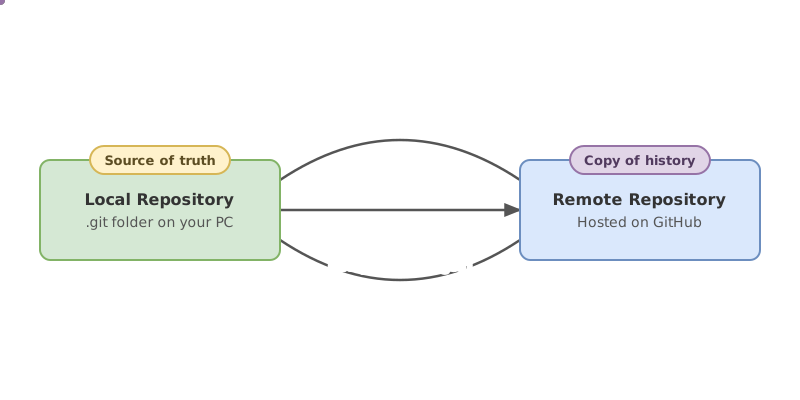
Every time you reach a point you want to keep, you ask Git to take a “snapshot” of your files’ current state. That snapshot is called a commit. Git stores all those snapshots in order, with the date and a message you write, inside a hidden folder called .git that lives in your project. That’s where your whole history is. On your hard drive.
Look at the basic flow, without touching the internet at any point:
# Creates a Git repository in the current folder (the hidden .git folder appears)
git init
# Tells Git which file you want to include in the next snapshot
git add index.html
# Saves the snapshot to the history with a message describing it
git commit -m "First version of the page"
Those three lines version your project completely. There’s no account, no login, no server. If you turn off your wifi, they work exactly the same. That’s Git: saving the history of your work, on your machine. And that .git folder is your Git repository: the box where Git puts every snapshot of your project.
One clarification about commit: some people use git commit -a to skip git add. Careful though, because -a only includes files Git already knew about and that you’ve modified or deleted. A new file Git has never seen won’t get included with -a; for those you still need to run git add the first time.
So What Is GitHub, Then?
GitHub is a web platform that hosts Git repositories on the internet. In other words, a site where you upload a copy of the repository you already have locally, to keep it saved outside your computer and, if you want, share it with other people.
The key word is “copy.” GitHub doesn’t replace Git or do its job. What it does is receive the commits you’ve already created with Git on your machine and store them on its servers. On top of that, it adds things that only make sense once there’s more than one person or more than one computer involved: a web interface for viewing color-highlighted code, pull requests (a way to propose changes and have someone else review them before accepting), issues (a list of the project’s tasks and bugs), permissions, and more.
The exact moment GitHub enters the picture is when you connect your local repository to a remote one and send it your commits:
# Registers the remote repository's address and names it "origin"
git remote add origin https://github.com/tu-usuario/tu-repo.git
# Sends your commits to the remote and links your main branch to that copy
git push -u origin main
Notice one detail: both commands start with git. GitHub doesn’t have commands of its own. You’re still talking to Git; the only thing that changes is that Git now sends your commits to an internet address. The step of connecting your local repository to a GitHub remote has its own traps, but that’s a story for another day.
What Does It Mean That Git Is “Distributed”?
It means every clone of a repository is a complete repository, with the entire history inside it. There’s no “main” computer that the rest depend on to work.
This is different from older systems, where a central server kept the real history and your computer only had the latest version. If the server went down, you couldn’t even see yesterday’s changes. That doesn’t happen with Git. When you clone a project from GitHub, you’re not downloading “the latest version”: you’re downloading the entire repository, with every commit since the first one. You can view the history, create branches, make commits, and search the project’s past with your laptop in airplane mode.
This has a consequence that juniors find hard to believe at first. If GitHub disappeared from the internet tomorrow, your work would stay intact on your computer, and on the computer of everyone who had cloned the project. GitHub would just be one copy among many, not the source of truth. You hold the source of truth, in your .git.
Git vs GitHub: What Each One Does
This is the table you want to have clear before installing anything:
| Git | GitHub | |
|---|---|---|
| What it is | A version control tool | A web platform for hosting repositories |
| Where it lives | On your computer, locally | On the internet, on GitHub’s servers |
| What it’s for | Saving history: commits, branches, going back | Hosting the repo, collaborating, pull requests, issues |
| Do you need it to version your code? | Yes, that’s the tool doing the work | No, it’s optional |
| Alternatives | Others like Mercurial or Subversion, much less used today | GitLab, Bitbucket, or your own server |
| Created by | Linus Torvalds, the same person behind the Linux kernel | GitHub, Inc., now part of Microsoft |
If you had to keep just one row, keep the fourth one. Git does the work of versioning. GitHub is a very useful extra, but an extra.
Before moving on, check whether you actually have the distinction clear. This exercise gives you concrete situations and asks you to decide whether Git or GitHub is the one in charge:
Loading exercise...
If Git Works Without GitHub, What Is GitHub For?
It’s for everything local Git can’t give you: a backup copy outside your computer and a way to work with other people on the same code.
Think of it this way. Git on your machine is great until the hard drive dies, or you switch laptops, or two people want to touch the same project. That’s where GitHub adds value:
- Remote backup. Your commits also live on the internet, so a coffee spilled on the keyboard doesn’t take months of work with it.
- Real collaboration. Multiple people
pushandpullagainst the same remote without stepping on each other, each from their own complete clone. - Pull requests. Before a change goes into the project, someone reviews it, comments line by line, and approves it. It’s the social part Git doesn’t come with out of the box.
- Issues and organization. A shared list of bugs, tasks, and discussions, tied directly to the code.
None of these things are version control. They’re all collaboration and hosting built on top of Git. That’s why GitHub makes so much sense the moment you step outside a solo project, and why confusing it with Git leaves you unsure where everything actually lives.
Is GitHub the Only Option?
No, not at all. GitHub is the best-known option, but it’s one among several. Since GitHub isn’t part of Git, any site that speaks the Git protocol can host your repositories.
The most common alternatives are GitLab and Bitbucket. They basically do the same thing as GitHub: host your remote repositories and add their own version of pull requests, permissions, and team tools. You can also set up your own Git server and not depend on any company. The commands you type are identical in every case. What changes is the address you put in git remote add origin, and little else.
The idea I want to stick with you: you choose where to host your repository, and GitHub is just one of the options. Your local Git doesn’t change depending on which one you pick.
Common Mistakes When You Confuse Git and GitHub
”GitHub Isn’t Working” When the Problem Is Local
This is by far the most common one. Your commit fails, your git add doesn’t pick up a file, you’ve got an unresolved conflict, and you describe it as “GitHub won’t let me.” Whoever’s helping you checks your account, your permissions, your connection, and finds nothing, because the problem is on your computer. Before saying “GitHub,” ask yourself: did this happen during commit (local, that’s Git) or during push (against the remote, where GitHub can actually be involved)?
Thinking You Can’t Use Git Without GitHub
You can version an entire project with just git init, git add, and git commit, with no account and no remote. GitHub is optional, and I cover that further down in the FAQ.
Thinking GitHub Saves Your Commits Automatically
This bites a lot of people. You make commits for days, assume they’re “on GitHub,” and one day you lose your laptop. Surprise: nothing had been uploaded. GitHub doesn’t see your commits until you run git push. The local commit and sending it to the remote are two separate steps, and you have to trigger the second one yourself.
Saying “Upload This to Git”
A small vocabulary detail that gives away the confusion. You don’t “upload things to Git”: Git is local, there’s nothing to upload. What you actually do is make a commit in Git and then a push to GitHub. Once you learn to name each step correctly, the mistakes above practically disappear on their own, because you already know which half of the process you’re in.
Practice the Difference Hands-On
Reading about the distinction between Git and GitHub gives you the mental model, but it sinks in when you write your own commits, create branches, and make your first push. In the Git from Zero to Professional course, you practice every step interactively, from your first git init to working with a remote, so you stop wondering where each thing actually lives.
Frequently Asked Questions
Can I Use Git Without GitHub?
Yes, no problem at all. Git is a complete tool that runs on your computer: you create the repository with git init, save versions with git commit, and keep your entire history locally. GitHub only comes into play if you want a copy on the internet or want to collaborate with other people. Plenty of personal projects live for years without ever being uploaded anywhere.
Can I Use GitHub Without Knowing Git?
In practice, barely. GitHub has a web interface that lets you create files and make small edits without touching a terminal, and you don’t need to know Git just to read someone else’s code. But as soon as you want to work for real, clone a project, make commits, and send changes, you need Git. GitHub hosts Git repositories, so Git is the base knowledge and GitHub sits on top of it.
Is GitHub Free?
Yes, it has a free plan that’s more than enough for beginners to learn and save their projects. There are also paid plans with extras aimed at companies, and since terms change, it’s worth checking GitHub’s official website before deciding. To get started, you don’t pay anything.
If I Delete My GitHub Repository, Do I Lose My Local Work?
No. Your work lives in the .git folder on your computer, with the entire history. Deleting the GitHub repository removes the remote copy, not yours. In fact, you could recreate the repository on GitHub and upload your history again with a git push. This is where Git’s distributed model really shows: every clone is complete on its own.
Do GitLab and Bitbucket Do the Same Thing as GitHub?
In the essentials, yes. All three host remote Git repositories and add collaboration: change reviews, permissions, team tools. The details, the interface, and some specific features differ, but the role is the same, and the Git commands you type don’t change. GitHub is the most popular option, not the only one or the mandatory one.
Related articles

Git from scratch: what it is, why it exists, and how to make your first commit
Git is a mental model before it's a list of commands you memorize. This guide covers everything from the why to your first commit, assuming zero prior knowledge.
What Is a Git Repository: Local, Remote, and the Difference
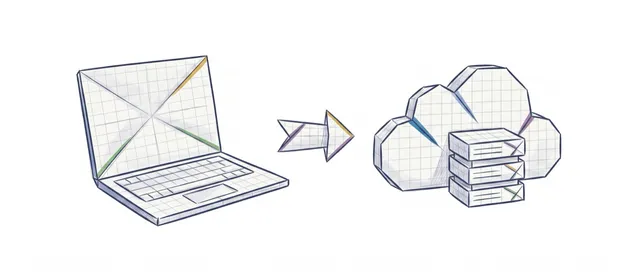
What a Git repository is for beginners: the .git folder, the difference between a local and a remote repository, and how to connect them with git push and pull.

git remote: Connect Your Local Repo to GitHub
A beginner's guide to connecting your local repo to GitHub with git remote: what origin is, how to do your first push, and what -u means.