
What Is a Git Repository: Local, Remote, and the Difference
What a Git repository is for beginners: the .git folder, the difference between a local and a remote repository, and how to connect them with git push and pull.
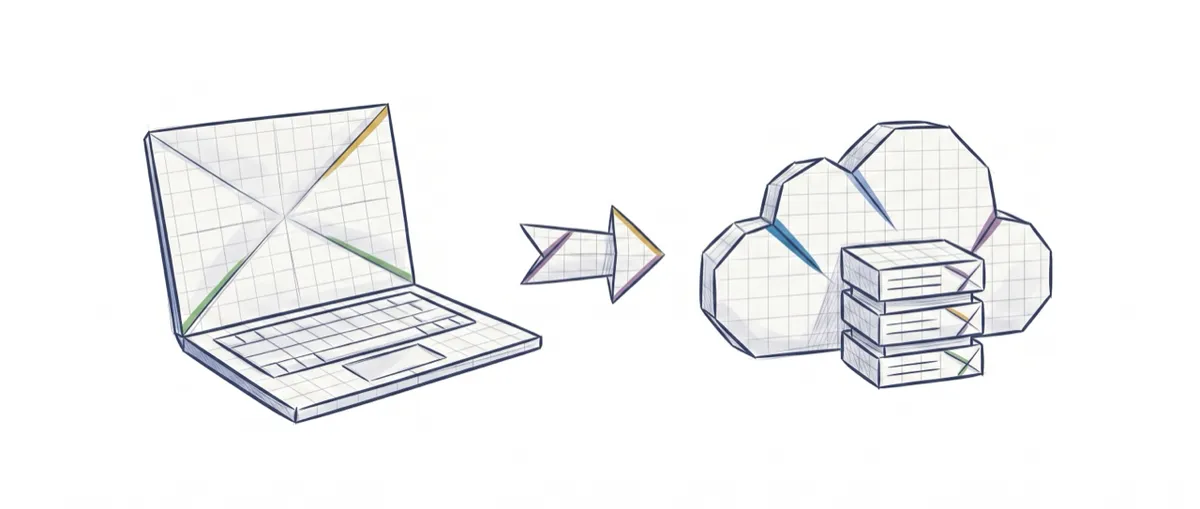
We’ve all had that folder on the desktop: final-project, final-project-v2, final-project-good, and, of course, final-project-DEFINITIVE. Four copies of the same work and no certainty about which one actually works. A Git repository exists precisely so you never have to do that again. The problem is that almost everyone starts using the word repository without being clear on what it is, where it lives, or why people talk about a local one and a remote one.
To follow this post you just need Git installed on your computer and to know how to open a terminal. No prior experience with version control required. I explain each term before using it.
What is a Git repository?
A Git repository is a project folder for which Git keeps a complete history of changes. That’s the essential part: your usual project (code, images, documents…) plus a record of how it has changed over time.
Think of your computer’s time machine, the one that makes periodic backups. A repository does something similar, except you decide when each “snapshot” of the project gets taken, you give it a name, and you can go back to any of them whenever you want. Each of those snapshots is called a commit, and it’s a saved version of the project at a specific moment.
What matters for the mental model: a repository isn’t a website or an internet service. It’s a folder on your disk that Git has marked as “I’m watching this one.” And what marks it is one very specific hidden folder.
What is the .git folder, and why shouldn’t you touch it?
The .git folder is what turns an ordinary folder into a repository. It’s the project’s diary: inside it, Git records every commit, every previous version, and the repository’s configuration. Without that folder, you just have a plain folder; with it, you have a repository.
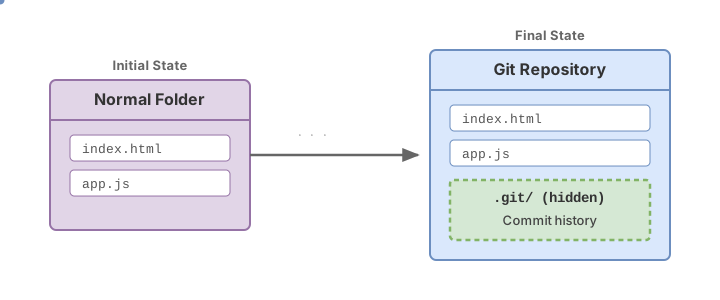
It’s created with a single command. When you run git init inside a folder, Git creates the hidden .git folder there [1]:
# Turns the current folder into a Git repository
git init
# Typical output:
# Initialized empty Git repository in /path/to/your-project/.git/
It’s hidden because its name starts with a dot (.git), and on most systems files starting with a dot aren’t shown by default. You won’t see it in your file explorer, but it’s there. To check whether you’re already inside a repository, git status tells you:
# Shows the status of the current repository
git status
# If you're in a repository, you'll see the current branch and any changes.
# If you're not: "fatal: not a git repository (or any of the parent directories): .git".
Why shouldn’t you touch it by hand? Because Git assumes it’s the only thing writing there. If you delete or edit files inside .git on your own, you can corrupt the history and lose versions. The rule for a beginner is simple: don’t open it or edit it. You talk to .git through Git commands, never by opening its files directly.
What is a local repository?
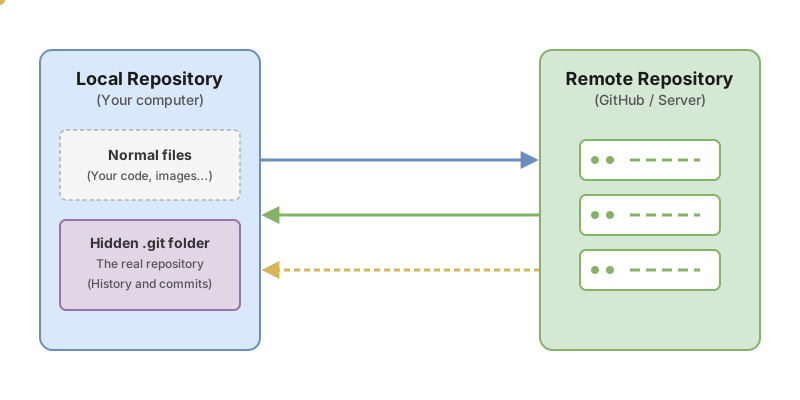
A local repository is the one that lives on your computer. When you run git init or clone a project, the repository that shows up on your disk is the local one: the folder with your work and its corresponding .git.
The advantage that surprises people most at first is that it works offline. You can create commits, look through the history, and go back to earlier versions on a plane, with no wifi, with no account on any website. The entire history lives on your machine, inside that .git folder. Git doesn’t need the internet to do its day-to-day job.
This has a downside. If your laptop breaks or you lose the folder, everything that only existed locally goes with it. That’s where the second type of repository comes in.
The remote repository: the copy you share
A remote repository is a copy of your repository hosted on a server, meant to be shared. Platforms like GitHub, GitLab, or Bitbucket are the ones that host those remote repositories and put a web interface on top of them. The remote lives outside your computer, on a machine you reach over the internet.
What’s the point of having a copy elsewhere: working as a team (several people point to the same remote) and keeping your work somewhere safe in case something happens to your computer. It’s the version of the project the rest of your team sees.
This is where the most common confusion of all shows up: thinking Git and GitHub are the same thing. Git is the tool installed on your machine that manages the history; GitHub is a company that hosts remote repositories on the internet. You can use Git for months without ever opening GitHub. If this distinction still feels fuzzy, I break it down in Git and GitHub: what’s the difference.
Local and remote: the difference in practice
The difference is clearest with both versions side by side:
| Local repository | Remote repository | |
|---|---|---|
| Where it lives | On your computer, in the project folder | On a server (GitHub, GitLab, Bitbucket) |
| Who sees it | Only you, on your machine | Your team and anyone with access |
| Needs a connection? | No, works offline | Yes, accessed over the internet |
| What it’s for | Working and saving commits day to day | Sharing the work and keeping it safe elsewhere |
| Typical command | git init, git commit | git push, git pull |
In practice the workflow usually starts one of two ways. If the project already exists on a remote, you bring it in with git clone and the repository’s URL. That command creates the local repository on your computer from the remote and, on top of that, automatically sets up that remote under the name origin [2]:
# Brings down a remote repository and creates the local one from it
git clone https://github.com/usuario/mi-proyecto.git
# Creates the mi-proyecto/ folder with the work and its .git inside,
# and leaves the remote configured under the name "origin".
That name, origin, is just a label so you don’t have to type the full URL every time. To see which remote your local repository points to:
# Lists the configured remotes and their URLs
git remote -v
# origin  https://github.com/usuario/mi-proyecto.git (fetch)
# origin  https://github.com/usuario/mi-proyecto.git (push)
With local and remote connected, two commands handle the round trip. git push uploads your commits from local to remote. git pull does the opposite: it brings down the changes from the remote that you don’t have and merges them into your local copy.
Now, pay attention to what this means. The remote only stores what you’ve sent it with git push. If you make ten commits locally and don’t push any of them, the remote knows nothing about them. Only what you push by hand travels to the remote.
Common beginner mistakes
These are the stumbles I see over and over when someone is starting out. Recognizing them now will save you some scares later.
Confusing Git with GitHub
This is the foundational misunderstanding. Git is the program that manages the history on your computer; GitHub is a website where you can host the remote repository. You can have a perfectly working Git repository without a GitHub account. When someone says “push this to Git,” they almost always mean “push it to the remote on GitHub.”
Editing or deleting the .git folder by hand
We already covered this, but it’s worth repeating because the damage is serious. If you open .git and start deleting or changing files because “they’re taking up space” or “I don’t know what these are,” you can wreck the repository’s entire history. Treat it like a car engine: it works, don’t open it up with a screwdriver.
Assuming the remote saves your work by itself
This catches a lot of people the day their laptop dies. The remote holds whatever was there the last time you ran git push, and nothing more. If you’d been working for three days without pushing anything, those three days only lived in your local copy. Get in the habit of pushing often and you’ll always have a recent copy off your machine.
Running git init inside another repository
If you run git init in a folder that’s already inside a repository (or you clone a project and run init on top of it without realizing), you end up with nested repositories and a mess of histories stepping on each other. Before creating a new repository, check with git status that you’re not already inside one.
Your next step with Git
You now have a clean mental model: a repository is your folder plus its .git diary, the local one lives on your computer, and the remote is the copy you share and upload to with push. With that, you stop using the word repository blindly.
The natural next step is to create your own and get your hands on the commands. You’ll find the step-by-step in how to create your first Git repository, and if you want the full map of where to start with Git, the guide to getting started with Git ties all the pieces together.
If you’d rather learn by practicing than just reading, in the course Git from Zero to Professional you run git init, git clone, and your first git push yourself, with guided exercises so the commands stick through repetition, not memorization.
Sources
- Official Git documentation (git init): confirms that
git initcreates an empty repository, meaning the.gitfolder. - Official Git documentation (git clone): confirms that
git clonecreates the local repository in a new directory and configures the remote under the nameorigin. - Official Git documentation (git remote): a repository can have several remotes;
originis the name used by convention.
Frequently Asked Questions
Can I have a Git repository without GitHub?
Yes, no problem at all. A local repository works on its own on your computer: you create commits and review the history with no connection and no account on any platform.
Where exactly is a local repository stored?
In the project folder itself, inside the hidden .git subfolder. That’s where Git stores every commit, previous version, and configuration. Your code is still right there in the folder as always; what the repository adds is that hidden diary alongside it.
How many remotes can a Git repository have?
It can have several [3]. origin is simply the default name Git gives the remote when you clone a project, but you can add more under other names (for example upstream for the original project you copied from). The git remote -v command lists all the ones you have configured along with their URLs.
Do I lose the history if I delete the .git folder?
Yes. If you delete the .git folder, that folder goes back to being an ordinary folder and the entire commit history that lived locally disappears. The only way to get it back is if that work also exists in a remote repository you had pushed to with git push. That’s why it pays to push often: the remote is your safety net.
Related articles
Git from scratch: what it is, why it exists, and how to make your first commit
Git is a mental model before it's a list of commands you memorize. This guide covers everything from the why to your first commit, assuming zero prior knowledge.

Git vs GitHub: Why They're Not the Same Thing
Git vs GitHub: Git versions your code locally, and GitHub hosts that repository online. I'll explain the difference with commented commands.

git init: Create Your First Repository Step by Step
Learn how to use git init to create your first local repository from scratch: what it does, how to make your first commit, and how it differs from git clone.