
What Is a Git Commit (and Why It's a Snapshot, Not a Patch)
A Git commit is a complete snapshot of your project at a single instant. Understand what it actually stores and why it lets you travel back in time.
Almost everyone who starts with Git believes the same thing: that a commit stores “the changes you made.” It sounds reasonable, and it’s mental-model mistake number one. Once you understand what a Git commit actually is, things like git reset, git checkout, and that whole “going back in time” idea stop looking like black magic. To follow along here, all you need is to have typed git commit at least once, even if you just copied the command from a tutorial without understanding what was happening underneath. If you just landed in Git, the Git from scratch guide gives you the context around all of this.
What Is a Commit, Really?
A commit is a complete snapshot of your project at one specific instant. It stores every file with all of its content, exactly as it stood at the moment you created it, not just the lines you touched that time.
Think of a photo of your desk. When you take it, you don’t jot down “I moved the pen two centimeters to the left.” You capture the whole table: the pen, the coffee, the papers, all of it together. A commit does the same thing with your codebase. It’s the entire table, frozen.
That distinction seems small, but it completely changes how you think about Git. And it explains why people confuse a commit with a patch.
The Full Snapshot: Why the Mental Model Matters
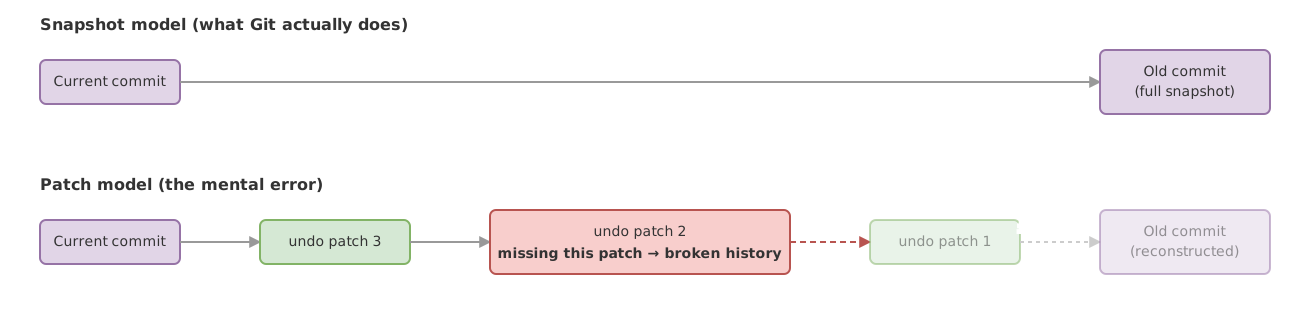
Here’s the core idea: every commit stores the complete state of the project. Older version control systems used to store only the diff, the list of lines that changed relative to the previous version. Git stores the whole snapshot [1].
When you think of a commit as a patch, you picture Git as a stack of sticky notes: each commit is a little note that says “change this line, delete that other one.” To rebuild the project at some point in the past, you’d have to apply every sticky note in order, one after another. If you’re missing one in the middle, the reconstruction breaks.
With the snapshot model, each commit already contains the full project. There’s nothing to add up, no chain of patches to apply. You want yesterday’s state, you grab yesterday’s snapshot. Done.
| Snapshot (what Git actually does) | Patch (the wrong mental model) | |
|---|---|---|
| What it stores | The complete state of the project at that instant | Only the lines that changed |
| Restoring an old state | You grab that snapshot and you’re done | You apply the changes in reverse order, one by one |
| If a commit in the middle is missing | Each snapshot is independent, the rest stay whole | The chain breaks: without that patch you can’t rebuild what came after |
| Storage cost | Git reuses files that don’t change and stores each distinct version only once | Looks cheaper, but forces you to recompute states by adding up patches |
That last row hides the question everyone has the first time around. If Git stores the entire project in every commit, doesn’t that take up a ton of space? We’ll get to that, but first let’s open up the snapshot and see what’s inside.
What Does a Commit Actually Store Inside?
A commit stores five things. The content snapshot is the most important one, but it’s not alone:
- The content snapshot: internally, Git represents it as a
treeobject that points to all your files and directories with their exact content. - The author: who made the commit, with their name and email.
- The date and time it was created.
- The message you wrote to describe the snapshot.
- A pointer to its parent commit, that is, the commit that came right before it.
You’re the one who writes the message when you make the commit. It’s the label you stick on the snapshot so you know what’s inside without having to open it:
# The message describes the snapshot you're saving
git commit -m "Add email validation"
What you decide to put into that snapshot isn’t automatic. The staging area decides what goes into the snapshot, and it’s the step right before the commit: you choose which changes go in and which stay out. All those commits, along with their history, live inside your repository.
If you want to see the inside of a commit exactly as Git stores it, there’s a low-level command that opens it up raw:
$ git cat-file -p 9c7a3f2
tree 8d3f9a0c1b2e4d5f6a7b8c9d0e1f2a3b4c5d6e7f
parent 4f8e2d1a6b0c9d3e5f7a1b2c4d6e8f0a2b4c6d8e
author Sofía <sofia@ejemplo.com> 1730000000 +0100
committer Sofía <sofia@ejemplo.com> 1730000000 +0100

Add email validation
There you have it all: the tree (the content snapshot), the parent (the previous commit), who and when, and the message at the end. Notice that 9c7a3f2 I typed after cat-file. That’s the commit’s name, and it’s the next piece of the puzzle.
The SHA Hash: Every Commit’s Unique Name
A commit’s name is a SHA hash, a long string of letters and numbers that Git computes from the commit’s own content [1]. You don’t choose it: it comes out of the snapshot, the author, the date, the message, and the parent, all run through a mathematical function that always produces the same result for the same input.
When you look at the history with git log --oneline, you see those names abbreviated to their first few characters:
$ git log --oneline
9c7a3f2 Add email validation
4f8e2d1 Create registration form
a1b2c30 First commit
Every hash is hexadecimal, so you’ll only ever see digits from 0 to 9 and letters from a to f. The full hash has forty characters, but Git shows you the first few because seven is usually enough to identify it without ambiguity.
The fact that the name comes from the content has a beautiful consequence. If you change a single comma in the message, or the author, or any file, the resulting hash is completely different. It’s impossible to fake a commit without its name changing. And since two identical pieces of content produce the same hash, Git uses this to save space: a file that doesn’t change between commits gets stored only once, and both commits point to that same copy [1]. That’s the answer to the question from before. The snapshot is complete, but under the hood Git doesn’t duplicate what it already had.
The Parent Commit: How Snapshots Get Chained Together
Every commit points to the commit that came before it, its parent, and that’s how history takes shape. A single snapshot doesn’t tell any story. What tells the story is the sequence: this snapshot comes after that one, which comes after that other one.
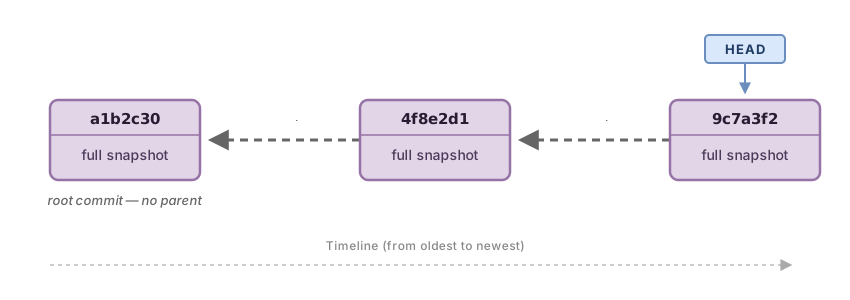
That parent pointer is what turns a bunch of loose snapshots into a timeline. When you make a new commit, Git automatically records what the previous commit was and stores it as the parent. That’s why git log shows you the history in order: it hops from child to parent, going backward.
And the very first commit of all? That one has no parent. It’s the first snapshot, there was nothing before it, so its parent pointer is simply empty. In Git, it’s called the root commit.
Why Does the Snapshot Model Let You Travel Back in Time?
Going back to an old state is trivial because each commit already contains the entire project. When you git checkout an old commit, Git doesn’t undo changes one by one or reassemble anything: it grabs that snapshot and restores it exactly as it was.
This is where the correct mental model saves you hours of confusion. If you thought a commit was a patch, “going back” sounded like something risky, like undoing things step by step and gambling that something wouldn’t get left half-done. With the snapshot model, it’s direct: you ask for a commit, and Git gives you back the project exactly as it was at that instant.
This is also what makes losing work in Git much harder than it looks. Because each commit is a complete, independent snapshot, as long as the commit exists somewhere, that state of the project is safe. Recovering it just means going back to its snapshot.
Before moving on, try it yourself. In this interactive exercise, you have to decide what a commit actually stores and what gets left out:
Loading exercise...
Beginner Mistakes with Commits
These are the stumbles most people hit during their first weeks with Git. None of them are serious once you understand what’s happening underneath.
Believing git commit -a Adds New Files
The -a flag (or -am together with the message) doesn’t include new files. It automates staging for files Git is already tracking that you’ve modified or deleted, but a file you just created that Git doesn’t know about yet gets left out [2].
This catches a lot of people off guard: you create validaciones.js, run git commit -am "Add validations", and the file doesn’t show up in the commit. Git isn’t ignoring it out of spite, you just never told it to track it. That’s what git add validaciones.js is for, first.
Confusing the Hash with the Message
git blame tells you which commit touched each line of a file, along with its hash, author, and date. What it doesn’t show you is the commit message [3]. A lot of people run git blame, see the hash, and get frustrated because they expected to read the description of why that line was changed.
# git blame: which commit and who touched each line (no message)
git blame formulario.js

# git show: the commit message and the diff against its parent
git show 9c7a3f2
You get the message with git show <hash> or with git log. blame gives you the commit’s name; to read the story behind that name, you use the other two.
Empty or “wip” Commit Messages
A commit with a message like changes, wip, or fix is a snapshot with no label. Three months from now, when you’re trying to find out when something broke, those messages won’t tell you anything. The message is the one part of the commit you write in human language: use it to explain what that snapshot captures and, even better, why.
Thinking That Losing a Commit Breaks the History
This fear comes straight from the patch model. If a commit were a chained patch, losing one in the middle would leave the history crippled. But every commit is a complete, self-contained snapshot. The chain of parents organizes the snapshots in order, which is why the commits that remain still contain the entire project, each one on its own.
Understanding the snapshot model is the first step. The second is putting your hands on the keyboard until creating commits, reading the history, and moving between snapshots becomes second nature. That’s something you only learn by typing. In the Git from Zero to Professional course, you work through all of this with guided exercises, from your first commit to handling history with ease.
Sources
- Pro Git, Git Internals: Git Objects (git-scm.com). Object-based storage model, contents of the commit object (tree, parent, author, committer, message), SHA-1 hash computation, and content-based deduplication.
- Official
git commitdocumentation (git-scm.com). Description of the-a/--allflag: it only re-stages already-tracked files that have been modified or deleted, never new untracked files. - Official
git blamedocumentation (git-scm.com). The default output shows hash, author, date, and line number, without the commit message.
Frequently Asked Questions
Does a Commit Store the Whole Project Every Time? Doesn’t That Take Up a Ton of Space?
It stores the whole project conceptually, but it doesn’t duplicate what doesn’t change. Git computes a hash of each file’s content, and if a file is identical between two commits, it’s stored only once, and both commits point to that same copy. So keeping the project’s full history takes up a lot less space than you’d fear.
Can I Change a Commit After I’ve Made It?
Not in the sense of editing the one that already exists. A commit is immutable: its hash comes from its content, so if you change anything at all, it becomes a different commit with a different name. Commands like git commit --amend don’t edit the previous commit, they create a new one that replaces it:
git commit --amend -m "Corrected message"What’s the Difference Between Committing and Saving the File?
Saving the file just writes the changes to your computer’s disk, nothing more. Committing takes a snapshot of that state and puts it into Git’s history with its author, date, and message. You can save a file a thousand times without making a single commit; Git only records the states you decide to photograph.
What Happens If the Message Ends Up Empty by Accident?
By default, Git aborts the commit when the message is empty, so nothing ends up getting created and your history stays intact. It only goes through if you force the issue with git commit --allow-empty-message, something you’ll almost never want: a commit with no message is a snapshot with no label.
Can Two Commits Have the Same Hash?
In practice, no: since the hash is computed from the commit’s content, two different commits produce different names.
Related articles
Git from scratch: what it is, why it exists, and how to make your first commit
Git is a mental model before it's a list of commands you memorize. This guide covers everything from the why to your first commit, assuming zero prior knowledge.
Git's Staging Area Explained: The Four Zones
What Git's staging area is, why it exists, and how your changes travel through the four zones: working directory, staging area, local repo, and remote.
What Is a Git Repository: Local, Remote, and the Difference
What a Git repository is for beginners: the .git folder, the difference between a local and a remote repository, and how to connect them with git push and pull.