
Detached HEAD in Git: What It Is and How to Get Out
You see "You are in detached HEAD state" and panic sets in. Here's what HEAD is, how you end up in detached HEAD, and how to get out without losing your work.
You wanted to see what the code looked like three commits ago, you ran git checkout on a hash, and Git dropped a whole paragraph of warnings about “detached HEAD” on you. Your heart skipped a beat. Relax: you haven’t broken anything. Here’s what HEAD is, why you end up in detached HEAD git, and, most importantly, how to get out without losing your work.
What Is HEAD in Git?
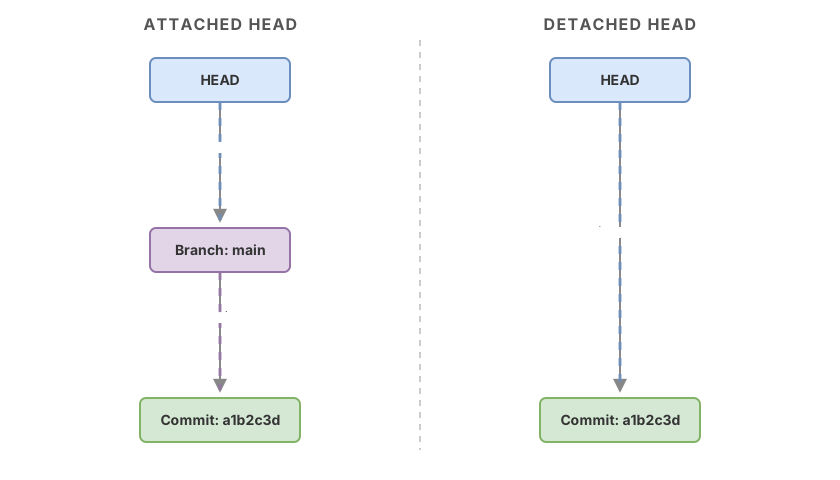
HEAD is a pointer that marks where you are right now in the repository. When you make a commit, the new commit gets attached right where HEAD points.
The important part is that HEAD almost never points directly to a commit. It points to a branch, and the branch points to the latest commit on that line of work. It’s a two-hop chain:
HEAD ---> main ---> a1b2c3d (latest commit)When you’re on main and make a new commit, the main branch moves forward to the newly created commit and HEAD keeps pointing to main. That’s why your work stays “attached” to the branch without you having to do anything: HEAD pushes the branch forward, and the branch holds the spot.
What Does “Detached HEAD” Mean?
You’re in detached HEAD when HEAD points directly to a specific commit instead of a branch. It skips the middle step:
HEAD ---> a1b2c3d (standalone commit, no branch in between)The word “detached” is literal: HEAD is disconnected from any branch. You still have the whole repository in front of you: you can read files, build, run tests, and even make commits. The difference is that no branch saves those new commits. They hang off HEAD and nothing else.
Here’s the message you see, and it says exactly what’s happening:
$ git checkout a1b2c3d
Note: switching to 'a1b2c3d'.

You are in 'detached HEAD' state. You can look around, make experimental
changes and commit them, and you can discard any commits you make in this
state without impacting any branches by switching back to a branch.

If you want to create a new branch to retain commits you create, you may
do so (now or later) by using -c with the switch command. Example:

  git switch -c <new-branch-name>

Or undo this operation with:

  git switch -

Turn off this advice by setting config variable advice.detachedHead to false

HEAD is now at a1b2c3d Fix login redirect
Git isn’t scolding you. It’s explaining the one rule that matters: commits you make here get lost if you leave without creating a branch first.
How Do You End Up in Detached HEAD?
You end up in detached HEAD whenever you ask Git to go to a point that isn’t a local branch. The most common cases:
- Checking out a commit hash:
git checkout a1b2c3dto inspect the past. - Checking out a tag:
git checkout v1.4.0. A tag points to a fixed commit, not a branch that moves forward. - Checking out a remote branch directly:
git checkout origin/main. That’s the remote reference, not your localmainbranch. git bisect: while you’re hunting for the commit that introduced a bug, Git moves you through standalone commits in detached HEAD.- Submodules: a submodule is always pinned to an exact commit, so inside it you live in detached HEAD by design.
In all of these cases the pattern is the same. You asked Git to “put me on this commit,” not “put me on this branch.” And Git does exactly that.
Loading exercise...
Is It Dangerous? Did I Lose Something?
You haven’t lost anything, and looking around isn’t dangerous. Entering detached HEAD is a read-only operation from your branches’ point of view: main and the rest stay intact, pointing exactly where they were. You can browse the history with complete peace of mind.
The only real risk shows up when you make new commits in detached HEAD and then switch to another branch without saving them. Since no branch points to those commits, they stop being reachable by name. They don’t get deleted instantly, but they become orphaned, and Git stops showing them in the normal log. I’ll show you how to rescue them further down, so even that case isn’t a drama.
It helps to have the two-state model clear:
| Situation | Attached HEAD (on a branch) | Detached HEAD |
|---|---|---|
| What HEAD points to | A branch (main), and the branch to the commit | Directly to a commit (a1b2c3d) |
When you run git commit | The branch moves forward and saves the commit | The commit hangs only off HEAD |
| When you switch branches | You lose nothing, the branch remembers the spot | New commits get orphaned if you didn’t create a branch |
| How to recover | No need, it’s the normal state | git switch -c beforehand, or git reflog afterward |
How Do I Get Out If I Didn’t Make Changes?
If you were only looking around and didn’t make any commits, getting out is one line:
# Returns to the branch you were on before the checkout
git switch -
The dash - means “the previous reference,” just like cd - in the terminal takes you back to the previous directory. If you’d rather name the branch you want to go to, that works too:
git switch mainWith that, HEAD points back to a branch and you’re out of the detached state. There’s nothing to clean up, and you haven’t broken anything.
A note on commands: git switch is the modern, recommended way to move between branches, and it’s been a stable Git command for several versions now. git checkout still works, but it does too many different things (switching branches, restoring files, entering detached HEAD), and that overload is exactly what causes confusion. When the goal is to move, use switch.
How Do I Keep the Work I Did in Detached HEAD?
If you made commits you want to keep, create a branch before leaving. That’s the key moment:
# You're in detached HEAD with commits you want to save
git switch -c experimento-login
git switch -c experimento-login creates a new branch right where HEAD is now and takes you there. Your standalone commits now hang off experimento-login and have an owner. From there it’s a normal branch: you can keep working, push it, or merge it into your main branch with a merge or a rebase.
The mental flow is simple. Before you leave the detached state, ask yourself: did I make commits here that I want to keep? If yes, git switch -c <name> first. If no, git switch - and you’re done. If you want to go deeper into how branches are created and managed, I cover it in detail in creating and switching branches in Git.
What If I Already Switched Branches and “Lost” My Commits?
You haven’t really lost them. Git keeps a local record of every place HEAD has been, and your orphaned commits are still there. That record is the reflog:
git reflogYou’ll see something like this:
9f8e7d6 HEAD@{0}: checkout: moving from a1b2c3d to main
4d5e6f7 HEAD@{1}: commit: Test new login
a1b2c3d HEAD@{2}: checkout: moving from main to a1b2c3d
The line commit: Test new login with hash 4d5e6f7 is the work you thought you’d lost. Copy it and pin a branch onto it:
git branch rescate 4d5e6f7Now rescate points to that commit and is reachable from the normal log again. You can run git switch rescate on it and keep going. The reflog is your safety net for almost any “I lost a commit” situation in Git, not just detached HEAD. For the full picture of recovery, check out the guide to undoing changes in Git.
Common Mistakes
Switching Branches Without Creating One First
This is the classic mistake: you make three good commits in detached HEAD, run git switch main, and see the warning that you’re leaving commits behind. The panic isn’t necessary because the reflog keeps them, but you can skip the scare entirely by creating the branch before you leave. If Git warns you when switching, read it: it almost always gives you the exact hash you need.
Treating Detached HEAD Like an Error to Hammer Away At
Detached HEAD isn’t an error, so don’t “fix” it with a blind git reset --hard. That command discards real working changes and can turn a harmless scare into an actual loss. The right way out is git switch; a blind git reset --hard only makes the scare worse.
Confusing a Branch Checkout with a Commit Checkout
git checkout main leaves you on a branch (attached HEAD). git checkout a1b2c3d leaves you on a standalone commit (detached HEAD). It’s the same command, but the result depends on whether you pass it a branch name or a commit identifier. That’s why git switch split the two ideas apart: git switch main for branches, git switch --detach a1b2c3d when you actually want to detach on purpose.
Assuming Orphaned Commits Get Deleted Instantly
When you abandon commits in detached HEAD, they don’t disappear right away. They stay reachable through the reflog for quite a while before garbage collection (git gc) cleans them up. You have plenty of margin to rescue them, but don’t leave it for weeks: don’t count on them being there forever.
Checklist to Stop Fearing Detached HEAD
- I know HEAD normally points to a branch, and the branch to a commit
- I recognize that checking out a hash, tag, or
origin/somethingleaves me in detached HEAD - If I was only looking around, I get out with
git switch - - If I made commits I want to keep, I create the branch with
git switch -c <name>before leaving - If I think I lost commits, I use
git reflogto find the hash andgit branch <name> <hash>to rescue them - I don’t use
git reset --hardas a panic reaction
Practice Git Without Fear of Breaking Anything
Reading about detached HEAD helps, but the fear goes away by practicing somewhere where getting it wrong costs nothing. In the course Git from Zero to Professional you do exactly this: you go in and out of detached HEAD, rescue commits with the reflog, and build your mental model of HEAD and branches through interactive exercises, without touching your real repo.
Frequently Asked Questions
Does Detached HEAD Delete My Work?
No. Entering detached HEAD doesn’t touch any of your branches: they keep pointing exactly where they were. The only case where you can lose access to something is if you make new commits in detached HEAD and then switch branches without creating a branch for them, and even then the reflog keeps them around for a while.
How Do I Quickly Get Back to My Branch from Detached HEAD Git?
Run git switch - and you’re back on the branch you were on before the checkout. If you’d rather go to a specific branch, use git switch main (or whatever the name is). As soon as HEAD points to a branch again, you’re out of the detached state.
Can I Make Commits in Detached HEAD?
Yes, you can make as many commits as you want. The problem isn’t making them, it’s leaving without saving them. Before switching to another branch, create a branch with git switch -c <name> so those commits have an owner and don’t end up orphaned.
What Is git reflog and How Does It Save Me in Detached HEAD?
The reflog is a local record of every place HEAD has been, including the commits you left in detached HEAD. Run git reflog, find the hash of your commit, and create a branch for it with git branch <name> <hash>. It’s the safety net that makes sure almost nothing is ever truly lost in Git.
Do git checkout and git switch Do the Same Thing?
For moving between branches, yes, but git switch is clearer. git checkout is overloaded: it switches branches, restores files, and enters detached HEAD, all under the same name. git switch separates those tasks and is the modern recommended way to switch branches. For safely revisiting the past, I cover it in going back to a previous commit in Git.
Related articles
How to Undo Changes in Git: The Guide to Never Losing Your Work
A decision guide for undoing changes in Git: which command to use for each situation (restore, reset, revert, stash) and why almost nothing is ever truly lost.
How to Go Back to a Previous Commit in Git Without Losing Work
How to go back to a previous commit in Git based on what you actually want to do: inspect it with checkout, move your branch with reset, or undo it with revert, without losing work.
How to Create and Switch Git Branches Without Losing Your Work
Learn how to create a Git branch and switch between branches with git branch, git switch, and checkout, without fear of breaking main or losing your code.