
How to Go Back to a Previous Commit in Git Without Losing Work
How to go back to a previous commit in Git based on what you actually want to do: inspect it with checkout, move your branch with reset, or undo it with revert, without losing work.
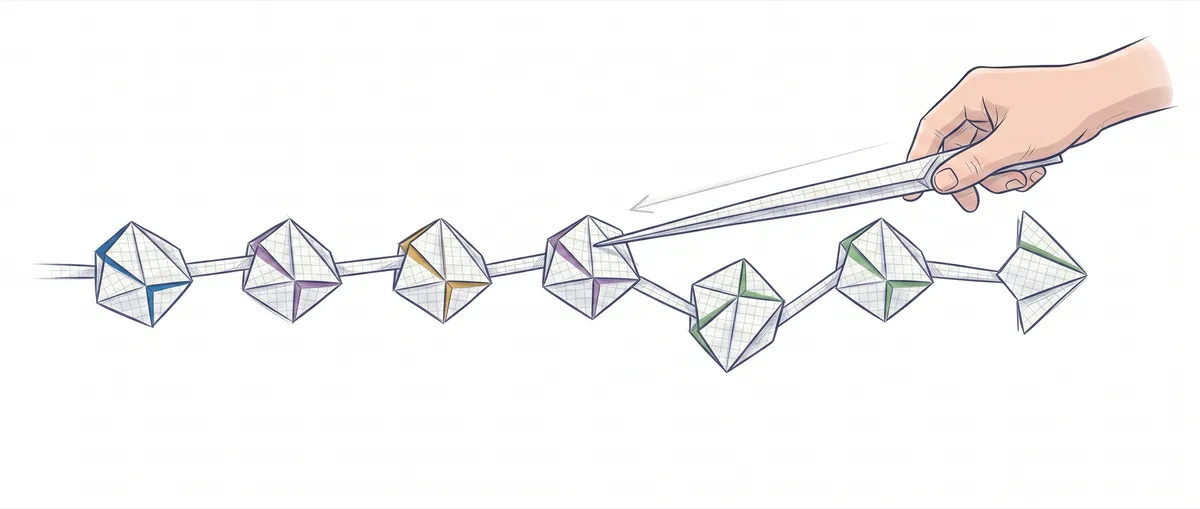
You just made a commit you didn’t want. Or three. Or maybe you just need to see how the project looked a week ago, before that refactor that touched everything. The question you’ll type into a search engine is “how to go back to a previous commit in git,” but the real question isn’t which command to run, it’s what you want to do with the past: look at it, move your branch to it, or undo a specific change. Picking the wrong intent is exactly how people lose a day of work to a badly timed reset --hard.
What Does “Going Back” to a Commit Actually Mean?
“Going back” covers three very different operations that people lump together. Choosing correctly means understanding, at least roughly, how history is structured underneath.
Your HEAD normally points to a branch (main, say). That branch points to a commit, and each commit points to its parent, forming a chain going backward. That’s the famous DAG: a graph of commits linked by their parents. When you say you want to “go back,” you might be asking for things that are mutually incompatible.
| What I want… | Tool | What happens to your work |
|---|---|---|
| See how the project looked at a commit | git checkout <commit> / git switch --detach | Nothing. It’s just looking. |
| Move my local branch to an earlier commit | git reset (you pick the mode) | Depends on the mode you use |
| Undo a commit that’s already shared with the team | git revert | A new commit is created; prior history stays intact |
| Recover something after a scare | git reflog | You go back to the exact point before the mistake |
The rest of this post covers each of those rows in detail, with the exact command and how to protect your work in each case. This article is one piece of the guide to undoing changes in Git, which maps out every way to go backward.
Looking at the Past Without Touching Anything: git checkout and git switch --detach
If you just want to inspect how the code looked at a commit, git switch --detach <commit> (or the classic git checkout <commit>) takes you there without moving any branch. You enter a state called detached HEAD: your HEAD points directly to a specific commit instead of pointing to a branch. For the full picture of this state and why it confuses so many people, there’s a dedicated explanation of what detached HEAD in Git is.
In detached HEAD you can read files, build, run tests, run git log to understand what happened. It’s a museum visit. You’re not on any branch, so nothing you do affects main or your feature branch.
# Inspect how the project looked at a specific commit
git switch --detach a1b2c3d    # equivalent: git checkout a1b2c3d

# ...you look around, build, run the tests. None of this touches your branches.

# Go back to where you were
git switch -                   # returns to the previous branch
# or directly by name
git switch main
What if, while looking at the past, you decide that point deserves to become its own line of work? Turn it into a branch before you leave:
# Turn the visit into a real branch
git switch -c old-experiment
Here’s the trap that catches a lot of people: if you make commits in detached HEAD and then switch branches without having created one, those commits become orphaned. They’re not on any branch, so they stop showing up in git log and it feels like they’ve vanished. They’re not fully lost (you’ll see later that reflog rescues them), but it’s an unnecessary scare. The rule is simple: if you’re going to do real work, leave the museum with git switch -c before typing anything.
Before moving on, try it yourself. This simulator lets you move through the commit graph and see where HEAD points at each step, with no risk of breaking anything real:
Loading exercise...
Moving Your Branch Into the Past: git reset and Its Three Modes
git reset moves the pointer of your current branch (and with it, HEAD) to another commit. That’s the part all three modes share. The difference between --soft, --mixed, and --hard is in what they do to Git’s other two areas: the index (what you have staged for the next commit, the staging area) and the working tree (your files as they sit on disk).
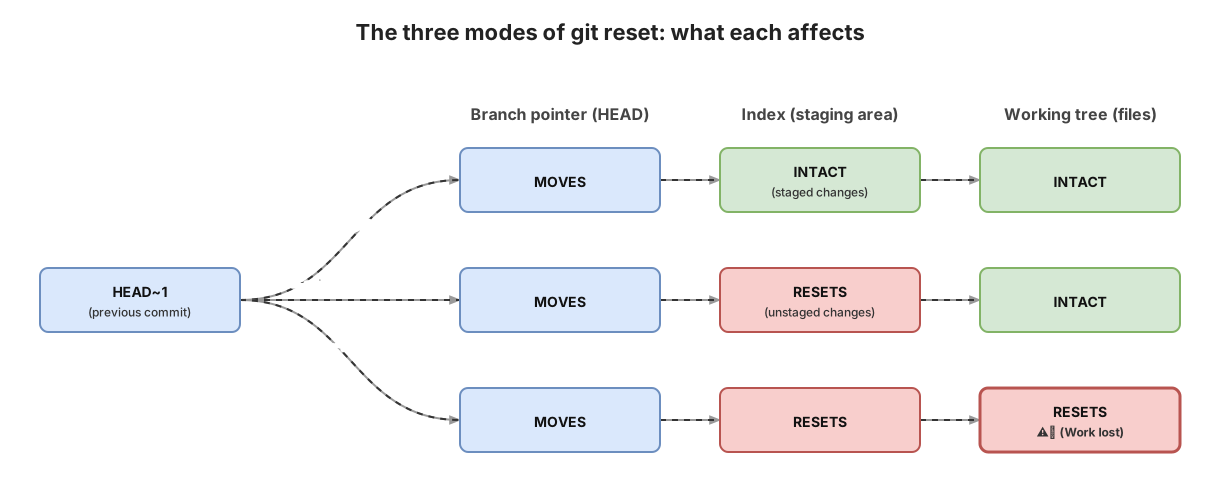
--softmoves the pointer and doesn’t touch anything else. The index and working tree stay intact, so all the changes from the commits you “undid” are still there, staged [1]. This is what you use to squash your last few commits into one.--mixedis the default mode. It moves the pointer, updates the index to match the newHEAD(nothing stays staged), and leaves the working tree as it was [1]. Your changes are still on disk, just unstaged.--hardmoves the pointer and overwrites both the index and the working tree to match the target commit [1]. It’s the only destructive mode: any changes you hadn’t committed are lost.
# reset moves your branch pointer (and HEAD)
git reset --soft HEAD~1    # undoes the last commit, leaves changes staged
git reset HEAD~1           # --mixed (default): leaves them unstaged
git reset --hard HEAD~1    # also discards what you had in the working tree
This is the table worth memorizing before you type a reset:
| Mode | Pointer (branch + HEAD) | Index | Working tree |
|---|---|---|---|
--soft | Moves | Untouched | Untouched |
--mixed (default) | Moves | Reset | Untouched |
--hard | Moves | Reset | Reset (this is where you lose work) |
Notice that only the last row erases anything of yours. --soft and --mixed are reversible with almost no effort because your changes stay in the working tree. --hard is the scary one, and for good reason.
How Not to Lose Work Before a reset --hard
The way to survive a reset --hard is to secure your work before running it, not pray afterward. You have two simple ways to do it, and picking one costs five seconds against the hours it takes to recover what you didn’t save.
The first is git stash, which saves your uncommitted changes on a separate stack and leaves your working tree clean. You reset with peace of mind and recover the stashed changes whenever you want.
# Option A: save uncommitted changes
git stash push -m "wip before resetting"
git reset --hard HEAD~3
git stash pop              # brings your changes back on top of the new state
The second, and the one I use when the current state actually matters to me, is planting a branch at the point you’re at before moving anything. A branch is just a pointer to a commit, so creating one costs nothing and gives you an explicit way back.
# Option B: leave a backup branch at the current state
git branch backup          # 'backup' stays pointing at where you are now
git reset --hard HEAD~3    # your branch moves back; 'backup' stays at the earlier point
If the reset goes wrong, git switch backup takes you back exactly to where you were. The rule I never skip: never run a reset --hard with unsaved work that matters to me.
Undoing a Commit in Shared History: git revert
git revert <commit> creates a new commit that applies the inverse of another commit’s changes, without erasing anything from history [2]. If a commit added three lines, the revert adds a commit that removes them. History grows forward instead of being rewritten backward.
That difference is exactly why shared branches (main, or any branch you’ve already pushed that others use) use revert instead of reset. A reset rewrites the branch’s history: the commits that were after the target point disappear from it. Nothing happens on your machine, but to push that branch back to the remote you’d need a push --force, and that overwrites the history your teammates already have. The next time they pull, it breaks for them. With revert nobody has to force anything, since you’re only adding one more commit.
# Creates a new commit that inverts another commit's changes
git revert a1b2c3d
The special case is merge commits. A merge has two parents, so Git doesn’t know which of the two branches is the “main line” you want to keep. You tell it with -m and the parent number (starting at 1) [2]:
# Reverting a merge: -m 1 tells Git that parent 1 is the main line
git revert -m 1 <merge-commit>
Keep one nuance in mind: reverting a merge tells Git you never want those changes again, which complicates merging that branch back in later. But for the common case, undoing a commit that’s already published, revert is the right answer.
The Safety Net: git reflog
git reflog records every movement of HEAD in your local repository: every commit, every branch switch, every reset. It’s why almost nothing is ever truly lost in Git, not even after a reset --hard you thought was catastrophic. The commit you were pointing at keeps existing for a while, and the reflog holds its reference.
# Every HEAD movement gets logged
git reflog
# a1b2c3d HEAD@{0}: reset: moving to HEAD~3
# 9f8e7d6 HEAD@{1}: commit: the feature you thought was lost

# Go back to the state right before the reset
git reset --hard HEAD@{1}

# Or rescue it into a new branch without touching the current branch
git switch -c rescue HEAD@{1}
Each line is a point you can return to with HEAD@{n}. If you made a mistake two moves ago, HEAD@{2} is your anchor.
Two important caveats so you don’t get too comfortable. The reflog is local: it lives in your .git, isn’t pushed or shared, so it won’t save you from a problem on another machine. And it expires: Git’s garbage collector (gc) cleans up entries and unreachable objects after a while (weeks, by default). Rescuing something from the reflog is a matter of hours or days, not months.
Common Mistakes
reset --hard with unsaved work. This is the classic “I lost a day of work.” The destructive reset doesn’t distinguish between what you wanted to throw away and what you were halfway through writing. If you have changes in the working tree that matter, always stash or branch off a backup first.
reset on an already-pushed branch followed by push --force. Here you’re not hurting yourself, you’re hurting the team. You rewrite a shared branch’s history, force the push, and your teammates’ next pull conflicts with a history that no longer exists. On shared branches: use revert.
Commits in detached HEAD that disappear. You spend a while inspecting an old commit, make a couple of commits without noticing you’re not on any branch, switch to main, and your work no longer shows up in git log. Don’t panic: it’s in the reflog. But avoid it at the root by leaving with git switch -c as soon as you’re about to write anything.
Confusing revert with reset. They sound similar and do opposite things. reset moves your pointer backward and rewrites local history; revert adds a commit forward and keeps history intact. When in doubt, one question settles it: does anyone else have this branch? If so, revert. And if you want to nail down when a third command, git restore, comes into play, there’s a breakdown of the differences between reset, revert, and restore.
How to Decide in Five Seconds
When you’re at the terminal in a hurry, this is the mental rule that settles it:
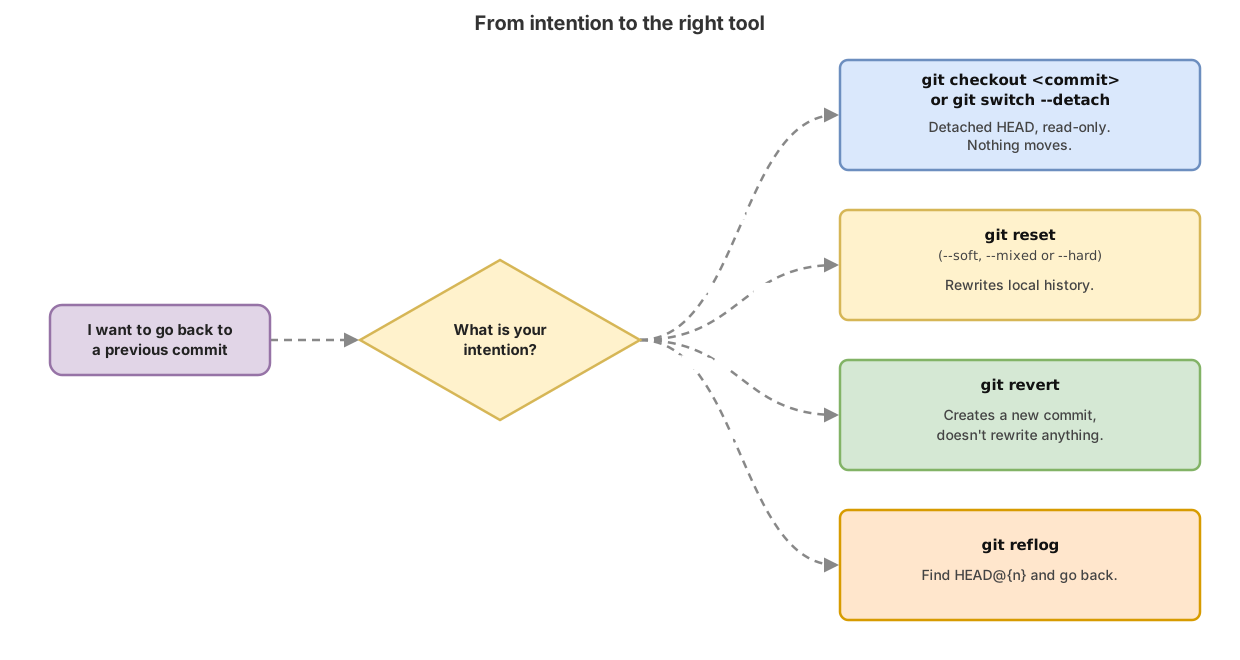
- I want to look at the past →
git checkout <commit>orgit switch --detach. Read-only, come back withgit switch -. - I want to move my local branch backward →
git reset. Pick--soft(keeps staged),--mixed(keeps unstaged), or--hard(destructive, secure your work first). - I want to undo a commit I already share →
git revert. A new commit, no forcing anything. - I messed up and need to recover →
git reflog, findHEAD@{n}, and go back.
Decide first what you want to do with the past and only then pick the command: that order separates a clean rollback from an afternoon rebuilding what you shouldn’t have deleted.
If you want to stop improvising with Git and practice navigating the DAG, the three reset modes, and revert on a real repo, guided step by step, that’s exactly what you work through in the course Git From Zero to Professional. Interactive exercises, no fear of breaking anything.
Sources
- git reset (official Git documentation): exact behavior of the
--soft,--mixed(default), and--hardmodes on HEAD, the index, and the working tree. - git revert (official Git documentation): revert creates new commits that invert changes without rewriting history;
-moption to choose the main line when reverting a merge.
Frequently Asked Questions
How do I go back to a previous commit in Git without losing my current changes?
It depends on what you want to do. If you just want to see that commit, use git switch --detach <commit>, which doesn’t touch any branch or your files. If you want to move your branch backward but keep your current work, use git reset --soft or git reset --mixed (the working tree stays intact with both). Avoid git reset --hard while you have unsaved changes that matter.
What’s the difference between git reset and git revert?
git reset moves your branch pointer to an earlier commit and rewrites local history. git revert leaves history intact and adds a new commit that inverts another commit’s changes.
git reset --hard HEAD~1   # moves the branch back, rewrites history (local branches)
git revert HEAD           # adds a commit that inverts the last one (shared branches)
The practical rule: reset for local branches only you have, revert for already-pushed branches the team shares, because revert doesn’t force anyone into a push --force.
I ran git reset --hard and lost commits. Can I recover them?
Almost always, yes. Run git reflog, which lists every recent HEAD movement with its HEAD@{n} reference. Find the line right before the reset and go back with git reset --hard HEAD@{n}, or carry that state into a new branch with git switch -c rescue HEAD@{n}. The reflog is local and its entries expire over time via the garbage collector, so do it soon.
What is the detached HEAD state, and is it dangerous?
It’s when your HEAD points directly to a commit instead of a branch, which happens with git checkout <commit> or git switch --detach. Inspecting things this way carries no risk; just avoid making commits without first creating a branch with git switch -c <branch>, or they’ll end up orphaned.
Related articles
How to Undo Changes in Git: The Guide to Never Losing Your Work
A decision guide for undoing changes in Git: which command to use for each situation (restore, reset, revert, stash) and why almost nothing is ever truly lost.

git reset vs revert vs restore: which one to use and when
The differences between git reset, revert, and restore: which area of Git each one touches, the three reset modes, and which one to use without breaking shared history.
Detached HEAD in Git: What It Is and How to Get Out
You see "You are in detached HEAD state" and panic sets in. Here's what HEAD is, how you end up in detached HEAD, and how to get out without losing your work.