
fatal: not a git repository: what it means and how to fix it
The fatal not a git repository error explained for beginners: why it shows up, what the .git folder is, and how to fix it in 3 steps.

You type your first git command, expecting something useful, and the terminal throws this at you: fatal: not a git repository (or any of the parent directories): .git. Take a breath. You haven’t broken anything, you haven’t deleted anything, and your project is still intact. Git simply can’t find a repository in the folder you’re standing in. To follow along you just need git installed and a terminal open.
What “fatal: not a git repository” means
The message is telling you that git looked for a repository and couldn’t find one anywhere. Let’s split it into two pieces, because each one tells you something different.
The first half, fatal: not a git repository, means “the folder you’re in is not a git repository.” The word “fatal” sounds dramatic, but in git it just means “I can’t continue with this command.” Your computer is working fine.
The second half is the interesting part: (or any of the parent directories): .git. When you run a command, git doesn’t just check the current folder. It walks up the folder tree (to the folder that contains it, and the one that contains that, all the way to the root of the disk) looking for a subfolder called .git. The message is telling you it searched your current folder and every parent folder above it, and none of them had a .git. That’s why it gives up.
Everything revolves around that .git folder. It’s worth understanding what it is before fixing anything.
The .git folder is the repository
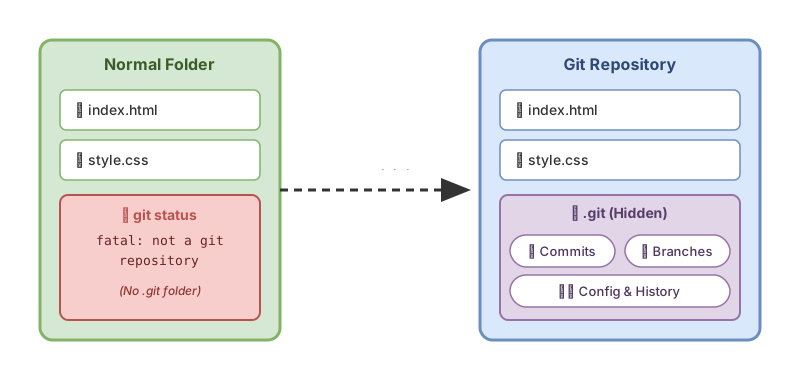
The hidden .git folder is the repository. It’s where git stores your project’s entire history: every commit, every branch, the local configuration. Without it, your folder is just a regular folder with files in it, and git has nothing to manage.
Think of it this way: a folder with your files is like a room with furniture. The .git folder is the logbook that notes down every time you move a piece of furniture. If the logbook doesn’t exist, you can keep moving furniture, but nobody’s writing down the changes. That’s exactly what’s happening when you see this error: you’re in a room with no logbook.
If this is your first week with git and you’re still wondering what a commit is or why versioning your code matters, start with the guide to taking your first steps with git and come back here. The rest of this post assumes you already know a repository stores your project’s history.
Now, the causes. There are three, and it’s almost always the first one.
Cause 1: you’re in the wrong directory
This is reason number one, by a wide margin. You opened a new terminal, or changed folders without noticing, and you’re outside your project. Your repository exists, just not where you currently are.
The first thing to do is check where you are and what’s around you:
# pwd = "print working directory": tells you the path of your current folder
pwd
# /Users/sofia

# ls -a lists ALL files, including hidden ones (those starting with a dot)
ls -a
# .  ..  Downloads  Documents  projects
In that example you’re in your home folder (/Users/sofia) and there’s no .git folder in sight. No wonder git complains. Your project probably lives inside projects. Go into it and check again:
# cd = "change directory": moves you to the folder you specify
cd projects/my-first-repo

# check again whether there's a .git folder now
ls -a
# .  .git  README.md  src
There’s the .git. Now any git command will work because you’re inside the repository. The mental trick is simple: before running git, check where you are with pwd and confirm you see a .git with ls -a.
But what if you run ls -a in the right folder and the .git doesn’t show up anywhere? Then the repository doesn’t exist yet.
Cause 2: you never initialized the repository
If you’re sure you’re in your project’s folder and there’s no .git, then you never created the repository. You started writing code, saved files, and assumed git was already tracking the folder. Git doesn’t work that way: you have to create the repository explicitly with git init.
# You're inside your project folder
cd my-project

# git init creates the .git folder and turns this folder into a repository
git init
# Initialized empty Git repository in /Users/sofia/my-project/.git/
That message, Initialized empty Git repository in ..., confirms you now have a repository. The word “empty” is normal: it means there are no commits yet, not that you’ve lost any files. git init only adds the .git folder; your code is untouched. After this, git status will respond normally.
An important detail about when to use git init: only when you actually want to start a new repository in that folder. If what you were looking for was to work on a project that already existed somewhere else, git init isn’t the answer, because it would create an empty repository instead of bringing you the original one with its history. For the full step-by-step flow of starting a repo from scratch, check the guide on how to create your first repository with git.
There’s a third cause left, typical of when you download someone else’s code.
Cause 3: the clone didn’t quite land
When you copy a repository from GitHub to your machine you use git clone, and there’s a classic trap here. git clone <url> doesn’t dump the files into your current folder: it creates a new subfolder with the repository’s name and puts everything inside it, including the .git. If you run git right after without going into that subfolder, you’re still outside the repository.
# git clone downloads the repo and creates the "my-repo" folder with everything inside
git clone https://github.com/user/my-repo.git
# Cloning into 'my-repo'...

# CLASSIC ERROR: you run git here, but you're still OUTSIDE my-repo
git status
# fatal: not a git repository (or any of the parent directories): .git

# The fix: go into the folder git clone just created
cd my-repo
git status
# On branch main ...
Notice the line Cloning into 'my-repo'...: it’s telling you the exact name of the folder it created. That’s where you need to cd into. Almost always, the error after a clone is that missing cd.
The other possibility is that the clone got cut short (network dropped, you closed the terminal) and the folder ended up incomplete. If you go in and there’s still no .git, delete that half-finished folder and clone again from scratch.
The three causes at a glance
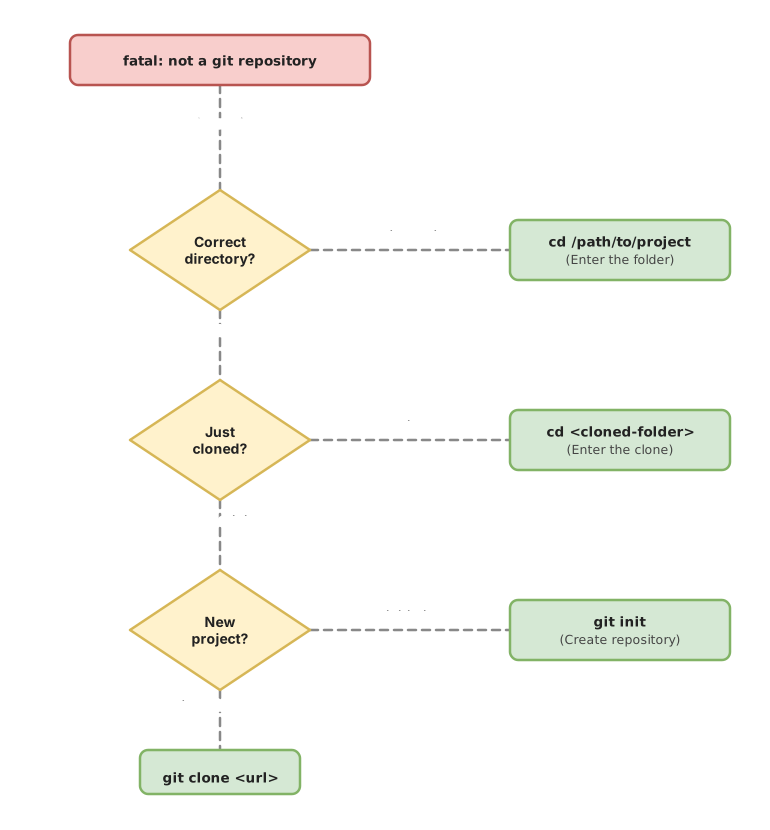
When the error shows up, don’t guess. Confirm it with a command and apply the matching fix:
| Cause | How to confirm it | How to fix it |
|---|---|---|
| You’re in the wrong directory | pwd shows a path that isn’t your project, or ls -a doesn’t show .git | cd into the correct project folder |
| You never initialized the repository | You’re in the right folder but ls -a doesn’t show .git anywhere | git init to create the repository |
| The clone didn’t finish or you didn’t cd in | You just cloned and git clone printed Cloning into '...' | cd into the cloned folder; if it’s incomplete, clone again |
Check at a glance whether you’re inside a repo
Before running any git command, getting into the habit of checking where you are will save you from this error forever. There are three ways to do it, from the most informative to the fastest.
The most common is git status. If you’re inside a repo, it tells you which branch you’re on and which files have changed. If not, it gives you back the same fatal: not a git repository. If you want to fully understand everything that output tells you (branch, staging, untracked files), I break it down in the post on how to read git status output.
When you just want a yes or no, with no extra noise, use git rev-parse:
# Prints "true" if you're inside a repository's working tree
git rev-parse --is-inside-work-tree
# true
It returns true when you’re inside a repository and false (or the fatal error) when you’re not. It’s the check I use in scripts, because its response is easy for another program to read. And the third one, the most manual of all, you already know: ls -a and look for the .git with your own eyes.
Common mistakes
A handful of slip-ups trigger this error over and over. Here are the ones I see most often in people just starting out.
Running git init in your home folder
The most dangerous one. You see the error, read somewhere that git init fixes it, and run it without checking where you are. If you were in your home folder (/Users/sofia), you just turned your entire home folder into a git repository. From then on, any git command you run in any subfolder will think it belongs to that giant repo. Before typing git init, run pwd and confirm you’re exactly in the folder of the project you want to version.
Running git init inside a repo that already existed
If you accidentally run git init in a folder that was already a repository, git doesn’t stop you and doesn’t break anything (it’ll tell you Reinitialized existing Git repository ...), but that message should put you on alert: you thought you were creating something new and it already existed. And if you do it inside a subfolder of a repo, you create a nested repository, a source of confusion that’s hard to debug later.
Assuming the repository is broken
The error doesn’t mean your repository is corrupted or that you’ve lost commits. It means git can’t find it from where you are. Almost always the repo is perfectly fine, just two folders up. Before panicking or deleting anything, check with pwd and ls -a whether you’re simply in the wrong place.
Unzipping a file and expecting history
If you downloaded your project as a ZIP file instead of cloning it, that ZIP brings the files but not the .git folder. It’s a project with no git history. That’s why git status fails: technically there’s no repository. If you need the history, clone with git clone instead of downloading the ZIP.
Checklist to avoid falling into this again
- Before a git command, I run
pwdto confirm which folder I’m in - I check with
ls -athat the folder contains a.git - I only use
git initwhen I want to start a new repository in that folder - After a
git clone, Icdinto the folder the clone just created - When in doubt, I use
git rev-parse --is-inside-work-treefor a quick yes/no - I never run
git initblindly in my home folder
These first commands stick a lot better with hands-on practice than with reading. If you want to practice git init, git clone, and git status guided step by step, with exercises that correct you as you go, check out the course Git from Zero to Professional, built for exactly this stage.
Frequently Asked Questions
Does git init delete my files?
No. git init only creates the hidden .git folder and turns your folder into a repository. Your files and your code stay exactly as they were. The official documentation confirms it: running git init is safe and doesn’t overwrite what’s already there.
I ran git init by accident and now I have a repo where I didn’t want one, how do I undo it?
A repository is simply its .git folder, so it’s enough to delete that folder. From inside the affected folder, run:
# Deletes only the .git folder and leaves your files untouched
rm -rf .git
That removes the git history but leaves your files intact. Be very careful to be in the correct folder before running that command, and to type .git and nothing else, because rm -rf deletes without asking.
Why can’t I see the .git folder in my file explorer?
Because it’s hidden. Any file or folder whose name starts with a dot (.git, .gitignore) is hidden by default. In the terminal you see it with ls -a. In your system’s file explorer you’ll need to turn on the “show hidden files” option.
I downloaded the project as a ZIP and git doesn’t work, why?
To confirm the ZIP is to blame and not a slip on your part, run ls -a right after unzipping it, inside the project folder. If no .git shows up, it’s the download: a ZIP never includes it, so there’s no repository to speak of. Once you’ve confirmed that, clone the project with git clone <url> and you’ll have the history the ZIP was missing.
Related articles
Git from scratch: what it is, why it exists, and how to make your first commit
Git is a mental model before it's a list of commands you memorize. This guide covers everything from the why to your first commit, assuming zero prior knowledge.

git init: Create Your First Repository Step by Step
Learn how to use git init to create your first local repository from scratch: what it does, how to make your first commit, and how it differs from git clone.
git status: How to Read What Git Is Telling You
Learn to read git status output step by step: staged, unstaged, and untracked files, the branch line, and the short format.