
git status: How to Read What Git Is Telling You
Learn to read git status output step by step: staged, unstaged, and untracked files, the branch line, and the short format.

When you start out with Git, git status is the first command you learn and the last one you truly understand. You run it, a block of English text appears with sections you don’t know how to read, and you keep copying commands hoping they’ll work. The real difficulty is translating that output into something you can act on. In this post I go through that output line by line so you know exactly what state your repo is in and what to do next.
To follow along you need Git installed and at least one commit made following some tutorial. If you’re not there yet, first learn what Git is and how to start a repository, then come back.
What is git status and why should you run it first?
git status is a read-only command: it tells you the state of your repository without changing absolutely anything. It doesn’t delete files, doesn’t save commits, doesn’t send anything to the server. You can run it a thousand times in a row and the result will be identical. That’s why it’s safe, and that’s why you’ll see it at the start of every workflow before any other action.
Think of it as your car’s dashboard. It doesn’t drive for you, but it tells you how fast you’re going, how much fuel you have left, and whether a warning light is on. Before you git add, before you git commit, before you git push, you check the dashboard. If you get in the habit of running git status whenever you’re unsure, you’ll avoid most of the classic beginner scares: empty commits, files left out, changes you thought you’d saved but didn’t.
The output looks intimidating because it’s in English and uses its own vocabulary. But it always answers the same two questions: what branch are you on, and what’s happened to your files.
The three states of a file in Git
Every file in a Git repository is in one of three states, and the entire output of git status revolves around this idea. Understanding this first makes everything else read itself.
An untracked file is one that exists in your folder but that Git doesn’t yet manage. You just created it and Git sees it, but it isn’t tracking it. It won’t go into any commit until you tell it to.
An unstaged (modified, not staged) file is one that Git already tracks and that you’ve changed since the last commit, but whose changes you haven’t marked for saving yet. Git knows you touched it. You just haven’t told it “I want this in the next commit” yet.
A staged file is one whose changes you’ve marked with git add and that will go into the next commit. Think of it as a waiting room. The file is ready, but it isn’t part of the history yet: that happens when you run git commit.
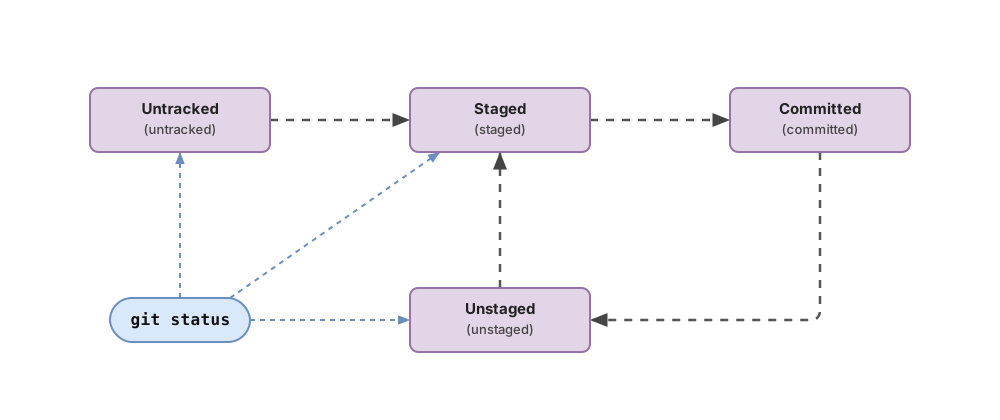
The most common source of confusion is thinking git add saves the file. It doesn’t save it permanently. It only moves it to that waiting room. If you want the details on how a file moves from one state to another, you’ll find them in git add, commit, and push explained. Here are the three states at a glance:
| State | What it means | How it shows up in git status | Command that moves it to the next state |
|---|---|---|---|
| Untracked | Git doesn’t track it yet | Under “Untracked files:”, or ?? in short format | git add moves it to staged |
| Unstaged (modified) | Git tracks it and it has unstaged changes | Under “Changes not staged for commit:”, or M in the second column | git add moves it to staged |
| Staged | Its changes will go into the next commit | Under “Changes to be committed:”, or M/A in the first column | git commit saves it to history |
With these three names in mind, the full output stops being a wall of text.
How do you read the output section by section?
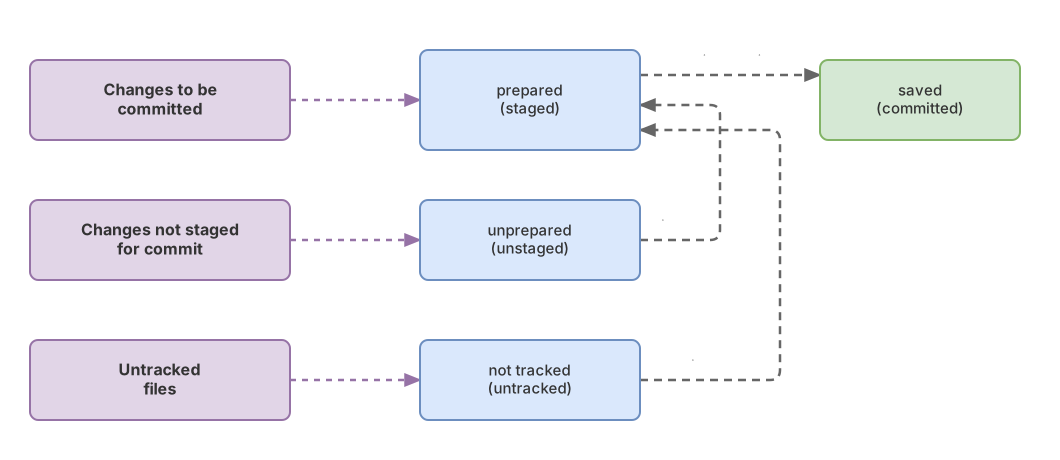
The output is split into the branch line and then one section for each state that has files. Each section lists the files and, in parentheses, Git itself suggests the command to act on them. Take a look at a repo with all three states at once:
On branch main
Changes to be committed:
  (use "git restore --staged <file>..." to unstage)
	new file:   estilos.css

Changes not staged for commit:
  (use "git add <file>..." to update what will be committed)
  (use "git restore <file>..." to discard changes in working directory)
	modified:   README.md

Untracked files:
  (use "git add <file>..." to include in what will be committed)
	notas.txt
Let’s go top to bottom. The first line, On branch main, tells you which branch you’re on (I’ll come back to it in the next section).
Next comes Changes to be committed:. Everything that appears here will go into your next commit. In this example it’s estilos.css, marked as new file because it’s a new file you already staged with git add. In the terminal this section shows up in green. If you see something here, git commit will save it.
Then Changes not staged for commit:. These are files Git already tracks and that you’ve modified, but whose changes you haven’t staged. Here README.md shows up as modified. This section shows up in red, and that red scares a lot of people. It’s not an error: it just means “there are changes Git sees but that aren’t going to ride along in the commit yet”. If you want them in, run git add README.md.
Finally Untracked files:. Files that exist in your folder but that Git knows nothing about, like notas.txt. This is where most people trip up: you make a commit, assume everything got saved, and weeks later discover the new file never made it in because it was still untracked. Git was telling you the whole time. If you want to include it, git add notas.txt turns it into a staged file.
Notice that each section carries its own hint in parentheses. Git literally tells you which command to use. Reading those hints is half the job.
What does the branch line mean: ahead, behind, and up to date?
The first line always shows your branch, and it’s often followed by a second line comparing your local copy with the remote server. When your branch is in sync with the remote, you’ll see this:
On branch main
Your branch is up to date with 'origin/main'.

nothing to commit, working tree clean
Your branch is up to date with 'origin/main'. means your local branch has exactly the same commits as the one on the server (origin is the default name for the remote). You don’t owe anything, you’re not missing anything.
When you make commits locally but haven’t pushed them yet, your branch is ahead:
On branch main
Your branch is ahead of 'origin/main' by 2 commits.
  (use "git push" to publish your local commits)

nothing to commit, working tree clean
ahead of 'origin/main' by 2 commits means you have two commits saved on your machine that the server doesn’t know about yet. Git itself suggests the fix: git push to publish them.
The opposite case is when the server has commits you don’t. For example, a teammate pushed changes:
On branch main
Your branch is behind 'origin/main' by 1 commit, and can be fast-forwarded.
  (use "git pull" to update your local branch)

nothing to commit, working tree clean
behind 'origin/main' by 1 commit means you’re missing one commit that’s already on the remote. git pull brings it down to your local copy. This line is your reminder of when to push and when to pull, without having to guess.
The clean case: nothing to commit, working tree clean
nothing to commit, working tree clean is the phrase you want to see: there’s no pending change and your entire directory matches the last commit. You’ve already seen it show up in the previous examples, right below the branch line.
The working tree is simply the folder of files you’re working with right now. Being “clean” means there’s no difference between what’s in front of you and what you saved in your last commit. There’s nothing modified, no new untracked files, and no half-done changes.
It’s the goal after every commit. If you just saved your work and git status tells you this, you can rest assured you haven’t left anything out. It’s a good moment to push, or to switch branches without dragging loose changes along. And if you want to review what you’ve saved so far, the next command worth mastering is git log to view the history.
git status -s: the short version once you already get it
git status -s (or git status --short) shows the same information compressed into one line per file, using two columns of codes. Once you know how to read the long version, this one saves you time. The same mixed repo from before looks like this:
 M README.md
A  estilos.css
?? notas.txt
Look at the two columns on the left, the XY position. The first column (X) is the state in the staging area (staged); the second column (Y) is the state in your working tree (unstaged). The most common codes are M for modified, A for added, D for deleted, and ?? for untracked [1].
Read it column by column. In M README.md the first position is blank and the M is in the second: the file is modified but not staged. In A estilos.css the A is in the first column: it’s a new file already staged for the commit. And ?? marks notas.txt as untracked. It’s exactly the same information as the long output, just in three lines instead of fifteen.
Common mistakes when reading git status
- Confusing “staged” with “committed” (the waiting room from earlier): if you switch branches without running
git commit, those changes stay staged but outside the history. Confirm it withgit log --oneline: if your change doesn’t show up in the list, it isn’t saved yet. - Getting scared by the red in “Changes not staged for commit”: it only marks changes you haven’t staged yet, and it disappears as soon as you run
git add. Rungit statusagain and you’ll see those files move into the green section. - Ignoring the untracked section: a file under “Untracked files:” doesn’t ride along in the commit no matter how many times you run
git commit. Every time you create a new file, rungit statusand check it before considering the commit done.
Checklist for reading any git status output
- Check the branch line first: know which branch you’re on
- Check whether it says up to date, ahead, or behind, to know if it’s time to push or pull
- Review “Changes to be committed”: that’s what’s going into the next commit
- Review “Changes not staged for commit” and decide what to stage with git add
- Review “Untracked files” so you don’t leave any new file out
- Confirm you reach “nothing to commit, working tree clean” after the commit
Practice this until it becomes second nature
Reading git status at a glance is one of those skills that only settles in by repeating it with a repo in front of you. If you want to practice it step by step, with guided exercises that show you different outputs and ask you to decide what to do, we work through it in depth in the Git from Zero to Professional course.
Sources
- Official Git documentation: git status. Short-format codes (XY columns: M, A, D, ??). The exact section names in the long format (“Changes to be committed:”, “Changes not staged for commit:”, “Untracked files:”) are confirmed by running
git status.
Frequently Asked Questions
Does git status modify anything in my repository?
No. git status is a read-only command: it only reports the current state and doesn’t change files, doesn’t stage anything, and doesn’t create commits. You can run it as many times as you want with zero risk.
What’s the difference between staged and committed?
Staged means a change is ready for the next commit, waiting in the staging area after a git add. Committed means it’s already saved to the repository’s history after a git commit. Staging doesn’t save permanently: it’s the step before that. A staged file can still end up outside the history if you never run the commit.
Why doesn’t my new file show up in the commit?
Almost always because the file was untracked and you never staged it. Git doesn’t include new files in a commit automatically: they show up under “Untracked files:” until you run git add filename. If you commit without that step, the file stays in your folder but outside the history.
What does “ahead of origin” mean?
It means you have commits in your local copy that aren’t on the remote server yet. The line Your branch is ahead of 'origin/main' by N commits tells you how many commits you have pending to send. They’re resolved with git push.
What is the working tree?
The working tree is the folder of files you’re working with right now. When git status says “working tree clean”, it means there’s no difference between those files and your last commit. It’s a snapshot of your folder compared against the last saved commit.
Related articles
Git from scratch: what it is, why it exists, and how to make your first commit
Git is a mental model before it's a list of commands you memorize. This guide covers everything from the why to your first commit, assuming zero prior knowledge.

git add, commit, and push: Git's basic workflow explained
What git add, git commit, and git push actually do, and why they're three separate steps: a change's journey through Git's four areas, explained from scratch.

git log: how to view and navigate your commit history
Learn to read your commit history with git log: the anatomy of a commit, the --oneline view, what HEAD is, and how to exit the pager without panicking.