
Permission denied (publickey) on GitHub: how to fix it
If GitHub rejects you with Permission denied (publickey), here are the four checks in order to fix it in minutes.

You run git push, expecting to watch your commits go up, and instead the terminal spits this at you:
git@github.com: Permission denied (publickey).
fatal: Could not read from remote repository.
Your first thought is that your password is wrong. It isn’t. SSH doesn’t use your account password at all: GitHub expected you to present a cryptographic key, and none of the ones your machine offered was recognized. The good news is it’s almost always one of four things, and you can check them in order in a couple of minutes. Let’s go through them. If you also want the full picture of how to collaborate on repositories with other people, you’ll find it in the guide to working as a team with Git and GitHub.
What does “Permission denied (publickey)” mean?
It means GitHub asked for public-key authentication and the connection didn’t offer any valid key. Nothing more. It doesn’t mean your username doesn’t exist, or that you typed the repository wrong, or that you lost permissions on it.
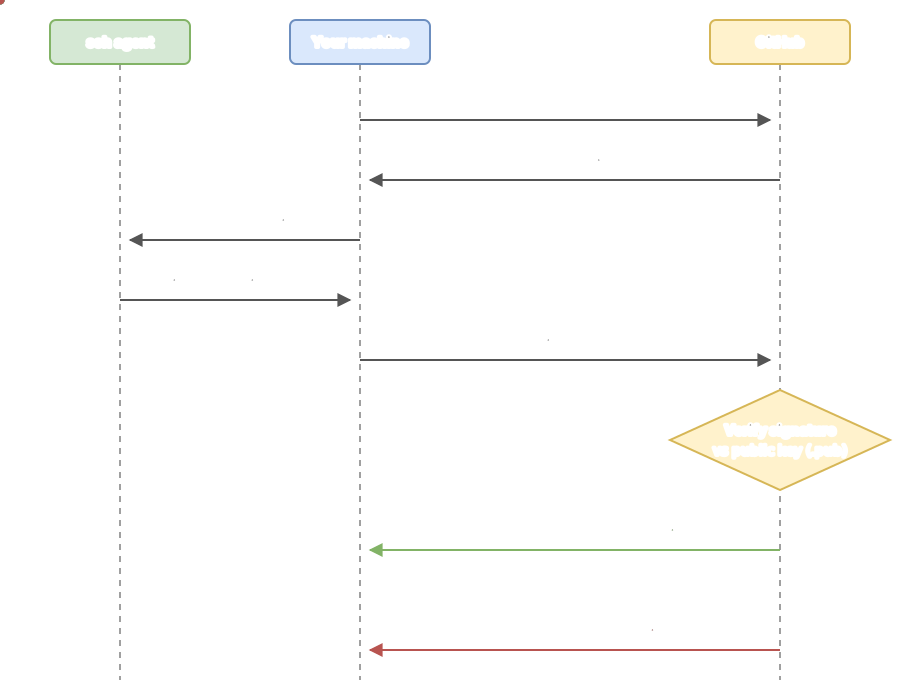
It’s worth understanding the mechanics, because each check below targets one link in this chain. SSH uses a key pair: a private key that lives on your computer and never leaves it, and a public key that you can hand out freely. When you connect, GitHub throws you a challenge that only your private key can solve, and it checks the response against the public key you registered with it. If your machine doesn’t offer any private key, or the one it offers doesn’t match any public key registered on your account, GitHub closes the door with that Permission denied (publickey).
So the error doesn’t mean you’re being rejected, but that GitHub hasn’t recognized your key. And for GitHub to recognize you, four conditions have to be met at once.
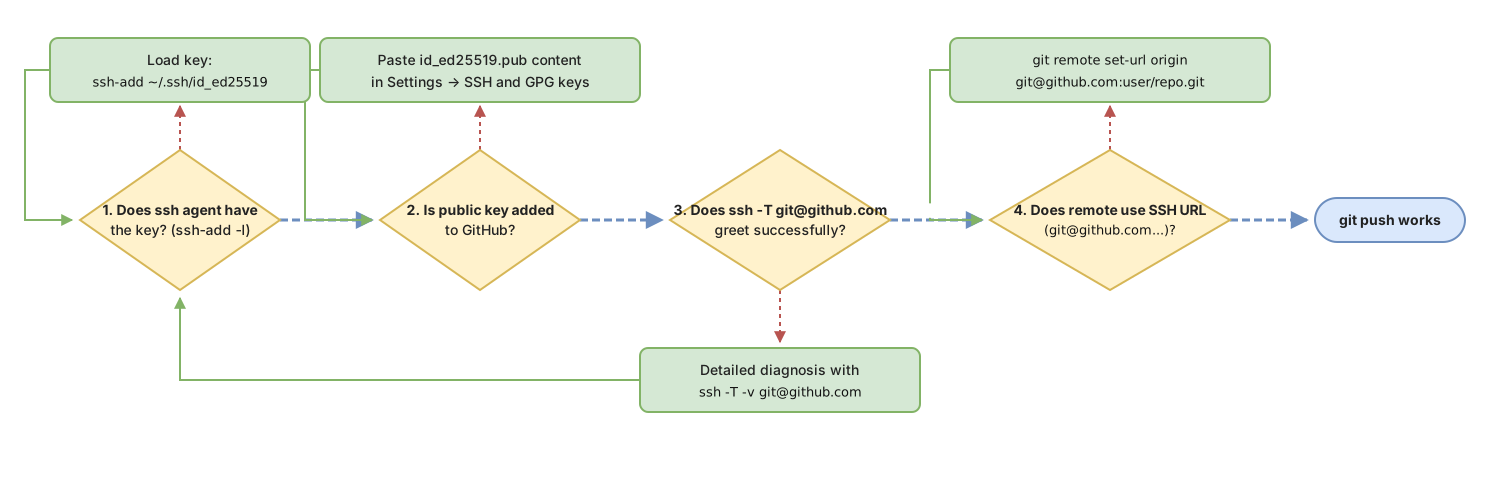
Check 1: does the ssh agent have your key loaded?
Start by asking the ssh agent what keys it has available. The ssh agent is a small process that keeps your decrypted private keys in memory so you don’t have to type your passphrase on every connection. If the key isn’t there, SSH has nothing to offer GitHub.
ssh-add -lIt can respond with two things. If the agent has your key, you’ll see a line with the fingerprint:
256 SHA256:aBcD3fGhIjKlMnOpQrStUvWxYz1234567890abcdEFGh tu_correo@ejemplo.com (ED25519)If the agent is empty, you’ll see exactly this:
The agent has no identities.That’s the most common case when the push fails right after opening a new terminal. The key exists on disk, but the agent hasn’t loaded it. Fix it by adding it:
ssh-add ~/.ssh/id_ed25519id_ed25519 is the default name for Ed25519 keys, the type GitHub recommends for new keys. If running ssh-add ~/.ssh/id_ed25519 gives you No such file or directory, your key isn’t there or has a different name, and the problem shifts to the key itself, which doesn’t exist yet. In that case, head to the guide to setting up SSH with GitHub from scratch, which walks through generating it.
Run ssh-add -l again. If the fingerprint shows up now, the first link is solved. Having the key in the agent doesn’t guarantee GitHub will accept it, though: you still need to check that public key is registered on your account.
Check 2: is your public key registered on GitHub?
GitHub only recognizes public keys you’ve uploaded to your account. Even if the agent has the private key perfectly loaded, if the matching public key isn’t on GitHub, the cryptographic challenge doesn’t add up and you’re back to the same error.
Print the contents of your public key:
cat ~/.ssh/id_ed25519.pubYou’ll see a single line shaped like this:
ssh-ed25519 AAAAC3NzaC1lZDI1NTE5AAAAI... tu_correo@ejemplo.comNotice the .pub at the end of the filename. That’s the file that goes to GitHub. On the website, go to Settings → SSH and GPG keys → New SSH key, paste that entire line in, give it a title that tells you which machine it’s from (for example “Work laptop”), and save.
A warning that sounds obvious but that people skip in a hurry: only paste the .pub file. The other file, the one with no extension (~/.ssh/id_ed25519 on its own), is your private key and it’s never shared with anyone or uploaded anywhere. If you paste it into GitHub, on top of it not working, you’re publishing the secret that identifies you.
With the key loaded in the agent and registered on GitHub, you now have both ends connected. Time to check they actually shake hands.
Check 3: what does ssh -T git@github.com say?
This command tests SSH authentication against GitHub without touching any repository. It’s the cleanest way to know if your key works, isolated from any mess with the remote.
ssh -T git@github.comThe first time you connect it will ask if you trust the host:
The authenticity of host 'github.com (140.82.121.4)' can't be established.
ED25519 key fingerprint is SHA256:+DiY3wvvV6TuJJhbpZisF/zLDA0zPMSvHdkr4UvCOqU.
Are you sure you want to continue connecting (yes/no/[fingerprint])?
Type yes. If everything’s in order, GitHub greets you like this:
Hi usuario! You've successfully authenticated, but GitHub does not provide shell access.This is where a lot of people get spooked for no reason. That does not provide shell access confirms the authentication was perfect; it’s just telling you GitHub doesn’t give you a remote console. Seeing that message is exactly the result you were after [1]. If you see it, your key is fine, and if the problem persists, it’s in the repository’s remote.
If instead it returns Permission denied (publickey) again, something in checks 1 or 2 didn’t land right. To see which key your machine is offering and why it’s being rejected, repeat with verbose mode:
ssh -T -v git@github.comThe Offering public key: lines tell you which keys it tries, and Authentications that can continue: publickey followed by a rejection confirms the one it’s offering isn’t registered on your account. It’s the fine-grained diagnostic tool for when the basics aren’t enough.
Check 4: does the remote use SSH or HTTPS?
Here’s the failure that trips people up the most, because your key can be perfectly fine and the push will still fail. The reason: the repository isn’t configured to talk over SSH. Check what URL your remote has:
git remote -vIf you see something like this, your remote is HTTPS and SSH doesn’t even come into play:
origin  https://github.com/usuario/repo.git (fetch)
origin  https://github.com/usuario/repo.git (push)
Switching it to SSH is a single command:
git remote set-url origin git@github.com:usuario/repo.gitRun git remote -v again and check that the URL now starts with git@github.com:. The difference between the two forms is fundamental: each one authenticates in a different way:
| Aspect | SSH URL | HTTPS URL |
|---|---|---|
| Form | git@github.com:usuario/repo.git | https://github.com/usuario/repo.git |
| How it authenticates | Key pair: your private key signs the challenge and GitHub validates it against your .pub | Personal access token stored in the credential manager |
| What it asks you for | Nothing, if the agent has the key loaded | Username and token the first time (GitHub no longer accepts account passwords) |
| Symptom if you have the wrong URL | Permission denied (publickey) when the key is missing or doesn’t match | Asks for username and password, or the token fails |
That same error also shows up when cloning. If you try git clone git@github.com:usuario/repo.git without the key ready, GitHub cuts you off with the same Permission denied (publickey) before downloading anything; the diagnosis is identical to what we covered here, and it’s laid out in the guide to cloning a Git repository.
Mistakes we all repeat
The four steps above solve most cases. These are the specific stumbles that make them stick around.
Pasting the private key into GitHub
It’s the most dangerous one. In a hurry, you open ~/.ssh/id_ed25519 instead of id_ed25519.pub, copy its contents, and paste it into Settings. Not only does it not work (GitHub expects a public key, not a private one): you’ve just exposed the secret that identifies you. If this has happened to you, delete that key, generate a new pair, and upload only the .pub. The rule is simple: only the file ending in .pub goes to GitHub.
Expecting SSH to fix an HTTPS remote
You can load the key in the agent, register it on GitHub, and see the success greeting in ssh -T, and the push will still fail if the remote is https://. SSH and HTTPS are two separate paths. All the SSH configuration in the world won’t touch a remote that points to HTTPS. That’s why check 4 isn’t optional.
The key is named differently than you think
Old RSA keys were called id_rsa; today’s Ed25519 keys are id_ed25519. If you generated the key a while back, or gave it a custom name, ssh-add ~/.ssh/id_ed25519 points to a file that doesn’t exist. List what you actually have with ls ~/.ssh/ and add the correct name.
Generating the key and not finishing the job
Creating the key with ssh-keygen is only the first step. A freshly generated key isn’t in the agent or on GitHub until you add it to both places. It’s the number-one cause of the error for people who “already set up SSH”: they set it up halfway.
Mistaking the success message for a failure
We already covered this, but it comes up so often it deserves its own spot on the list. You've successfully authenticated, but GitHub does not provide shell access. is the message you want to see. The word that throws people off is “but”, but what follows just describes how GitHub works.
Quick recap
Next time you hit the error, walk through this top to bottom and you’ll know exactly which link is broken:
-
ssh-add -lshows your key’s fingerprint and notThe agent has no identities. - You’ve run
ssh-add ~/.ssh/id_ed25519if the agent was empty - The contents of
~/.ssh/id_ed25519.pubare pasted into Settings → SSH and GPG keys - You’ve never pasted the file without
.pub(the private key) into GitHub -
ssh -T git@github.comresponds with the greetingHi usuario! You've successfully authenticated... -
git remote -vshows a URL that starts withgit@github.com:and nothttps://
With these six boxes checked, git push goes through. If it still doesn’t, ssh -T -v git@github.com tells you exactly which key your machine is offering and why it’s being rejected.
This error tends to show up right when you start working seriously with remote repositories as a team. If that’s you, and you want to stop fighting Git by copying commands from Stack Overflow, in the Git from Zero to Professional course we walk through the whole flow, from your first commit to working confidently with branches and pull requests.
Sources
- Testing your SSH connection (GitHub Docs). Literal text of the success greeting for
ssh -T git@github.comand the message about shell access.
Frequently Asked Questions
Does “Permission denied” mean my GitHub password is wrong?
No. Your account password is never involved in an SSH connection: that error means GitHub didn’t recognize any valid cryptographic key, so the problem is with your key or the remote’s URL, never with your web credentials.
Do I need to regenerate the key from scratch?
Almost never. Regenerating the key is the last thing you should do, not the first. Most of the time the key is fine and the only thing wrong is that the agent doesn’t have it loaded, it’s not registered on GitHub, or the remote points to HTTPS. Run through the four checks before you touch ssh-keygen.
Why did it work yesterday and now I get the error?
The most common reason is that the ssh agent restarted along with your machine and lost the key it had in memory. A quick ssh-add -l confirms it in a second. If it responds:
The agent has no identities.add it again with ssh-add ~/.ssh/id_ed25519. If you want the key to load itself on every boot, that’s configured in the ~/.ssh/config file; on macOS that’s usually enough, but on Linux you also need something to start and persist the agent at login. The step-by-step is covered in the SSH setup guide.
SSH or HTTPS, which should I use?
For everyday work from your own machine, SSH is more convenient: once set up, it never asks for credentials again. HTTPS fits better in environments where you can’t leave a private key stored, like some continuous-integration servers. If you’re just getting started and want the recommended step-by-step flow, you’ll find it in the guide to setting up SSH with GitHub.
Related articles
Working as a Team with Git and GitHub: Remotes, PRs, and Code Review
From a local commit to a shared repo: the distributed model, remotes, the push/pull/fetch cycle, Pull Requests, and code review, without stepping on anyone else's work.

SSH key for GitHub: set it up once and forget about tokens
Set up your SSH key for GitHub with ssh-keygen and ed25519: generate it, load it into the ssh-agent, upload it, and stop pasting a token on every push.

git clone: How to Clone a GitHub Repository Step by Step
What git clone actually does: it copies the project, its history, and sets up origin. HTTPS vs SSH, clone vs init, and the most common errors.