
Fork vs Clone in Git: When to Use Each One
A clone is a local copy; a fork lives in your GitHub account. When to use each one, and the flow for contributing to someone else's project.

You clone an open source repository, fix a bug that had been bothering you, run git push, and Git spits back a remote: Permission denied. Your first thought is that you typed your credentials wrong. Nope. That repository isn’t yours, and that error is exactly where fork and clone stop sounding like the same thing. If you’ve been cloning repos without thinking twice about it, this is the moment the word “fork” starts to mean something.
What Is a Clone, and Where Does That Copy Live?
A clone is a complete copy of the repository downloaded to your machine. When you run git clone, Git pulls down the entire history, every branch, and every commit, and leaves you a directory you can work in offline. If you want to go deeper on this step, I break it down in cloning a Git repository.
git clone https://github.com/usuario/proyecto.gitThat copy isn’t isolated. Git keeps a reference to the place you downloaded it from, and by convention calls it origin. That’s the link between your local copy and the remote repository. You can see it like this:
git remote -v
# origin  https://github.com/usuario/proyecto.git (fetch)
# origin  https://github.com/usuario/proyecto.git (push)
When you run git push, Git tries to upload your commits to that origin. And here’s the detail almost nobody explains on day one: being able to download a repository doesn’t mean you can push changes to it. Reading and writing are different permissions.
What Is a Fork, and How Is It Different?
A fork is a copy of the entire repository inside your own GitHub account. In practice, it’s a new repository that shares the code and full history with the original, but that belongs to you: it lives under your username, and you have write access to it.
The important distinction is who creates it and where. git clone is a Git command that downloads a copy to your machine. You create a fork by clicking a button in GitHub’s interface (or GitLab’s, or whatever platform you’re using). There’s no git fork command in the terminal, because Git, the tool, knows nothing about user accounts or platforms. The concept of a fork lives in GitHub, not in Git.
So a fork and a clone operate on different planes. The fork is a remote repository in the cloud, yours. The clone is the working copy you download to your laptop. In the normal flow for contributing to someone else’s project, you use both, one after the other.
Why Cloning Isn’t Enough to Contribute to Someone Else’s Repository
Cloning the original repository lets you look, but not touch. The moment you try to send your changes back to someone else’s project, Git stops you with a very specific error:
git push origin main
# remote: Permission to original/proyecto.git denied to tu-usuario.
# fatal: unable to access 'https://github.com/original/proyecto.git/':
# The requested URL returned error: 403
That 403 has nothing to do with your network or your keys. What GitHub is telling you is that you’re not on the list of people with write access to original/proyecto. And it makes complete sense: if anyone who clones a popular project could rewrite its main branch, open source would last about an afternoon.
The first time I tried to fix a typo in the documentation of a library I was using, I ran straight into this same 403. Cloning is the right path for your code and for your team’s code when you have access. For code owned by a stranger on the internet, you need something in between that actually belongs to you. That something is the fork.
Contributing to a project has two paths depending on who owns the repository: if you have direct access, you clone it and work on branches; if you don’t, you go through a fork. I cover both paths, with their roles and permissions, in full in the guide to working as a team with Git and GitHub. Here we’ll focus on the second one.
The Full Flow: Fork, Clone, Branch, and Pull Request
The pattern for contributing to someone else’s project is four chained moves: you fork it, clone your fork, work on a branch, and open a pull request. Let’s go through them one at a time.
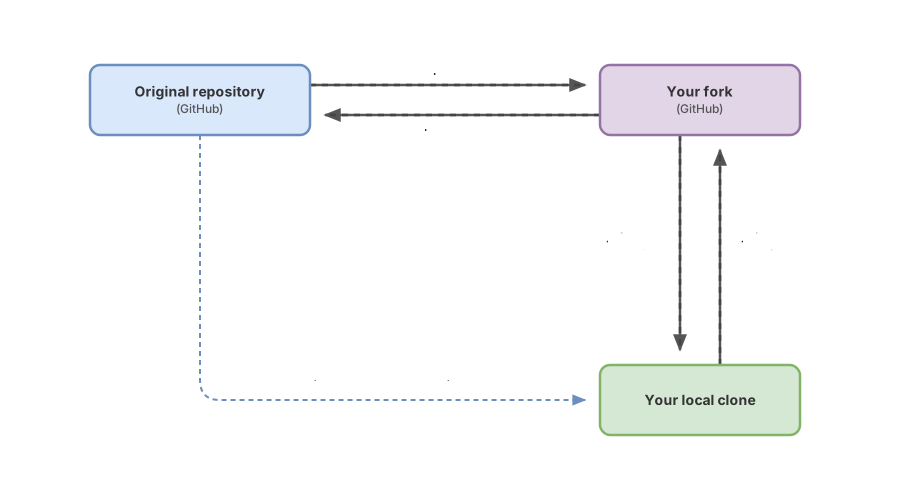
First, the fork. You go to the original project’s page on GitHub and click “Fork”. Within seconds you have https://github.com/tu-usuario/proyecto in your account, with write access of your own.
Second, you clone your fork, not the original. This is the step where most people get it wrong:
# Clone YOUR fork (tu-usuario), not the original repository
git clone https://github.com/tu-usuario/proyecto.git
cd proyecto
Third, you create a branch for your change. Never work directly on main. One branch per change keeps your work isolated and makes the pull request clean:
# Create the branch and switch to it in one step
git switch -c arregla-typo-readme

# ...edit the files, check with git status...
git add README.md
git commit -m "Corrige una errata en el README"
git switch -c creates the branch and switches you to it in one step. It’s the recommended way today: git switch has been available since Git 2.23, and the official docs no longer mark it as experimental. A heads-up about commits: git commit -a only stages files Git already knows about. If you’ve created a new file, you have to git add it by hand, because -a doesn’t touch anything that isn’t tracked yet.
Fourth, you push the branch to your fork:
git push origin arregla-typo-readmeSince origin points to your fork, there’s no 403 here: you have write access to your own copy. The commit now lives in the cloud, in your account.
The last step happens on the web. You go to your fork on GitHub and you’ll see a button to open a pull request from your branch to the original repository. That pull request is the formal request of “hey, I made this change, do you want it in your project?” The owner of the original reviews it, comments if needed, and decides whether to merge it. The pull request is the bridge between your fork and the destination project, and it’s where the journey of the code you wrote ends. If you’ve never opened one, in what is a pull request I walk through step by step how it’s created and what to expect from the review.
Before moving on, try ordering the flow yourself. This exercise challenges you to place fork, clone, branch, push, and pull request in the right order:
Loading exercise...
What Is upstream, and Why Do You Need It?
upstream is a second remote that points to the original repository, so you can pull its updates into your fork. And you need it because a fork doesn’t update itself. The moment you create it, it’s a snapshot of the original; if the project moves forward tomorrow, your fork stays stuck on today’s version until you bring it up to date.
Remember that in your clone, origin points to your fork. You need to add the original under a different name:
# Add the original repository as a remote called upstream
git remote add upstream https://github.com/original/proyecto.git

git remote -v
# origin    https://github.com/tu-usuario/proyecto.git (fetch)
# origin    https://github.com/tu-usuario/proyecto.git (push)
# upstream  https://github.com/original/proyecto.git (fetch)
# upstream  https://github.com/original/proyecto.git (push)
With upstream configured, catching up means pulling in its changes and merging them into your branch:
# Download the new commits from the original
git fetch upstream

# Switch to your main and merge what the original has moved forward
git switch main
git merge upstream/main
If you start your branch from an up-to-date main, your pull request won’t drag in silly conflicts with changes the project already had. GitHub also offers a “Sync fork” button in the interface that does the equivalent without touching the terminal, useful when you just want to align your main without pulling anything down to your laptop.
When to Use Clone and When to Use Fork?
The short rule: if you have write access to the repository, you clone it; if you don’t, you fork it and then clone your fork. The question that decides isn’t technical, it’s about permissions.
| Clone | Fork | |
|---|---|---|
| Where the copy lives | On your local machine | In your GitHub account (in the cloud) |
| Who has write access | Only if you had it on the original remote | You, always, over your fork |
| Git command or GitHub action? | Command: git clone | GitHub action (a button), there’s no git fork |
| What it’s for | Working on a repository within your team | Contributing to someone else’s project without access |
| How it’s created | git clone <url> in the terminal | ”Fork” button on the project’s web page |
Bringing it down to concrete scenarios:
| Scenario | What you do |
|---|---|
| It’s your own repository | You clone it and work directly; you’re already the owner |
| Your team’s repository, with write access | You clone it and work on branches; no fork needed |
| Someone else’s repository without access (open source) | You fork, clone your fork, branch, push, and pull request |
| You just want to read or try out the code locally | You clone it, that’s it; no fork, no push |
Fork and clone don’t compete with each other. In the open source flow you use them together: the fork gives you a repository where you can actually write, and the clone brings that fork down to your machine so you can work.
Common Mistakes When Starting Out with Forks
Cloning the original and running into the 403. It’s the classic one. You clone original/proyecto, make your change, try to push, and the Permission denied shows up. The fix isn’t fighting with your credentials: you fork first and clone your fork.
Forking but cloning the wrong URL. You fork correctly and then, out of habit, clone the original’s URL instead of your fork’s. Everything seems fine until you push and hit the 403 again, or worse, you keep working convinced your commits are landing in your copy when you’re not even connected to it. Always check with git remote -v that your origin is tu-usuario/proyecto.
Working on your fork’s main. It technically works, but it complicates your life. If you make your changes on main and then want to sync with the original, your commits and theirs collide on the same branch. One branch per change keeps main clean and sync-friendly.
Forgetting upstream and ending up with a fossil fork. Nobody warns you that your fork has fallen behind. Weeks later you try to contribute on top of an old base, and the pull request arrives full of conflicts. The fork doesn’t update itself when the original moves forward; you have to sync it by hand or with the “Sync fork” button.
Checklist for Contributing to Someone Else’s Project
- You’ve forked the project on GitHub before cloning
- You’ve cloned your fork’s URL (
tu-usuario/...), not the original’s -
git remote -vshowsoriginpointing to your fork - You’re working on a branch created with
git switch -c, not onmain - You’ve added
upstreampointing to the original repository - Your branch starts from a
mainsynced withgit fetch upstream - You open the pull request from your branch to the original repository
Practice the Full Flow
Reading through the flow once isn’t the same as having it in your fingers. In the course Git from Zero to Professional you run the entire cycle yourself, fork, clone, branch, and pull request, on real repositories with instant corrections, until contributing to someone else’s project stops feeling intimidating.
Frequently Asked Questions
Is a Fork the Same as a Branch?
No. A branch lives inside a single repository and is used to separate lines of work. A fork is an entire separate repository, in your account, with its own permissions. In fact, inside your fork you’ll create branches just like in any other repository.
What’s the Practical Difference Between Fork and Clone If I Just Want to Read the Code?
If you just want to read or run the project locally, a clone is all you need; the fork doesn’t add anything in that case. The fork only becomes necessary once you want to send changes back to a project where you don’t have write access.
Can I Fork a Private Repository?
Yes, as long as you have access to that private repository and the repository (or the owning organization) has forking enabled, since it can be disabled by policy. The fork, clone, branch, and pull request flow is identical; the only thing that changes is that the repository and your fork aren’t public.
How Do I Keep My Fork Up to Date with the Original?
You add the original as the upstream remote with git remote add upstream <url>, pull its changes with git fetch upstream, and merge them into your branch with git merge upstream/main. If you’d rather not touch the terminal, GitHub’s “Sync fork” button aligns your main with the original right from the web.
Do I Need to Fork If I Have Write Access to My Team’s Repo?
No. If you already have write access, the fork is unnecessary: you clone the repository directly and work on branches, which is the normal flow within a team. The fork is the path for when you don’t have that access.
Can You Clone a Fork on Multiple Machines?
Yes. Your fork is a remote repository on GitHub, so you can clone it on your laptop, on your home computer, wherever you want. Each clone is an independent local copy; they all push to the same fork with git push origin.
Related articles
Working as a Team with Git and GitHub: Remotes, PRs, and Code Review
From a local commit to a shared repo: the distributed model, remotes, the push/pull/fetch cycle, Pull Requests, and code review, without stepping on anyone else's work.
git clone: How to Clone a GitHub Repository Step by Step
What git clone actually does: it copies the project, its history, and sets up origin. HTTPS vs SSH, clone vs init, and the most common errors.

What Is a Pull Request and How to Open Your First One
A pull request is the proposal to merge your branch that GitHub or GitLab add on top of Git. Learn what it is and how to open yours step by step.