
Git Rebase Explained: What It Does and When to Use It
Git rebase replays your commits onto a new base. What it does, when to use it instead of merge, and the golden rule for not breaking your team's history.

You finish your feature branch, run git merge main to catch up, and a commit shows up that you never wrote: “Merge branch ‘main’ into feature”. It adds nothing. It just clutters the history. A teammate looks at your pull request and drops a “do this with rebase instead.” And that’s where the doubt kicks in, because git rebase has a reputation as dangerous magic that can break your repo. Let’s demystify it: what it actually does to your commits, when it’s worth using instead of merge, and the one rule you can’t skip.
What does git rebase actually do?
git rebase takes the commits on your branch and reapplies them, one after another, onto a different base. The key word is reapply. Git doesn’t drag your commits around like moving a box: it replays them from scratch on top of the new base, and in doing so generates new commits with new hashes[1].
That detail is what trips everyone up at first. You see “the same commits,” with the same message and the same changes, but to git they’re different ones. A commit’s hash is computed from its content, its parent, and metadata like the author and date. When you change the parent (they now hang off the latest state of main instead of the old one), the hash changes. Your original commits don’t get deleted right away: they sit in the reflog for a while, orphaned, until git garbage-collects them. What you see on your branch are copies.
Think of it like rewriting the last page of a notebook in clean copy. The text is the same, but it’s a new sheet. The old one is still around, torn out, until you throw it away.
Rebase step by step: the typical flow
The most common use case fits in two lines: you put your branch on top of the latest version of main without generating a merge commit.
# You're on your feature branch and want to catch it up with main
git switch feature
git rebase main
# Successfully rebased and updated refs/heads/feature.
git switch is the modern, stable way to switch branches. The “experimental” warning you might remember doesn’t apply anymore: today it’s a stable, recommended command[2], so you can use it with full confidence instead of the old git checkout.
And what does “replayed onto another base” mean when you look at the hashes? This makes it clear:
# Before the rebase: your commits hang off an outdated main
git log --oneline
# 9c4f1a2 (feature) validate the email on signup
# 3e7b8d0 build the signup form

# After git rebase main: same changes, new hashes
git log --oneline
# a1f92c7 (feature) validate the email on signup
# b6d0e34 build the signup form
Same work, same description, different identifiers. That’s the entire mechanic. Everything else (when to do it, when not to) falls out of understanding this consequence.
How is it different from a merge?
A merge joins two branches by creating an extra commit with two parents; a rebase avoids that extra commit by rewriting your commits on top of the other branch. The result looks different in the history. With merge, git log keeps the real fork: here I branched off main, here I worked, here I merged back in. With rebase, the line stays straight, as if you’d started your feature right from the latest commit on main.
git merge main | git rebase main | |
|---|---|---|
| Resulting history | Branched, with the fork visible | Linear, no fork |
| Merge commit | Yes, one extra with two parents | None |
| Hashes of your commits | Intact, the original ones | New, rewritten |
| When it fits | Integrating branches already shared, without touching their history | Cleaning up your local branch before integrating it |
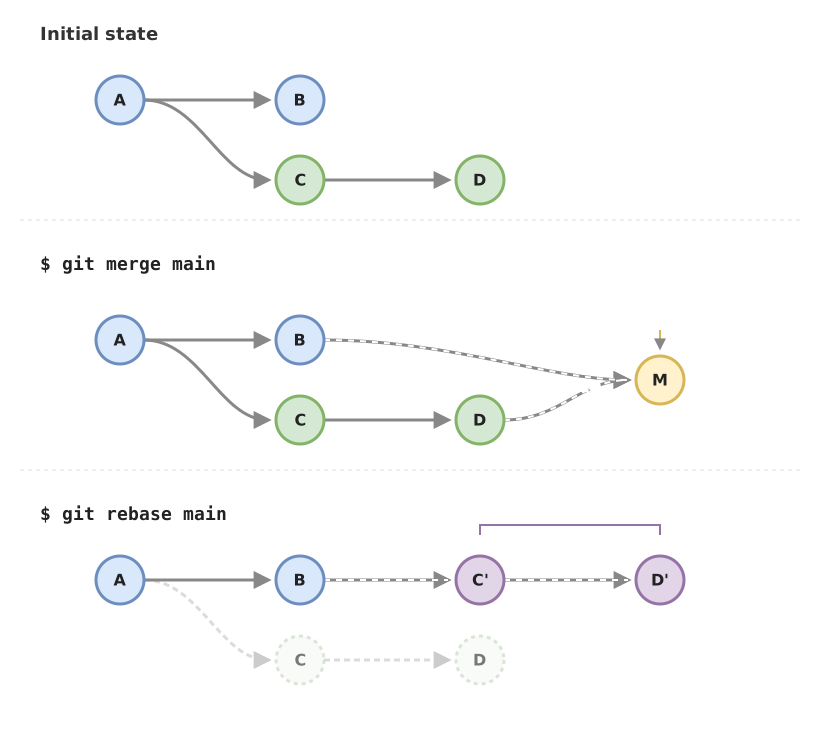
Neither one is “better” in the abstract. Merge preserves the real context of when you integrated something, and that matters sometimes. Rebase gives you a history that’s easier to read, and that matters more other times. If you want the deep-dive comparison between the two strategies, you’ll find it in the post about the in-depth comparison between merge and rebase. And if you’re still missing the basics of why we integrate branches and how all of this fits together, start with the complete guide to Git branches.
The golden rule: never rewrite shared history
Don’t rebase commits you’ve already pushed to a branch other people use. This is the one rule of rebase that has no exceptions, and understanding why saves you the worst day of your week.
Remember what we said earlier: rebase changes the hashes. When you rewrite commits that only exist on your machine, nothing happens: nobody else has seen them. But if those commits are already on main or on a shared branch, your teammates have the old hashes in their repos. You rewrite them, push, and suddenly everyone’s history stops matching yours. Git’s own documentation says it plainly: rewriting a branch that others have based their work on is a bad idea, because everyone downstream is forced to fix their history by hand[1].
The practical version you can memorize: rebase for what’s yours, what’s local, what hasn’t left your machine yet. For what’s already shared, merge.
What if a conflict shows up during the rebase?
If git can’t cleanly reapply one of your commits onto the new base, it stops at that commit and lets you resolve the conflict by hand. The cycle is the same one you already know from a merge, with two rebase-specific commands at the end:
git switch feature
git rebase main
# CONFLICT (content): Merge conflict in src/auth.ts
# error: could not apply 3e7b8d0... build the signup form

git status              # see which files it stopped on
# open src/auth.ts and resolve the <<<<<<< ======= >>>>>>> markers
git add src/auth.ts     # mark that file as resolved
git rebase --continue   # git resumes the rebase from where it stopped
If the rebase carries several commits, git can stop more than once, one for each conflicting commit. You resolve, git add, git rebase --continue, and repeat until it finishes. It’s not an infinite loop: each stop moves it one step forward.
And if you get overwhelmed and would rather bail out? git rebase --abort cancels everything and returns your branch exactly to how it was before you started, old hashes and no changes[1]. It’s the safety net that makes rebase less scary than it seems. The mechanism for resolving conflict markers is identical to a regular merge, so if that part still trips you up, review it in how to resolve merge conflicts in Git.
So when do I use rebase, and when do I use merge?
Use rebase to clean up your branch before integrating it, and merge to bring together work that’s already shared. Those two cases cover the vast majority of what you’ll run into.
Rebase fits when you want to catch up with main without cluttering your history with a merge commit, or when you’re about to open a pull request and want your commits to hang cleanly off the latest version of main. Merge fits when you’re integrating a branch others have already pulled down, or when you want an explicit record of “this feature was merged here.” Many teams combine both: rebase locally while you work, merge at the end to integrate into the main branch.
If these commands still feel like a foreign language and you’d rather build the mental model of Git from the ground up instead of memorizing loose recipes, this topic is one of the pieces of the Git from Zero to Professional course, where branch flow and integration are practiced step by step.
Common mistakes
Rebasing a branch other people already have
This is the golden rule broken, and it’s worth repeating because it’s the mistake that actually breaks things. You rewrite main or a shared branch, push, and wreck the whole team’s history. Before a rebase, ask yourself one question: has anyone else seen these commits? If the answer is yes, don’t rebase.
Force-pushing blindly with --force
After a rebase, your local hashes don’t match the remote’s, so a normal git push gets rejected and git asks you to force it. This is where a lot of people type git push --force without thinking and stomp on whatever was on the remote, including work someone else pushed in the meantime. Use git push --force-with-lease instead: it only pushes if nobody has touched the branch since your last sync, and if someone did, it stops and warns you[3]. It’s safer than --force, though not a magic guarantee: it still rewrites the remote, so save the force push for your own branches.
Panicking during a conflict
You’re stuck mid-rebase, conflict markers everywhere, and you can’t remember how to get out. git rebase --abort. That’s all you need to get back to your starting point. Write it on a sticky note if you have to.
Thinking rebase “moves” your commits
It doesn’t move them: it creates copies with new hashes and leaves the originals orphaned in the reflog. This matters because it means a rebase is almost never irreversible. If you regret it after finishing, git reflog shows you where your old commits were, and you can get back to them with git reset --hard <hash>.
Checklist before you rebase
- The commits I’m about to rewrite only exist on my machine (nobody else has pulled them)
- I’m on the right branch (
git switch featurebeforegit rebase main) - I know my commit hashes are going to change after the rebase
- If a conflict shows up, I resolve it,
git add, andgit rebase --continue - If I get lost,
git rebase --aborttakes me back to the initial state - When pushing I use
git push --force-with-lease, never--forceblindly
Sources
- Official Git documentation: git-rebase. Semantics of reapplying commits by creating new copies, the
--continue/--abortcycle, and the warning about rewriting history that others have based their work on. - Official Git documentation: git-switch.
git switchas the stable command for switching branches. - Official Git documentation: git-push.
--force-with-leaseas a safer alternative to--forcewhen pushing a rewritten branch.
Frequently Asked Questions
Does rebase delete my commits?
No: it creates copies with new hashes; the originals stay in the reflog for a while.
Can I undo a rebase?
Yes. If you’re in the middle of one, git rebase --abort takes you back to the initial state. If it already finished and you want to go back, use git reflog to find the hash where your branch was before the rebase and git reset --hard <hash> to return to that point.
Rebase or merge to catch up with main?
Rebase if those commits only exist on your local branch, because it leaves you a linear history without a merge commit that adds nothing. Merge if the branch is already shared and rewriting it would affect others. The question that almost always settles it: has anyone else seen these commits anywhere else?
Why does git ask for --force when I push after a rebase?
Because the rebase rewrote your commit hashes, so your local branch and the remote one now have different histories. Git rejects the normal push so you don’t accidentally erase anything. The sensible way to force it is git push --force-with-lease, which only pushes if nobody has touched the remote branch since your last sync.
Related articles

Git Branches: Create, Merge, and Resolve Conflicts Without Panic
What a Git branch really is, how to create one, merge it with git merge, and resolve a conflict step by step. Plus merge vs. rebase without fear.

Merge vs Rebase: Which One to Use and the Rule You Can't Break
Merge vs rebase without dogma: what each one actually does to your history, the golden rule of rebase, and a team workflow you can copy on Monday.
How to Resolve Git Merge Conflicts Without Panicking
Learn to resolve git merge conflicts step by step: what the markers mean, how to choose the right code, and how to abort if something goes wrong.