
How to Use .gitignore: What It Is and What to Ignore in Git
A beginner's guide to using .gitignore: pattern syntax, what to always ignore, and why your .env still shows up even after you added it.

You install the dependencies for your first real project, run git status, and Git suddenly shows you thousands of files you never wrote: the entire node_modules folder. If you push them to the repository, you make one of the most common beginner mistakes, and it has real consequences: repos that weigh hundreds of megabytes, impossible merges, and, in the worst case, a leaked secret key. That’s exactly what .gitignore exists to prevent. I’m assuming you already know how to use git add, git commit, and git push; if you don’t yet, start with the first steps with Git and come back afterward.
What Is a .gitignore File?
.gitignore is a text file you place at the root of your repository that contains a list of patterns. When a file or folder matches one of those patterns, Git skips it when figuring out what’s ready to commit: it won’t show up in git status, and you can’t accidentally add it with git add. It’s the “don’t look here” list you hand Git so it stops bothering you with noise (things that regenerate on their own or that should never leave your machine).
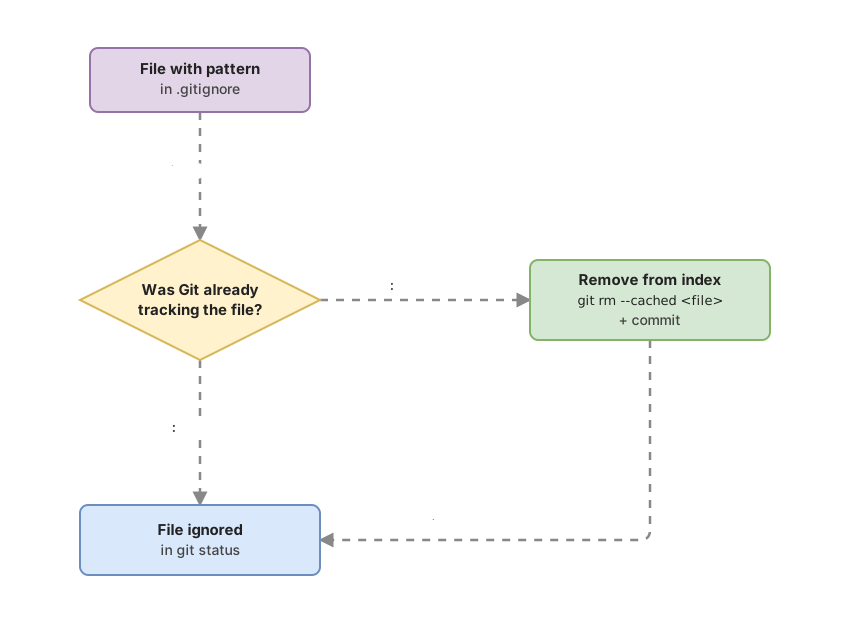
There’s one nuance that’s at the root of almost all the confusion around this tool, and it’s worth stating up front: .gitignore only has an effect on files Git isn’t already tracking [1]. A file that’s already under version control (because at some point you ran git add and committed it) keeps being tracked even after you add it to .gitignore. We’ll come back to this, because it’s where most people get stuck.
How Does .gitignore Syntax Work?
The base rule is simple: one pattern per line. Each line describes what to ignore, and a handful of symbols change how the pattern behaves [1]. These are the ones you’ll use almost every time:
- A plain line (
config.local.js) ignores any file with that exact name. - The asterisk
*is a wildcard that matches anything except the slash/. So*.logignores every file ending in.log. - A trailing slash
/restricts the pattern to directories.build/ignores thebuildfolder and everything inside it, but not a standalone file namedbuild. - A line starting with
#is a comment. Git ignores it entirely; use it to leave notes for your future self. - A leading slash
/anchors the pattern to the root of the repository./config.local.jsonly matches that file if it’s at the root, not an identical one nested in a subfolder. - The
!sign negates a previous pattern: it brings back something an earlier line had excluded.
With that, you can already write a decent .gitignore for a Node project. This one covers the typical cases, commented line by line:
# Dependencies: reinstalled with "npm install", never go in the repo
node_modules/

# Build artifacts: regenerated when you compile
dist/

# Environment variables and secrets: NEVER commit these
.env

# All log files
*.log

# System file macOS creates in every folder
.DS_Store
The negation case deserves its own example, because it’s the one fewest people understand. Imagine you want to ignore every log file except one specific one you actually want to version:
# Ignore all .log files...
*.log
# ...but keep this one under version control
!important.log
Order matters: the ! rule has to come after the pattern that excluded it. And watch out for one Git limitation: if you’ve ignored an entire folder, you can’t bring back a file inside it with !, because Git never even looks inside that folder [1].
To see at a glance how each pattern behaves, this table sums up the examples above:
| Pattern | What it matches |
|---|---|
node_modules/ | The node_modules folder and absolutely everything inside it, wherever it sits in the project |
*.log | Any file ending in .log (error.log, debug.log, npm-debug.log) |
/config.local.js | Only config.local.js at the repo root; a config.local.js inside src/ is not ignored |
build/ | The entire build folder |
!keep.txt | Brings back keep.txt even if an earlier line had ignored it |
What Should You Always Ignore?
There are four categories of files almost no project wants in the repository. Learning them by heart saves you from having to think it through every time.
Dependencies are the first, and the noisiest. In Node that’s the node_modules/ folder, which can hold tens of thousands of files. You don’t version them because anyone can regenerate them with npm install from your package.json.
Build artifacts are the second. When you compile, the output usually lands in folders like dist/ or build/. It’s code derived from yours that regenerates every time you rebuild, so keeping it adds nothing.
The third category is the one that really matters: secrets. The classic case is an .env file with API keys, database passwords, or tokens. That can never leave your machine under any circumstance, which is why the first line I write in any new .gitignore is .env.
And the fourth are system and editor files: .DS_Store, which macOS creates in every folder, or the .vscode/ folder with your editor’s personal settings. They belong to no one else on the team, so they’re out.
Why Should You Never Commit Secrets?
A secret that makes it into a commit stays in Git’s history forever, even if you delete it in the very next commit. This isn’t a configuration flaw: it’s how Git works by design. Every commit stores a snapshot of the project at that moment, and old snapshots don’t disappear just because you edit the file today.
That’s the detail almost no one sees coming. You delete the key from your .env, make a new commit, and assume you’re safe now. But anyone with access to the repository can travel back to an old commit and read the key exactly as you wrote it. If the repo is public on GitHub, there are bots crawling for exactly that.
Once you’ve exposed a credential, editing the file isn’t enough. The only reliable fix is to rotate the key: log into the service’s dashboard (your database provider, your payment gateway, whatever it is), invalidate the leaked key, and generate a new one. From that point on, the one left in the history won’t open any doors. Tools exist to rewrite history, but they’re delicate and won’t save you if someone already copied the key. Rotating the key is the only thing that closes the hole.
”I Added It to .gitignore but It Still Shows Up”
If a file keeps showing up in git status after you add it to .gitignore, it’s because Git was already tracking it before you wrote the rule. And .gitignore doesn’t touch files that are already tracked; it only stops new ones from starting to be tracked.
The classic example: you created the project, ran git add . without thinking, and with that dot you added your .env to the index. Days later you notice and add it to .gitignore. Nothing changes: Git keeps tracking it because it was already registered.
The fix is to remove it from Git’s index without deleting it from your disk, and that’s exactly what git rm --cached does. The --cached flag tells Git to remove the file only from the index and leave the copy in your folder untouched [2]:
# Remove .env from Git's index, but do NOT delete it from your disk
git rm --cached .env

# Confirm the change: from here on, Git stops tracking .env
git commit -m "Stop tracking .env"
After that git rm --cached, Git stops following the file, and since it now matches the .gitignore rule, it’s finally ignored. Your .env stays on your machine working as always; the only thing that changes is that Git no longer looks at it. And remember: if that .env was ever pushed to a remote in an earlier commit, removing it from the index today doesn’t erase it from the history. That’s where rotating the key applies again.
Before moving on, try the logic of what Git ignores and what it doesn’t for yourself. This interactive exercise lets you practice the already-tracked-file case without touching your own repository:
Loading exercise...
Where Do I Get a .gitignore for My Project?
You don’t need to write one from scratch. GitHub maintains an official collection of templates by language and framework in its github/gitignore repository [3]. Look up the one for Node, Python, or whatever you’re using, and copy its contents: they already ship with the typical patterns figured out by people who’ve run into every weird edge case before you. On top of that, tools like create-next-app or Vite generate a reasonable one by default when you create the project. Start from an official template and add your own lines on top as you need them.
Common Mistakes
Committing node_modules
It’s the classic beginner mistake. The repo goes from weighing a few kilobytes to dozens of megabytes, clones take forever, and when two people update dependencies at the same time, Git tries to merge thousands of generated files and produces absurd conflicts that mean nothing. The node_modules/ rule on the first line of your .gitignore saves you from all of that.
Assuming .env Is Safe Just Because It’s in .gitignore
If you committed .env before ignoring it, the rule doesn’t protect it: Git keeps tracking it. You need git rm --cached .env and, if the key ever reached a remote, you need to rotate it. Editing .gitignore never cleans up what Git was already tracking; the file only works going forward, on things that aren’t tracked yet.
Using Absolute Paths from Your Machine
A pattern like /Users/sofia/proyecto/.env doesn’t work: Git interprets the leading slash as the root of the repository, not of your disk. Patterns are relative to the repo and shared with the whole team, so a path from your computer is useless to anyone else. Always write relative patterns, like .env or config/local.json.
Overcomplicating the Pattern
To ignore your .env, the line .env already does the job. Sometimes you’ll see people write *.env thinking it’s “safer.” The wildcard does catch .env too, sure, but it also catches production.env, test.env, and anything else, which might not be what you want. If you only have one file, the pattern without a wildcard is clearer for whoever comes after you.
Quick Checklist
- The
.gitignoreis at the root of the repository -
node_modules/and the build folders (dist/,build/) are ignored -
.envand any file with secrets show up in the.gitignore - You’ve removed any files you tracked by mistake with
git rm --cached - No leaked key is still active (you’ve rotated it)
- The patterns are relative, with no absolute paths from your machine
If you want to get comfortable with this without fear of breaking anything, the course Git from Zero to Professional walks you through the full workflow (staging, commits, branches, and a properly set-up .gitignore) with guided exercises where you practice every command in a mock repository before applying it to your own.
Sources
- Official Git documentation: gitignore: pattern syntax (wildcards, negation, anchoring, trailing slash) and the fact that already-tracked files aren’t affected.
- Official Git documentation: git rm: the
--cachedflag removes the file only from the index and leaves the copy on disk untouched. - Official .gitignore template collection (GitHub): templates by language and framework, ready to copy.
Frequently Asked Questions
Is .gitignore Case-Sensitive?
By default, yes: Config.js and config.js are treated as different patterns. The exception is that on file systems that don’t distinguish case (macOS and Windows usually ship configured that way out of the box), the result can vary depending on your Git configuration. To avoid surprises, write the pattern exactly as the file’s real name.
Can I Have Multiple .gitignore Files in the Same Repo?
Yes. You can place a .gitignore in any subfolder, and its rules apply to that folder and everything below it. Rules in a deeper folder can override those in a parent one. In small projects, one at the root is enough, but it’s useful to know the option exists for when a specific part of the project needs its own rules.
How Do I Check Why a File Is Being Ignored?
With git check-ignore -v <file>. That command tells you exactly which rule is ignoring the file, and even which .gitignore and which line number that rule is on. For example, git check-ignore -v app.log would return something like .gitignore:4:*.log app.log. It’s the fastest way to debug when a pattern isn’t doing what you expected.
Does .gitignore Get Committed to the Repo?
Yes, and it should be. .gitignore itself is just another file that gets versioned with git add and git commit, so the whole team shares the same rules. The file that doesn’t get pushed is your .env, not the .gitignore.
I Already Committed a Secret. Is Deleting It in the Next Commit Enough?
No. Deleting the file in a new commit doesn’t remove it from the history: anyone can recover the old version and read the key. The only thing that truly closes the problem is rotating the credential, meaning invalidating the exposed key and generating a new one in the affected service’s dashboard.
Found this useful? Subscribe and I’ll let you know when I publish new guides on Git and on directing AI with real technical judgment.
Related articles

Git from scratch: what it is, why it exists, and how to make your first commit
Git is a mental model before it's a list of commands you memorize. This guide covers everything from the why to your first commit, assuming zero prior knowledge.

git add, commit, and push: Git's basic workflow explained
What git add, git commit, and git push actually do, and why they're three separate steps: a change's journey through Git's four areas, explained from scratch.

git status: How to Read What Git Is Telling You
Learn to read git status output step by step: staged, unstaged, and untracked files, the branch line, and the short format.