
Git stash vs commit vs worktree: where to keep your unfinished work
Stash, WIP commit, switching branches or git worktree: what each option keeps, where it lives and which one to use when an urgent bug lands mid-task.
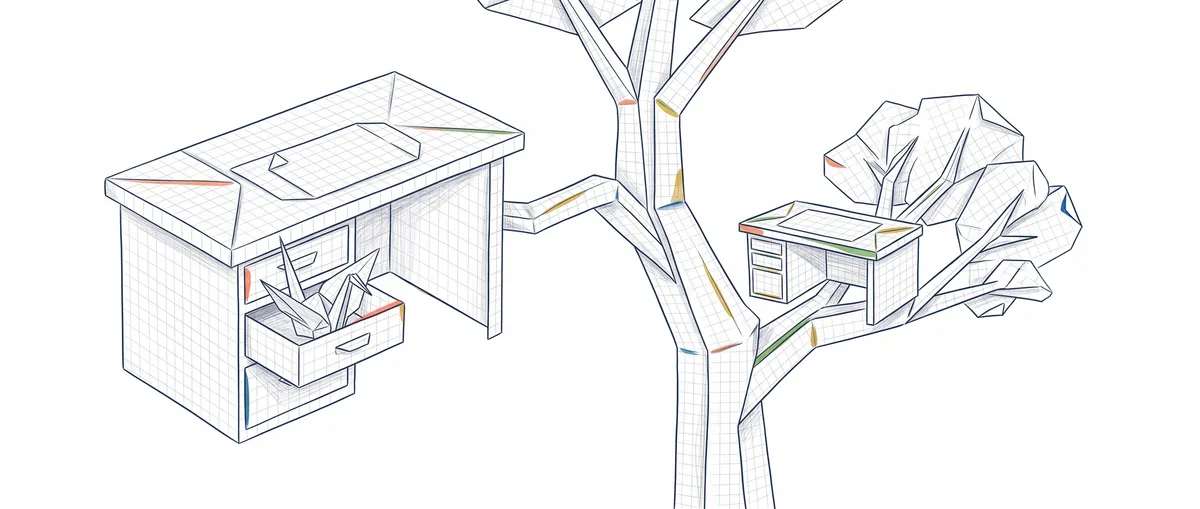
If you have work in progress and something urgent comes in, Git gives you four ways out: switch branches as is, git stash to clean the tree for a while, a WIP commit on your branch to keep it in the history, or git worktree add to open another branch in a separate folder without touching yours. All four work. What changes is how long the interruption lasts and what you’re willing to risk.
You need to know how to add, commit and git switch. If you’ve never used git stash, start with the git stash guide to saving changes without committing; here I only compare it.
The four options at a glance
A WIP commit (“work in progress”) is a regular commit holding unfinished work that you know you’ll redo later. git worktree is a second working directory connected to the same repository: another folder and another branch, with the same history.
| Option | When to use it | What it keeps | Where it lives | How you get back | Risk |
|---|---|---|---|---|---|
| Just switch branches | Your changes don’t clash with the target branch | Everything, because the changes travel with you | In your working directory | git switch back | Mixing your unfinished work into the urgent fix |
git stash | Short interruption, a few minutes | Changes to tracked files and the staging area; new files only with -u | In your local repo (refs/stash) | git stash pop | Forgetting -u, or the stash itself |
| WIP commit | The work has to last, or you want to push it to the remote | Everything you add with git add -A | In your branch’s history | git reset --soft HEAD~1 or keep building on it | The WIP landing in main as is |
git worktree add | You’ll switch between two tasks for hours or days | Your original folder, untouched | In another folder on disk | Change folders (cd) | Orphaned folders and duplicated dependencies |
The column that decides the most is risk, and it’s easier to see with a concrete case.
The same case with all four options
You’re on feature/login, you’ve modified src/login.ts and created src/login.test.ts without adding it. An urgent bug comes in on main, which already has a commit that touches login.ts. Every option starts from the same point, and each command’s output is real, from a test repo running git 2.43.0.
Just switch branches
It’s what everyone does first, and sometimes it works out. Git only stops you if your changes would be lost by switching[3]:
# You try to jump to main with login.ts modified
$ git switch main
error: Your local changes to the following files would be overwritten by checkout:
	src/login.ts
Please commit your changes or stash them before you switch branches.
Aborting
The treacherous part is the opposite case. If main hadn’t touched login.ts, the switch would have worked and Git would have warned you with a terse M src/login.ts: your unfinished changes come along with you to main. If you don’t notice, they end up inside the hotfix commit.
git stash: a clean tree in seconds
The stash saves your changes on a local stack and leaves the directory as it was at the last commit[1]. Here’s the first trap from the table:
# Without -u, the new file is left out of the stash
$ git stash push -m "wip login"
Saved working directory and index state On feature/login: wip login
$ git status --short
?? src/login.test.ts
login.test.ts is still there and will travel with you if you switch branches. With git stash push -u -m "wip login" the status comes out empty. And the stash lives in refs/stash in your local repo. When I pushed main and feature/login, only those two branches showed up on the remote: the stash stayed on my machine.
WIP commit: the work goes into the history
The WIP commit is the boring, safe option. Your changes sit in a commit on your branch, just like any other:
# Saves EVERYTHING, including new files
$ git add -A && git commit -m "WIP: login a medias"
[feature/login 3f709d0] WIP: login a medias
 2 files changed, 2 insertions(+)
 create mode 100644 src/login.test.ts
$ git switch main
Switched to branch 'main'
When you come back, you keep building on top and clean up before the PR with git rebase -i to tidy up your commits, or you undo the commit without losing the changes:
# Removes the WIP commit; the changes stay staged
$ git reset --soft HEAD~1
$ git status --short
A  src/login.test.ts
M  src/login.ts
Unlike the stash, you can push this commit with git push. If your laptop dies tonight, the work is still on the remote.
git worktree add: another folder, another branch
The worktree solves the problem from a different angle: you don’t clean anything up, you open a second folder with the branch you need[2].
# Creates the hotfix/pago branch from main in the ../app-hotfix folder
$ git worktree add -b hotfix/pago ../app-hotfix main
Preparing worktree (new branch 'hotfix/pago')
HEAD is now at 927cde5 Ajusta login en main

# Lists every working directory of the repo
$ git worktree list
/tmp/wip-demo/app         d6c75d3 [feature/login]
/tmp/wip-demo/app-hotfix  927cde5 [hotfix/pago]
You make the fix and the commit in ../app-hotfix, and in the original folder git status --short still shows M src/login.ts and ?? src/login.test.ts. Nothing has moved. The restriction: a branch can only be checked out in one worktree at a time.
$ git worktree add ../app-otra feature/login
Preparing worktree (checking out 'feature/login')
fatal: 'feature/login' is already used by worktree at '/tmp/wip-demo/app'
git worktree vs git branch: what changes under the hood
All worktrees share the same branches and the same stash, but each folder knows which branch it’s on (technically, each one has its own HEAD)[2]. In practice, the commit you make in ../app-hotfix shows up instantly in git branch in the original folder, marked with a + because that branch is checked out in another worktree.
With a single folder you work on one branch at a time. With worktrees you have two open at once, each with its own files and its own npm install. How disk space is split between them and how to set up several AI agents in parallel is covered in git worktrees with Claude Code for parallel agents.
Which option to choose: the decision rule
Ask yourself these questions in order and go with the first one that gets a yes:
- Your changes don’t touch anything on the target branch and you’ll be right back? Switch branches, but check the
MGit prints before you commit the fix. - Is the interruption a matter of minutes?
git stash push -u -m "...", andpopwhen you come back. - Does the unfinished work need to survive the night or a change of computer, or does a teammate want to see it? WIP commit and push your branch.
- Will you jump between the two tasks several times, or do you need the app running on both branches? Worktree.
Between a stash and a branch with a WIP commit, the real question is whether you’ll come back today. For minutes, the stash wins. When I’m not sure, I pick the WIP commit: it survives whatever happens to the laptop and leaves nothing messy if I undo it before the PR.
Common mistakes
Using stash for an interruption that lasts days
After a few days your branch has changed, the pop conflicts and you no longer remember what was in it. If the interruption drags on, move to a WIP commit. The stash mechanics (the -u, pop versus apply) are in the git stash guide.
Opening a worktree for a five-minute fix
A worktree costs you a new folder, a dependency install and remembering to remove it with git worktree remove (or git worktree prune if you deleted the folder by hand). For five minutes, a stash is enough.
Switching branches and dragging the M into the hotfix
If you create the fix branch without cleaning up first, your unfinished change comes along with it:
$ git switch -c hotfix/pago
Switched to a new branch 'hotfix/pago'
$ git status --short
 M src/login.ts
A git commit -a here puts your half-done login into the hotfix. Before creating the branch, decide where that M goes.
Letting the WIP commit reach main
A WIP commit is perfect on your branch and ugly in the shared history. Before the PR, undo it as in the example above or squash it with other commits in a git rebase -i, and redo the commit with a proper message.
Practice the workflow with guided exercises
These decisions sink in through hands-on practice. In the Git from zero to pro course you practice the workflow of branches, commits and saving unfinished work in guided exercises.
Sources
- git-stash, official Git documentation (source in the git/git repository): what the stash saves,
-u/--include-untrackedandrefs/stash. - git-worktree, official Git documentation (source in the git/git repository): one branch per worktree,
list/remove/pruneand shared refs. - git-switch, official Git documentation (source in the git/git repository): switching branches only aborts if you would lose local changes.
Frequently Asked Questions
What’s the difference between git branch and git worktree?
A branch is a pointer to a commit; a worktree is a folder where a branch is checked out.
Can a stash created in one folder be seen from another worktree?
Yes. The stash lives in refs/stash, which is shared across all the worktrees of the same repository. I checked by creating a stash in the original folder and running git stash list in the hotfix worktree: it showed up as stash@{0}: On feature/login: probando compartir.
What if the pre-commit hook won’t let me make the WIP commit?
Unfinished work rarely passes the linter. git commit --no-verify -m "WIP: login a medias" skips the pre-commit and commit-msg hooks for that commit only; they run again when you redo the commit for real.
How do I open a worktree on a branch that already exists?
Pass the branch at the end, without -b:
$ git worktree add ../app-main main
Preparing worktree (checking out 'main')
HEAD is now at 3d728ac init
It works as long as that branch isn’t already checked out in another worktree. If it is, Git refuses with fatal: 'main' is already used by worktree at ....
Related articles

git stash: save changes without committing
Learn to use git stash to save half-finished changes, switch branches without losing work, and get it back later with pop and apply.
Git Worktrees and Claude Code: Parallel Agents Without Conflicts
How to use git worktrees to run multiple Claude Code instances in parallel on isolated checkouts: set up, integrate, and clean up without branches stepping on each other.

How to Create and Switch Git Branches Without Losing Your Work
Learn how to create a Git branch and switch between branches with git branch, git switch, and checkout, without fear of breaking main or losing your code.