
Git diff explained with examples: what you changed before committing
What git diff compares, how to read its output, git diff --staged, diffs between branches and why it sometimes comes up empty. With real output from a test repo.
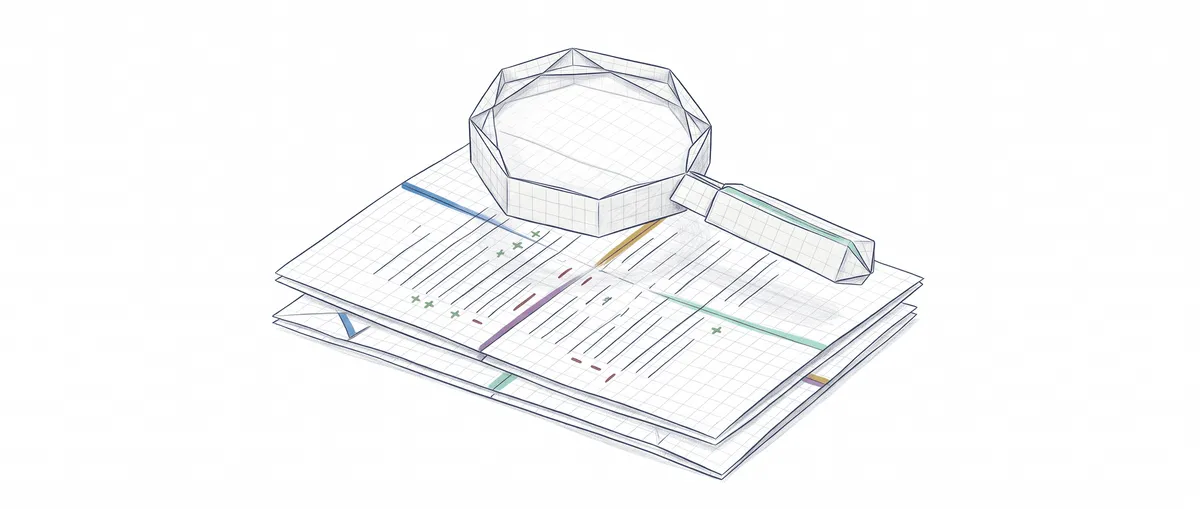
git diff shows you, line by line, what you’ve changed in your files and haven’t yet decided to save. With no arguments it compares your files with the index; with --staged it compares the index with the last commit; and with two branches it compares one branch with the other. Almost all the confusion around git diff comes from mixing up those three comparisons.
To follow this post you need to know how to run git add and git commit. If they ring a bell but you’re not sure what happens between one and the other, it’s all in add, commit and push explained step by step.
The three comparisons of git diff
The same version of your file can live in several places at once, and git diff always compares two of them[1]. The working directory (your folder) is the files you see and edit. The index (or staging area) is where you set aside what will go into the next commit: what git add does is copy your change there. And HEAD is your last commit. If the index still doesn’t quite click, start with what the Git staging area is and what it’s for.
With that, the commands read themselves. git diff is folder against index: what you could add and haven’t added yet. git diff --staged is index against HEAD: what you’ve already prepared. git diff HEAD is folder against HEAD, everything together. And git diff main..my-branch compares two commits, which can be the tips of two branches.
In the abstract it sounds like a tongue twister, so it’s better to see it in a repo.
A test repo with real output
All the output in this post is real, from a test repo with git 2.43.0. We start from a file saludo.js (a greeting function) with one commit and change one line. This is its initial content:
function saludar(nombre) {
  return "Hola, " + nombre;
}

console.log(saludar("Sofía"));
# New repo with a single commit
git init -b main && git add saludo.js && git commit -m "Add greeting"
# Edit saludo.js: add an exclamation mark to the return
git diffdiff --git a/saludo.js b/saludo.js
index 1ca8ae3..08befec 100644
--- a/saludo.js
+++ b/saludo.js
@@ -1,5 +1,5 @@
function saludar(nombre) {
- return "Hola, " + nombre;
+ return "Hola, " + nombre + "!";
}
console.log(saludar("Sofía"));The first time it’s intimidating. That’s eleven lines for a change that fits in one, but almost all of them tell you something useful.
How to read git diff output
The output of git diff has one header per file and one or more blocks of changes (the hunks)[2]. Line by line:
diff --git a/saludo.js b/saludo.js: which file you’re comparing.a/is the before version andb/the after version.index 1ca8ae3..08befec 100644: internal identifiers of the content before and after, plus the file mode. You can ignore it when reading a diff.--- a/saludo.jsand+++ b/saludo.js: from here on,-means “before version” and+“after version”.@@ -1,5 +1,5 @@: where the hunk is.-1,5means “from line 1, five lines of the old version” and+1,5the same in the new one. After the at signs, Git may write the last line before the hunk that looks like the start of a function. It’s a rough hint, not always accurate.
Below come the lines themselves. Lines starting with a space haven’t changed: they’re context, three lines by default around each change[3]. Lines starting with - existed before and are gone now, and lines starting with + are new. A modified line always shows up as a pair: the old one with - and the new one with +.
With that you can read any diff. What’s left is understanding why the same change sometimes shows up and sometimes doesn’t.
git diff —staged: what’s already prepared
Now I run git add saludo.js and, without committing, add another line at the end of the file. I have one change in the index and another one only in my folder. Look at what each variant answers:
$ git diff
diff --git a/saludo.js b/saludo.js
index 08befec..7698288 100644
--- a/saludo.js
+++ b/saludo.js
@@ -3,3 +3,4 @@ function saludar(nombre) {
}
console.log(saludar("Sofía"));
+console.log(saludar("Diego"));git diff only shows the Diego line. The exclamation mark has vanished from the output because it’s already in the index, and this command compares the folder against the index. The function saludar(nombre) { after the at signs is the hint Git attaches to the hunk, even though the Diego line is outside the function.
$ git diff --staged
diff --git a/saludo.js b/saludo.js
index 1ca8ae3..08befec 100644
--- a/saludo.js
+++ b/saludo.js
@@ -1,5 +1,5 @@
 function saludar(nombre) {
-  return "Hola, " + nombre;
+  return "Hola, " + nombre + "!";
 }

console.log(saludar("Sofía"));git diff --staged (or --cached, which is exactly the same[1]) shows the opposite: only the exclamation mark. This is what would go in if you ran git commit right now, and it’s the command I run just before every commit.
git diff HEAD puts both together in a single @@ -1,5 +1,6 @@ hunk with the exclamation mark and the Diego line, because it compares your folder directly with the last commit, skipping the index.
git diff between branches: two dots or three
To compare branches you pass two names. git diff main..despedida is the same as git diff main despedida: it compares the tip of one branch with the tip of the other[1]. In my repo I committed those changes, created the branch with git switch -c despedida (a “farewell” branch) and added despedida.js to it:
$ git diff main..despedida --stat
 despedida.js | 5 +++++
 1 file changed, 5 insertions(+)
The trap comes when main moves forward. I made a commit on main that adds a README.md and repeated the comparison:
$ git diff main..despedida --stat
 README.md    | 1 -
 despedida.js | 5 +++++
 2 files changed, 5 insertions(+), 1 deletion(-)

$ git diff main...despedida --stat
 despedida.js | 5 +++++
 1 file changed, 5 insertions(+)
With two dots, Git tells you your branch “deletes” the README, even though you never touched it: your branch simply doesn’t have it. With three dots it compares your branch with the point where it split off from main, so you only see what you did on it. If you want to know what your branch contributes, you almost always want the three dots.
git diff variants you’ll actually use
| Command | What it compares | When I use it |
|---|---|---|
git diff | Folder against index | To see what I’ve changed and haven’t added yet |
git diff --staged | Index against last commit | Right before git commit |
git diff HEAD | Folder against last commit | Everything since the last commit, staged or not |
git diff --stat | The same, summarized | Lines changed per file, before looking at the detail |
git diff --name-only | The same, names only | To know which files changed, nothing more |
git diff main..branch | Tip against tip | Total difference between two branches |
git diff main...branch | Common ancestor against branch | What my branch contributes |
git diff -- file | Only that file | When the full diff is too long |
git diff -w | Ignoring whitespace | After reindenting or formatting |
--stat, --name-only, -w and -- file combine with any of the others: git diff --staged --stat is perfectly valid[3].
When an AI agent has touched several of your files, git diff --stat followed by git diff -- file shows you what it did before you accept it. The full process is in how to review AI-generated code with Git.
Why git diff shows nothing
An empty git diff means the two things it compares are identical. There are four usual causes.
You already ran git add. The change is in the index and the folder matches it. Use git diff --staged.
The file is new and you’ve never added it. Git doesn’t track it, so it isn’t in the index and git diff has nothing to compare it with. In my repo, with a freshly created notas.md, git diff said nothing while git status --short listed it with ??. If you want to see it in the diff without staging it yet, git add -N notas.md records it in the index with no content, and from then on it shows up as a new file[4].
You already committed. Folder, index and HEAD all match. To see what went into the last commit, compare it with the previous one: git diff HEAD~1 HEAD.
You only changed whitespace and you’re using -w. When I reindented saludo.js with four spaces, git diff marked the line as changed and git diff -w printed nothing. That was correct: -w ignores whitespace differences[3].
git diff vs git status
git status tells you which files have changed and which area they’re in; git diff tells you which lines have changed inside them[5]. At the moment I had the exclamation mark staged and the Diego line unstaged, this is what git status --short said:
$ git status --short
MM saludo.js
The first M is what git diff --staged shows and the second is what git diff shows. That’s why I use them in that order: git status to see the map and git diff to see the detail of the file I care about. What each letter in that column means is covered in how to understand git status output.
If you’d rather practice these commands on a repo with guided exercises instead of reading about them, the Git from zero to professional course walks you through them one by one.
Sources
- git-diff, official Git documentation (source in the git/git repository): what each form compares,
--stagedas a synonym for--cached, and the meaning ofA..BandA...B. - diff-generate-patch, official Git documentation: the
diff --githeader, theindexline, the-,+and space prefixes, and the function name in the hunk header. - diff-options, official Git documentation: three lines of context by default,
--stat,--name-only,-wand--exit-code. - git-add, official Git documentation:
--intent-to-add(-N) to see a new file ingit diff. - git-status, official Git documentation: which differences
git statuslists between HEAD, the index and the working directory. - core.pager setting, official Git documentation: the default pager, usually
less.
Frequently Asked Questions
What’s the difference between git diff —staged and git diff —cached?
None: --staged is a synonym for --cached, and both compare the index with the last commit.
How do I exit the git diff screen?
When the output doesn’t fit in the terminal, Git opens it in a pager, which is usually less[6]. Press q to exit and you’re back at the terminal without having changed anything.
How do I use git diff to see what I put into a commit I already made?
Compare that commit with the previous one. For the last commit:
git diff HEAD~1 HEADCan I use git diff in a script to check whether there are changes?
Yes. With git diff --exit-code the command exits with code 1 if there are differences and 0 if there aren’t, and git diff --quiet does the same without printing anything. That way a script can refuse to continue if there are changes left unadded[3]. To include staged changes too, use git diff HEAD --quiet; neither of them sees new untracked files (for that, git status --porcelain).
Related articles
Git's Staging Area Explained: The Four Zones
What Git's staging area is, why it exists, and how your changes travel through the four zones: working directory, staging area, local repo, and remote.
git status: How to Read What Git Is Telling You
Learn to read git status output step by step: staged, unstaged, and untracked files, the branch line, and the short format.

Reviewing AI-Generated Code with Git as a Safety Net
A Git workflow for reviewing AI-generated code: checkpoint before the agent runs, read the diff, small commits, and cheap reverts to undo without drama.