
Git tag vs branch vs release: what each one is and when to use it
A tag is a fixed label on a commit, a branch moves, and a GitHub release is built on a tag. Tested commands and common mistakes.
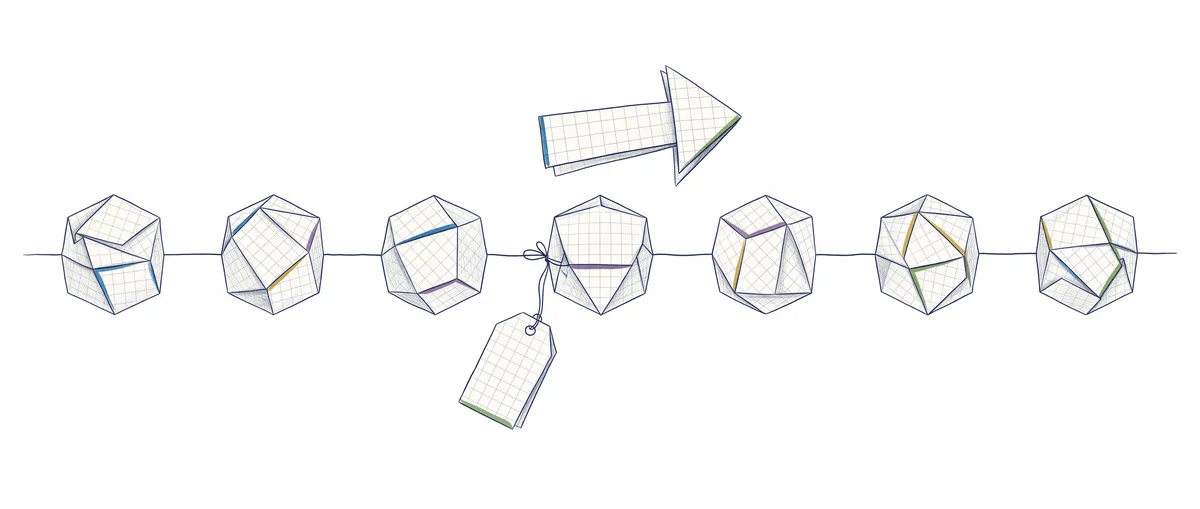
A Git tag is a fixed label attached to a commit: it always points at the same spot in the history. A branch also points at a commit, but it moves on its own every time you make a new one. And a GitHub release is not a Git concept: it is a public page that GitHub builds on top of a tag.
To follow along you need to know how to make a commit and push it (if not, first read how git add, commit and push work). I ran every command below with Git 2.43 in a fresh test repository, starting with three commits and adding a few more along the way. The outputs come from that same session, which is why the hashes match from start to finish. I only removed the To ... line with the remote’s path from the push outputs.
The mental model: one pointer stays put, the other moves forward
Think of the history as a row of photos of the project, one per commit. A branch is a sticky note that peels itself off and sticks to the newest photo every time you make a commit. A tag is the kind of sticky note that never peels off: you stick it on a photo and it stays there.
That is the whole difference. You can see it as soon as you make a commit after creating a tag. Here I have three commits, two tags on the third one (how they are created is right below) and a fourth commit on top:
git log --oneline --decorate534b15d (HEAD -> main) Nueva función
61a8d72 (tag: v1.0.0, tag: v0.1.0) Arregla bug del login
ed86469 Añade login
80f68fb Primera versiónmain has moved forward to 534b15d. The tags are still where I left them. If you want the full model of branches, it is in the complete guide to branches in Git.
Tag, branch and release in one table
The release lives outside your local repository, on GitHub:
| Tag | Branch | GitHub release | |
|---|---|---|---|
| What it is | A fixed name for a commit | A pointer that moves with every commit | A GitHub page with notes and downloads |
| Does it move? | No (unless you force it) | Yes, with every commit | No: it depends on its tag |
| Is it part of Git? | Yes | Yes | No, it is a GitHub feature |
| What you use it for | Marking v1.0.0, v2.3.1 | Working on something without touching main | Giving a version to people who don’t use Git |
| Created with | git tag | git branch or git switch -c | Button or gh release create on GitHub |
GitHub’s documentation says it plainly: releases are based on tags[3]. And GitHub only adds a zip and a tar.gz of the code as it was at that tag. A published release always hangs from a tag, but you don’t have to create the tag beforehand: according to the help for gh release create, if the tag does not exist it is created automatically[5]. And you can have tags without any release.
How to create a tag in Git: lightweight or annotated
Git has two kinds of tag, and they are created with almost identical commands. A lightweight tag is just a name pointing at a commit. An annotated tag is an object of its own that stores who created it, when, and with what message[1].
git tag v0.1.0                          # lightweight: just the name
git tag -a v1.0.0 -m "Primera versión estable"   # annotated: with a message
git tag                                 # list the tags
v0.1.0
v1.0.0To see the difference, use git show. For the annotated one, the tagger block appears before the commit:
git show v1.0.0 --no-patchtag v1.0.0
Tagger: Ana <ana@example.com>
Date: Thu Jan 1 10:00:00 2026 +0000
Primera versión estable
commit 61a8d72a83795f218425eee835c68fe9cb5be102
Author: Ana <ana@example.com>
Date: Thu Jan 1 10:00:00 2026 +0000
Arregla bug del loginFor the lightweight one, git show v0.1.0 --no-patch shows you the commit directly, with no tag header.
My rule is short: annotated for anything that will go out to other people, lightweight for private or temporary marks. The git tag documentation says annotated tags “are meant for release” and lightweight ones for private or temporary labels[1].
There is a practical effect: git describe, which tells you which version you are on, ignores lightweight tags by default. I explain it with an example in the FAQ, further down.
Tagging an old commit, listing and searching
If you forgot to tag at the time, add the commit at the end of the command. Since the repository’s state changes with every commit, don’t count “commits back”: take the hash from the history.
git log --oneline # find the commit; the oldest one is 80f68fb534b15d Nueva función
61a8d72 Arregla bug del login
ed86469 Añade login
80f68fb Primera versióngit tag -a v0.0.1 -m "Primer commit" 80f68fb
git tag -l "v0.*" # filter by pattern
git tag -n # show the first line of the messagev0.0.1
v0.1.0
---
v0.0.1 Primer commit
v0.1.0 Arregla bug del login
v1.0.0 Primera versión estable(I added the --- myself to separate the outputs of -l and -n.) Note that v0.1.0, which is lightweight, shows in git tag -n the message of the commit it points to. With annotated tags you see the tag’s own message.
Pushing tags to GitHub: the step everyone forgets
Creating a tag does not push it. git push sends commits and branches, but your tags stay on your machine until you explicitly ask for them. It is the number one mistake, and you notice it late: someone clones the repository and can’t find v1.0.0.
Here I assume you already have a remote called origin and that main is pushed. First I push a single tag, then all the ones that are missing:
git push origin v1.0.0 # push a single tag * [new tag] v1.0.0 -> v1.0.0git push --tags # push all the missing ones * [new tag] v0.0.1 -> v0.0.1
* [new tag] v0.1.0 -> v0.1.0To check which tags the remote has without downloading anything, there is git ls-remote --tags origin. Each line is a hash and the path refs/tags/<name>, which is where Git stores tags. The lines ending in ^{} show the commit an annotated tag points to:
4eb61fdb7424f99b73fd9f8e702b0d9a61462e0b	refs/tags/v0.0.1
80f68fb54cd50b73efca7a20fd656c405fb3ad9d	refs/tags/v0.0.1^{}
61a8d72a83795f218425eee835c68fe9cb5be102	refs/tags/v0.1.0
a48d566c13329da723a61389e5c49ea6ed3c6ab8	refs/tags/v1.0.0
61a8d72a83795f218425eee835c68fe9cb5be102	refs/tags/v1.0.0^{}
Note that v0.1.0, which is lightweight, has no ^{} line: it points straight at the commit. And a fresh clone brings all the tags at once, without asking for anything else.
The catch with --tags is that it pushes everything you have in refs/tags[2]: a lightweight tag you created as a temporary mark too. To avoid that there is --follow-tags, which pushes the annotated tags that point to commits you are pushing[2]:
git commit -am "Improve login"   # a new commit
git tag v2.0.0-rc1                 # lightweight
git tag -a v2.0.0 -m "two"         # annotated
git push --follow-tags origin main
534b15d..1e97514 main -> main
* [new tag] v2.0.0 -> v2.0.0It pushed v2.0.0 and left v2.0.0-rc1 behind. To me that is the healthiest behavior for releases: what is annotated goes out, what is temporary does not.
Working with a tag: checkout and branch
You can go to the version a tag marks with git checkout v0.1.0. Git warns you that you are in detached HEAD: you are no longer on any branch, just looking at a specific photo. If the concept sounds strange, the post on detached HEAD explains it calmly.
Looking is safe. What you should avoid is making commits there, because no branch holds them. If you want to work from that version (an urgent fix on v0.1.0, for example), create a branch from the tag:
git switch -c hotfix-0.1 v0.1.0 # creates the branch at that commit and switches to itSwitched to a new branch 'hotfix-0.1'And here you can see how they complement each other: the tag marks the version that shipped, the branch is where you keep working. To decide which branches to use on a team, see GitFlow, GitHub Flow and trunk-based.
Deleting a tag, locally and on the remote
Deleting a tag does not remove any commit, only the tag. But these are two operations: the local one does not touch the remote, just like with branches (in the guide to deleting branches you have the parallel case).
git tag -d v0.0.1                    # deletes the tag in your copy
git push origin --delete v0.0.1      # deletes it on the remote
Deleted tag 'v0.0.1' (was 4eb61fd)
- [deleted] v0.0.1The hash in parentheses is that of the annotated tag object (the same one we saw in ls-remote), not the commit’s.
How it relates to the version number
Names like v1.2.3 usually follow semantic versioning, an agreement between people that Git ignores: the specification says you bump MAJOR for incompatible API changes, MINOR when you add backwards-compatible functionality, and PATCH for backwards-compatible bug fixes[4]. Git checks none of that, and you can call a tag banana and it works just the same. If you fix a bug after v1.0.0, the next one would be a PATCH:
git tag -a v1.0.1 -m "Fix the login bug"Common mistakes with tags
The tag that exists but was never pushed. You have already seen it: git push does not send them. Check with git ls-remote --tags origin.
“tag already exists”. If you repeat a name, Git refuses:
fatal: tag 'v1.0.0' already existsYou can force it with git tag -f, and that is where the real problem starts.
Moving a tag that is already published. With -f the local tag moves to another commit (Updated tag 'v1.0.0' (was a48d566)), but when you push it the remote rejects it:
 ! [rejected]        v1.0.0 -> v1.0.0 (already exists)
error: failed to push some refs to 'origin'
hint: Updates were rejected because the tag already exists in the remote.
You could force the push too, but Git’s own documentation calls it “the insane thing”: anyone who already has the old tag does not receive the updated one, and two people end up with two different v1.0.0s[1]. The sensible move is to admit the mistake and publish v1.0.1.
Confusing a release with a tag. Deleting a release does not delete its tag by default: the GitHub CLI offers gh release delete --cleanup-tag, described as “delete the specified tag in addition to its release”[5]. Without that option, the tag stays. I checked this in the manual and in the gh help, not against a real repository.
When to use each one
Use a branch while the work is in progress: a fix, a feature, an experiment. Use a tag when something is finished and you want to be able to return to exactly that point six months from now. Create a release if you also want release notes and downloadable files for people who don’t use Git. In practice the three chain together: you work on a branch, merge it into main, tag that commit and publish the release on the tag. From the GitHub web UI or with gh release create, the tag can be created at the same time as the release.
Full example: tagging and publishing v1.0.0
With main already merged and pushed, the whole example is two Git commands. The release, if you want one, comes afterwards on GitHub:
git tag -a v1.0.0 -m "First stable release"
git push origin v1.0.0
Sources
- git-tag, Git documentation (git/git on GitHub) backs up the difference between annotated and lightweight tags, that
git describeignores lightweight ones, and the “On Re-tagging” section. - git-push, Git documentation (git/git on GitHub) backs up the behavior of
--tagsand--follow-tags. - About releases, GitHub documentation backs up that releases are based on tags and that GitHub adds a zip and a tarball.
- Semantic Versioning specification (semver/semver) backs up the MAJOR, MINOR and PATCH rules.
- gh release delete and gh release create, GitHub CLI manual backs up the
--cleanup-tagoption and thatgh release createcreates the tag if it does not exist.
Frequently Asked Questions
Do I need to create a release on GitHub to have a version?
No. With the tag you already have the version marked and recoverable in Git. The release is a GitHub add-on (notes and downloads) that relies on an existing tag.
What is the difference between git push —tags and —follow-tags?
--tags pushes all the tags that are not on the remote, lightweight and annotated. --follow-tags pushes only the annotated ones that point to commits you are pushing in that push, so it leaves temporary tags behind.
How do I know which version I am on right now?
Run git describe. In my repository, with a new commit on top of v1.0.0, it returned:
v1.0.0-1-g534b15dIt reads in three parts: v1.0.0 is the latest annotated tag reachable from where you are, 1 is the number of commits you have made since, and g534b15d is a g (for git) plus the abbreviated hash of your current commit. Lightweight tags don’t count: with one called solo-ligero on that same commit, git describe kept returning the previous result, and only git describe --tags showed solo-ligero.
What is the difference between a tag and a branch?
A tag stays fixed on a commit; a branch moves forward with every new commit.
If you want to practice tags, branches and the rest of the workflow with guided exercises, the course Git from zero to professional covers that whole path.
Related articles

Git Branches: Create, Merge, and Resolve Conflicts Without Panic
What a Git branch really is, how to create one, merge it with git merge, and resolve a conflict step by step. Plus merge vs. rebase without fear.
Detached HEAD in Git: What It Is and How to Get Out
You see "You are in detached HEAD state" and panic sets in. Here's what HEAD is, how you end up in detached HEAD, and how to get out without losing your work.

GitFlow vs GitHub Flow vs Trunk-Based: Which One to Choose
A senior comparison of the three branching strategies: tradeoffs, when to use each one, and how to migrate without breaking your team.