
Git squash: what it is and how to combine multiple commits into one
What git squash is, the four ways to squash commits into one (merge --squash, rebase -i, reset --soft, and GitHub's button), and what breaks afterward.
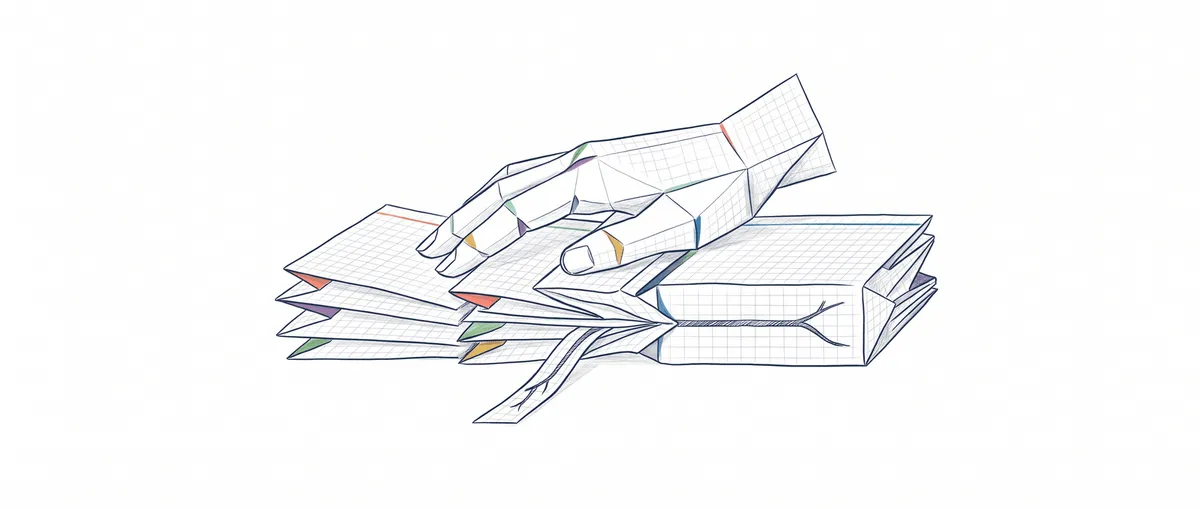
To squash in Git is to combine several commits into one: the final code stays exactly the same, but the intermediate steps (the “wip” and “ok, now it works” commits) disappear from the history of the branch you merge into. It’s like handing in the final version of a paper instead of the folder with every draft.
To follow along, you need to know what a commit is (if you don’t, start with what a commit is in Git) and to have worked with a branch at least once. I ran every command below with Git 2.43 in a test repository, in a single session, so the hashes match from start to finish.
What happens to your history when you squash
Here’s the starting point: a feature/login branch with three commits, a feature/perfil branch (a profile feature) that a teammate created from mine and where they added a line to login.js, and main, which has moved ahead on its own with a documentation commit.
git log --oneline --graph --decorate --all # every branch, as a graph* b4a1e3b (feature/perfil) carga el perfil al entrar
* 0501199 (feature/login) ahora sí
* a3da8dd wip
* 22a0739 añade login
| * c65563c (HEAD -> main) documenta la instalación
|/
* a41e61b Primer commitThree commits for a single idea: the first one creates login.js, the second leaves a half-finished comment, and “ahora sí” (“now it works”) cleans it up and renames check to checkUser. When you squash, main gets a single new commit with the result of all three. That commit has its own hash and just one parent (the latest commit on main), so it isn’t a merge commit: Git keeps no link at all between it and the branch’s original commits.
That last sentence looks like a detail. It’s the cause of almost every surprise that comes later.
The four ways to squash
They all end with one commit instead of several; what changes is where it happens.
1. git merge —squash: squash while you integrate
You’re on main and you want to bring in feature/login as a single commit:
git merge --squash feature/login   # stages the changes, does NOT create a commit
git status --short                 # what got staged
git commit -m "Login de usuarios"  # now the single commit
Automatic merge went well; stopped before committing as requested
Squash commit -- not updating HEAD
A login.js
[main 5624ef4] Login de usuarios
1 file changed, 3 insertions(+)
create mode 100644 login.js--squash stages the changes and stops. The git merge documentation puts it this way: it produces the working tree and index state “as if a real merge happened”, but it doesn’t make the commit or move HEAD[1]. If you commit without -m, Git suggests a message that starts with Squashed commit of the following: followed by the list of squashed commits.
The resulting history:
* b4a1e3b (feature/perfil) carga el perfil al entrar
* 0501199 (feature/login) ahora sí
* a3da8dd wip
* 22a0739 añade login
| * 5624ef4 (HEAD -> main) Login de usuarios
| * c65563c documenta la instalación
|/
* a41e61b Primer commit
Notice that the two lines never join. With a regular merge you’d see a commit with two parents closing the fork. Not here.
2. git rebase -i with squash or fixup: clean up your branch before the PR
This is the squash you do on your own branch, before you show it to anyone. In my repository, the feature/ajustes branch had two commits:
git log --oneline main.. # my commits that aren't in main6e2d952 typo
9accf73 ajustesgit rebase -i main opens a list with those commits (oldest to newest, the reverse of git log), and you change pick to fixup (or squash) on the commits you want to fold into the one above:
pick 9accf73 ajustes
fixup 6e2d952 typo
After saving, git log --oneline main.. showed a single commit, 14cb62f ajustes. The only difference between the two keywords is the message: squash lets you combine the messages, while fixup keeps the message of the commit above. The editor has more commands and its own pitfalls, and they’re all explained with a full example in the git interactive rebase guide.
3. git reset —soft: the quick way to combine your latest commits
If what you want is “everything on this branch, in one commit”, there’s a shortcut with no editor. reset --soft moves the branch back but leaves your files and the staging area exactly as they are[2], so the next commit picks it all up:
git log --oneline main..    # my commits that aren't in main
git reset --soft main       # back to the base, files untouched
git commit -m "Añade logout"
git log --oneline main..
6778cf1 fix 2
3fd8be3 fix
16f523f logout
[feature/logout 9bee3a8] Añade logout
1 file changed, 4 insertions(+)
create mode 100644 logout.js
9bee3a8 Añade logoutIt worked here because main hadn’t moved since I created the branch. If main has moved ahead, git reset --soft main is a trap: the new commit would include, on top of your work, the deletion of everything main received in the meantime. I checked it in another test repository and git status showed a D (deleted) on a file that only existed in main. To avoid depending on that, use the point where your branch started:
# $(...) runs the command inside and puts its result (a hash) in its place.
# It's bash and zsh syntax; it doesn't work the same in PowerShell or cmd: run
# git merge-base main HEAD first and paste the hash it returns.
git reset --soft $(git merge-base main HEAD)   # common base with main
4. GitHub’s “Squash and merge” button
When you close a pull request (the request to integrate your branch; here’s what a pull request is), GitHub offers “Squash and merge”. According to its documentation, it combines all the PR’s commits into one on the base branch and generates a default message you can edit[3]. It’s the merge --squash from option 1, but done on the server. In GitLab, you use the “Squash commits” checkbox on the merge request (depending on how the project is configured, GitLab also adds a merge commit)[5].
| Method | Where it happens | When to use it |
|---|---|---|
git merge --squash + git commit | Locally, on the receiving branch | You integrate yourself, with no platform involved |
git rebase -i with squash/fixup | On your branch | You want a few clean commits, not necessarily one |
git reset --soft <base> + commit | On your branch | You want everything in one commit, right now |
| ”Squash and merge” button | On GitHub, when closing the PR | Your team integrates every PR this way |
That’s where almost every tutorial stops. The interesting part starts when you go back to your terminal after the squash.
What breaks after a squash
Git thinks your branch isn’t merged
With the login already in main, I try to delete the branch like I would any merged branch:
git branch -d feature/login          # "safe" delete
git diff main feature/login -- login.js
error: the branch 'feature/login' is not fully merged.
If you are sure you want to delete it, run 'git branch -D feature/login'The diff printed nothing: the contents of login.js are identical on both branches. But -d doesn’t look at the contents: it checks that the branch’s commits are in its upstream (the remote branch it tracks, if it has one) or, if it doesn’t have one, in HEAD[4]. feature/login was never pushed, so Git looks in main, and none of its commits are there. Their result is, and that’s not the same thing.
With a branch you did push and that was integrated with “Squash and merge” on GitHub, it depends on whether its remote branch still exists. If it does, -d compares against it, sees the same commits, and deletes your local branch with a warning (merged to 'refs/remotes/origin/...', but not yet merged to HEAD). If it was already deleted on GitHub and you’ve run git fetch --prune (which removes remote branches that no longer exist from your copy), its upstream is gone (git branch -vv marks it as gone), Git goes back to comparing against HEAD, and you get the same error as above. I tested it with a local test remote and that’s exactly what happens. Once you’ve confirmed the content is in main, -D is the right answer. What you don’t want is to get used to running -D without looking, because that same message is the one that warns you when you really do have unmerged work.
The branch created from yours inherits conflicts
feature/perfil was created on top of the three login commits. My teammate wants to catch up with main:
git switch feature/perfil
git merge main
Auto-merging login.js
CONFLICT (add/add): Merge conflict in login.js
Automatic merge failed; fix conflicts and then commit the result.Their branch gets login.js from the original login commits, plus their new line. main gets it from the squashed commit, which has no memory of the commits it came from. So Git has no way of knowing that both start from the same code: it sees two unrelated commits that create the same file, one with the loadProfile line and one without it, and asks you to pick. GitHub’s documentation warns about the same thing: if you keep working on a branch after a squash merge, later PRs can include commits that were already squashed, and conflicts become more likely[3].
The clean way out is to replay only feature/perfil’s own commits on top of main, skipping the login ones (here I use --onto, a rebase option that says exactly where to copy from; if you’re not sure what git rebase does, start there):
git merge --abort    # throw away the half-finished merge
# replay what's between feature/login and feature/perfil, on top of main
git rebase --onto main feature/login feature/perfil
git log --oneline --graph --decorate main feature/perfil
Successfully rebased and updated refs/heads/feature/perfil.
* afa155b (HEAD -> feature/perfil) carga el perfil al entrar
* 5624ef4 (main) Login de usuarios
* c65563c documenta la instalación
* a41e61b Primer commitWatch the order: you need feature/login (or the hash of its last commit, 0501199) to tell Git where your teammate’s commits start. If you delete the branch first, write the hash down. Only then was it time for git branch -D feature/login, which replied Deleted branch feature/login (was 0501199).
blame and bisect lose detail
git blame tells you which commit wrote each line. After the squash, looking at the file as it is on main:
git blame main -- login.js5624ef4e (Ana 2026-11-16 10:00:00 +0100 1) function login(user) {
5624ef4e (Ana 2026-11-16 10:00:00 +0100 2) return checkUser(user)
5624ef4e (Ana 2026-11-16 10:00:00 +0100 3) }Everything comes from the same commit: the step where check became checkUser is no longer on main. (On feature/perfil, after the rebase, the loadProfile line would show afa155b, your teammate’s commit.) The same goes for git bisect, which finds the commit that introduced a bug by testing commits from the history: at best, it can point to the whole squashed commit. On a small PR that doesn’t matter; on a huge one, that’s a lot of code to search.
When you shouldn’t squash
Don’t squash a shared branch. Options 2 and 3 rewrite commits on your branch, and if someone else already has them in their copy, you leave them with a history that doesn’t match the server’s. Options 1 and 4 don’t rewrite anything that already exists, but they cause the feature/perfil problem you just saw.
It’s also not worth it when each commit on the branch tells its own story: a database migration and the code that uses it, in separate commits, are two points you can revert independently. Squashing them takes that option away. And if a branch lives for weeks and gets integrated several times, squashing on each integration leads to repeated conflicts.
Squash vs merge vs rebase
All three integrate a branch, but they leave different histories. Squash creates a new commit with a single parent, and the original commits never reach main. Merge creates a merge commit with two parents and keeps every commit from the branch. Rebase replays each commit one by one on top of main, with new hashes.
When integrating a PR you rarely get to choose: the team’s convention decides, and all three options (along with the rule about not rewriting shared history) are compared in merge vs rebase and which convention to adopt. What you do get to decide is cleaning up your branch before asking for review.
How to undo a squash
It depends on which method you used. With merge --squash or GitHub’s button, your branch is still intact: what you don’t want is the new commit on main. If you’ve already pushed it, git revert <hash> creates a commit that reverses its changes without rewriting anything; if you haven’t pushed it yet, git reset --hard HEAD~1 removes it.
With options 2 and 3 the original commits seem to disappear, but they aren’t deleted right away: they’re still reachable in the reflog, the record of everywhere your branch has been. With the feature/logout squash from earlier:
git reflog -4                  # latest HEAD positions
git reset --hard HEAD@{2}      # back to the one before the reset
git log --oneline main..
9bee3a8 HEAD@{0}: commit: Añade logout
5624ef4 HEAD@{1}: reset: moving to main
6778cf1 HEAD@{2}: commit: fix 2
3fd8be3 HEAD@{3}: commit: fix
HEAD is now at 6778cf1 fix 2
6778cf1 fix 2
3fd8be3 fix
16f523f logoutAll three commits are back. reset --hard discards anything you haven’t saved, so use it with a clean working tree. How to read the reflog without getting lost is covered in git reflog as a safety net.
Sources
- git-merge, —squash option (Git documentation in git/git) supports that
--squashstages the result without creating a commit, without movingHEAD, and without recordingMERGE_HEAD. - git-reset, —soft option (Git documentation in git/git) supports that
--softleaves files and the index untouched, and thegit reset --soft HEAD~5; git commitexample for combining commits. - About pull request merges (GitHub documentation) supports how “Squash and merge” works, its editable default message, and the warning about continuing to work on a branch after a squash merge.
- git-branch, -d option (Git documentation in git/git) supports that
-drequires the branch to be fully merged into its upstream, or intoHEADif it has no upstream, and that-Dis--delete --force. - Squash and merge (GitLab documentation) supports the “Squash commits” checkbox on merge requests.
Frequently Asked Questions
Does squashing change my code?
No. The squashed commit contains exactly the same final result; the only thing that changes is how many commits tell the story.
Do I need to squash before opening the PR if my team uses “Squash and merge”?
You don’t need to, because the button already combines everything at the end. What does help is giving the PR’s commits readable messages while it’s under review, since the reviewer sees them one by one. Also, depending on the repository settings and how many commits the PR has, the default squash message can include information from those commits[3]: readable commits give you a readable final commit.
Is squash the same as git commit —amend?
They’re similar, but --amend only redoes the last commit (for example, to add a file you forgot). Squash combines several commits you’ve already made. If you find yourself chaining --amend calls, you’re squashing as you go.
Why doesn’t git branch —merged show my branch if it’s already in main?
For the same reason git branch -d fails: that list only includes branches whose commits are in main, and after a squash, its commits aren’t. To find out whether its content made it, compare the files the branch touched, like I did above with git diff main feature/login -- login.js. If nothing comes out (and nobody has changed them again on main), the content is there.
If you want to practice squash, rebase, and the rest of the branching workflow with exercises instead of just reading about it, the Git de cero a profesional course (Git from zero to professional) covers that whole path.
Related articles
Why AI Agrees With You: The Probable, Not the Correct
Why AI agrees with you even when you're wrong: how it predicts the next token, why your question changes the answer, and how to ask better.
Merge vs Rebase: Which One to Use and the Rule You Can't Break
Merge vs rebase without dogma: what each one actually does to your history, the golden rule of rebase, and a team workflow you can copy on Monday.
git reflog: recover commits and branches you thought were gone
git reflog saves every position HEAD has held and lets you recover commits, branches, and work after a reset --hard. Learn to read it and undo the panic.